
Ops settings
Configure tese.io Ops categories and types, pause reasons, service levels and alert policies.
Settings is where an administrator configures how Operations works for the organisation: the categories work orders fall into, why work can be paused, service-level targets and alert policies.
Where to find it
Select Settings at the bottom of the sidebar. You need the Administrator (delete) level to open it. The page has these sections:
Categories & types: work order areas and their types, with colours.
Priorities: fixed across the platform (Urgent, High, Normal, Low) so reporting stays comparable.
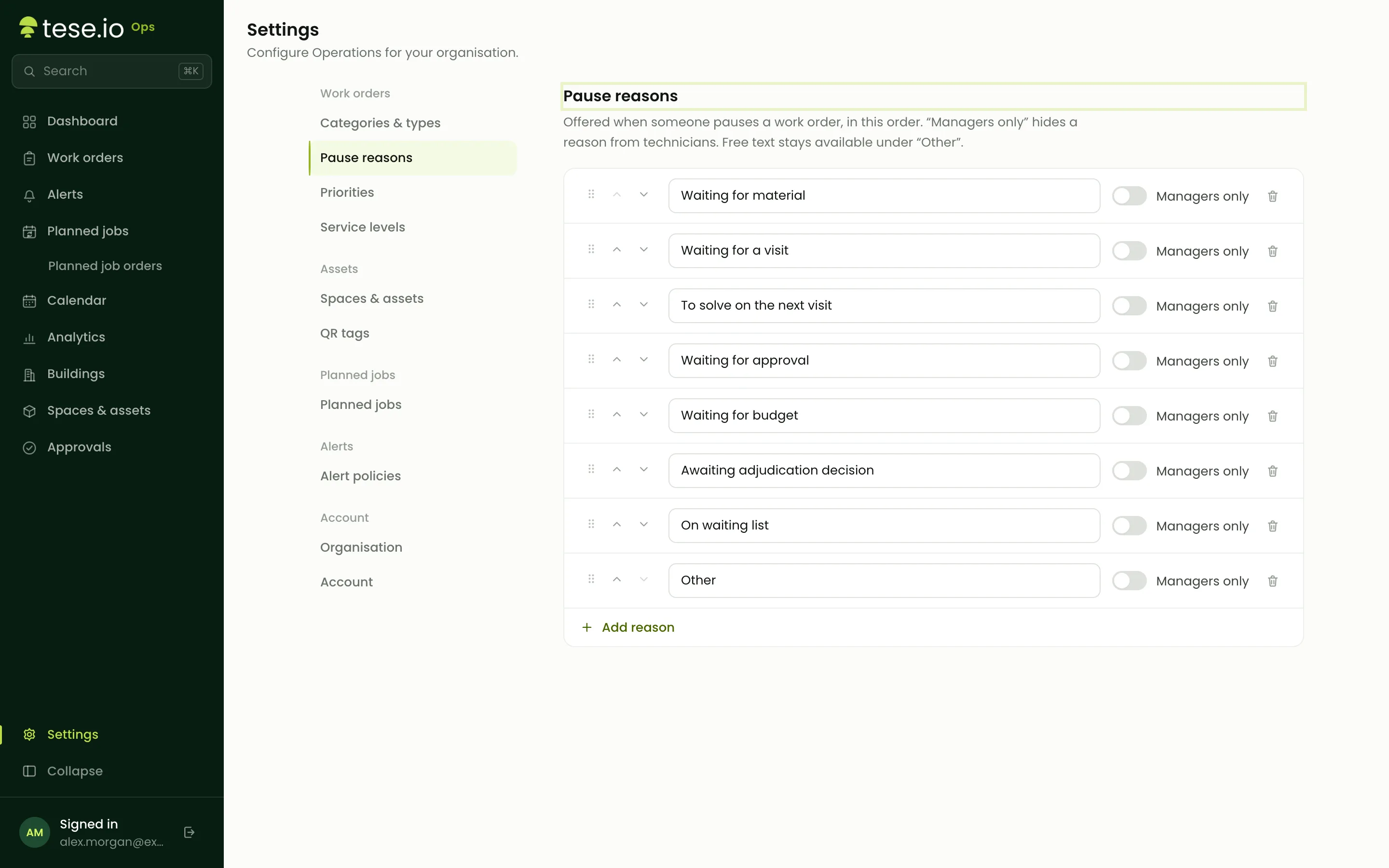
Pause reasons: the picklist offered when someone pauses a work order.
Service levels: response and resolution targets. See Service levels.
Alert policies: what happens when an alert is raised. See Alerts.
Shortcuts to Spaces & assets, Planned jobs and QR tags.
Organisation: the time zone planned jobs run in.
Account: who you're signed in as.
How to set up categories and types
In Categories & types, select Add category.
Enter the category name, for example "Electrical".
Pick a colour.
Add its types: type each one and press Enter. Types are what a reporter can pick within the category, for example "Lighting" or "Sockets".
Select Save changes in the bar that appears. You can edit any category in place the same way, and drag categories to set the order they appear in.
To retire a category, use its archive button. It will no longer be offered on new reports.
How to set pause reasons
Open Pause reasons.
Select Add reason and enter the text.
Turn on Managers only to hide a reason from technicians.
Use Move up and Move down to set the order.
Select Save changes in the bar that appears.
New organisations start with: Waiting for material, Waiting for a visit, To solve on the next visit, Waiting for approval, Waiting for budget, Awaiting adjudication decision, On waiting list, and Other.
Good to know
Categories are your organisation's departments. The same list appears on the tese.io dashboard, so a change in one place shows in the other.
The categories and types you set here are what people see when they scan a QR tag.
When pausing, people can always choose Other… and type their own reason.
Saving pause reasons, service levels or alert policies replaces that whole list with what's on screen.
Priorities can't be renamed or added to.
Common questions
Why can't I open Settings? It needs the Administrator (delete) level for Operations. Ask your organisation's administrator.
How do I add a new category for QR reports? Create it in Categories & types and add its types. It appears on the report page straight away.
Can technicians use a "Managers only" pause reason? No. They won't see it in the list, and the server refuses it if they type it.
Where do I change who can do what in tese.io Ops? On the tese.io dashboard under Settings → Roles. See Getting started and access.
Was this article helpful?
Still need help?
The tese.io team reads every message and usually replies within one working day.
Contact support