
Alerts and alert policies
How tese.io Ops alerts arrive, how to acknowledge and resolve them, and how alert policies can open work orders automatically.
An alert is something a device rule, a data pipeline or an integration has noticed that a person may need to act on, such as a temperature out of range or a meter that stopped reporting. Alert policies decide whether an alert only notifies people or also opens a work order.
Where to find it
Alerts in the sidebar lists alerts in three tabs: Open, Acknowledged and Resolved. Filter by facility or severity (Critical, Warning, Info).
An asset's page lists its Active alerts.
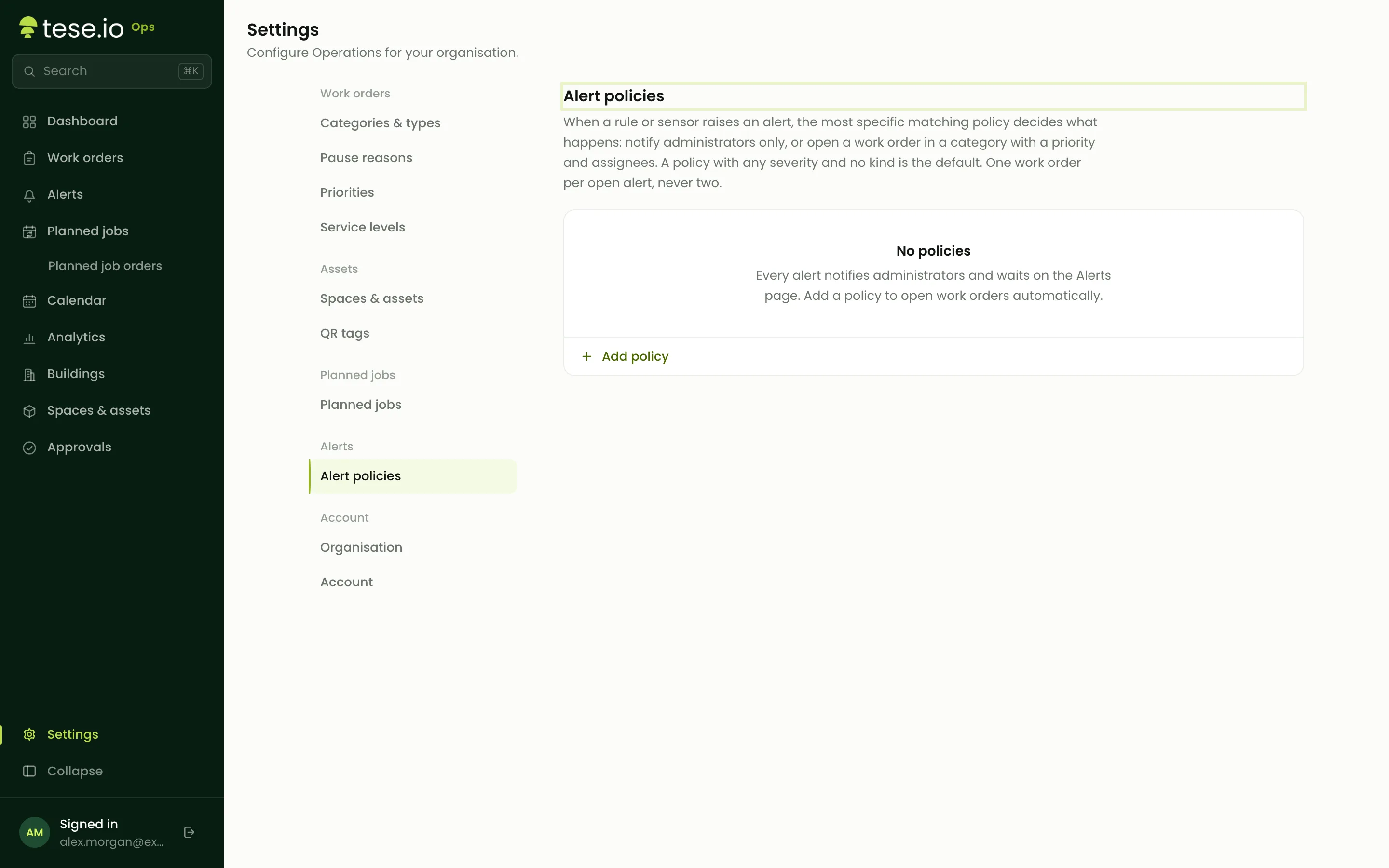
Settings → Alert policies holds the rules (Administrator level to open Settings).
How to handle an alert
You need the Manager (write) level to change an alert. Technicians can view alerts.
Open Alerts and find the alert on the Open tab. A count such as ×3 means the same problem has been reported three times while it was open.
Select Acknowledge to show the team someone is looking at it. It moves to Acknowledged.
When it's dealt with, select Resolve, optionally note What was done?, and confirm. It moves to Resolved.
If a work order was opened for the alert, select Work order on the alert to open it.
Some alerts resolve themselves: when the device or system that raised the alert reports the problem has gone, tese.io Ops resolves it automatically.
How to set alert policies
Open Settings and select Alert policies.
Select Add policy.
Choose which alerts the row applies to: a Severity (or Any severity) and, optionally, a Kind (leave empty for any kind).
Choose what happens: Notify only, or Work order.
For Work order, choose the Category (required), and optionally a Priority and people to Assign to.
Select Save alert policies.
When an alert arrives, the most specific matching row wins: a row with both kind and severity first, then kind only, then severity only, then the default row (Any severity and no kind). If no row matches, the alert only notifies.
Good to know
While an alert is open or acknowledged, repeats of the same problem on the same asset are added to it rather than creating a new alert. That means at most one work order per open alert.
Work orders opened by a policy start as Approved and show Raised by an alert as their origin.
If the policy has no priority, the work order takes one from the alert: Critical becomes Urgent, Warning becomes High and Info becomes Normal.
A work order can only be opened if the alert is linked to a facility, directly or through its asset.
Resolving an alert doesn't close its work order, and closing the work order doesn't resolve the alert. Handle both.
Your organisation's administrators are notified of every new alert. If a work order was opened, its assignees are notified too.
Alerts are raised by connected systems. Setting those up is done by your administrator or tese.io contact.
Common questions
Why did an alert create a work order? An alert policy for its severity or kind is set to Work order. Check **Settings → Alert policies**.
Why didn't an alert create a work order? No policy set to Work order matched it, the alert had no facility, or it was a repeat of an alert that was already open.
I resolved an alert but it came back. The problem was reported again after you resolved it, so a new alert was raised.
Why can't I see Acknowledge or Resolve? You need the Manager (write) level for Operations.
What does ×2 or ×5 next to an alert mean? The number of times the same problem was reported while the alert was open.
Was this article helpful?
Still need help?
The tese.io team reads every message and usually replies within one working day.
Contact support