
QR requests and approvals
How guests, staff and requesters report an issue by scanning a QR tag, and how administrators approve or decline requests.
Anyone can report a maintenance issue by scanning a tese.io Ops QR tag stuck on a space or an asset. They don't need an account. Each report becomes a work order that waits for an administrator to approve or decline it.
Where to find it
Requesters: scan the QR tag with a phone camera. It opens a Report an issue page for that location or piece of equipment.
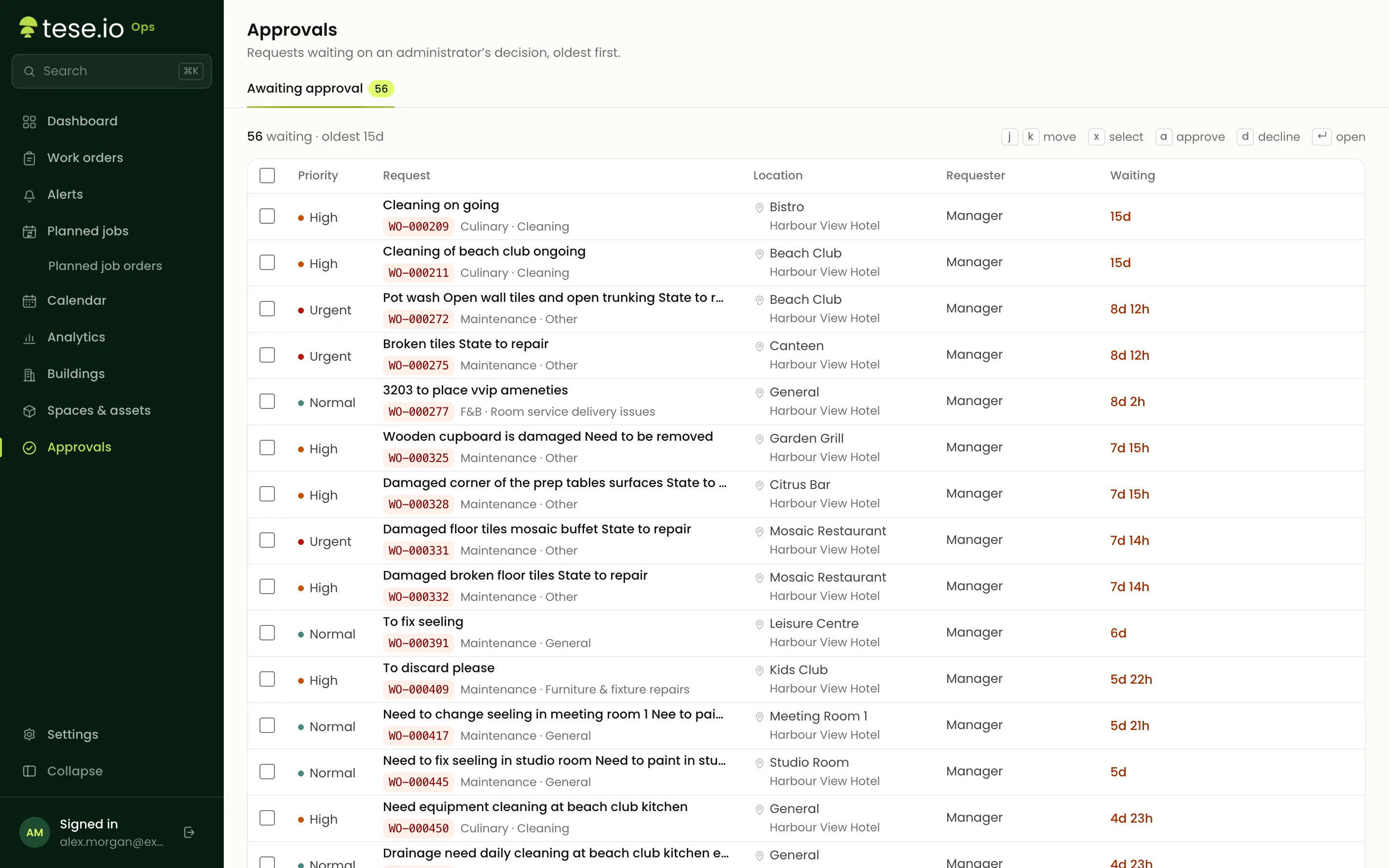
Administrators: open Approvals in the sidebar. It lists everything **Awaiting approval**, with the code, the request, where it is, priority, when it was requested and a Decision column. You can also use the Awaiting tab on Work orders.
How to report an issue (requesters)
Scan the QR tag.
Under Pick what kind of issue this is, choose a category.
Optionally choose What exactly? (a type within that category).
Optionally describe the issue and select Add a photo (up to 5 MB).
Optionally add Your name and a Phone / email so the team can reach you.
Select Send report.
You'll see "Thanks — it's reported" and a request code. Select Track status to open a status page. Bookmark it: this link is the only way to follow your request.
What the status page shows
The status page refreshes every 30 seconds and moves through four steps:
Received: "Waiting for the facility team to review it."
Approved: "Approved — a technician will pick it up."
In progress: work has started. If it's paused you'll see "Work is temporarily paused."
Done: the work order is closed.
If the request is declined, the page shows "This request was declined".
How to approve or decline (administrators)
You need the Administrator level.
Open Approvals.
Review the request. Reports from a QR tag show the requester's name and contact if they gave them.
Select Approve, or select Decline and enter a reason.
On Work orders, you can also tick several orders on the Awaiting tab and approve or decline them in one go.
Good to know
Every QR report starts as Awaiting approval with Normal priority. An administrator can change the priority after it arrives.
Your organisation's administrators are notified when a new report is waiting.
The title is made from the category and the location unless the requester provides one.
The categories and types on the report page are the ones set up in **Settings → Categories & types**.
Requesters are not sent emails or messages about their request. They follow it on the status page only.
A deactivated tag shows "This tag isn't active" and can't take reports.
To stop misuse, each tag accepts only a few reports per minute from the same device.
Work orders created by managers start as Awaiting approval too, unless the manager turns off Requires approval. Planned-job and alert work orders start as Approved.
Common questions
Do I need an account to report an issue? No. Scanning the tag is enough. Your name and contact details are optional.
I lost my status link. Can I get it back? Not from the report page. Contact the facility team with your request code and they can look it up on Work orders.
Will the requester see why their request was declined? The status page says the request was declined but doesn't show the reason. If the requester left contact details, let them know directly.
Why isn't my report showing up on the status page as approved? It's still waiting for an administrator. Requests stay in Approvals until someone with the Administrator level approves or declines them.
Who can approve requests? Only people whose role has the Administrator (delete) level for Operations.
Was this article helpful?
Still need help?
The tese.io team reads every message and usually replies within one working day.
Contact support