
Getting started and access
What tese.io Ops is, how to open it, and what each Operations access level lets you do.
tese.io Ops is the tese.io console for maintenance and operations work. You use it to log work orders, plan recurring maintenance, map your spaces and equipment, and handle alerts. It uses the same account and organisation as the tese.io dashboard.
Where to find it
From the dashboard: open the tese.io apps launcher in the top bar and choose tese.io Ops ("Work orders, planned jobs & assets"). The entry only appears if your role has the Operations module.
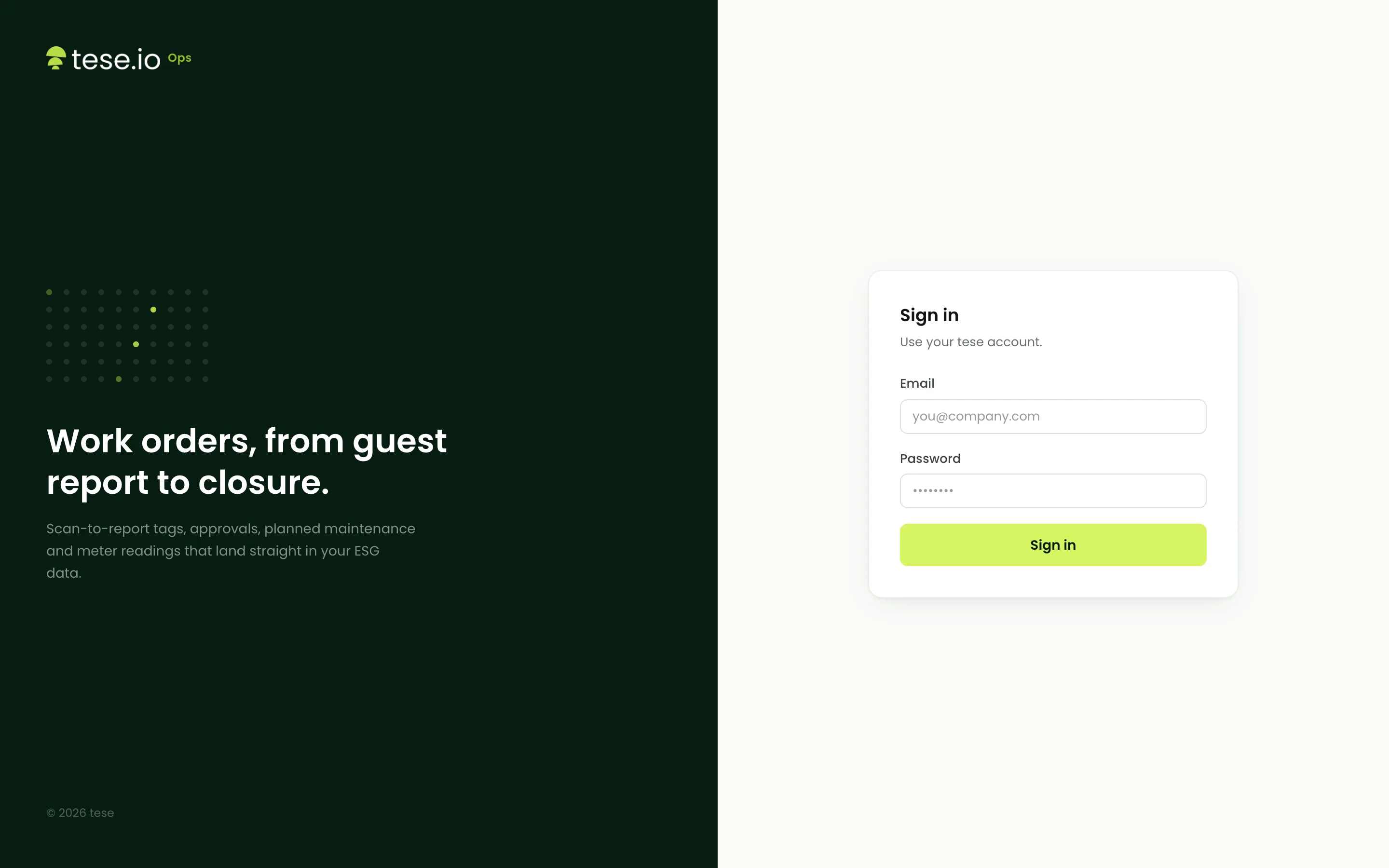
On the sign-in page: sign in with your email and password and select Sign in. If you're already signed into the tese.io dashboard in the same browser, a **Log in with tese.io** button also appears so you can use that account.
On your phone: switch the tese.io Lite app to Ops mode. See Ops on the tese.io Lite app.
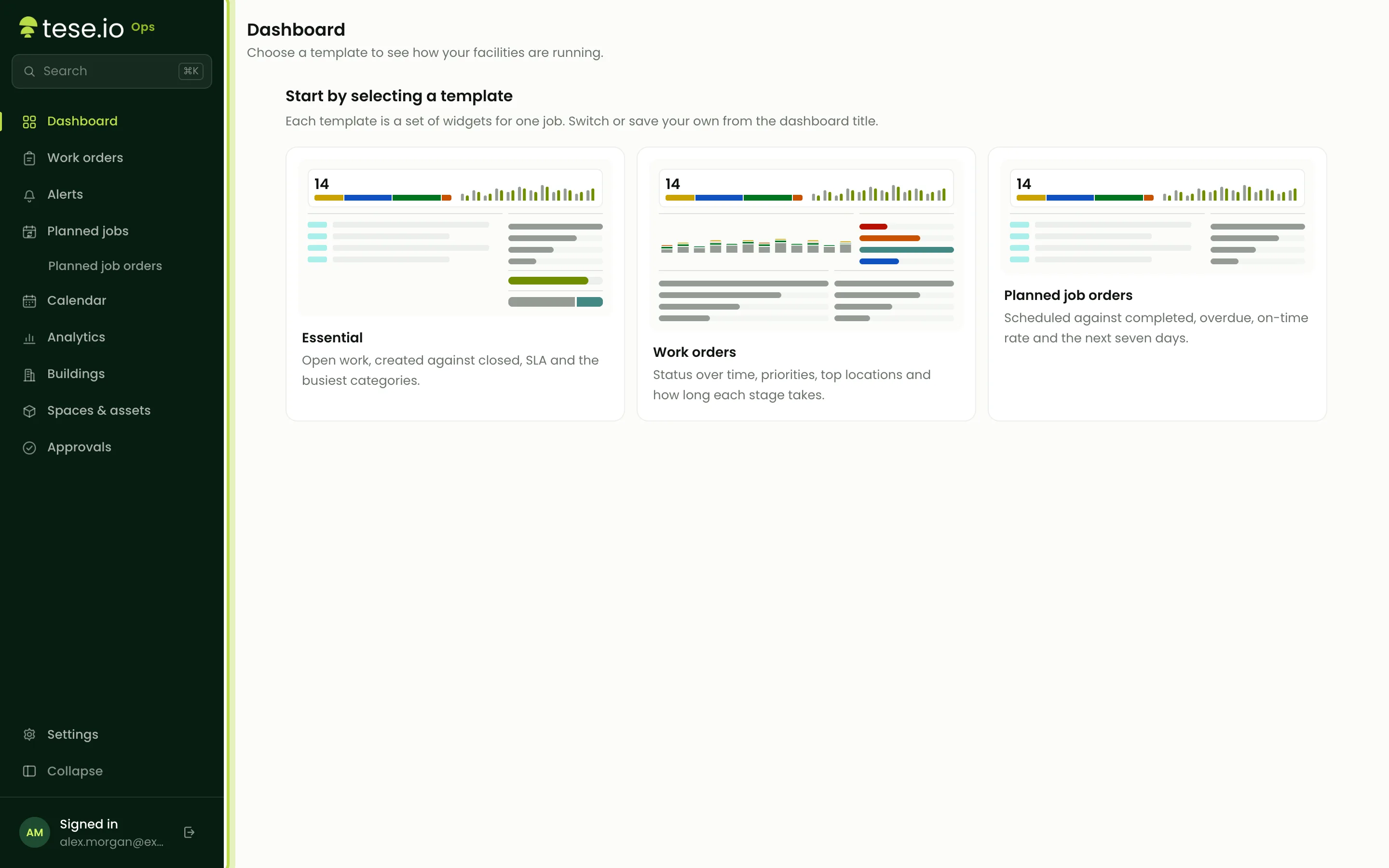
The sidebar lists Dashboard, Work orders, Alerts, Planned jobs (with Planned job orders under it), Calendar, Analytics, Buildings, **Spaces & assets** and Approvals, with Settings at the bottom. You only see the pages your role allows.
How access works
Your organisation's administrator controls Operations access in Settings → Roles on the tese.io dashboard. There are two parts:
The Operations module must be switched on for your role.
Your role then gets one or more of three levels:
| Level | Usual name | What it allows |
|---|---|---|
| Read | Technician | See work orders, alerts, the calendar, buildings, spaces and assets. Start, pause, resume and finish work orders you are assigned to or working on, tick checklists, add photos and comments on them. |
| Write | Manager | Everything a Technician can do on any work order, plus create and edit work orders, assign people, set up planned jobs, manage spaces, assets and QR tags, and acknowledge or resolve alerts. |
| Delete | Administrator | Approve and decline work orders, close them for everyone, archive spaces, assets and planned jobs, deactivate QR tags, and open the Approvals and Settings pages. |
Which pages each level opens:
Read: Dashboard, Work orders, Alerts, Calendar, Buildings, Spaces & assets.
Write: Planned jobs, Planned job orders and Analytics.
Delete: Approvals and Settings.
Good to know
The levels don't stack automatically. A role can have any combination, so a Manager without the Administrator level cannot approve work orders or open Settings.
If your organisation's roles were set up before Operations existed, your access may follow your task-management permissions until Operations permissions are added to the role.
The console only hides buttons you can't use. The server checks every action as well, so you may still see a message such as "You can only act on work orders you are assigned to".
Categories in tese.io Ops are your organisation's departments, the same list as on the dashboard.
Common questions
I see "Operations is switched off for your role". What do I do? Your role doesn't have the Operations module, or it has the module but no access level. Ask a workspace administrator to switch it on for your role in Settings → Roles on the tese.io dashboard.
Why can't I see Settings or Approvals? Both need the Administrator (delete) level. Planned jobs needs the Manager (write) level.
I'm a technician. Why can't I create a work order? Creating work orders in the console needs the Manager level. Technicians can report an issue by scanning a QR tag, like anyone else, or ask a manager to create the order.
Why can't I start a work order I can see? With the Technician level you can only act on orders you are assigned to or already working on. Ask a manager to add you as an assignee.
I see "You don't have access to this page". Your role can open other Operations pages but not this one. Use the button on that screen to go to a page you can open, or ask an administrator for more access.
Was this article helpful?
Still need help?
The tese.io team reads every message and usually replies within one working day.
Contact support