
Work orders
How to create work orders in tese.io Ops, what each status means, and how to move them from approval to closed.
A work order is one piece of maintenance work, such as a leak to fix or a reading to take. Each one gets a code such as WO-000123, a category, a facility, a priority and, usually, assignees.
Where to find it
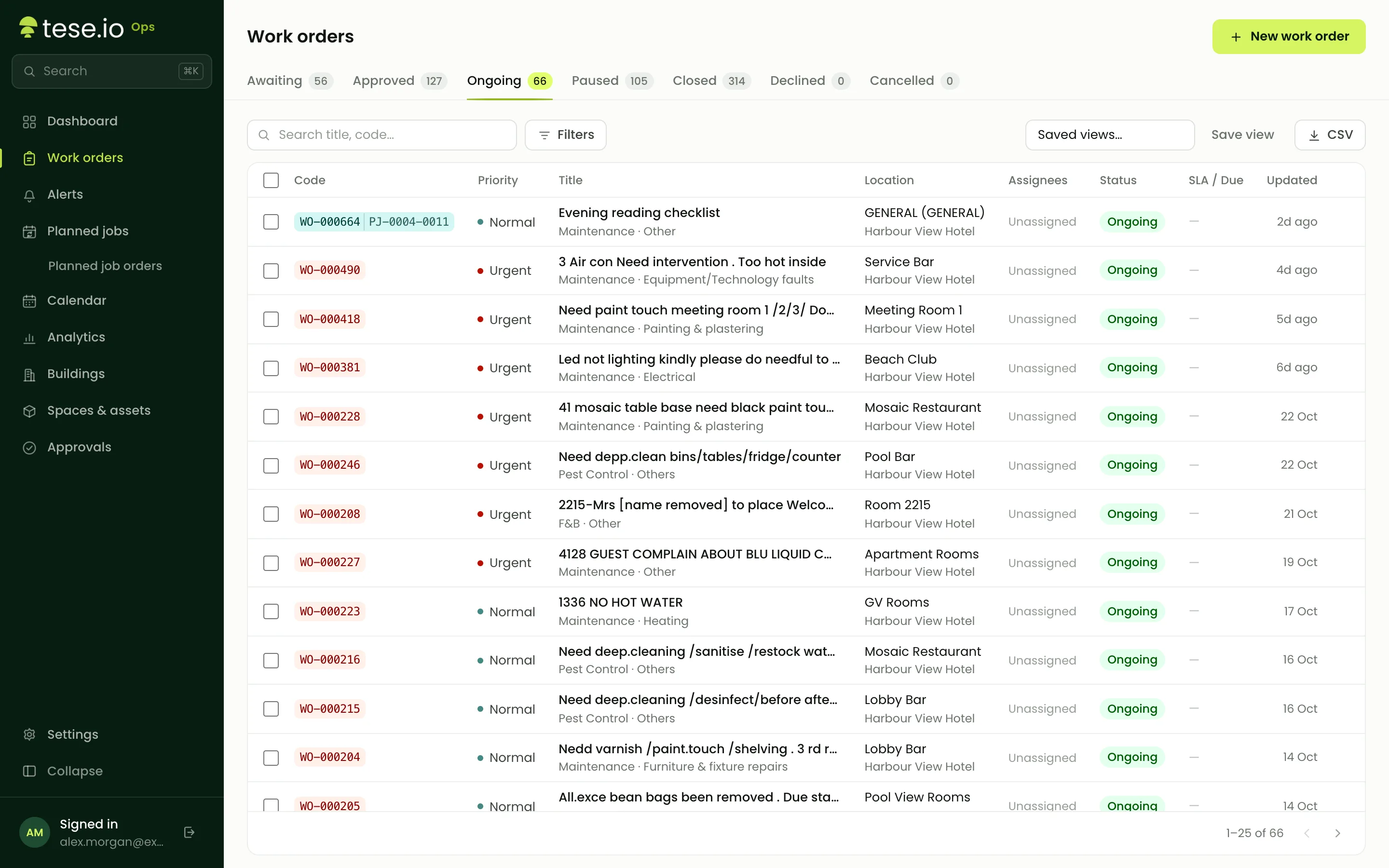
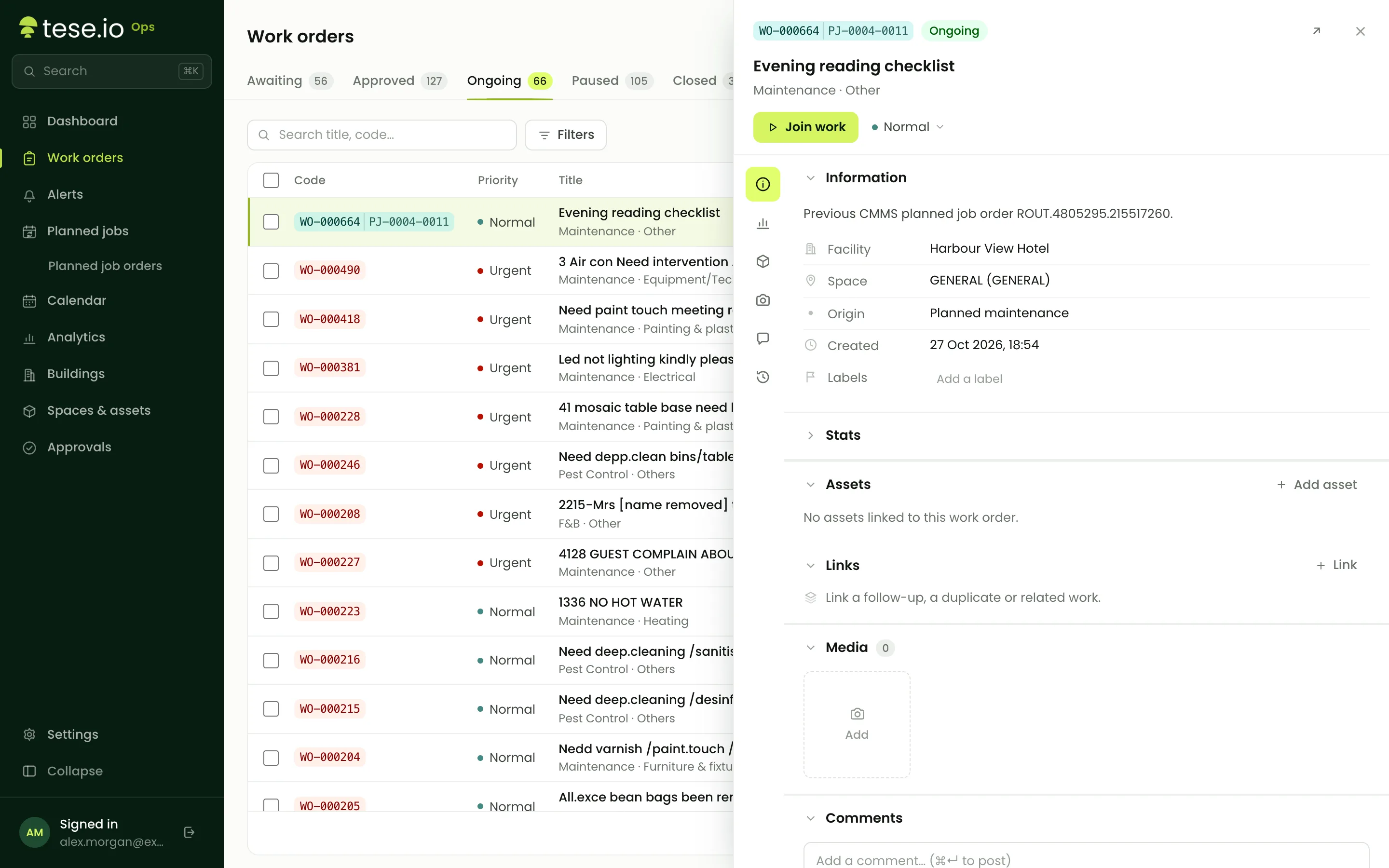
Open Work orders in the sidebar. The tabs along the top filter by status and show a count for each: Awaiting, Approved, Ongoing, Paused, Closed, Declined and Cancelled. Click a row to open the work order in a side panel with Information, Comments and History tabs.
How to create a work order
You need the Manager level.
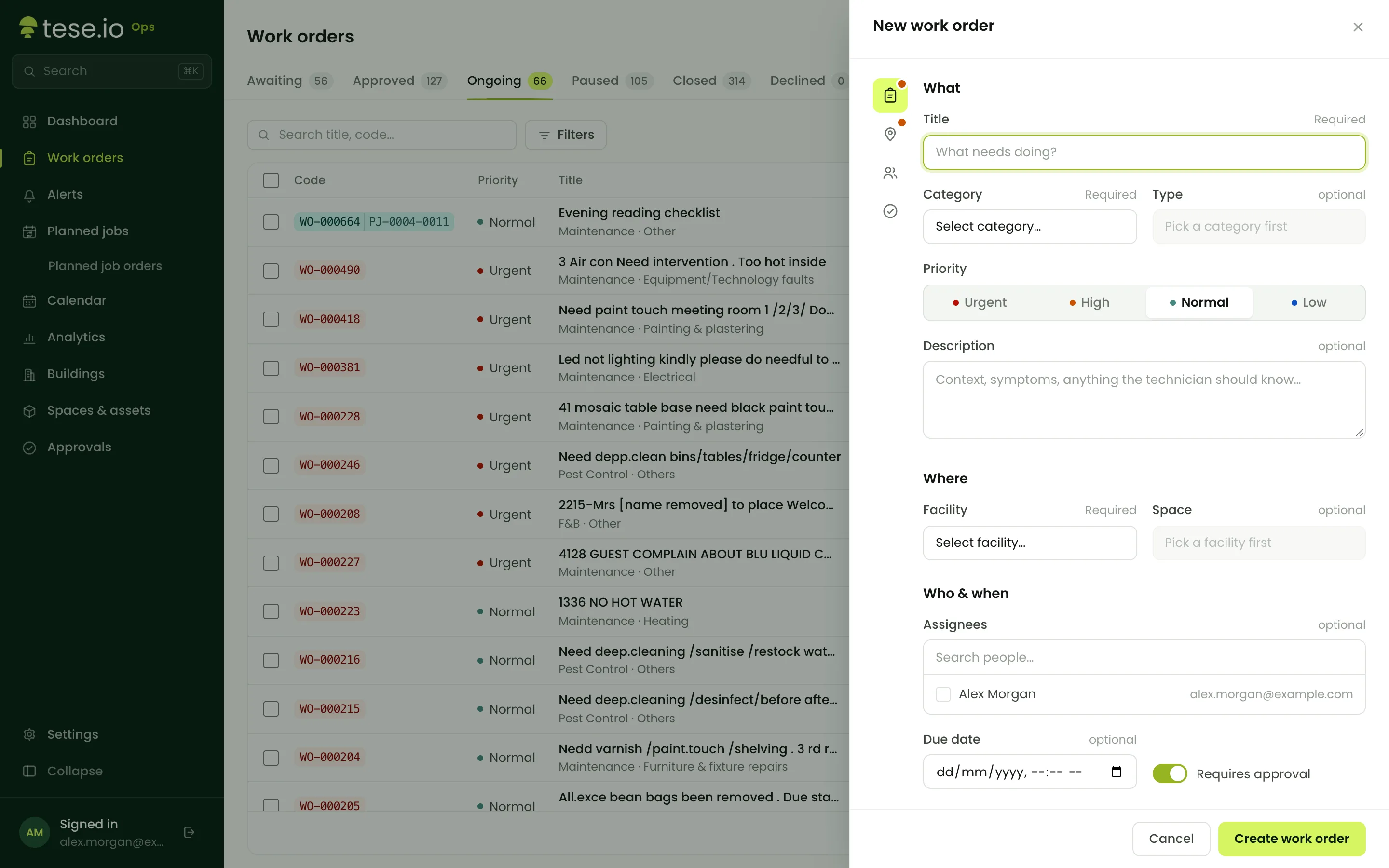
On Work orders, select New work order.
Fill in Title, Category and Facility. These three are required.
Optionally choose a Type, a Space, a Priority (Urgent, High, Normal or Low), a Description, Assignees and a Due date.
Optionally build a Checklist: select Add item and choose Check (tick box) or Measure (a reading with a unit).
Leave Requires approval on if an administrator must approve the work first. Turn it off to create the order already approved.
Save. You'll see "Work order WO-… created".
You can also start a new work order from an asset's page.
What each status means
| Status | Meaning |
|---|---|
| Awaiting approval | Waiting for an administrator to approve or decline it. |
| Approved | Ready to be worked on. Nobody has started yet. |
| Ongoing | At least one person is working on it. |
| Paused | Work has stopped for now, with a reason. |
| Closed | The work is done. |
| Declined | An administrator decided it won't be done. |
| Cancelled | A planned-job occurrence that was skipped. Nobody refused it. |
Closed and declined work orders can't be edited.
How to move a work order along
The buttons at the top of the panel, under the title, change with the status.
Approve or Decline (Administrator). Declining asks for a reason.
Start work (Approved). You become a participant and the order moves to Ongoing. If someone else has already started, the button reads Join work instead.
Pause (Ongoing). Choose a reason from the list or Other… and type one. Turn on Pause for everyone working on it to pause the whole order. Without it, only your part pauses, and the order stays Ongoing while anyone else is still working.
Resume (Paused). Puts the order, and you, back to Ongoing.
Finish (Ongoing). Marks your part as done. When the last active participant finishes, the order closes automatically.
Close or Close for all (Administrator). Closes the order and finishes everyone's part at once.
When you finish or close, a sign-off window opens. Enter who signed (Signed by), their Role (Technician, Customer or guest, or Manager), draw the Signature and choose Sign & finish, or choose Finish without signature. The signature is kept with the order and appears in its media and PDF.
To see more actions, select Open full page in the panel. The full page also has **Send by email** (Manager level), and Undo approval and Delete (Administrator level).
Assignees and participants
Assignees are the people the work is planned for. They are notified when they're assigned and when the order is approved.
Participants are the people who actually pressed Start or Resume. The Participants section shows each person and whether they are ongoing, paused (with the reason) or finished.
Checklists, media and comments
Tick Check items as you go. For Measure items, type the reading. A reading linked to an ESG activity is saved to your ESG activity data automatically, so it's only typed once.
Under Media, select Add to attach photos, videos, PDFs or Word documents (up to 25 MB each).
On the Comments tab, anyone who can act on the order can post. You can delete your own comments, and administrators can delete any comment.
The History tab lists every change, who made it and when.
Good to know
Technicians can only start, pause, resume, finish, tick checklists and add media or comments on orders they are assigned to or working on.
Edit the title, description or priority directly in the panel.
Common questions
Why does Finish say "You are not an active participant on this work order"? Finish only works for people who have started or resumed the order. If you're assigned but someone else started it, ask them or an administrator to finish or close it.
Why did the work order close when I pressed Finish? You were the last person still working on it, so finishing your part closed the order.
Can I reopen a closed or declined work order? No. Closed and declined are final. Create a new work order instead.
How do I change who's assigned to several orders at once? With the Manager level, tick the orders in the list and use Assign to…. This replaces the current assignees with the person you choose.
Do I have to sign off? No. Choose Finish without signature or Close without signature.
Was this article helpful?
Still need help?
The tese.io team reads every message and usually replies within one working day.
Contact support