
Ops on the tese.io Lite app
How to use tese.io Ops on your phone through Ops mode in the tese.io Lite app.
Ops mode puts tese.io Ops on your phone. Technicians can start, pause and finish work on site, tick checklists and add photos. Managers and administrators can follow and act on work orders and alerts away from a desk.
Where to find it
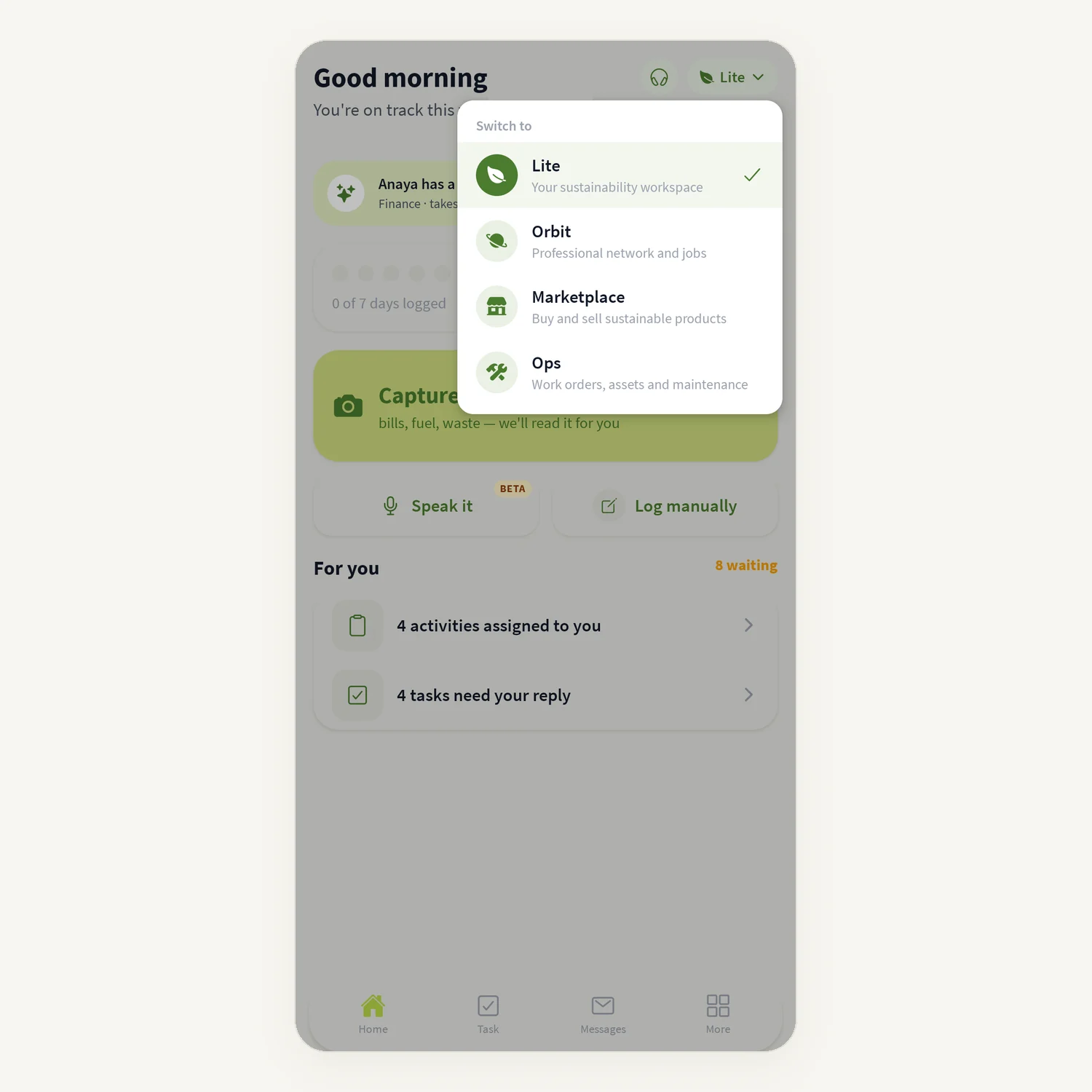
In tese.io Lite, open the mode switch in the header and choose Ops ("Work orders, assets and maintenance"). The header changes to Ops and the bottom bar shows four tabs:
Overview: the same Dashboard as the tese.io Ops console.
Work orders: the work order list with its status tabs.
Alerts: open, acknowledged and resolved alerts.
Calendar: a phone layout of the week and month calendar.
The Ops option only appears if your role has the Technician (read) level for Operations.
The app signs you in to tese.io Ops with your tese.io account. If you see the tese.io Ops sign-in page instead, sign in there with your tese.io email and password.
How to work on a job from your phone
Switch to Ops and open Work orders.
Use the status tabs, such as Approved, to find the job, then tap it.
Tap Start work when you begin.
Tick checklist items and type any readings as you go.
Under Media, tap Add to attach photos or videos.
If you have to stop, tap Pause and choose a reason. Tap Resume to carry on.
When you're done, tap Finish. Have the customer or guest sign on screen, or choose Finish without signature.
Good to know
You're signed in automatically with your tese.io Lite account. There's no separate login.
The app shows the same tese.io Ops pages as the console, and your role decides what you can do, exactly as on a computer.
Planned jobs, Approvals and Settings don't have tabs in the app. Use the console on a computer, or tap the Open in browser button in the header to open the current page in your phone's browser. Administrators can still approve or decline from a work order on the Work orders tab.
Managers can create a work order with the New work order button on the Work orders tab.
Tapping an Ops push notification opens the Work orders or Alerts tab. See Ops notifications.
Ops needs a connection. If you're offline, or tese.io Ops can't be reached, you'll see an error with a retry option.
If your Operations access is removed, the app returns you to Lite mode.
The help button in the header opens support, as in other modes.
Common questions
I can't see Ops in the mode switch. Your role doesn't have Operations access, or the module is switched off for it. Ask your organisation's administrator to enable it in Settings → Roles on the tese.io dashboard.
Where are Planned jobs and Approvals in the app? They aren't tabs in the app. Open the tese.io Ops console on a computer, or use **Open in browser**.
Do I need to sign in again for Ops? No. Ops uses the account you're signed in to in tese.io Lite.
Why does a work order show no Start button? Either it's still Awaiting approval, or you aren't assigned to it. Technicians can only act on orders they're assigned to or working on.
Ops shows an error on my phone. Check your connection and tap retry. If it continues, open the page with Open in browser, or contact support from the header.
Was this article helpful?
Still need help?
The tese.io team reads every message and usually replies within one working day.
Contact support