
Planned jobs
How to set up recurring preventive maintenance in tese.io Ops and how planned jobs create work orders.
A planned job is a recurring piece of maintenance, such as a monthly meter reading, a quarterly inspection or a weekly cleaning round. tese.io Ops turns each occurrence into an ordinary work order on schedule, so it's carried out, tracked and closed like any other.
Where to find it
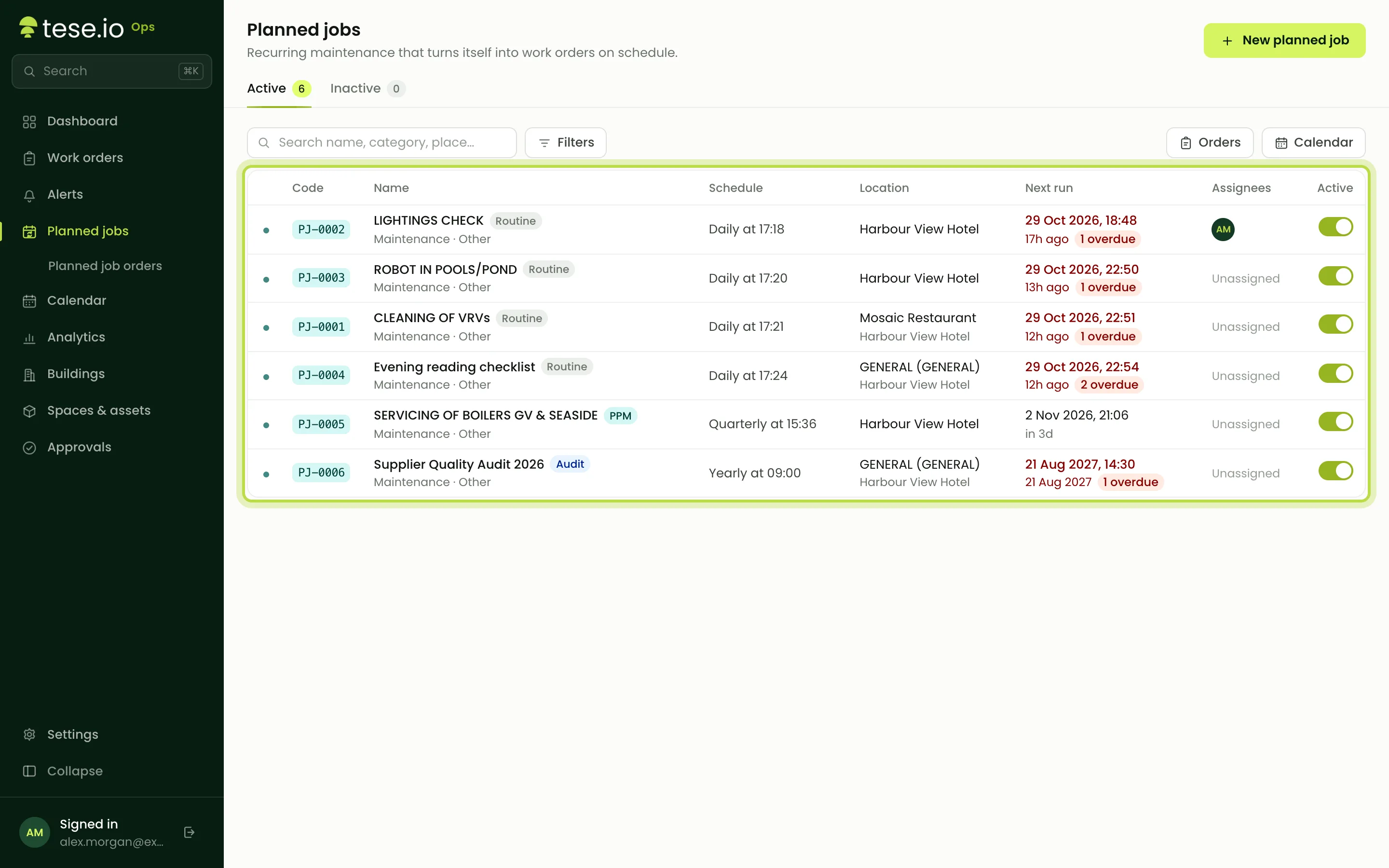
Open Planned jobs in the sidebar. You need the Manager (write) level. The tabs split jobs into Active and Inactive. Each row shows the job, its Facility, its Schedule, Assignees and Next run.
How to create a planned job
Select New planned job.
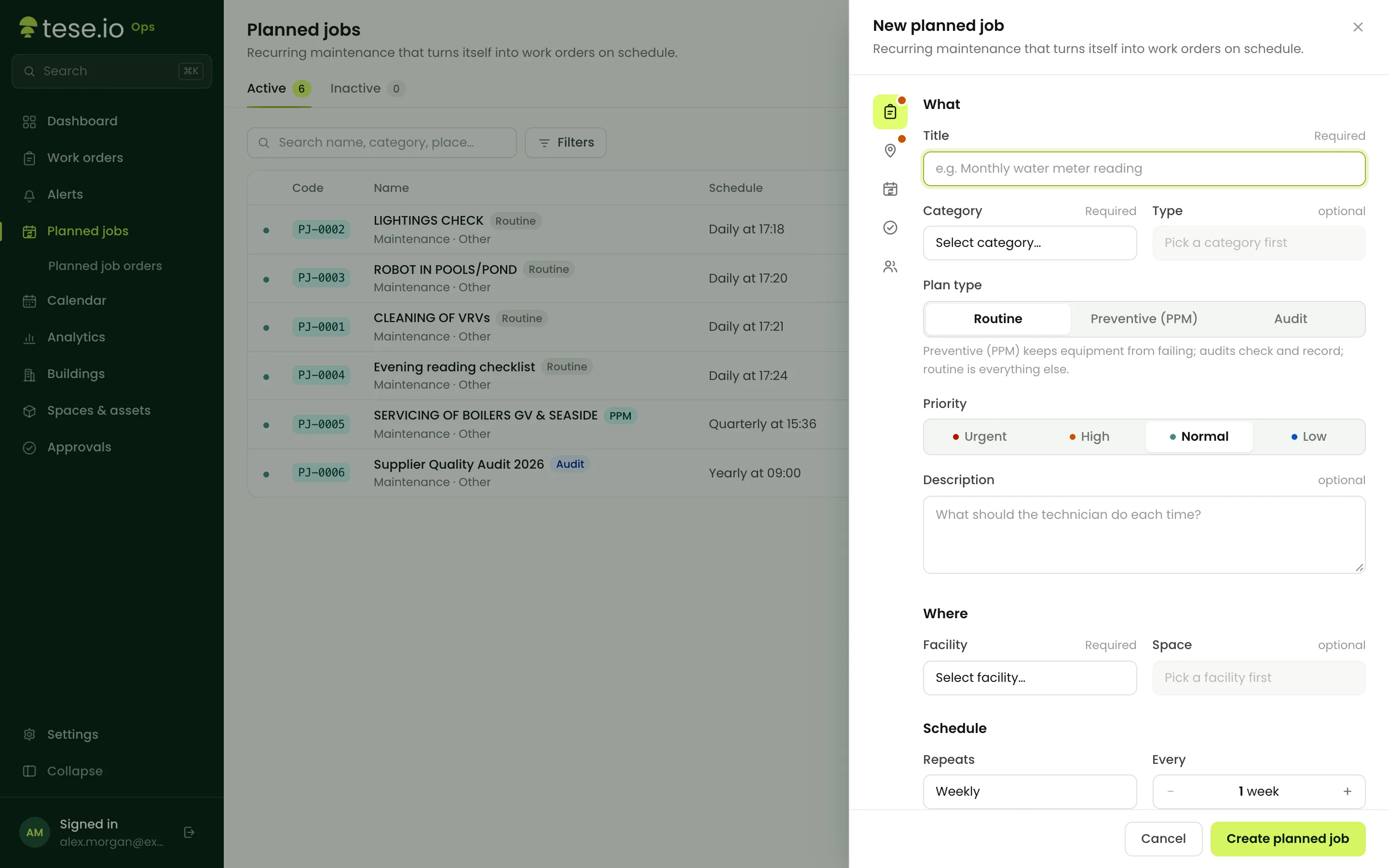
Enter a Title (for example "Monthly water meter reading"), then pick a Category, Type and Facility. Optionally pick a Space, or leave it as **Anywhere in the facility**.
Set the Priority, a Description and the Assignees.
Under Schedule, choose how it Repeats: Daily, Weekly, Monthly, Quarterly or Yearly. Use Every to repeat every 2, 3 or more periods.
For weekly jobs, pick the days under On days. For monthly jobs, enter the **Day of month. Set the time under **At.
Set Lead time (days): how many days before the scheduled date the work order should be created (0 to 60).
Optionally add a Checklist template. Every work order from this job gets a fresh copy.
Select Create planned job.
How planned jobs create work orders
tese.io Ops checks planned jobs about every 15 minutes. When an occurrence is within its lead time, it creates the work order and moves Next run on to the following occurrence.
Planned work orders start as Approved, so they don't need approval. Their due date is the scheduled date and time.
The assignees get a New planned work order notification.
Each occurrence is created only once, even if the check runs again.
In the work order, the Origin shows Planned maintenance. On the calendar they count as Planned.
Due-soon warnings
Each assignee of an open work order is warned once when its due date falls within the next 24 hours. This applies to planned and reactive work orders alike, as long as the order has a due date and at least one assignee. On a phone the warning is titled Work order due soon.
Managing jobs
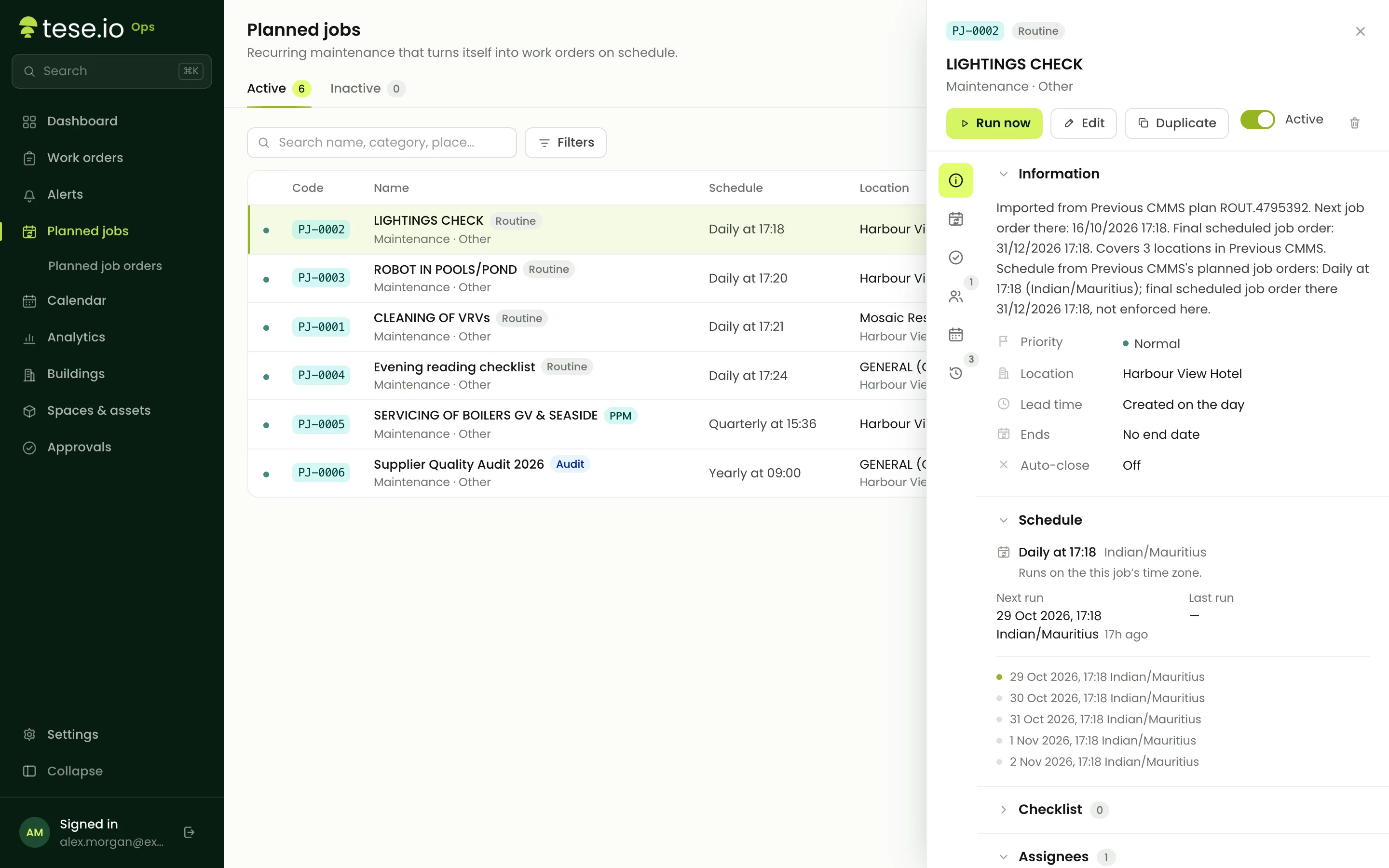
Run now creates a work order for the job straight away. It doesn't change the next scheduled run.
Edit changes the job. Changing the schedule recalculates Next run. Work orders that have already been created keep their original details.
The active switch pauses or restarts a job. Inactive jobs create no work orders.
Delete removes the job (Administrator level). Work orders already created remain.
Good to know
Schedule times are applied in UTC. If your site isn't on UTC, allow for the difference when choosing At.
Monthly, quarterly and yearly runs never fall after the 28th. If you choose the 29th, 30th or 31st, the job runs on the 28th, so it still runs in every month, including February.
Checklist Measure items can be linked to an ESG activity, so readings flow straight into your ESG data.
An asset's page lists the planned jobs that include it under Planned maintenance.
Common questions
Why hasn't my planned job created a work order yet? It creates the order when the next run is within the lead time. With a lead time of 0, the order appears at the scheduled time. Check that the job is Active and look at Next run.
Do planned work orders need approval? No. They start as Approved and can be started straight away.
I edited the checklist. Why hasn't the existing work order changed? Each work order takes a copy of the job when it's created. Your change applies to the next one.
Can technicians see planned jobs? The Planned jobs page needs the Manager level. Technicians see the resulting work orders in Work orders and on the Calendar.
Who gets the due-soon warning? The work order's assignees, once per order.
Was this article helpful?
Still need help?
The tese.io team reads every message and usually replies within one working day.
Contact support