
Spaces and assets
How to map spaces, register assets, attach asset documents and print QR tags in tese.io Ops.
Spaces are the places in a facility, such as zones, floors, rooms and areas. Assets are the equipment in them, such as boilers, air-handling units, lifts and meters. Linking work orders to them shows where work happens, and QR tags on them let anyone report an issue.
Where to find it
Open Spaces & assets in the sidebar. Pick a facility, then work in the Spaces and Assets lists. Select an asset to open its own page. Viewing needs the Technician (read) level. Creating and editing needs the Manager (write) level.
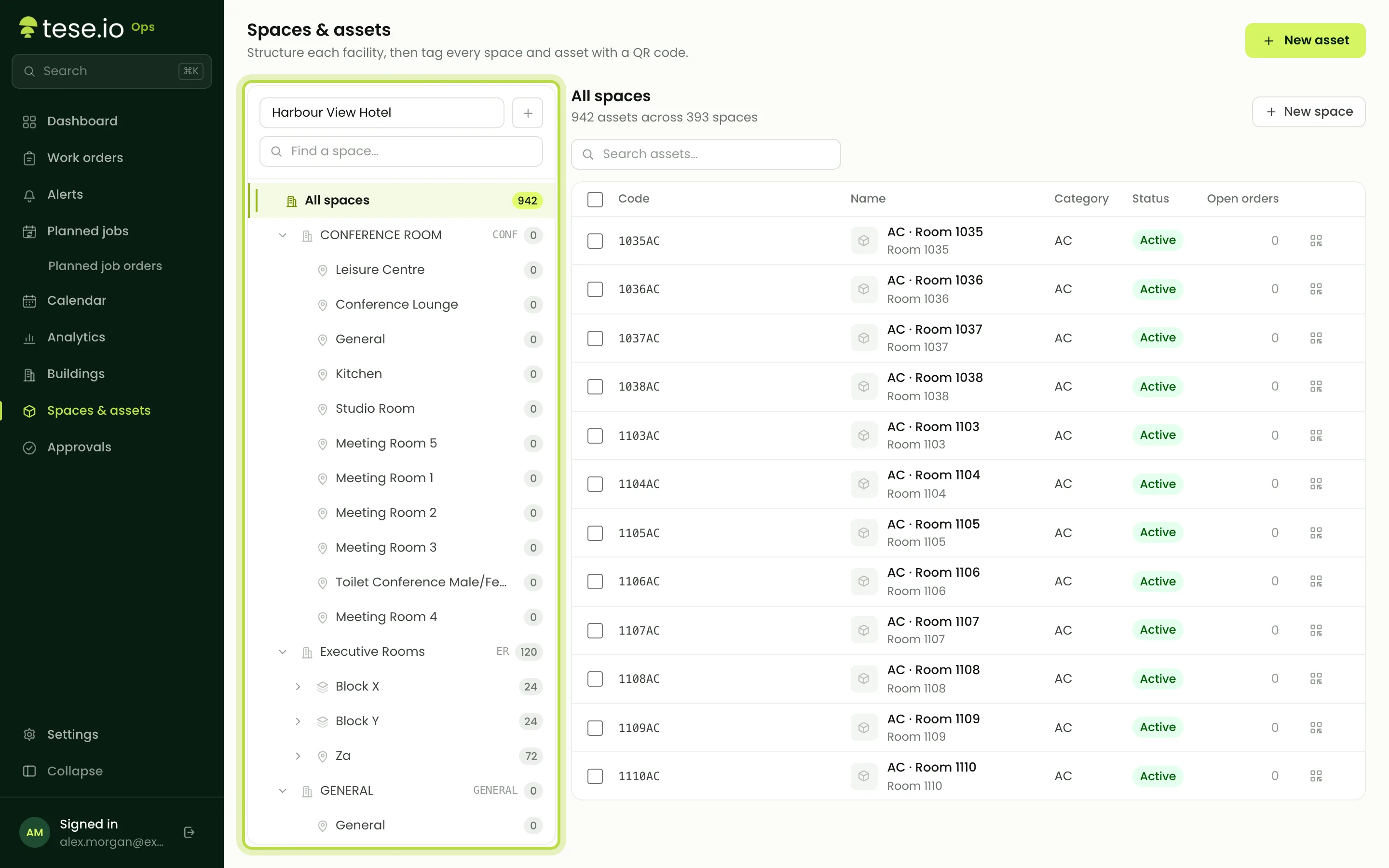
How to add spaces
Select New space.
Enter a Name (for example "Room 1320") and an optional Code (for example "R-1320").
Choose a Kind: Zone, Floor, Room, Area or Other.
Choose a Parent, or None (top level), to nest spaces. For example, rooms can sit inside a floor.
Save. To add a space inside an existing one, use Add child space on its row.
How to register an asset
On the Assets list, select New asset.
Enter a Name (for example "AHU-02 rooftop unit"), a Code, a Category (for example "HVAC") and a Description.
Choose its Space, or No specific space.
Save.
The asset page
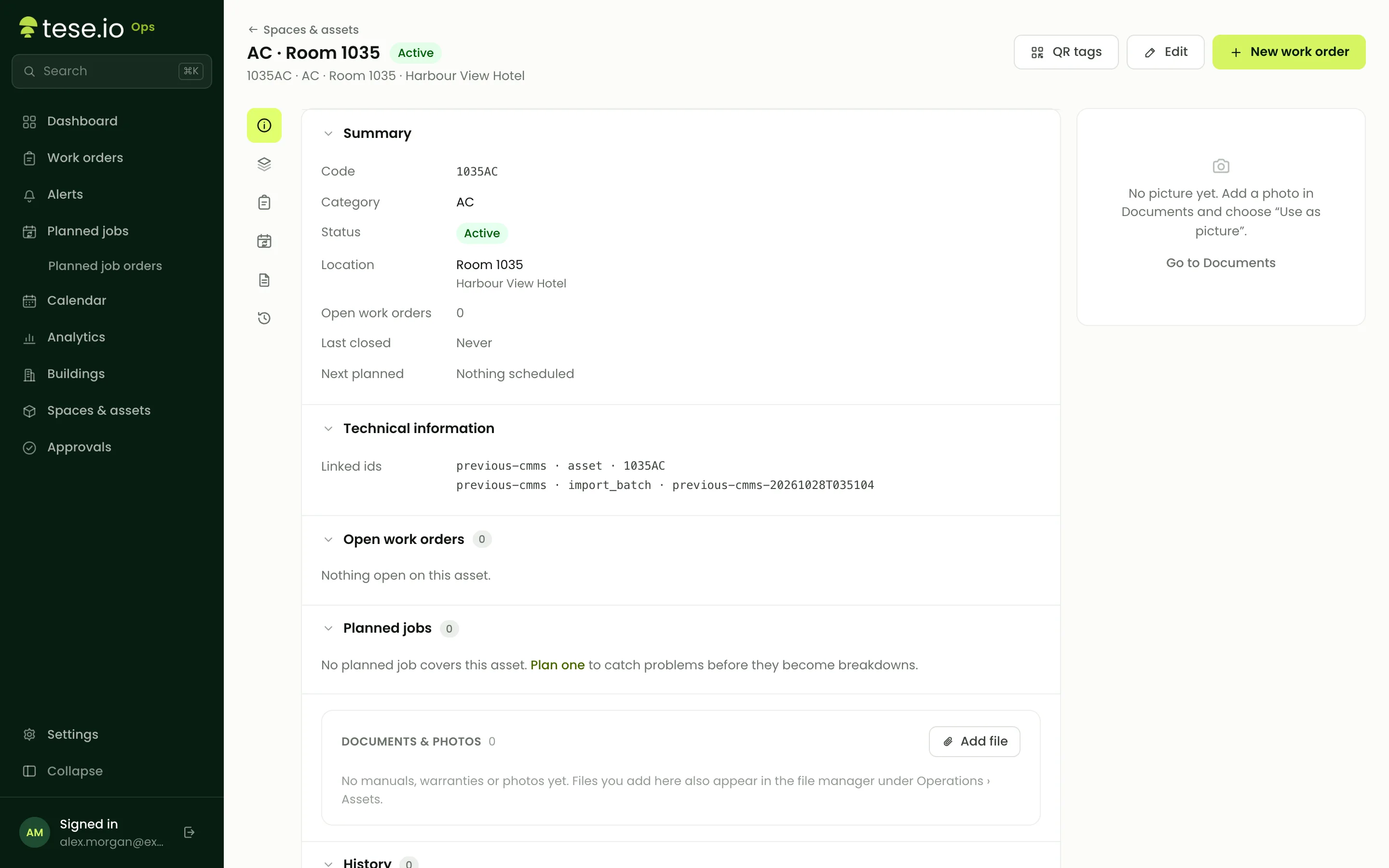
An asset's page shows:
Details: category, facility, space, status, technical information and Linked ids (the same asset's ids in other systems, such as a device platform).
Open work orders and Recently closed work orders for the asset.
Planned maintenance: the planned jobs that include it. If there are none, use Create one.
Active alerts raised against it.
Documents and an asset picture.
Select New work order on the page to raise work for that asset.
How to attach documents
With the Manager level, add manuals, warranties, drawings or photos to an asset. Each file is also saved in your organisation's file manager under Organisation › Operations › Assets and the asset's name. A photo can be used as the asset picture. Removing a document removes it from the asset and the file manager.
How to create and print QR tags
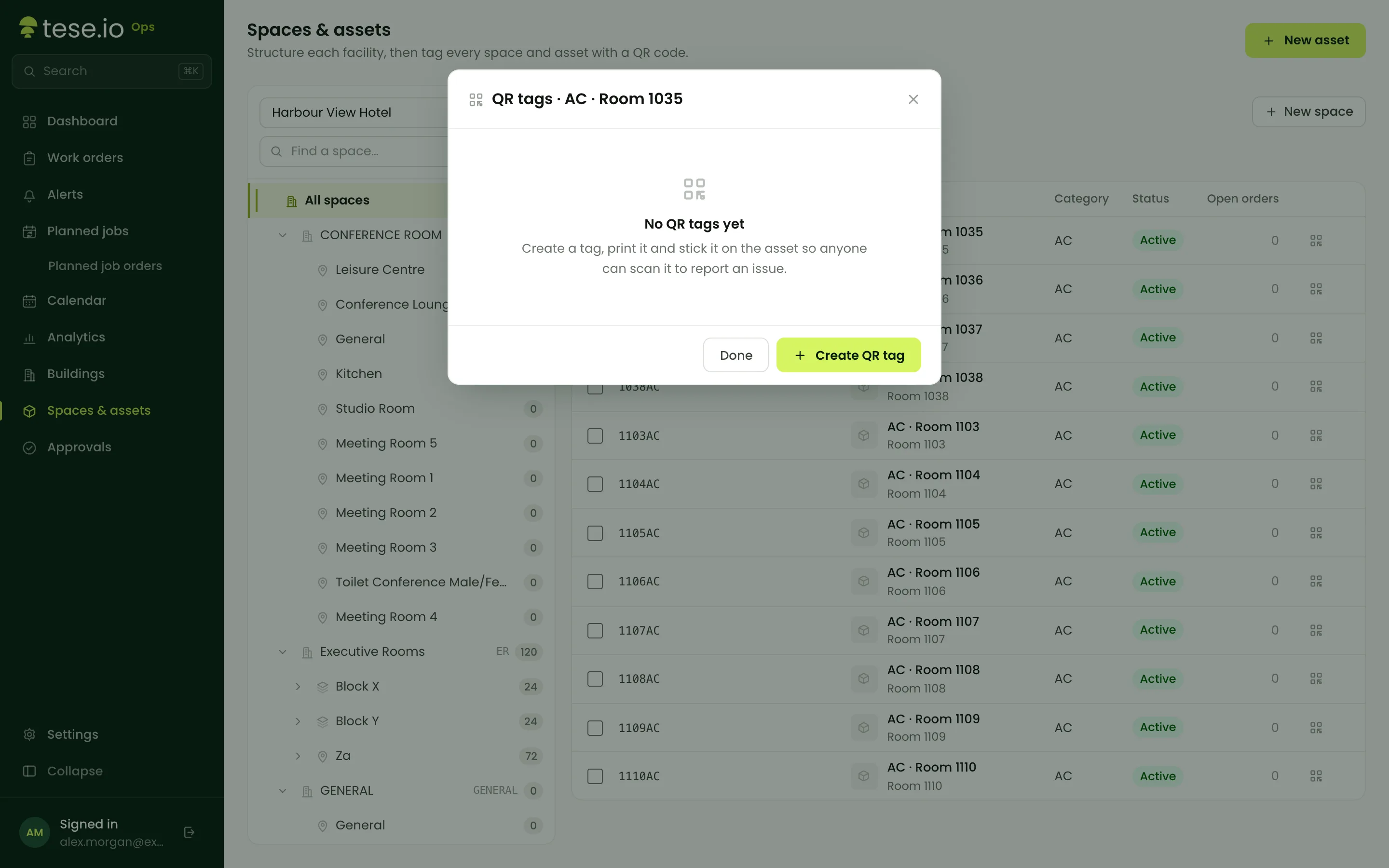
On a space or asset row, open QR tags.
Select Create QR tag.
Select Print sheet to print stickers headed "Scan to report an issue", or Copy link to share the report page.
Stick the tag where people will see it.
An active tag shows Active — scannable by anyone. Administrators can deactivate a tag. It then shows Deactivated and can't take reports.
Good to know
Archiving a space or asset needs the Administrator level. Archived items can't be scanned.
A QR report from an asset's tag is linked to that asset and its space automatically.
Alerts from devices can be matched to an asset by its linked ids.
tese.io Ops does not currently track spare parts or stock levels.
Common questions
How do I set up a new building? Add the facility on the tese.io dashboard first. Then, in Spaces & assets, create its zones, floors and rooms, register the equipment, and print QR tags.
Can I have more than one QR tag on the same asset? Yes. Create as many as you need, for example one on each side of a large unit.
Someone scanned a tag and got "This tag isn't active". The tag was deactivated, or its space or asset was archived. Create a new tag and replace the sticker.
Why can't I add a space or asset? You need the Manager (write) level for Operations.
Where else do asset documents appear? In the file manager on the dashboard, under Organisation › Operations › Assets.
Was this article helpful?
Still need help?
The tese.io team reads every message and usually replies within one working day.
Contact support