
Reports and exports
The Monday Weekly Insights email, work order CSV and PDF exports, and saved views in tese.io Ops.
tese.io Ops reports on your maintenance work in three ways: a Weekly Insights email every Monday, downloads of the work order list and of single work orders, and saved views of the list.
Where to find it
Weekly Insights arrives by email and in your tese.io notifications on Mondays.
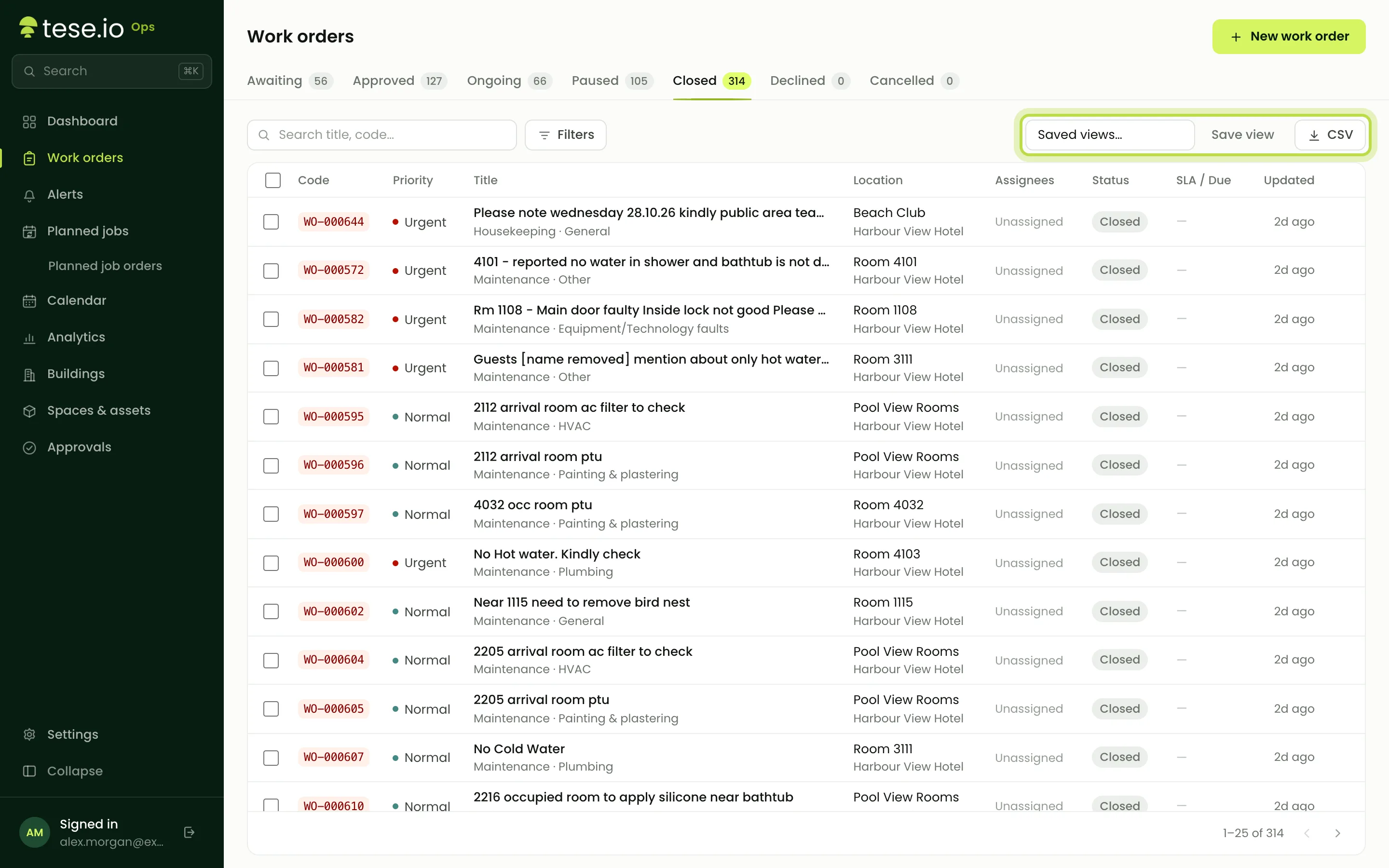
CSV is a button on the Work orders toolbar.
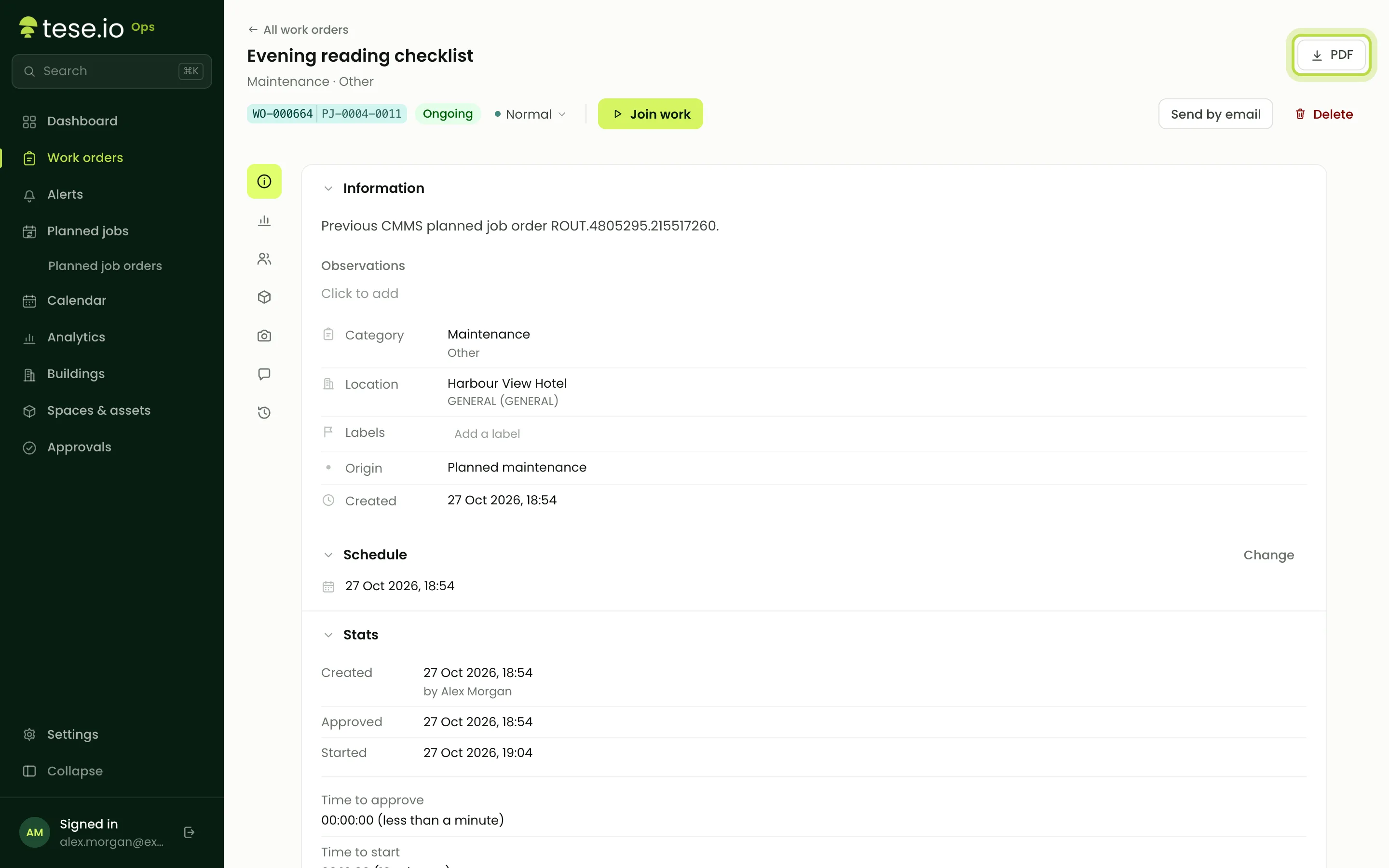
PDF is a button on a work order's full page.
Saved views… and Save are on the Work orders toolbar.
Weekly Insights
Each Monday, tese.io Ops sends a summary of the previous week (Monday to Sunday), titled with the week number and dates, for example Weekly Insights #43 (20 Oct to 26 Oct). It covers:
how many work orders were created and closed, with a bar chart
the mean time to close, and whether that was faster or slower than the week before
the busiest space and the top category
how many assets, spaces and people there are, including any added that week
who created the most work orders and who closed the most
how many planned jobs are due next week.
Select Go to tese ops in the email to open the console.
Who receives it:
Organisation administrators get one report for the whole organisation.
Other people get one report per facility where they were assigned to work that week, had open assigned work, or are assignees on a planned job.
If nothing was created or closed and no planned jobs are due, no report is sent for that week.
How to export the work order list (CSV)
Open Work orders and choose the status tab and any filters or search you want.
Select CSV.
The file matches what you're looking at and includes up to 5,000 work orders. Columns include code, status, priority, category, type, title, facility, space, assignees, origin, requester, created, due and closed dates, and whether the response and resolution targets were met or missed.
How to download a work order as PDF
Open the work order on its full page.
Select PDF.
The PDF includes the details, service-level deadlines and outcomes, the checklist with readings, the sign-off signature if there is one, and the full history.
How to save a view
On Work orders, set the status tab, facility, category, priority, search and sort you want.
Select Save and name the view.
Managers are asked whether to share it with everyone in the organisation. Otherwise it's personal.
Pick it later from Saved views…. Shared views show "· shared".
You can delete your own views. Administrators can delete any view.
Good to know
Times in the PDF and CSV are in UTC.
Exports need the Technician (read) level for Operations.
"Who closed the most" in Weekly Insights counts each closed order once, under its first assignee.
Common questions
Why didn't I get Weekly Insights this Monday? Nothing happened at your facilities that week and no planned jobs are due, or you weren't involved in any work there. Administrators get the organisation report instead of the facility ones.
Can I export more than 5,000 work orders? Not in one file. Filter by status, facility or category and export in parts.
Can I schedule a CSV export? No. The Weekly Insights email is the only scheduled report.
Is there a PDF of the whole list? No. PDF is per work order. Use CSV for lists.
Was this article helpful?
Still need help?
The tese.io team reads every message and usually replies within one working day.
Contact support