
Dashboard and calendar
What the tese.io Ops Dashboard templates show and how to use the week and month calendar.
The Dashboard is the tese.io Ops home page: a quick read of how your facilities are running. The Calendar shows work orders by date, so you can see what's planned and what's due.
Where to find it
Both are in the sidebar: Dashboard at the top and Calendar below Planned jobs. Both need the Technician (read) level.
The Dashboard page
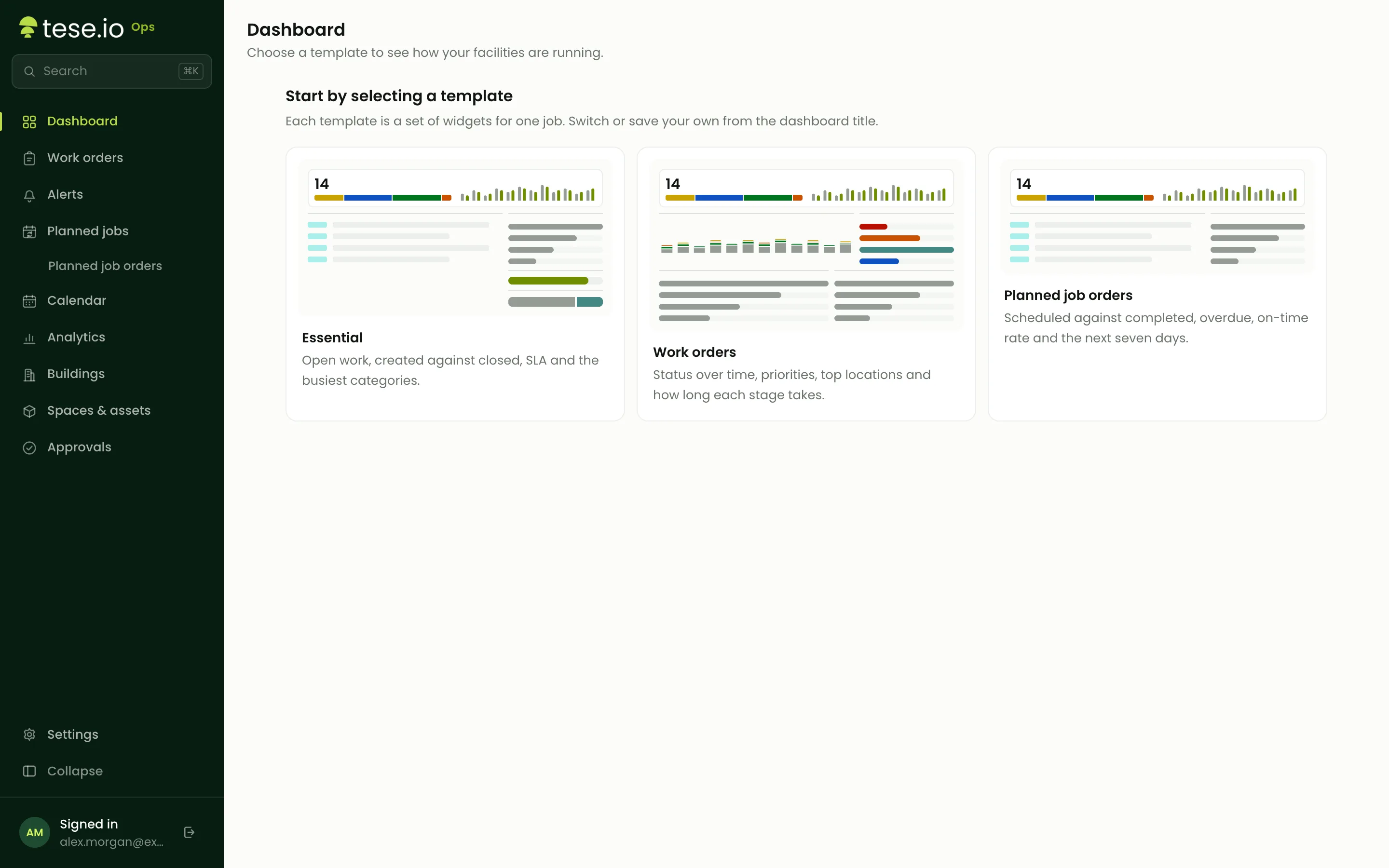
The first time you open the Dashboard, it asks you to Start by selecting a template:
Essential: open work, created against closed, service levels met and the busiest categories.
Work orders: status over time, priorities, top locations and how long each stage takes.
Planned job orders: scheduled against completed, overdue, on-time rate and the next seven days.
Under the title, choose the period (7 days, 30 days or 90 days) and a facility. The counts, such as Open, Awaiting approval, Ongoing and Paused, open the matching work orders when you select them.
To change view, select the dashboard's title. The menu lists the templates and your saved dashboards, and offers Browse templates… and Save as dashboard….
How to use the calendar
Open Calendar.
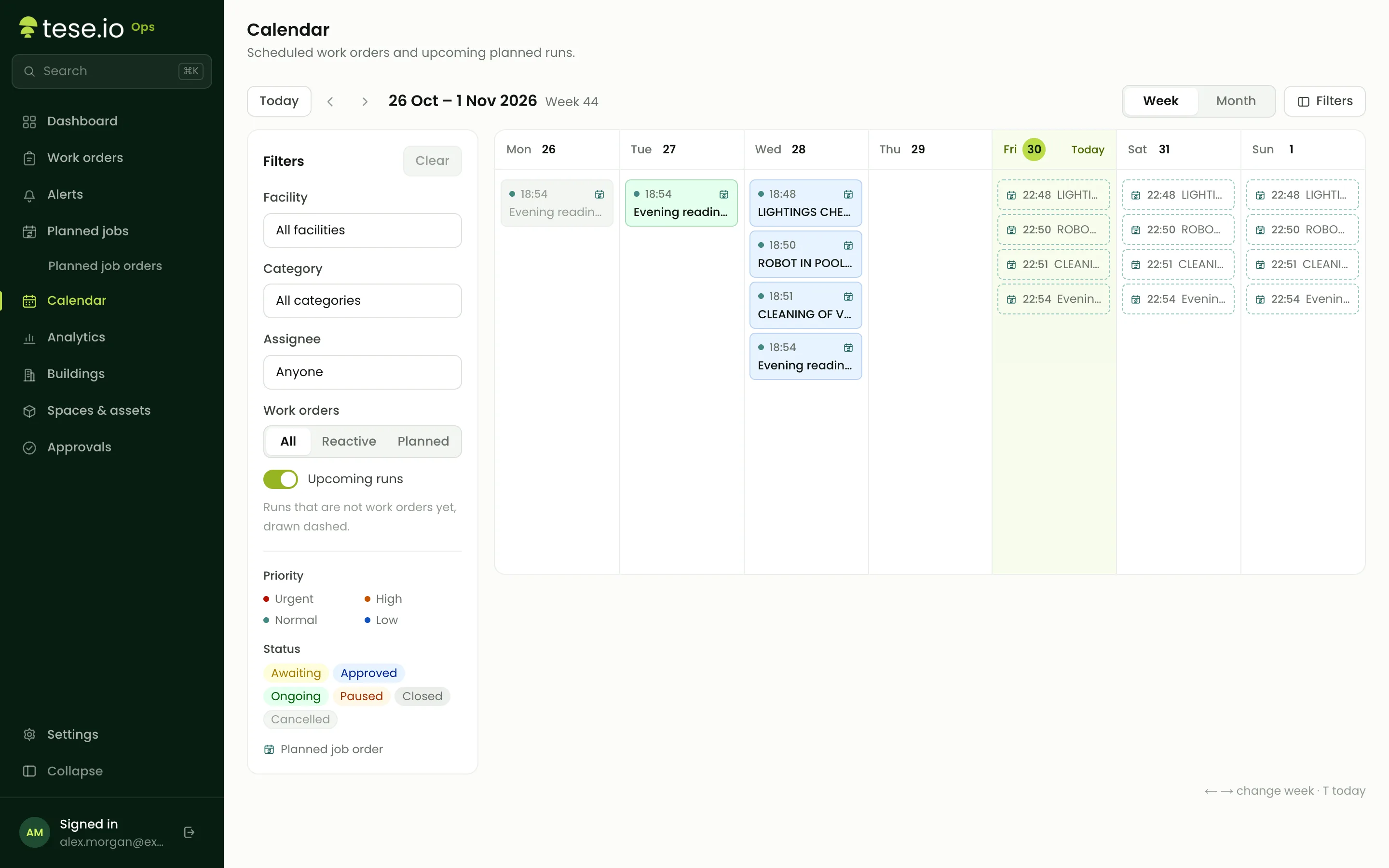
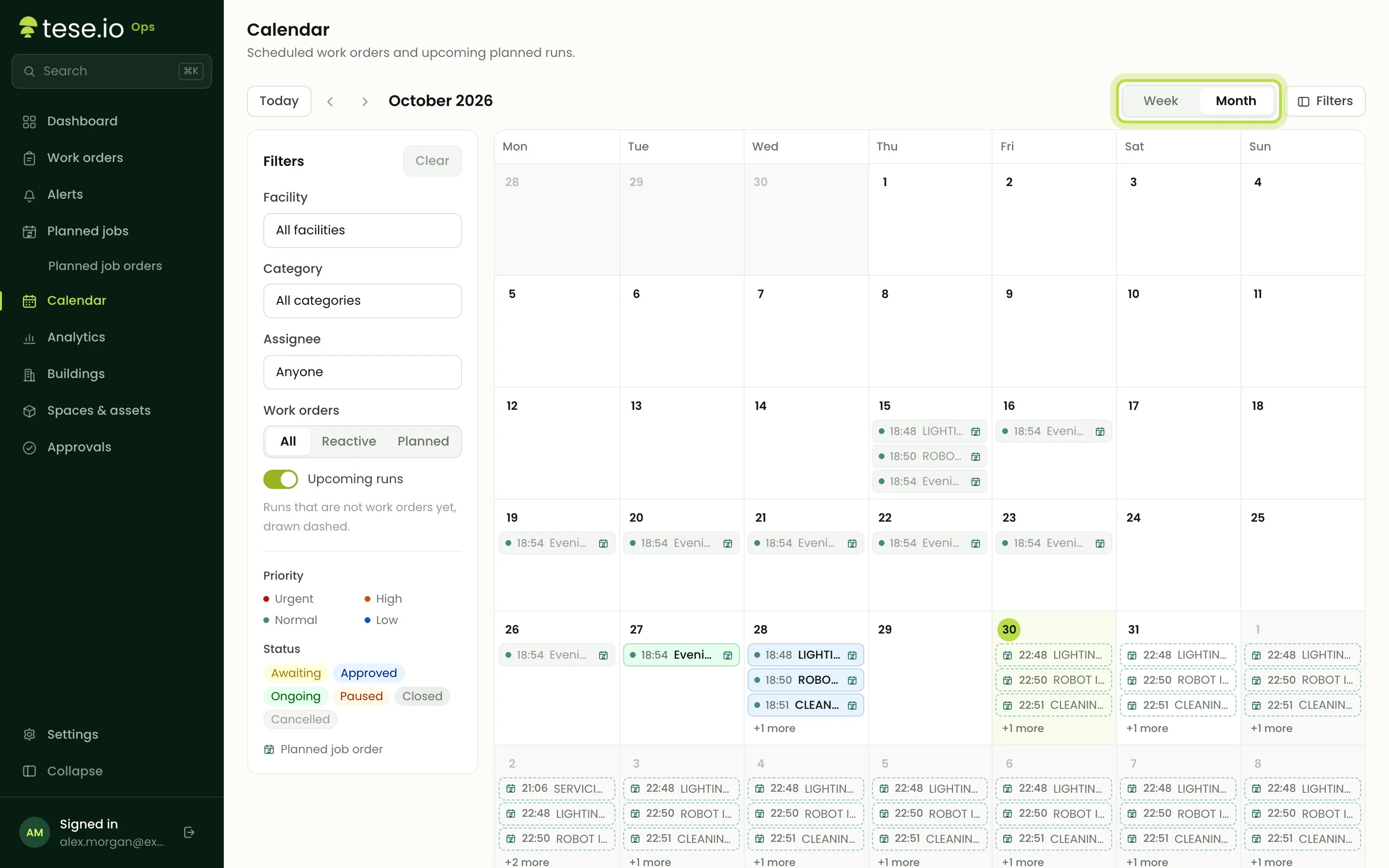
Choose Week or Month. Use Previous and Next to move, or jump back to today.
Use the filters to narrow it down: Facility, Category, Assignee and **Work order type** (All, Planned or Reactive).
In month view, select a day to open that week.
Select a work order to open it.
What appears on the calendar
A work order appears on its scheduled date if it has one (planned-job orders do), or otherwise on its due date.
Planned means the order came from a planned job. Reactive covers everything else: manager-created orders, QR reports and alert orders.
Work orders with neither a scheduled date nor a due date don't appear. Give an order a due date, or set up service levels so new orders get one automatically.
Good to know
Week view shows the ISO week number, for example "Week 43".
On a phone, the calendar shows a list for the selected day with a strip of days to pick from.
The calendar shows work orders only. Planned jobs appear once their work order has been created, which depends on the job's lead time.
On larger screens, the Search work orders… box in the top bar searches by title or code from any page.
Common questions
Why isn't my work order on the calendar? It has no scheduled date or due date. Add a due date, then refresh the calendar.
Why isn't next month's planned job on the calendar yet? The calendar shows work orders, and a planned job's work order is created only when the occurrence is within its lead time. Check Next run on Planned jobs.
What's the difference between Planned and Reactive? Planned orders come from a planned job. Reactive orders were raised by someone or something as the need arose.
What does Average time to close measure? The average time between a work order being created and closed, for the facility and period you've selected.
Was this article helpful?
Still need help?
The tese.io team reads every message and usually replies within one working day.
Contact support