
Tasks and approvals
See tasks assigned to you and approve or reject submitted activity entries in tese.io Lite.
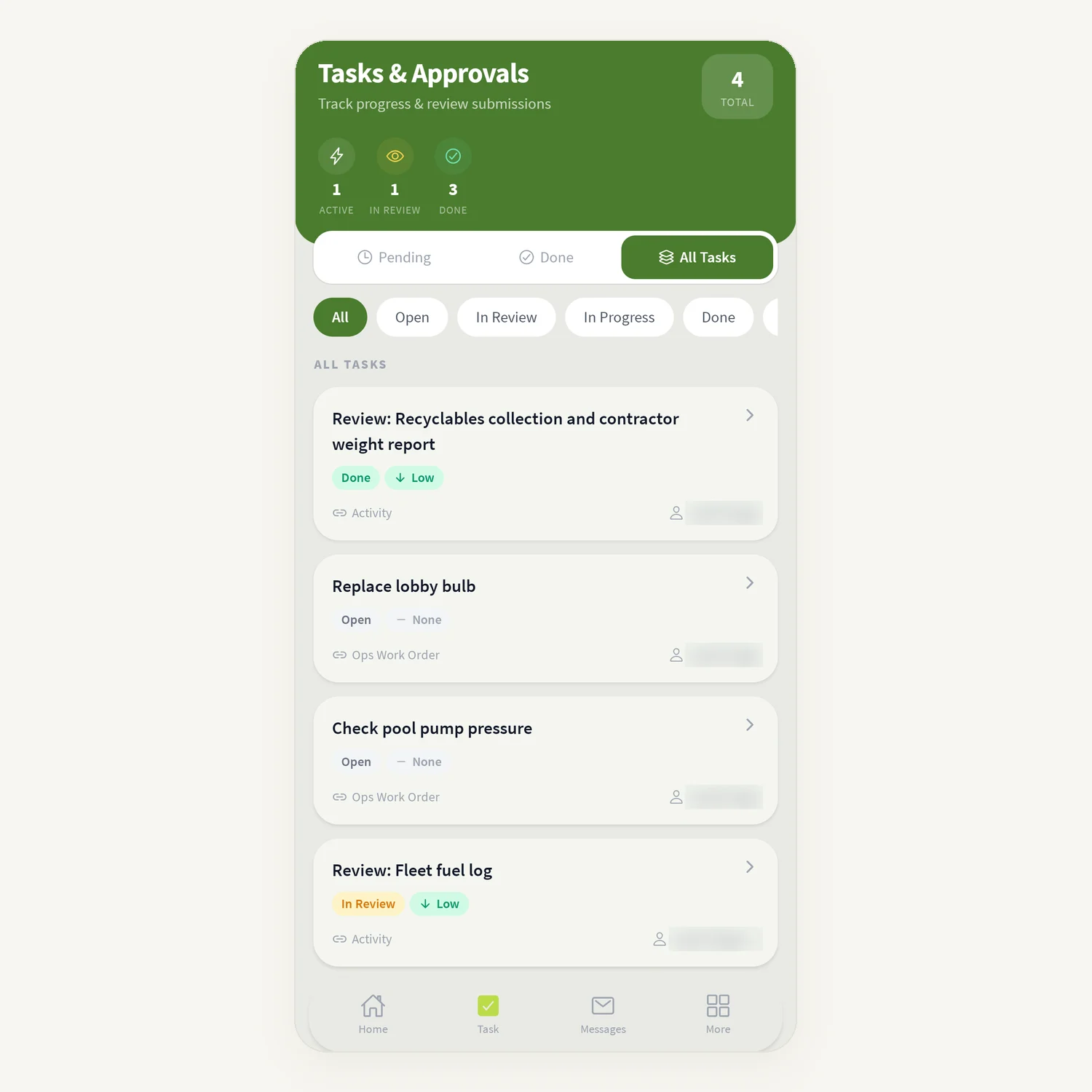
The Tasks & Approvals screen lists tasks assigned to you and activity entries waiting for your review. Approvers use it to check a submission and approve it or send it back.
Where to find it
Tap Task in the bottom bar (Lite mode). The screen is titled Tasks & Approvals – "Track progress & review submissions".
Or open More → My Task.
Tapping a phone notification about a task or approval opens this screen.
Finding your tasks
Three tabs at the top: Pending, Done and All Tasks.
A summary shows Active, In Review, Done, Overdue and Total.
Filter by status: All, Open, In Review, and on All Tasks also In Progress, Done, Rejected and Cancelled.
Pull down to refresh.
How to approve or reject a submission
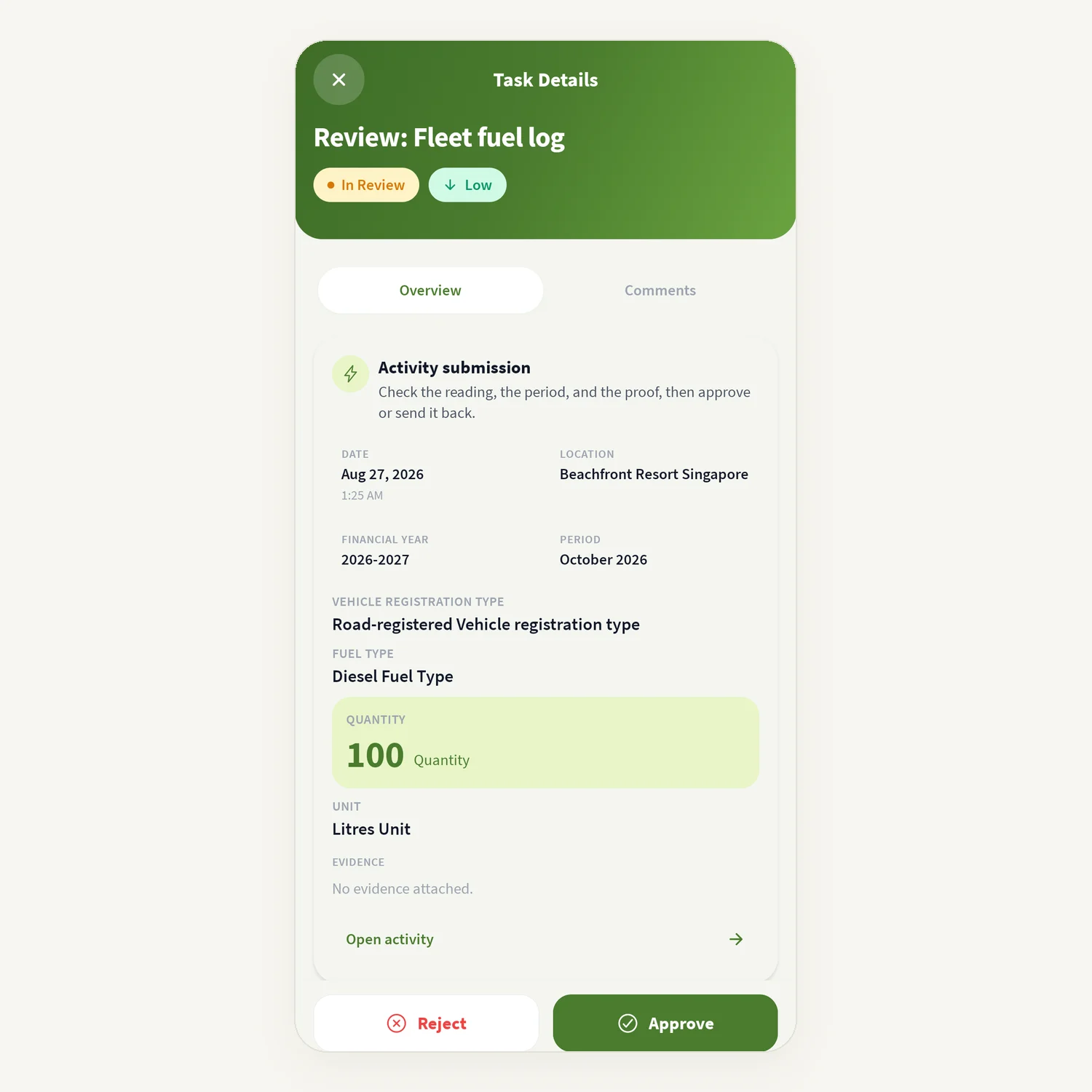
Open Task and tap the approval task.
On Overview, read the Activity submission card: Date, Location, Financial year, Period, the values entered, and Evidence. The card reminds you: "Check the reading, the period, and the proof, then approve or send it back."
Tap Open activity if you want to see the full entry.
Choose:
Approve – the submission is approved. You see "Task marked as done".
Reject – the app asks why. Type a reason of at least 10 characters in "Why is this being rejected?" and tap Reject. The submission goes back to the person who logged it.
If several people must approve, you see "Approved. Waiting for the other assignees." until everyone has approved.
How to accept a task assigned to you
Open the task. If it shows Action required, you have not yet accepted it.
Tap Approve to accept it, or Reject with a reason to decline it.
Until every assignee has accepted, the status and related fields stay locked. The title and description can still be edited.
Comments and subtasks
Switch to the Comments tab in the task, type in Write a comment… and tap Post comment.
Under Subtasks, type a name in Add subtask to add one.
Details shows Status, Priority, Start date, Due Date, Task ID and Labels.
Good to know
You only see Approve and Reject on approval tasks where you are one of the reviewers, while the submission is in review.
Approval tasks appear here once someone submits an entry for an activity you approve. If you are told "No approver assigned" when logging, the organisation administrator must set one up.
The For you section on Home shows how many items are waiting.
Common questions
Why can't I see Approve and Reject? You are not one of the reviewers for that submission, it has already been decided, or it is not in review.
Why won't my rejection send? The reason must be at least 10 characters.
What does the submitter see when I reject? The entry is sent back for revision so they can correct it and resubmit.
A submission says "No submission yet". The assignee has not completed the activity yet.
I approved but the task is still open. Other assignees still need to approve it.
Was this article helpful?
Still need help?
The tese.io team reads every message and usually replies within one working day.
Contact support