
Messages and calls
Chat with colleagues and the people you work with, start a new conversation, and make audio or video calls.
Messages is the app's inbox for team chats, deal chats and calls with the people you work with. It is separate from Support chat, which is for help from the tese.io team.
Where to find it
Tap Messages in the bottom bar (Lite mode).
Or open More → Messages ("Messages and calls").
Tapping a phone notification about a new message opens that conversation.
How to read and reply
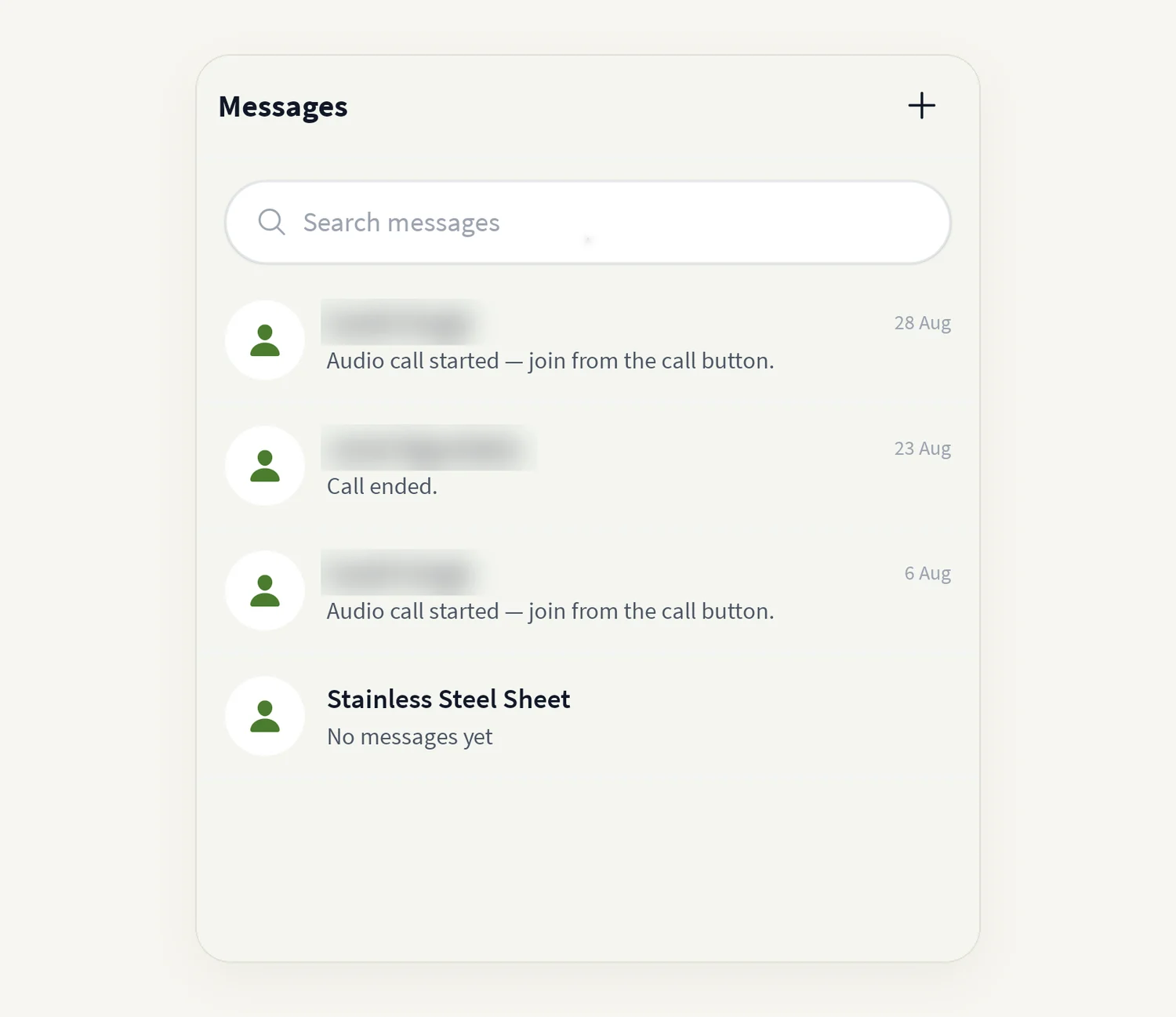
Open Messages. Conversations are listed with the latest at the top. Some carry a label such as Application or Group.
Use Search messages to find a conversation.
Tap a conversation, type in Type a message… and send.
Pull down on the list to refresh.
How to start a new conversation
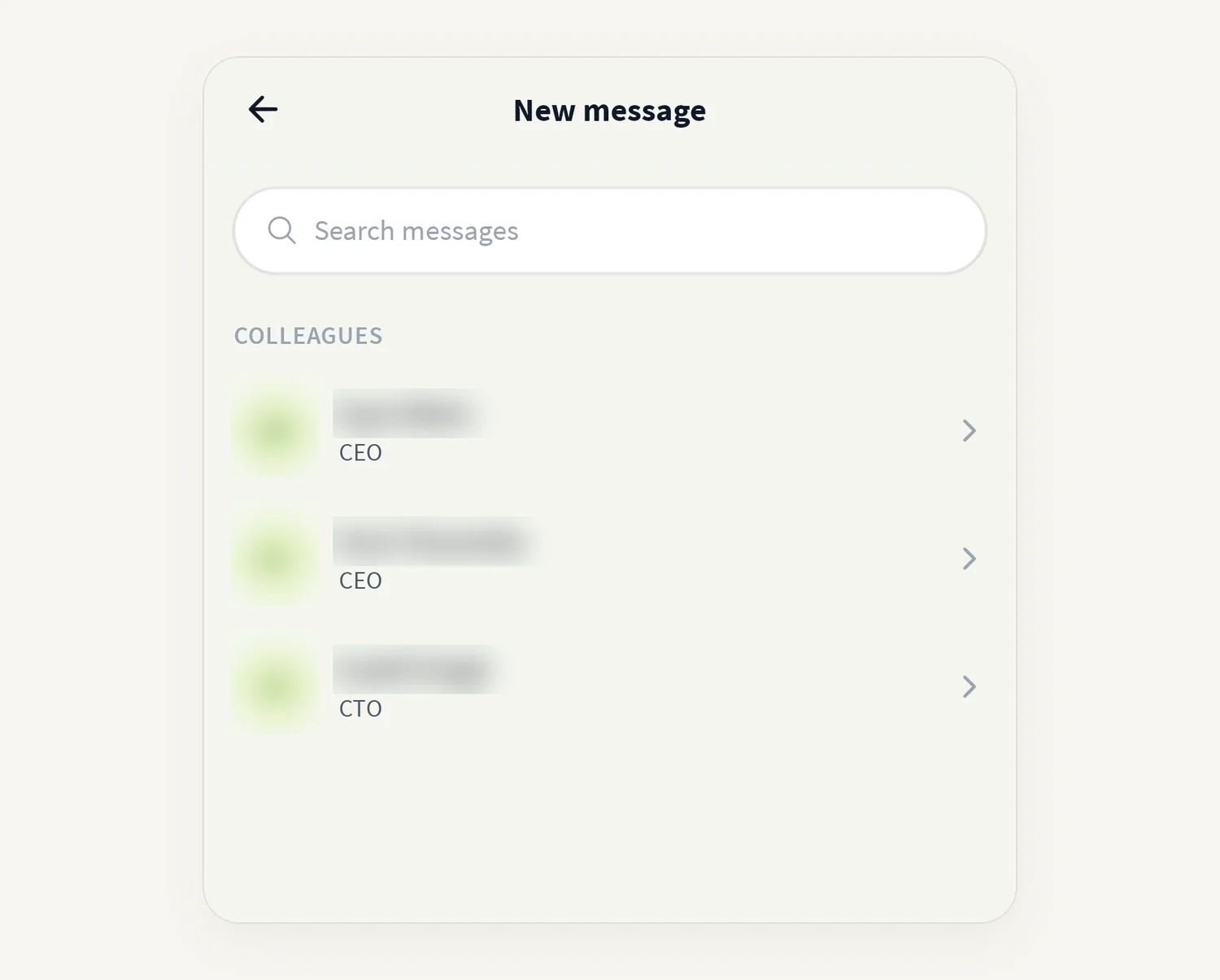
In Messages, tap + at the top right. The New message screen opens.
Search, or pick someone from Colleagues or People you've messaged.
Tap the person and write your message.
How to make a call
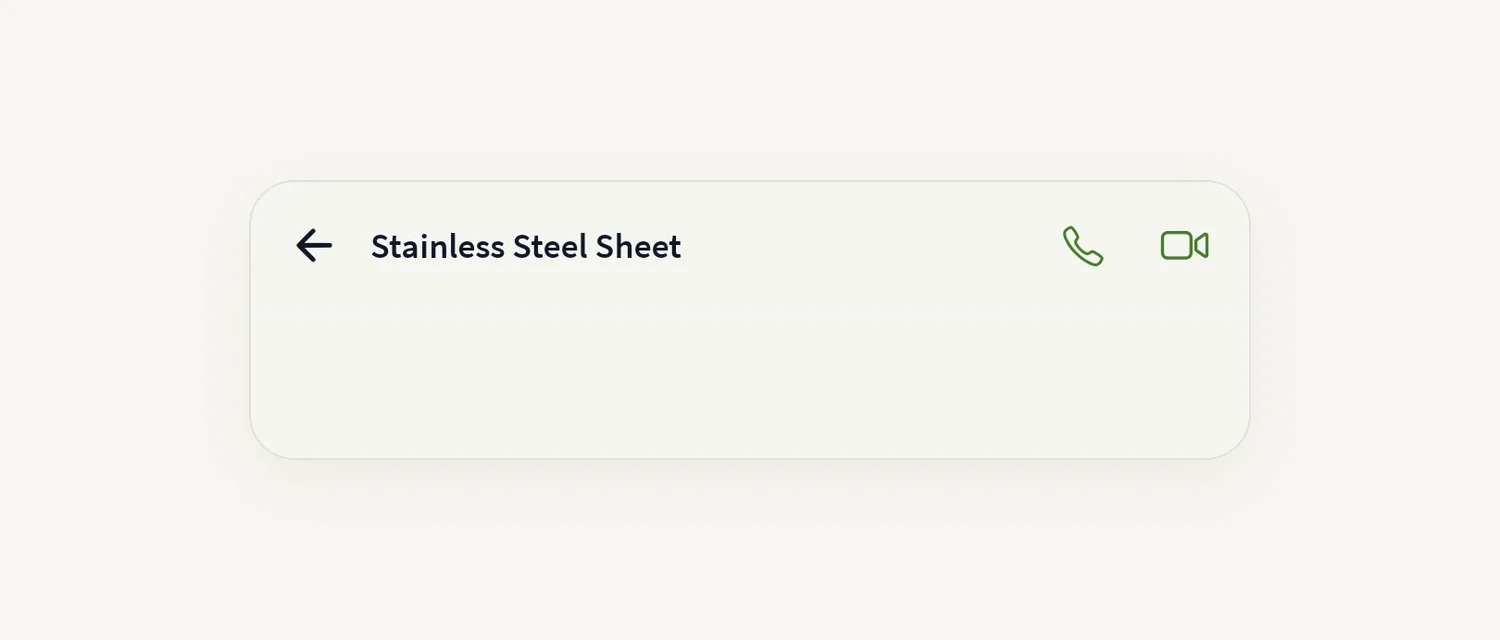
Open the conversation.
Tap the phone icon for an audio call, or the video icon for a video call.
The call opens inside the app. Tap close to leave it.
Incoming calls
When someone calls you, you get a notification on your phone. Tap it to join the call. You need to be signed in: if you are not, you see Sign in required – "Sign in to tese.io Lite to answer calls." Call notifications more than a few minutes old are ignored, so an old notification does not reopen a finished call.
Good to know
Messages needs a connection.
Allow notifications to be told about new messages and calls. See Notifications on your phone.
The microphone and camera need permission the first time you call.
When you sign out, your inbox is cleared from the phone so the next person to sign in cannot see it.
Common questions
I see "Could not connect to chat. Try signing in again." Sign out from Profile and sign back in. If it continues, contact Support.
"No one to message yet" on the New message screen. Colleagues and people you already message show up here. If your organisation has no other users in the app yet, the list is empty.
The call would not start. You see "Could not start the call." Check your connection and try again.
I tapped a call notification and got "Call unavailable". The call could not be opened. Open tese.io Lite, sign in, and try again from Messages.
Is this the same as Support chat? No. Support chat is the headset icon at the top of Home and reaches the tese.io team.
Was this article helpful?
Still need help?
The tese.io team reads every message and usually replies within one working day.
Contact support