
Notifications on your phone
What tese.io Lite notifies you about, how to turn phone notifications on, what tapping one opens, and why you might not get them.
tese.io Lite can send notifications to your phone so you know when a task, approval, message or support reply is waiting, without opening the app.
What you get notified about
| Notification | What it is about | Tapping it opens |
|---|---|---|
| New task / Task due | A task assigned to you, or one coming due | Tasks & Approvals |
| Approval needed / Approval overdue | An entry is waiting for your review | Tasks & Approvals |
| Approval decided / Approvals decided | A decision on something you submitted | Tasks & Approvals |
| Work order overdue, Work order due soon, New planned work order, Work order update | tese.io Ops work orders (Ops users only) | Ops → Work orders |
| Ops alert | A tese.io Ops alert (Ops users only) | Ops → Alerts |
| New message | A chat message in Messages | That conversation |
| Incoming call | Someone is calling you | The call |
| Support reply | The tese.io team replied in Support chat | Support chat |
Any other notification just opens the app.
How to turn notifications on
Sign in to the app. The first time, your phone asks whether tese.io Lite may send notifications.
Tap Allow.
If you said no earlier, open your phone's Settings, find tese.io Lite, open Notifications and switch them on. Then close and reopen the app while signed in.
The app registers your phone for notifications each time you open it signed in, so reopening the app after changing the setting is enough.
Good to know
Notifications are tied to the account signed in on this phone. When you sign out, the phone stops receiving notifications for that account.
If you tap a notification while signed out, the app opens but does not jump to the item. Sign in and open it from the app.
While you are using the app, a support reply shows as an in-app Support replied banner with Open, instead of a phone banner. On the Support screen itself there is no banner because the reply appears in the chat.
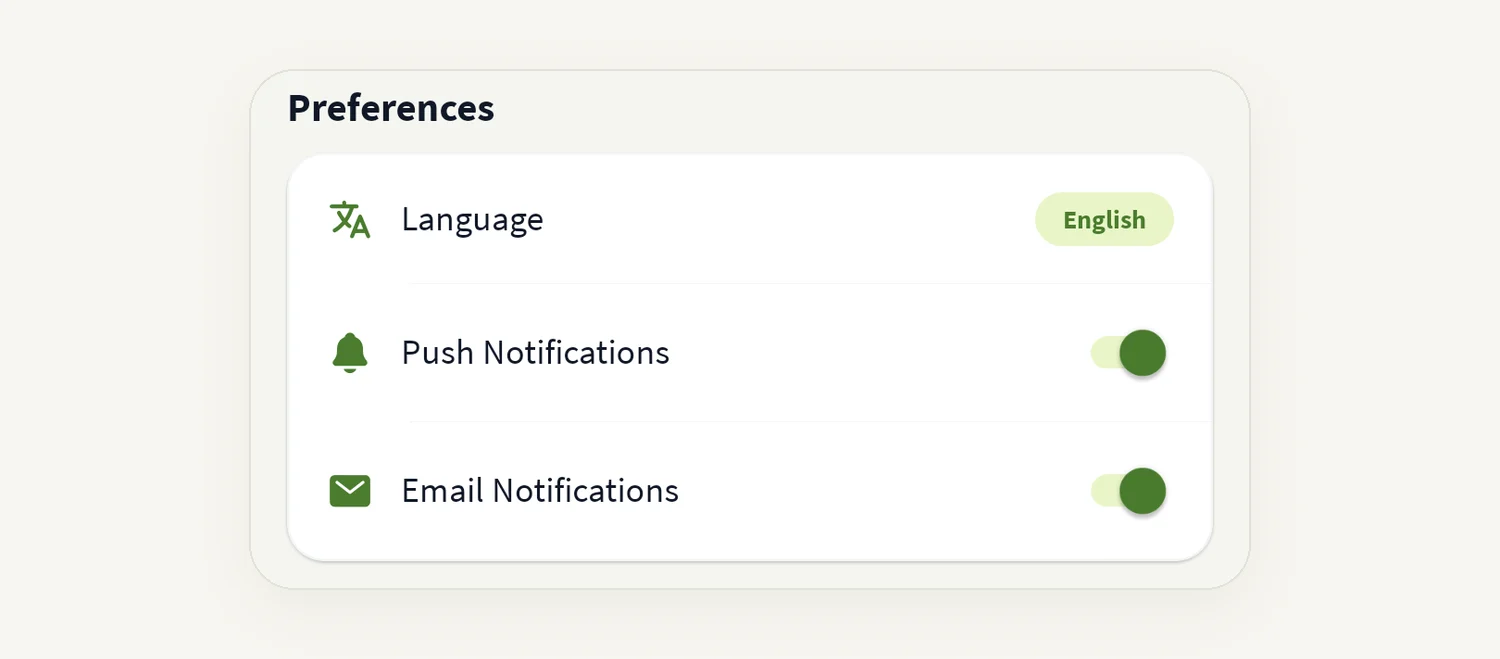
The Push Notifications and Email Notifications switches on the Profile screen do not currently change what your phone receives. Use your phone's Settings to turn phone notifications off.
Why you might not get notifications
Permission is off. Check your phone's Settings for tese.io Lite.
You are signed out. Sign in again.
You reinstalled the app or changed phone. Sign in again on the new install; the app then registers the phone again.
Battery saver or Focus / Do Not Disturb is holding notifications back.
No connection. Notifications arrive when the phone is back online.
The notification does not apply to you. Ops notifications go to Ops users only; approval notifications go to the assigned approver.
Common questions
I approve entries but never get "Approval needed". Check notification permission in your phone's Settings, then open the app while signed in. Also confirm with your administrator that you are the assigned approver.
Tapping a notification just opens Home. That notification type has no screen of its own, or you were signed out when you tapped it.
I signed in on a new phone and get nothing. Allow notifications when asked, or switch them on in Settings, then reopen the app.
Can I choose which notifications I get? Not from the app at the moment. You can turn all tese.io Lite notifications on or off in your phone's Settings.
Was this article helpful?
Still need help?
The tese.io team reads every message and usually replies within one working day.
Contact support