
Facilities and team
Choose the facility you work in, add facilities, and see or invite your team in tese.io Lite.
Facilities are your organisation's sites and locations, such as an office, factory or store. Your Team lists the people in your organisation and what they have logged recently.
Where to find it
More → Facilities ("your locations").
More → Your Team ("invite your people").
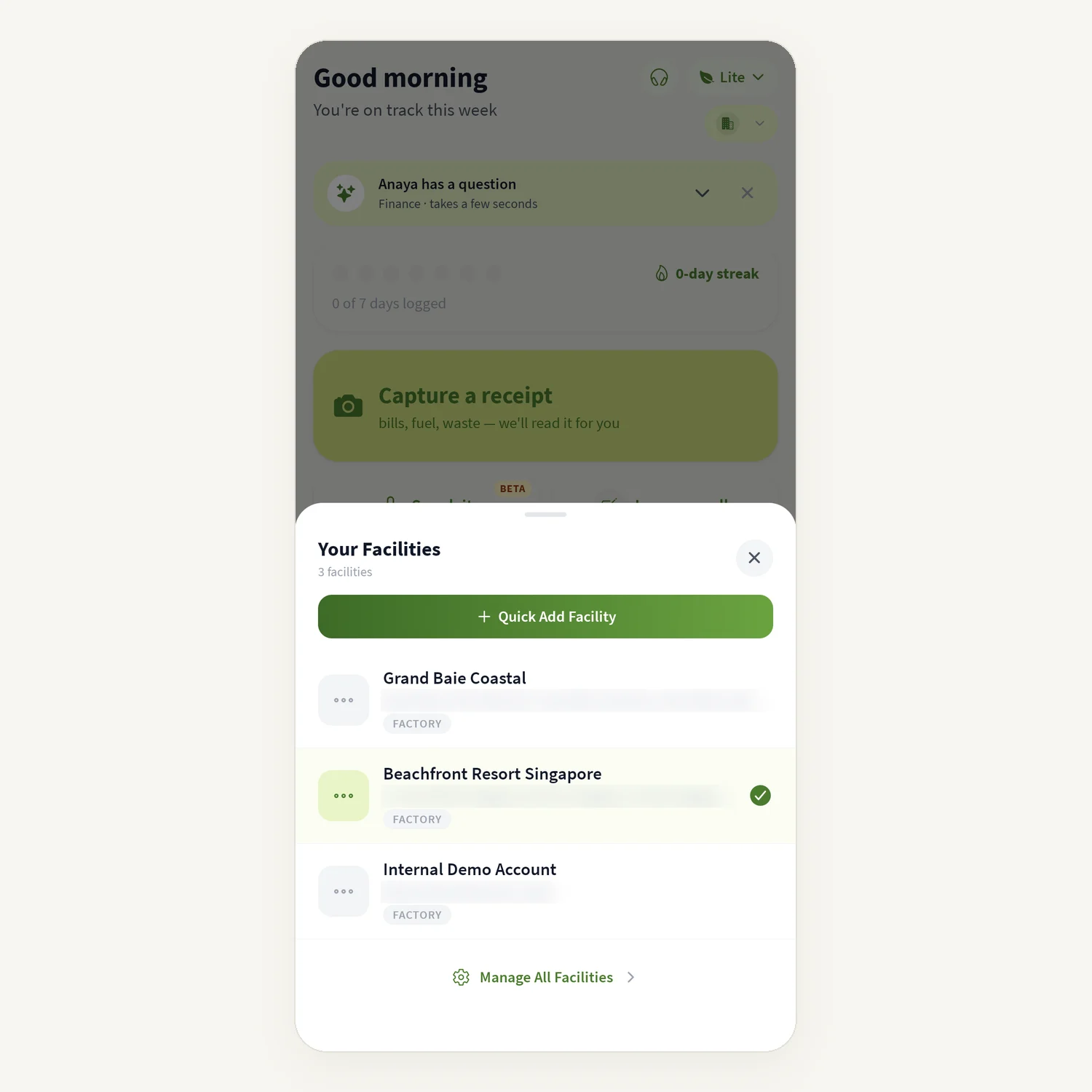
On Home, if your organisation has more than one facility, a facility chip under the mode switch shows the one you are working in.
Either screen may not be available for your account if your organisation has not switched that area on.
How to choose your facility
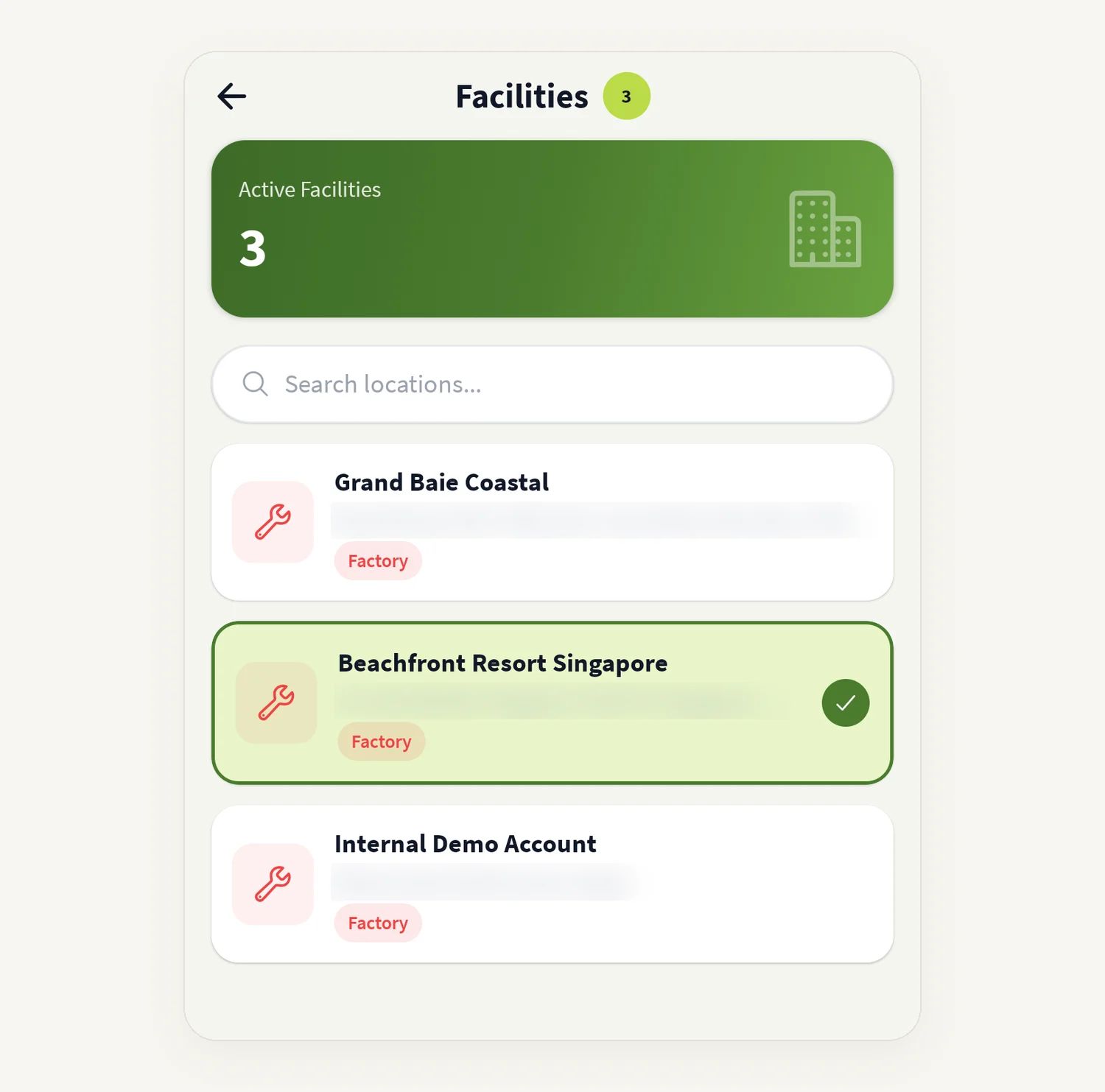
Open More → Facilities. You see your organisation's Active Facilities.
Use Search locations... to find one.
Tap the facility you work at. The app remembers it on this phone.
You can also change facility from the chip on Home. Scans and some entries use the selected facility.
How to add a facility (administrators)
Open More → Facilities and tap the add button.
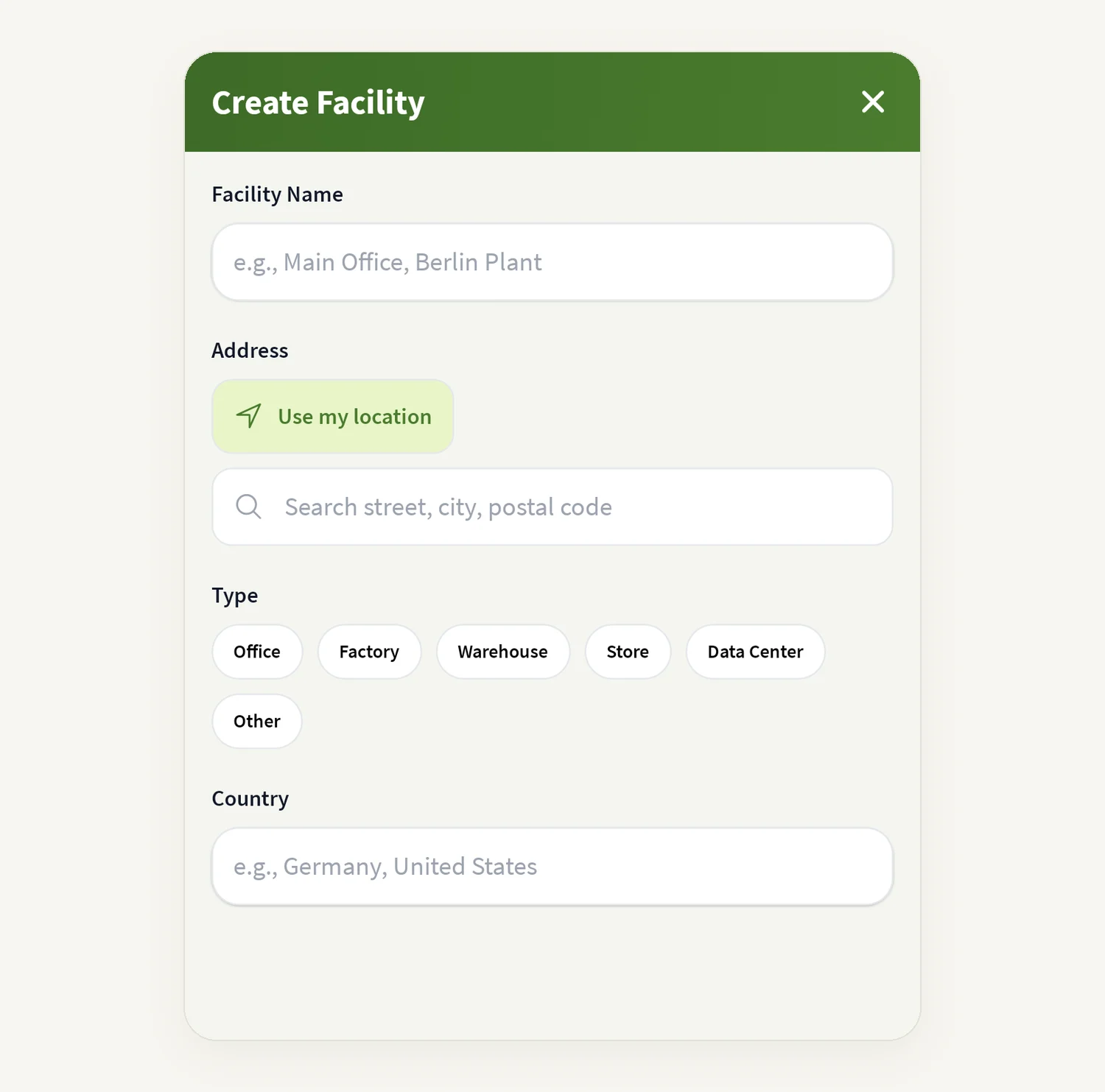
Under Create Facility, enter the Facility Name (for example "Main Office" or "Berlin Plant").
Search for the Address, or tap Use my location.
Choose a Type: Office, Factory, Warehouse, Store, Data Center or Other.
Enter the Country and tap Create.
Only organisation administrators can create facilities in the app.
How to see and invite your team
Open More → Your Team.
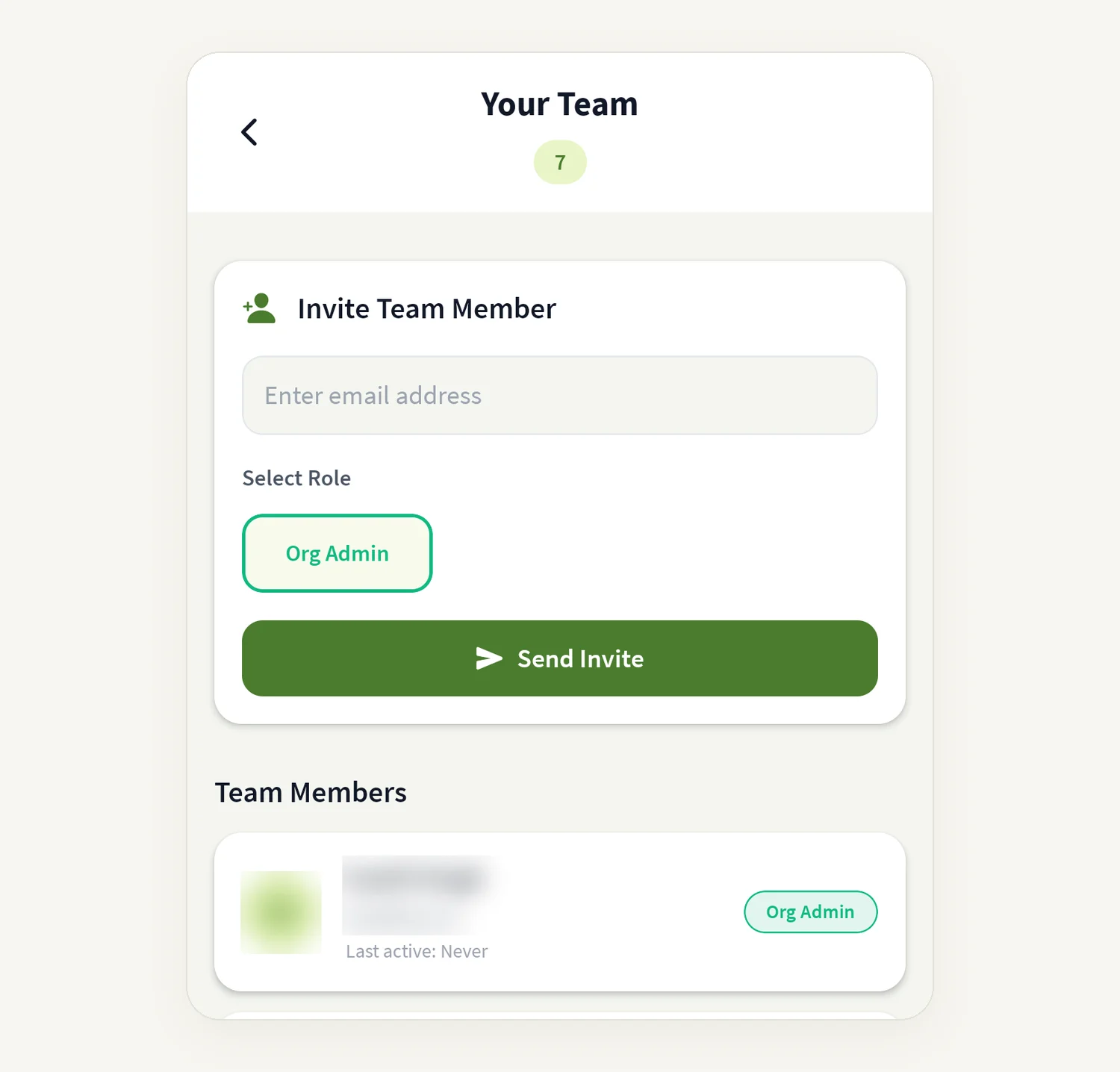
Team Members lists everyone, with when they were last active.
Recent Activity shows what people have logged.
Administrators see Invite Team Member: enter the email address, choose a role under Select Role, and tap Send Invite. You see "Invitation sent to …" when it has gone.
Good to know
Only organisation administrators see the invite form and can create facilities.
Roles come from your organisation's settings. If you see "No roles available. Create roles in dashboard settings.", an administrator needs to set up roles on the tese.io dashboard first.
When you log an activity, you choose the location in the Where and when step, so you can log for a site other than your selected facility.
Signing out clears the selected facility on this phone.
Common questions
I see "No Facilities Yet". Your organisation has not added any facilities. An administrator can create one here or on the tese.io dashboard.
Why can't I add a facility or invite someone? Those actions are for organisation administrators.
I chose the wrong facility. Open Facilities (or tap the chip on Home) and pick the right one.
Can I remove a team member from the app? Not from the app. Ask an administrator to manage members on the tese.io dashboard.
Was this article helpful?
Still need help?
The tese.io team reads every message and usually replies within one working day.
Contact support