
App modes
The four modes in tese.io Lite (Lite, Orbit, Marketplace and Ops) and how to switch between them.
tese.io Lite has four modes that share one app. Each mode has its own bottom bar. You move between them with the mode switch at the top right of the screen.
Where to find it
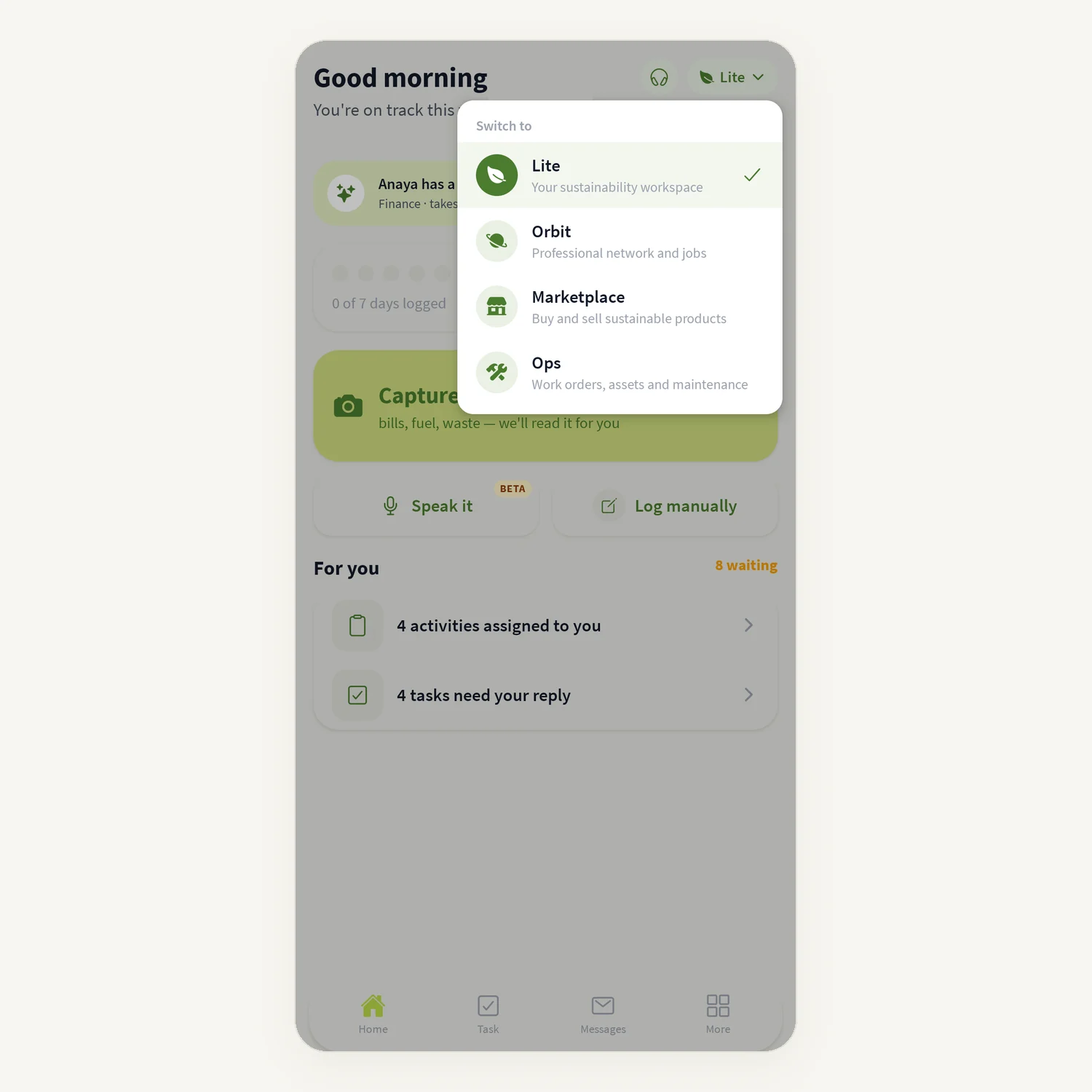
The mode switch is a small rounded button in the top-right corner showing the name of the current mode (for example Lite) with a down arrow. It sits next to the round Support (headset) icon on Home in Lite, and in the header of Orbit, Marketplace and Ops.
The modes
| Mode | What it says in the menu | Bottom bar |
|---|---|---|
| Lite | Your sustainability workspace | Home, Task, Messages, More |
| Orbit | Professional network and jobs | Home, Network, Post, Notifications, Jobs |
| Marketplace | Buy and sell sustainable products | Shop, Categories, Cart, Account |
| Ops | Work orders, assets and maintenance | Overview, Work orders, Alerts, Calendar |
Lite is where you log data, scan bills and handle tasks and approvals. The other modes are covered on their own pages.
How to switch mode
Tap the mode switch in the top-right corner.
A Switch to menu opens, listing the modes you can use. The current mode has a tick.
Tap the mode you want. The app opens that mode's first screen.
To go back, tap the mode switch again and choose Lite.
Good to know
Ops may not be available for your account. It only appears in the menu when your account has access to tese.io Ops. If you do not see it, ask your organisation administrator.
The app reopens in the last mode you used.
Marketplace and Ops show the tese.io storefront and the tese.io Ops console inside the app. You are signed in automatically with your tese.io account. Each has an Open in browser icon in the header if you prefer your phone's browser.
Marketplace and Ops need an internet connection. If the page cannot load you see an error with a Retry button.
On Android, the back button inside Orbit, Marketplace or Ops goes back a page first. On a mode's first screen it closes the app rather than returning to Lite. Use the mode switch to return to Lite.
Common questions
Why can't I see Ops in the Switch to menu? Your account does not have Ops access, or the app could not confirm it yet. Ask your administrator to give you access, then reopen the app.
I was in Ops and the app sent me back to Lite. This happens when the app confirms your account does not have access to Ops, or to that part of Ops.
Do I need a separate account for Marketplace or Orbit? No. They use your tese.io sign-in.
How do I get back to my tasks from Orbit? Tap the mode switch and choose Lite, then tap Task in the bottom bar.
Was this article helpful?
Still need help?
The tese.io team reads every message and usually replies within one working day.
Contact support