
Install and sign in
How to install tese.io Lite on your phone, sign in, and sign out.
tese.io Lite is the tese.io mobile app for iPhone and Android. You sign in with the same email and password you use for the tese.io web dashboard.
Where to find it
Android: search for "tese.io Lite" in the Google Play Store.
iPhone: search for "tese.io Lite" in the Apple App Store.
After installing, the app opens on a short welcome tour, then the Sign In screen.
How to install and sign in
Install tese.io Lite from your phone's app store and open it.
Move through the welcome screens (Welcome to tese.io Lite, Simple Data Entry, Smart Scanning, Works Offline) with Next, or tap Skip. On the last screen tap Get Started. You only see this tour once.
On the sign-in screen, enter your Email and Password. Tap the eye icon to show or hide the password.
Tap Sign In. You land on Home.
When the app asks, allow notifications if you want alerts on your phone for tasks, approvals and messages. See the Notifications page.
How to reset your password
On the sign-in screen, tap Forgot Password?.
Your phone's browser opens the tese.io password reset page.
Follow the steps there, then come back to the app and sign in with the new password.
How to sign out
Open More, then Profile (or go straight to Profile if your app shows a Profile tab).
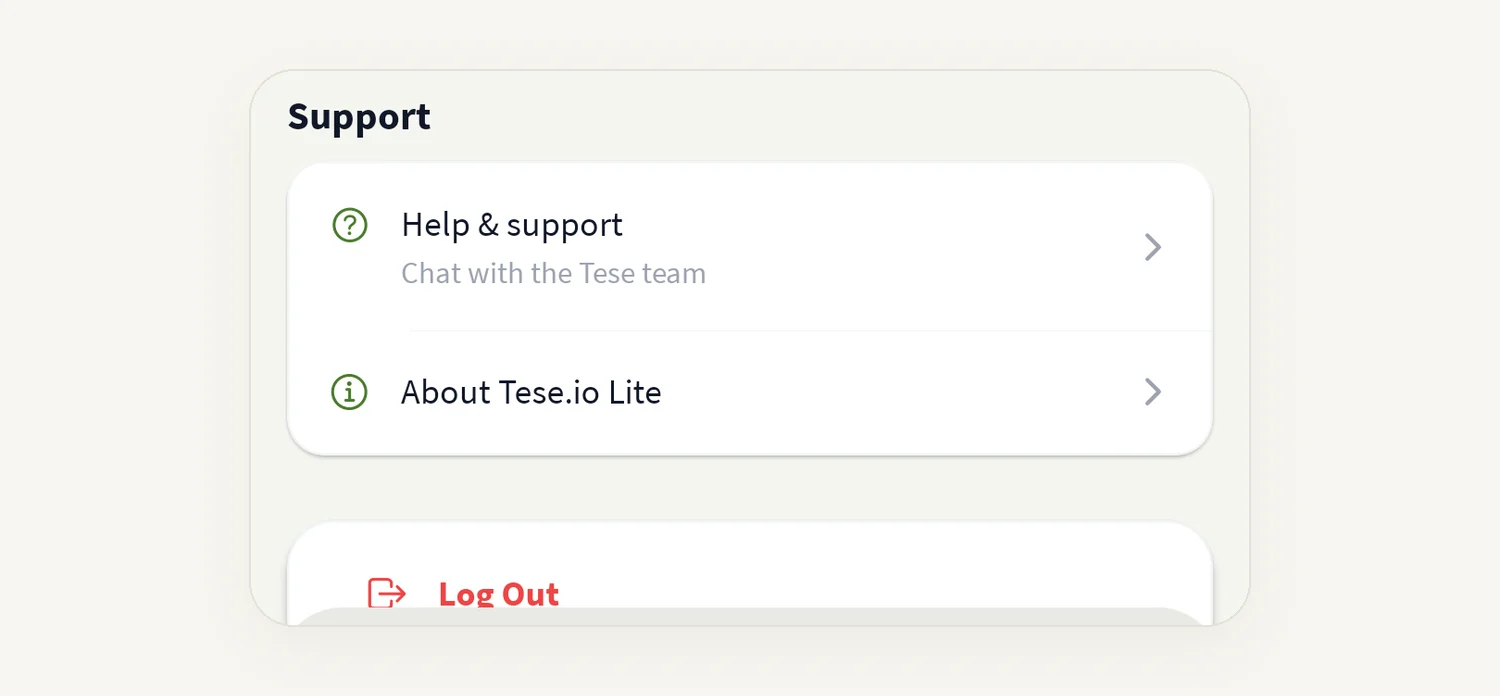
Scroll to the bottom and tap Log Out.
Confirm with Sign Out.
Signing out removes your session from this phone, stops phone notifications for your account on this device, and clears the selected facility and app preferences stored on the phone. Data you have already sent to tese.io is not affected.
Your organisation
The app signs you in to the organisation linked to your account. Your organisation's name is shown under your name on the Profile screen. The app does not currently have an organisation switcher. If your account belongs to more than one organisation and you see the wrong one, contact your organisation administrator or use Support.
Good to know
There is no sign-up in the app. Your organisation administrator gives you access to tese.io.
The app uses email and password only. If your organisation requires another sign-in method, the sign-in screen shows the reason the server gives (for example, that Microsoft sign-in is required).
If the app cannot reach tese.io, you see "Could not reach tese.io. Check your connection and try again."
The app remembers you between launches. You only need to sign in again after you sign out, reinstall the app, or your session ends.
Common questions
I get "Invalid email or password". What should I do? Check the email for typos and that caps lock is off, then try again. If it still fails, use Forgot Password? to set a new password.
I am told I am not associated with any organisation. Your account exists but has not been added to an organisation. Ask your organisation administrator to invite you.
Can I use the app without an account? No. You need a tese.io account from your organisation.
I reinstalled the app. Is my data gone? Anything you submitted is safe on tese.io. You need to sign in again, and anything that was only saved on the phone (unsent drafts or queued scans) is lost with the old install.
Can I sign in on two phones? Yes. Sign in on each phone with the same account.
Was this article helpful?
Still need help?
The tese.io team reads every message and usually replies within one working day.
Contact support