
Home and getting around
What is on the Home screen in Lite mode and where to find everything else in the app.
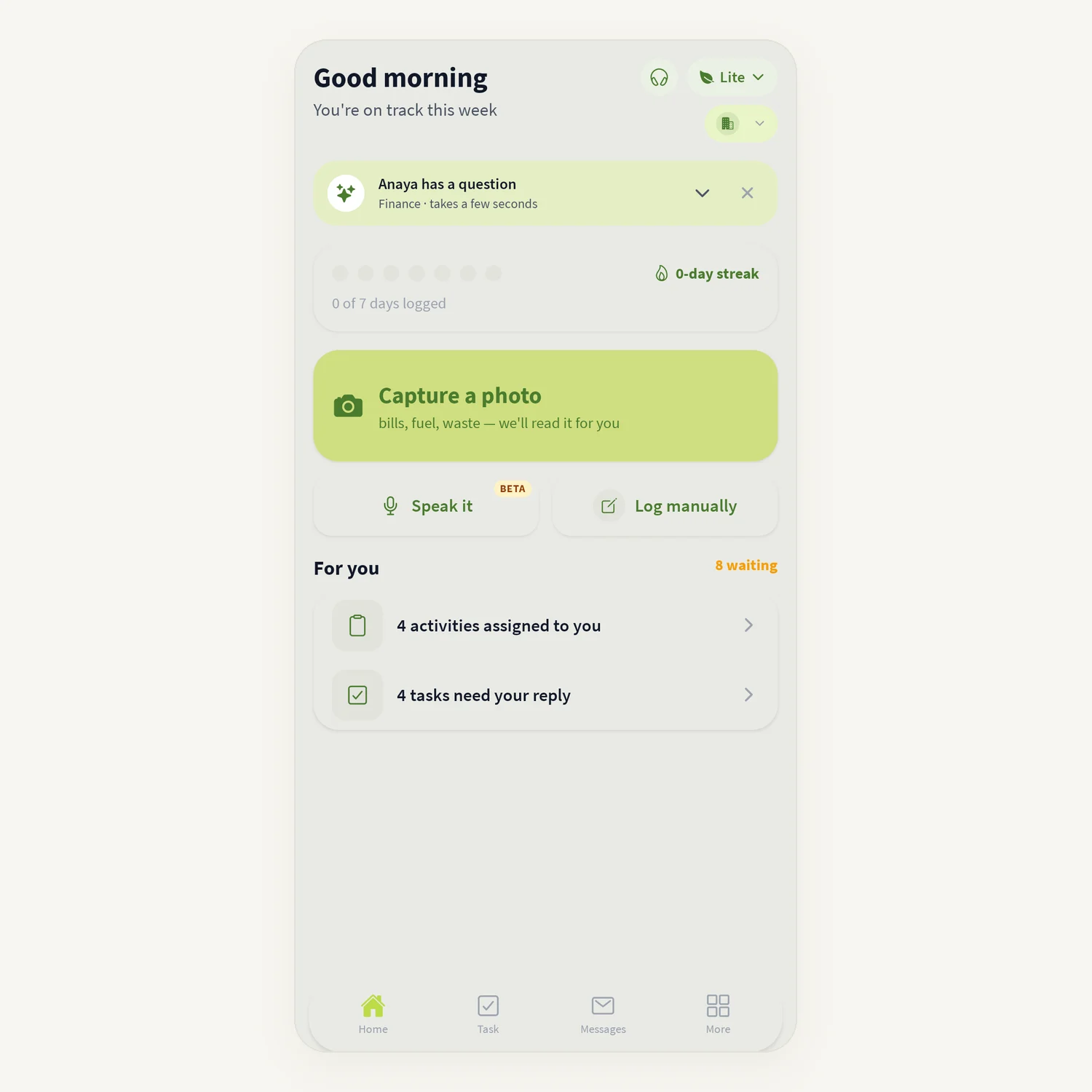
Home is the first screen in Lite mode. It is built for quick capture: take a photo of a bill, speak an entry, or log one by hand, and see what is waiting for you.
Where to find it
In Lite mode the bottom bar has four tabs:
Home – capture and your weekly streak.
Task – the Tasks & Approvals screen.
Messages – chats and calls with colleagues.
More – every other tool in the app.
What is on Home
Greeting – "Good morning", "Good afternoon" or "Good evening" with your first name.
Support icon and mode switch – the round headset icon opens Support chat. The Lite button next to it switches mode.
Facility chip – when your organisation has more than one facility, a chip under the mode switch shows the facility you are working in. Tap it to change facility.
Anaya has a question – sometimes Anaya AI asks a short question about your company. Tap to open it, then Save answer, Skip or Hide until tomorrow.
Streak – seven dots for this week, your day streak, and "N of 7 days logged".
Capture button – the large button (its title cycles through "Capture a receipt", "Capture a bill", "Capture a document", "Capture a photo") opens the scanner.
Speak it (marked BETA) – starts a voice session with Anaya AI.
Log manually – opens the list of activities you can log.
For you – appears only when something is waiting, for example "3 activities assigned to you", "2 entries waiting for your review" or "1 task needs your reply". Tap a row to open it.
Pull down on Home to refresh it.
How to find a tool in More
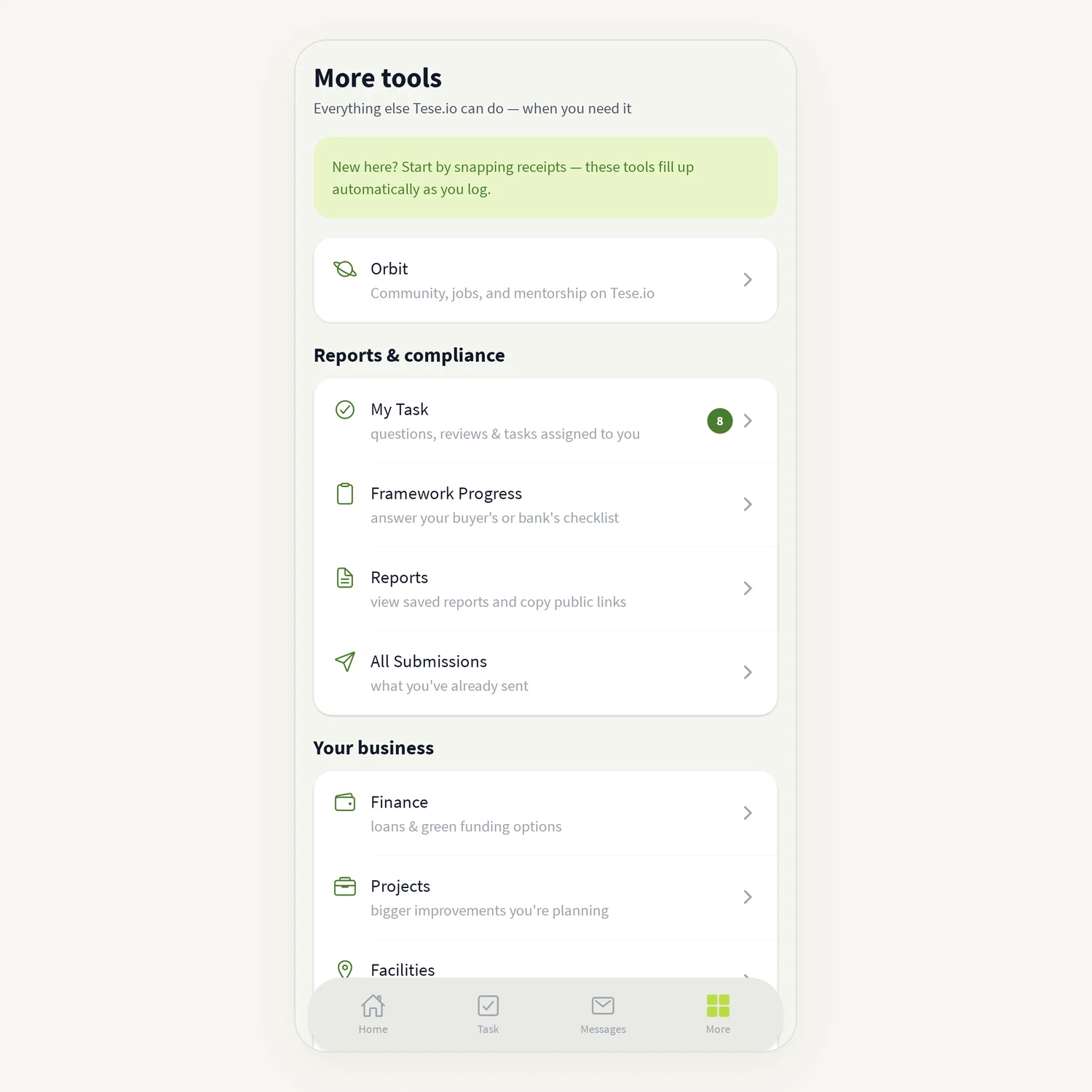
Tap More in the bottom bar. The screen is titled More tools.
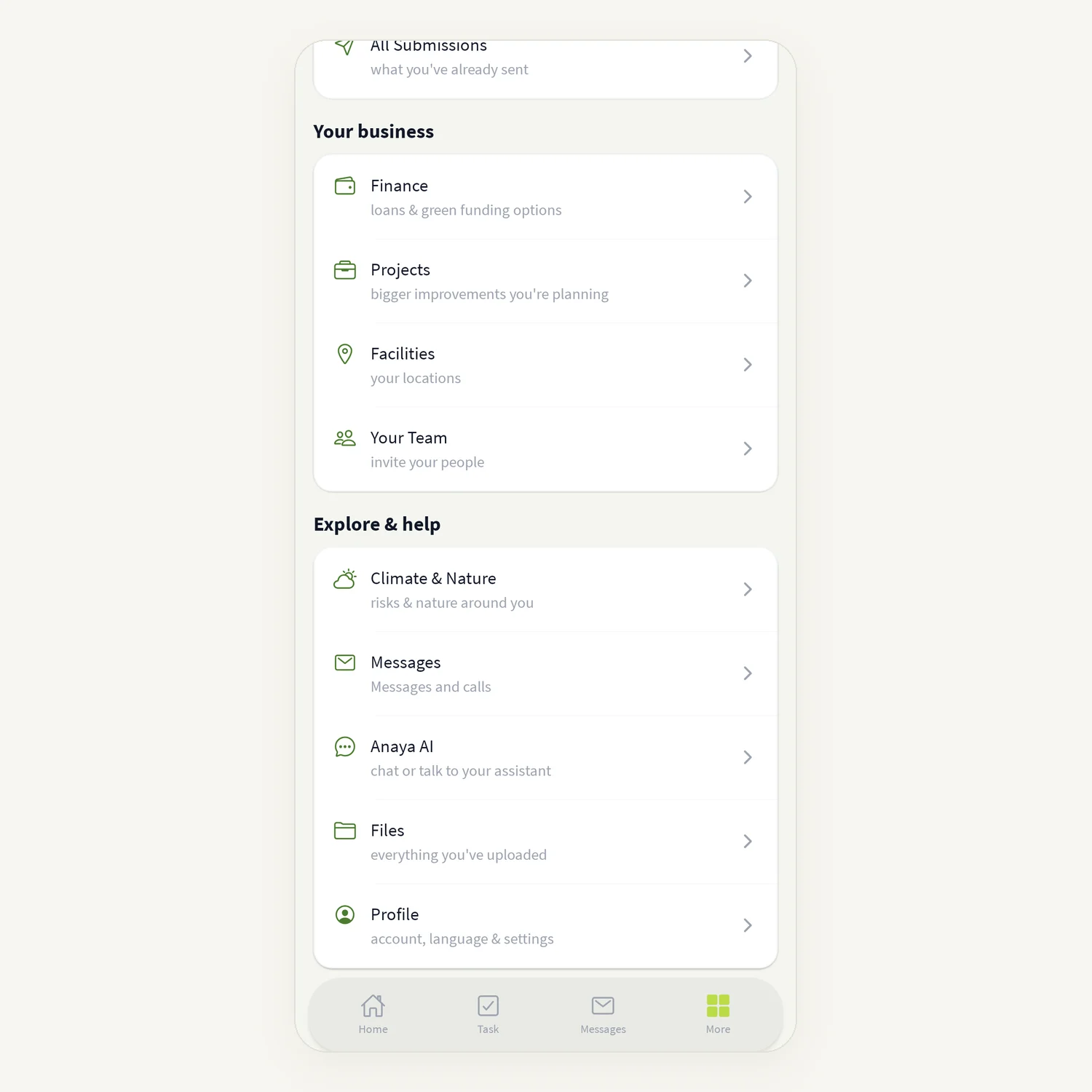
Scroll the groups:
Orbit at the top.
Reports & compliance: My Task, Framework Progress, Reports, All Submissions.
Your business: Finance, Projects, Facilities, Your Team.
Explore & help: Climate & Nature, Messages, Anaya AI, Files, Profile.
Tap a row to open it. My Task shows a number when items are waiting for you.
Good to know
Rows in More only show the areas your organisation has switched on. If a row such as Finance, Projects or Climate & Nature is missing, it may not be available for your account.
When you are offline, a banner at the top of Home says "You are offline".
The streak counts days on which you logged something from this phone.
Common questions
Where is the Scan tab? Scanning starts from the big capture button on Home. See Scanning bills and receipts.
Where are my settings and language? More, then Profile.
Where do I see entries I already sent? More, then All Submissions. You can also open an activity and use its history.
The For you section has disappeared. It only shows when something is waiting for you. When it is gone, you are up to date.
How do I talk to Anaya AI instead of a person? More, then Anaya AI. Support chat (the headset icon) is for help from the tese.io team.
Still need help?
The tese.io team reads every message and usually replies within one working day.
Contact support