
Signing in
How to sign in to the tese.io dashboard, reset your password, use two-factor codes and accept an invitation.
You sign in to the tese.io dashboard with your work email. Depending on how your organisation is set up, you use a password, Google, or Microsoft single sign-on, and you may be asked for a verification code.
Where to find it
Go to the tese.io dashboard sign-in page. If your session has ended, you are taken there automatically with the message Please log in again.
How to sign in with email and password
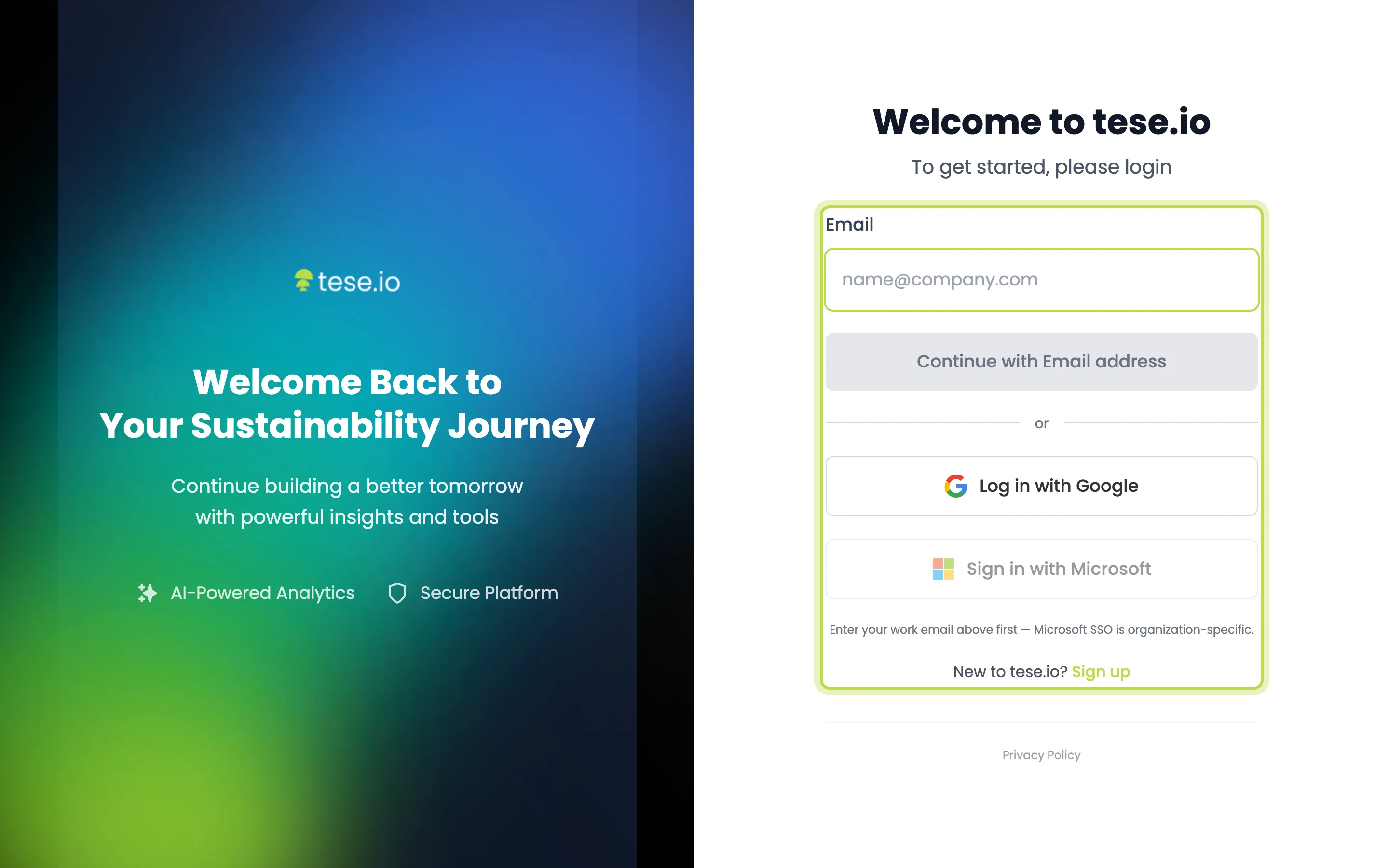
Enter your work email in Email and select Continue with Email address.
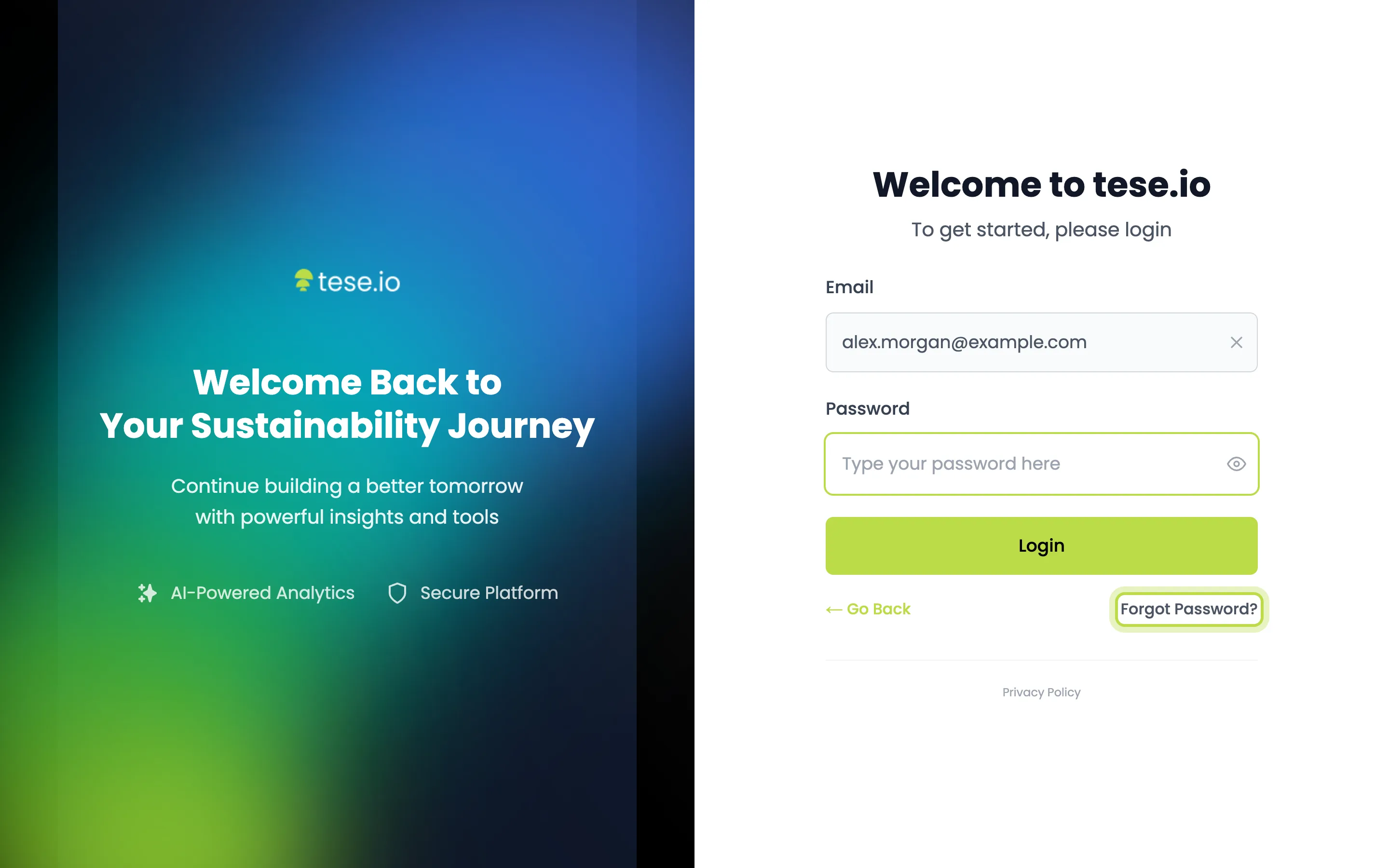
Type your password in Password and select Login.
If your account uses two-factor authentication, enter the 6-digit code and select Verify and continue (see below).
If you belong to more than one organisation, choose one on the Please select an organisation to continue screen. If you belong to only one, it opens automatically.
How to sign in with Google or Microsoft
Log in with Google: select it on the first screen and choose your Google account.
Sign in with Microsoft: enter your work email first, then select Sign in with Microsoft. Microsoft sign-in is set up per organisation, so if you see Microsoft sign-in is not available for this email domain., use your password instead or ask your admin.
How to reset a forgotten password
On the sign-in page, enter your email and select Continue with Email address.
On the password step, select Forgot Password?.
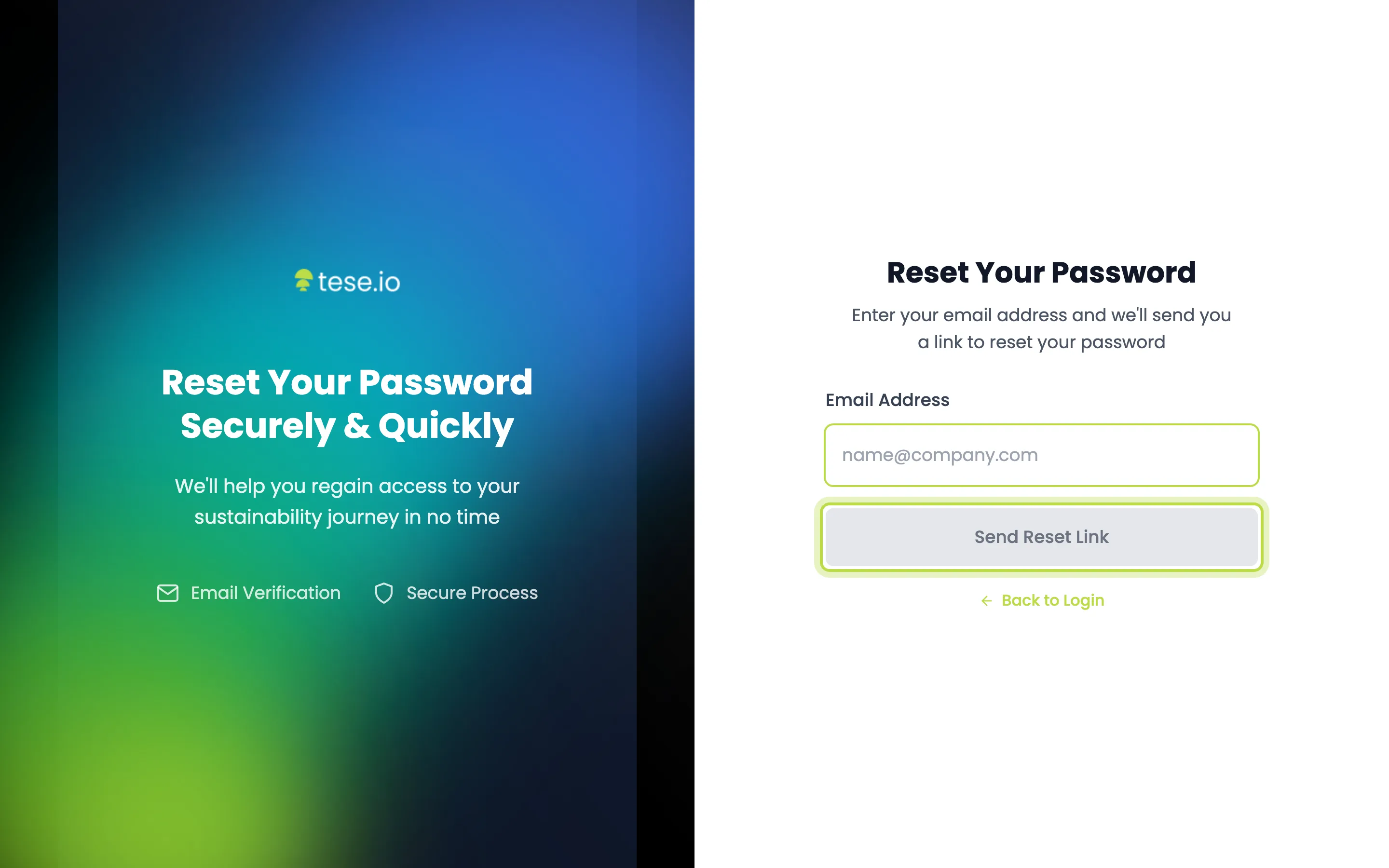
Enter your email and select Send Reset Link.
Open the email and follow the link to set a new password.
How to enter a verification code
If two-factor authentication (MFA) is on for your account, you are asked for a code after your password:
Check your email: enter the 6-digit code sent to your email address.
Authenticator code: enter the 6-digit code from your authenticator app, or one of your backup codes.
Some organisations require MFA for everyone. If yours does and you have not set it up, you are taken to Set up MFA after signing in, where you choose Email codes or Authenticator app. You can change this later in your profile — see Profile and account settings.
How to accept an invitation
Open the invitation email and select the link.
On Complete Your Account, enter a password (at least 8 characters) and confirm it.
Select Create Account. You then sign in with your email and the new password.
If the page says Invalid Invitation or Invalid or expired invitation, ask your organisation admin to resend the invite.
Good to know
Passwords must be at least 8 characters.
Microsoft single sign-on only works for email domains your organisation has configured.
To sign out, open the menu under your name at the bottom of the left-hand sidebar and select Log out, then confirm with Logout.
Common questions
Why does it keep asking me to log in again? Your session has expired or was ended. Sign in again. If it happens repeatedly, clear your browser's cookies for tese.io and try once more.
I didn't get the password reset email. What now? Check your spam folder and that you typed the address you were invited with. If it still doesn't arrive, ask your organisation admin to check your account.
Why can't I select "Sign in with Microsoft"? The button only works once you've typed a valid work email in the Email field.
I lost my authenticator app. How do I get in? Use one of the backup codes you saved when you set the app up. If you have none left, ask your organisation admin for help.
Why am I asked to choose an organisation? Your account belongs to more than one organisation. Pick the one you want to work in. You can switch later from the sidebar.
Was this article helpful?
Still need help?
The tese.io team reads every message and usually replies within one working day.
Contact support