
The Home page
What the Home page shows, the setup guide for new workspaces, and how to change your shortcuts.
Home is the first page you see after signing in. It greets you, flags anything that needs attention, and gives you a quick way back into your work.
Where to find it
Select Home at the top of the sidebar.
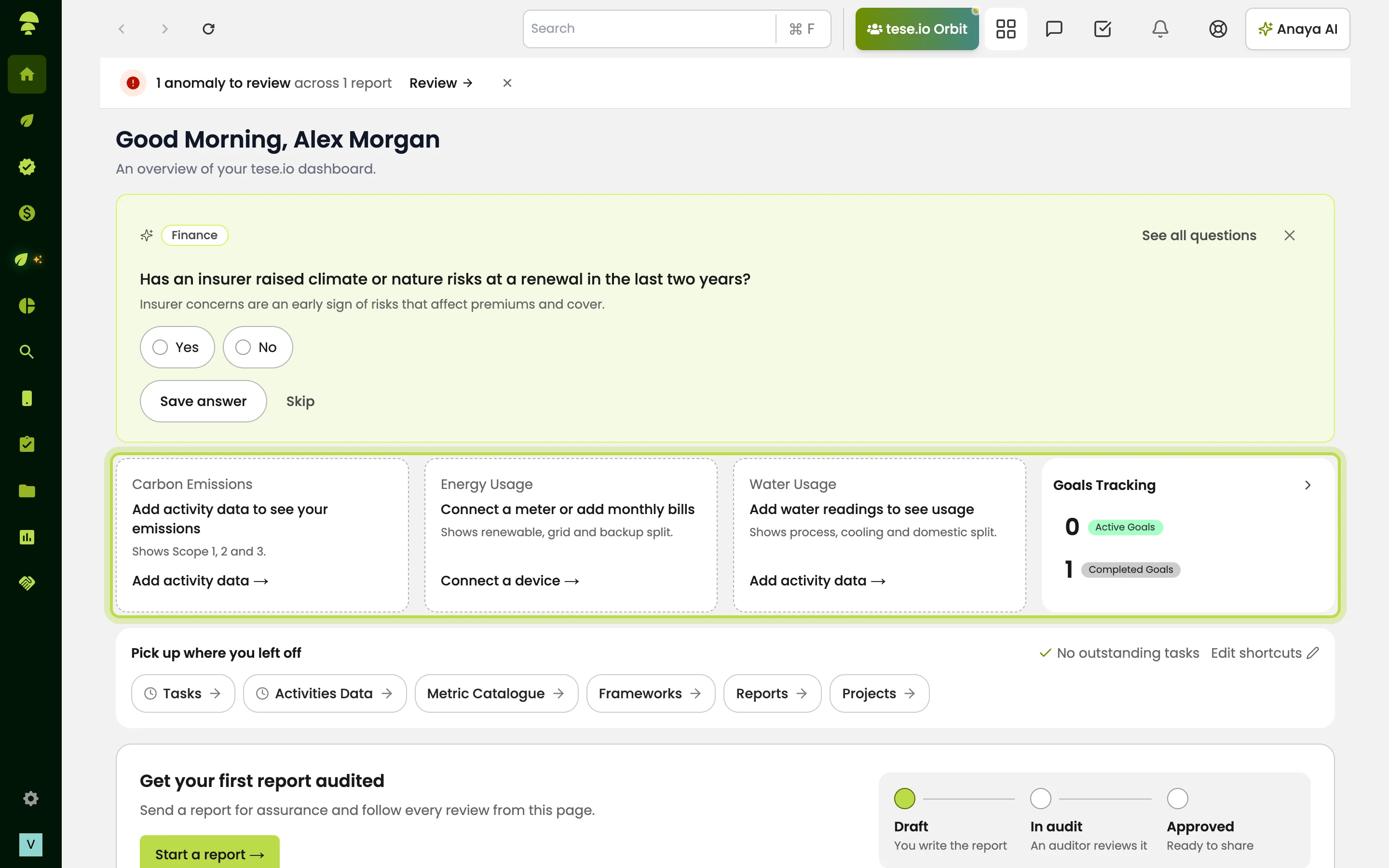
What Home shows
Attention strip: a short list of things to look at, such as anomalies to review in your reports or tasks that are overdue. Each item has a Review link, and you can dismiss items you've seen.
Finish setting up your workspace: a setup guide for new organisations (see below).
Help Anaya know your company: one question about your company at a time. Answering helps Anaya AI give better answers. You can choose Hide until tomorrow.
KPI cards: Carbon Emissions (Scope 1, 2 and 3), Energy Usage, Water Usage and Goals Tracking. If there's no data yet, the card tells you what to do next, for example Add activity data, Connect a device or Set a target.
Pick up where you left off (or Shortcuts): pages you opened recently and your saved shortcuts.
Outstanding tasks: up to five pending or in-progress tasks, most urgent first, with View all.
Reports and sustainable finance sections, if your role can see them.
What appears depends on your role and your organisation's plan.
How to finish setting up a new workspace
New organisations without a financial year see Finish setting up your workspace. The steps are:
Create a financial year — groups your ESG data into reporting periods. You can do this directly on the card.
Confirm your locations — add the address and country of your headquarters and sites.
Choose your frameworks — for example GRI, ESRS or SASB.
Add your first data — enter an activity.
Upload or connect a source — upload a document or connect a device.
Set one target — track progress against a baseline.
Select Set up later to hide the guide for now.
How to change your shortcuts
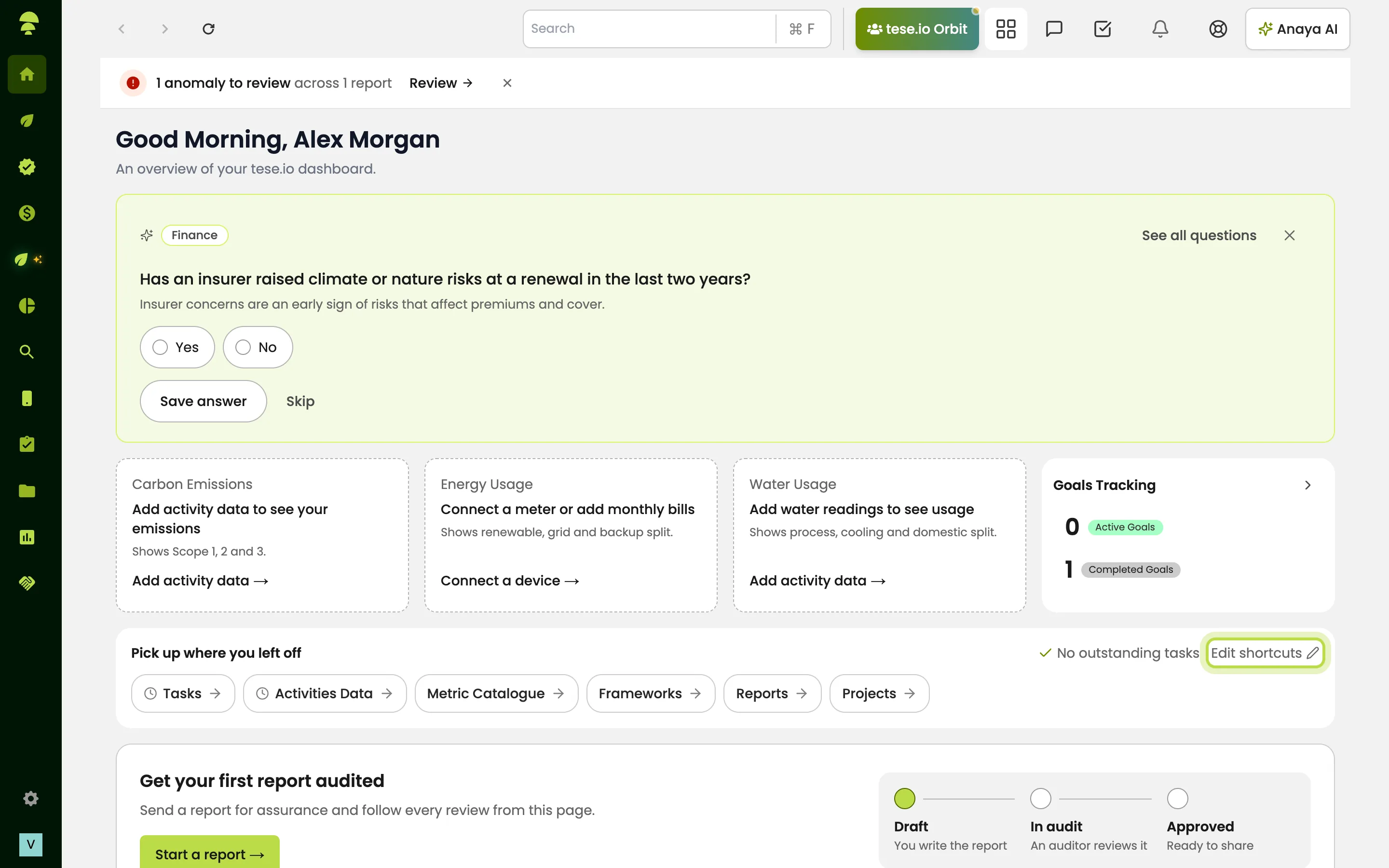
On the Pick up where you left off card, select Edit shortcuts.
In Edit quick links, remove links you don't need, or pick one from Choose a link to add….
Select Save.
Good to know
Your shortcuts are saved in the browser you're using, so they won't follow you to another computer.
The greeting changes with the time of day: Good Morning, Good Afternoon or Good Evening.
Only pending and in-progress tasks show under Outstanding tasks. Open Tasks in the sidebar to see all of them.
Common questions
Why does Carbon Emissions say "Add activity data to see your emissions"? No activity data has been recorded for your organisation yet. Go to ESG Manager → Activities Data and add an entry.
Why don't I see the setup guide? It only shows for organisations that don't have a financial year yet, and it stays hidden if someone selected Set up later.
My shortcuts disappeared. Why? Shortcuts are stored in your browser. If you cleared your browser data or are on another device, add them again.
Why is there no Reports section on my Home page? Your role doesn't include reports. Ask your organisation admin if you need it.
Was this article helpful?
Still need help?
The tese.io team reads every message and usually replies within one working day.
Contact support