
Getting around and switching organisation
How the sidebar and top bar work, how to search for a page, and how to switch to another organisation.
The dashboard has a sidebar on the left with the main sections, and a top bar with search, messages, approvals, notifications, support and the Anaya AI assistant. This page explains both and how to move between organisations.
Where to find it
Sidebar: the dark menu on the left of every page.
Top bar: the strip across the top of every page.
Switch organisations: select your name at the bottom of the sidebar.
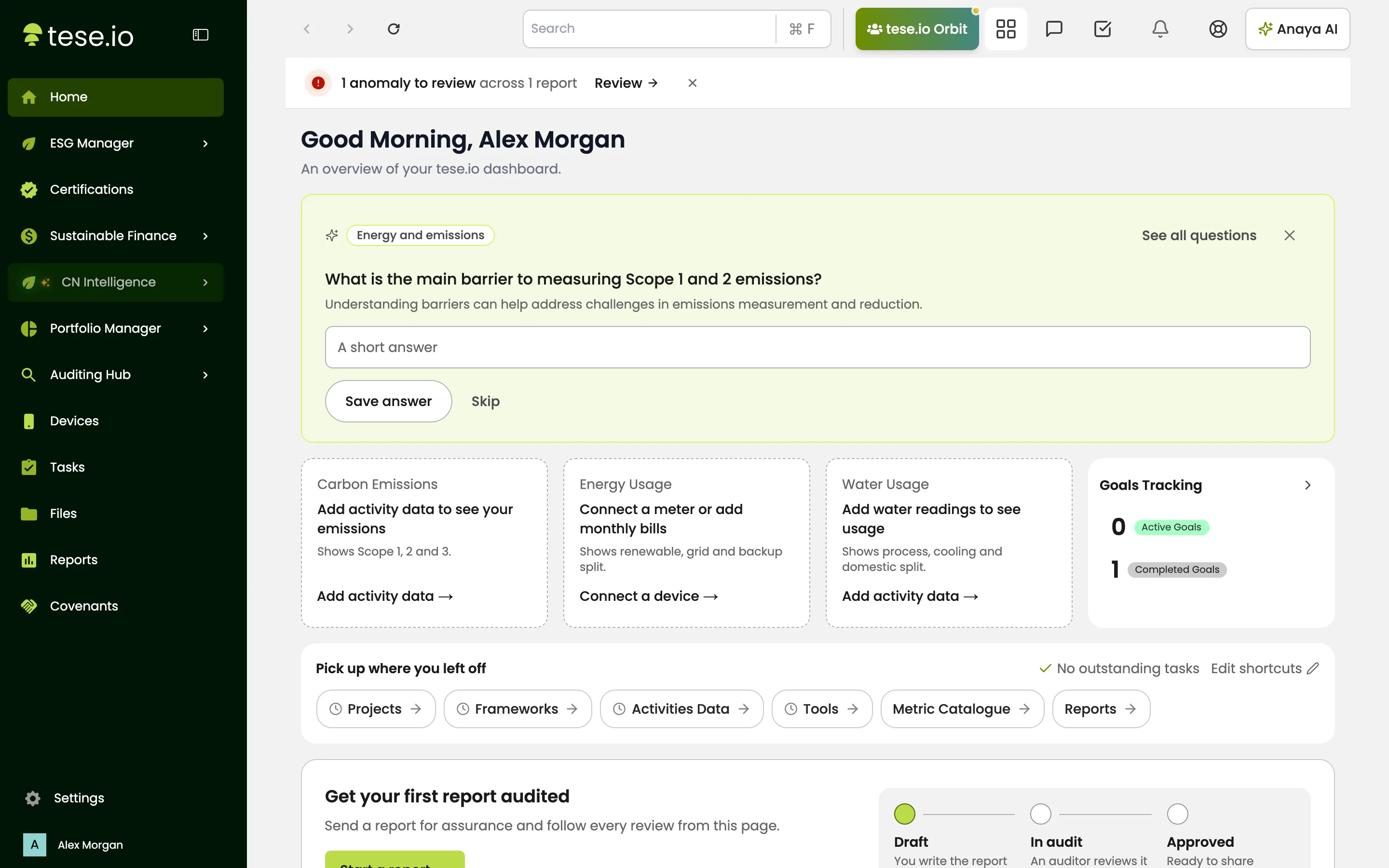
The sidebar
The sidebar collapses to icons and expands when you move your pointer over it. Select the panel icon next to the tese.io logo to keep it open.
The main items are Home, ESG Manager (with Overview, Frameworks, Activities Data, ESG Targets, Projects, Carbon Emission Suite, Life Cycle Assessment, Supplier Engagement, Tools and Metric Catalogue), Certifications, Sustainable Finance, CN Intelligence, Portfolio Manager, Auditing Hub, Devices, Tasks, Files, Reports and Covenants.
At the bottom are Settings and your name.
You only see the items your role and your organisation's plan allow. Some sections may not be enabled for your organisation.
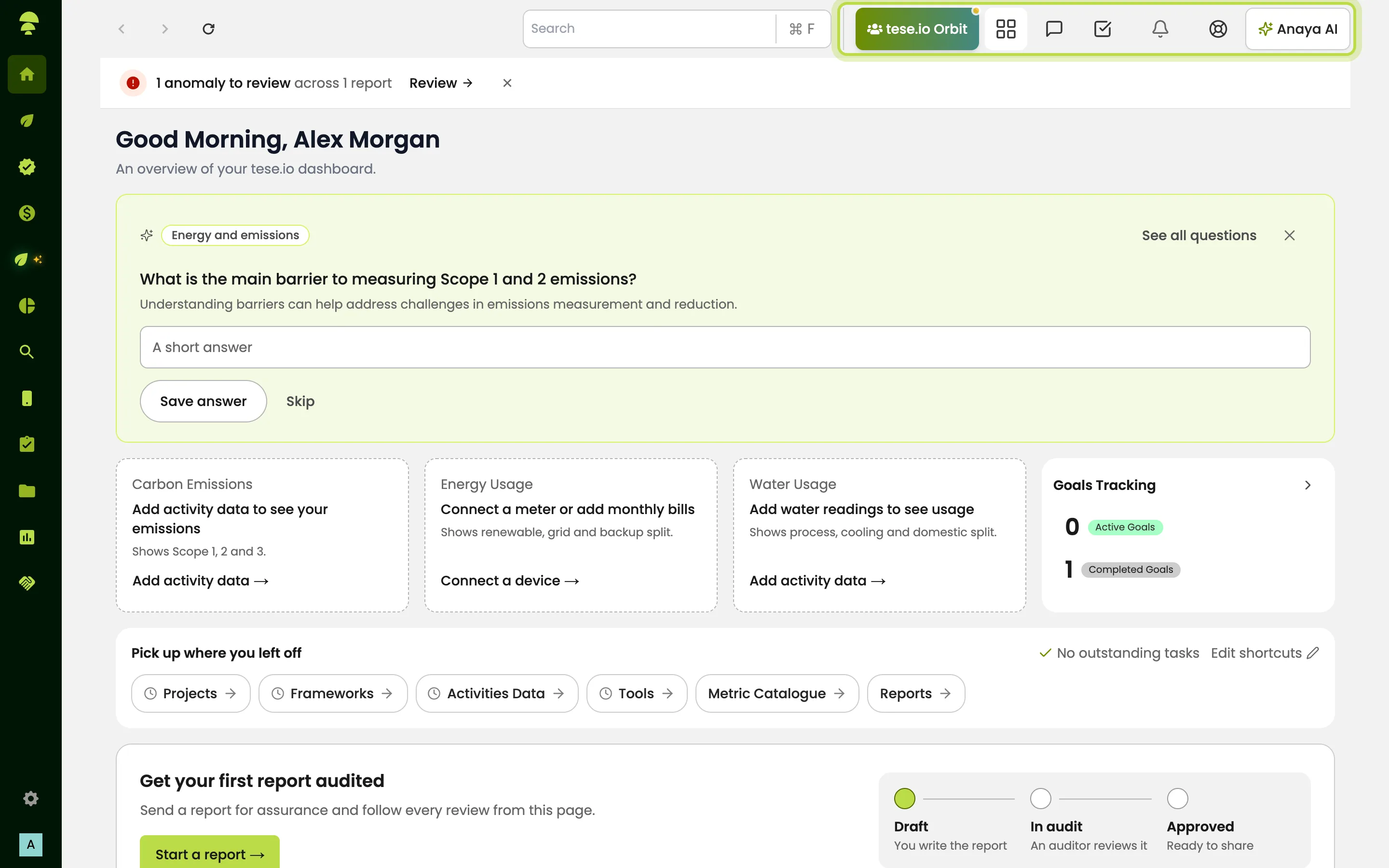
The top bar
Back, forward and Refresh page buttons.
Search: type part of a page name, such as "Activities" or "Users", and pick it from the list. Press Ctrl+F (Cmd+F on a Mac) to jump to the search box.
tese.io Orbit: opens the Orbit community. A small dot means you still need to give public visibility consent.
tese.io apps: the grid icon, which opens the launcher for the other tese.io apps.
Inbox: your messages.
Approvals: the tick icon. A red number shows how many approvals are waiting for you. Select it to open Tasks.
Notifications: the bell, showing your in-app notifications.
Support: the lifebuoy icon, which opens the help center and support.
Anaya AI: opens or closes the Anaya AI assistant.
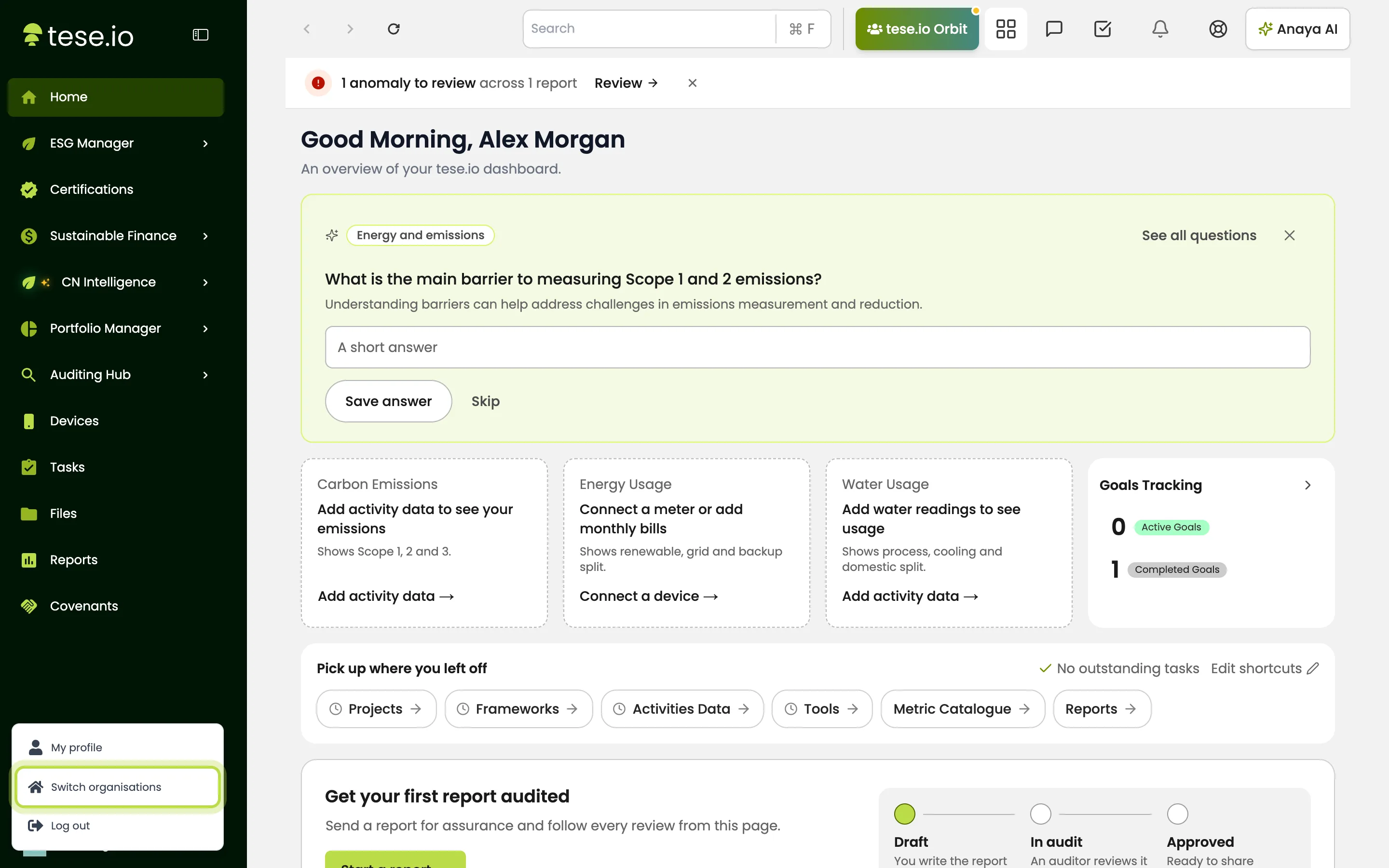
How to switch organisation
Select your name at the bottom of the sidebar.
Select Switch organisations.
On Please select an organisation to continue, choose the organisation. Each card shows your role in it.
The dashboard reloads with that organisation's data and your role there.
How to sign out
Select your name at the bottom of the sidebar.
Select Log out, then Logout to confirm.
Good to know
Your role can differ between organisations, so menus and buttons may change when you switch.
Data never mixes between organisations. Activities, files, tasks and reports belong to the organisation you are in.
Settings only appears if your role can open at least one settings page.
Auditors from the marketplace see a different sidebar (Dashboard, My Bookings, My Services, My Audits, Audit Ledger, Files).
Common questions
Why is a menu item missing that my colleague can see? Menu items depend on your role and on what your organisation has switched on. Ask your organisation admin to check your role.
I switched organisation and now I can't see my data. Where did it go? Nothing is lost. Each organisation has its own data. Switch back to the organisation where you entered it.
I got "Could not switch organisation. Please try again." What should I do? Try again. If it keeps failing, sign out, sign back in and choose the organisation on the selection screen.
How do I keep the sidebar open? Select the panel icon next to the tese.io logo at the top of the sidebar. Select it again to let it collapse.
What does "You are not authorized for this page." mean? Your role doesn't include that section. Select Go to Home, and ask your organisation admin if you need access.
Still need help?
The tese.io team reads every message and usually replies within one working day.
Contact support