
Profile and account settings
How to update your personal details and photo, change your password and set up two-factor authentication.
Your profile holds your name, contact details, job title and photo, and is where you manage your password and two-factor authentication (MFA). The same page also shows your organisation's profile.
Where to find it
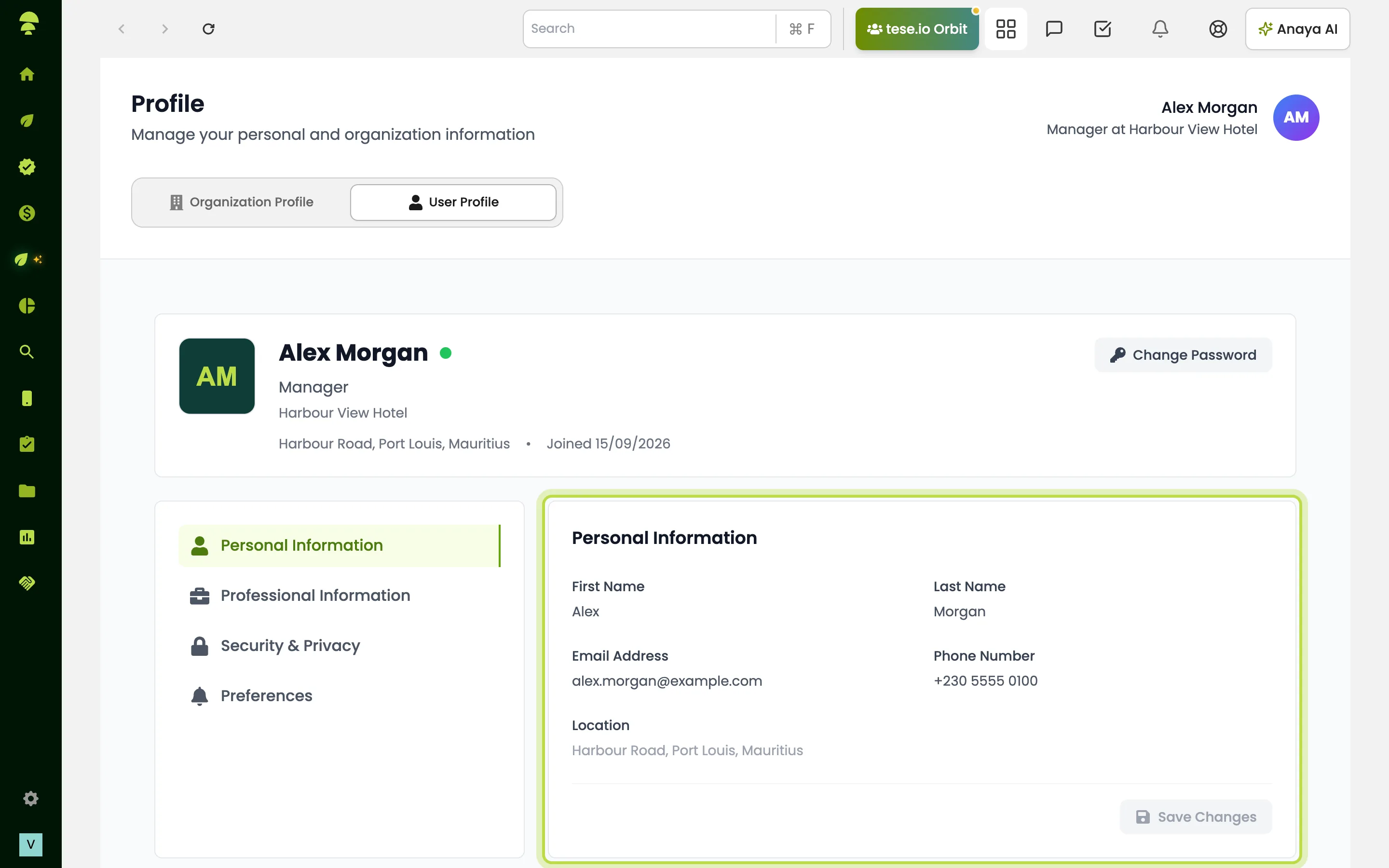
Select your name at the bottom of the sidebar, then My profile. The page has two tabs: Organization Profile and User Profile.
On User Profile, the left-hand menu has Personal Information, Professional Information, Security & Privacy and Preferences.
How to update your details
Open My profile and select the User Profile tab.
Under Personal Information, select a field such as First Name, Last Name, Email Address or Phone Number, type the new value and save it.
Under Professional Information, update Position. Your Organization and Department are shown here too.
How to change your photo
On User Profile, select your photo or initials.
Choose an image file. It must be an image and smaller than 5MB.
How to change your password
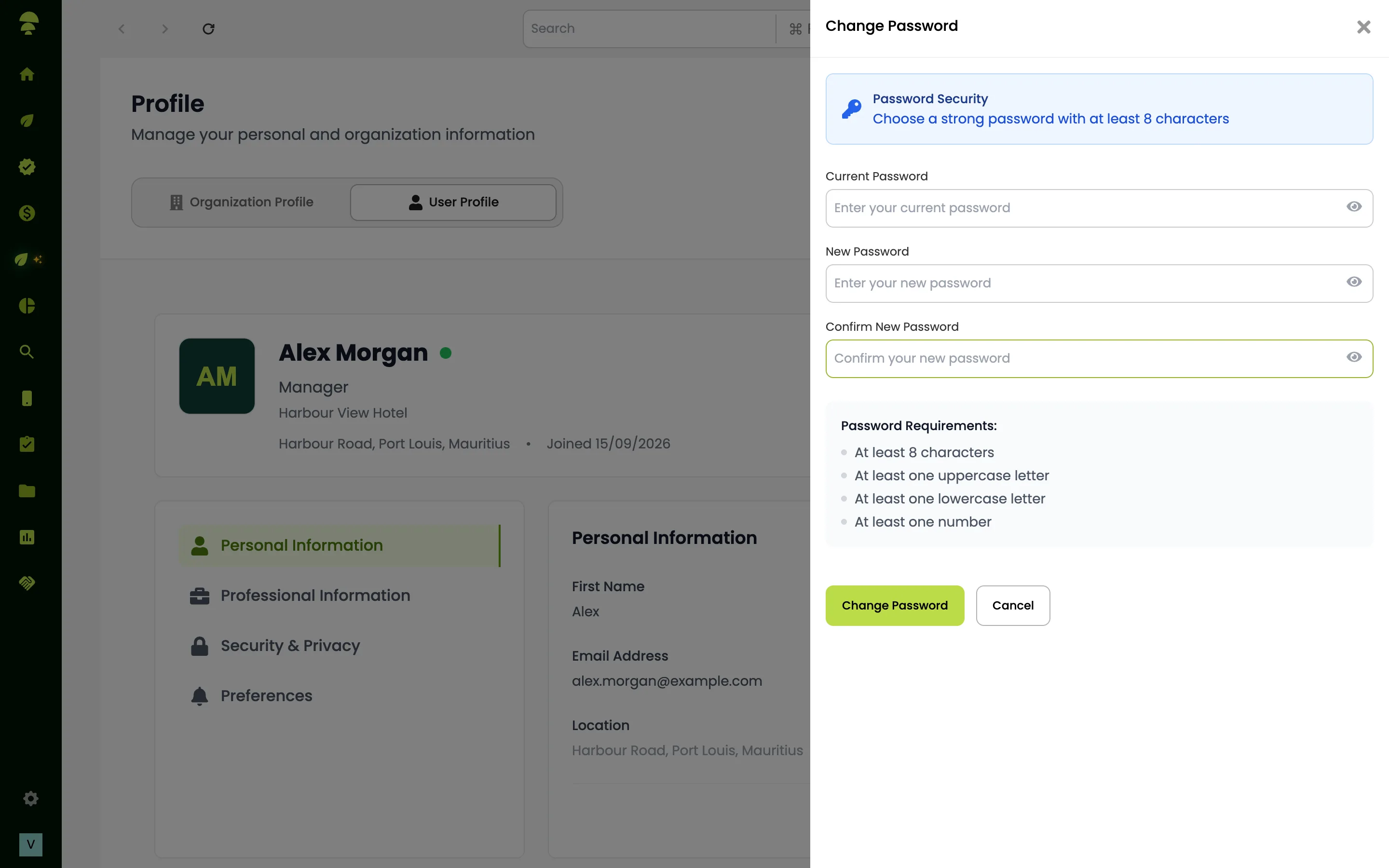
On User Profile, select Change Password (at the top, or under Security & Privacy).
Enter your current password, then the new password twice.
Select Change Password.
The new password must be at least 8 characters and different from your current one.
How to set up two-factor authentication
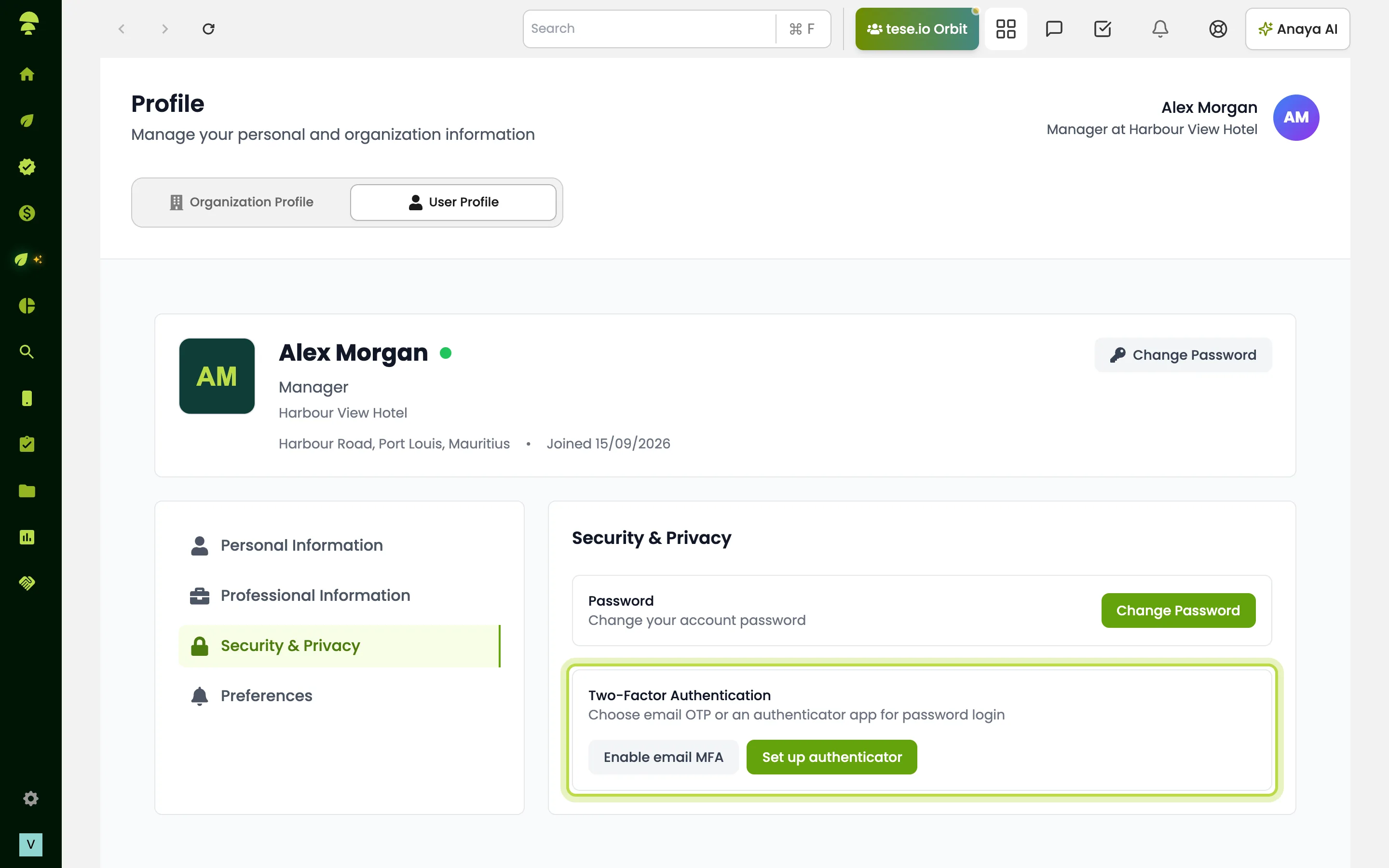
Go to User Profile → Security & Privacy and find Two-Factor Authentication.
Choose one:
Enable email MFA — you get a 6-digit code by email each time you sign in with your password.
Set up authenticator — scan the QR code with an app such as Google Authenticator, Authy or 1Password, enter the 6-digit code, and select Confirm and enable.
If you set up an authenticator, save the backup codes shown. They won't be shown again. Select I have saved these codes when done.
To turn MFA off, select Disable. If your organisation requires MFA, you can't disable it and you see Your organization requires MFA at password login.
Good to know
Location on your profile can't be edited here.
Email Notifications and Language & Region under Preferences are marked Coming Soon. To manage notifications, use Settings → Notifications.
Your role can differ between organisations. The organisation selection screen shows your role in each one.
Common questions
How do I change my password? Open My profile → User Profile and select Change Password.
Why can't I turn off two-factor authentication? Your organisation requires it for everyone. Ask your organisation admin if you think this is wrong.
My photo won't upload. Why? It must be an image file under 5MB.
Where do I change notification emails? Go to Settings → Notifications. The option in Preferences isn't available yet.
How do I change which organisation I'm in? Select your name at the bottom of the sidebar and choose Switch organisations.
Was this article helpful?
Still need help?
The tese.io team reads every message and usually replies within one working day.
Contact support