
Scanning bills and receipts
Photograph a bill, receipt or meter and let tese.io Lite read the figures and match them to an activity.
The scanner reads a photo of a bill, receipt, invoice or meter, pulls out the key figures and suggests which activity they belong to. You check the result before it is saved.
Where to find it
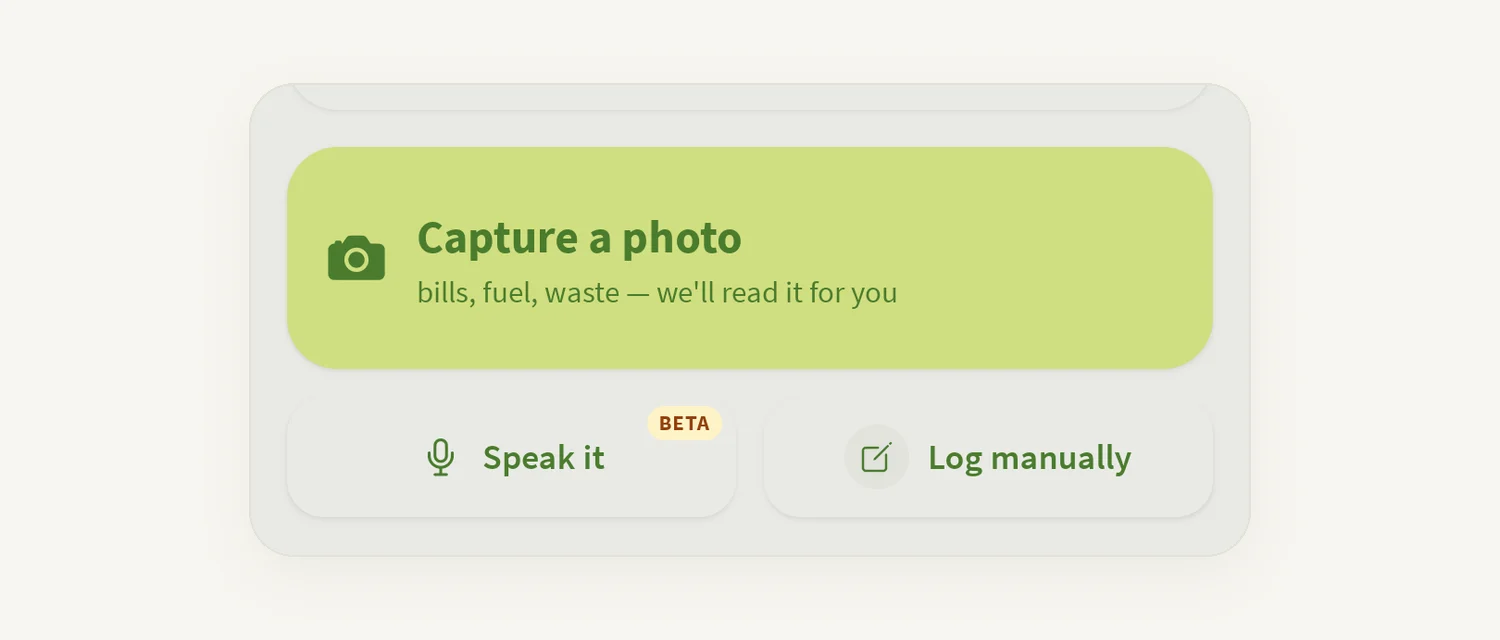
On Home, tap the large capture button ("Capture a receipt", "Capture a bill" and so on). The Scan Document screen opens with three stages: Capture, Extract, Review.
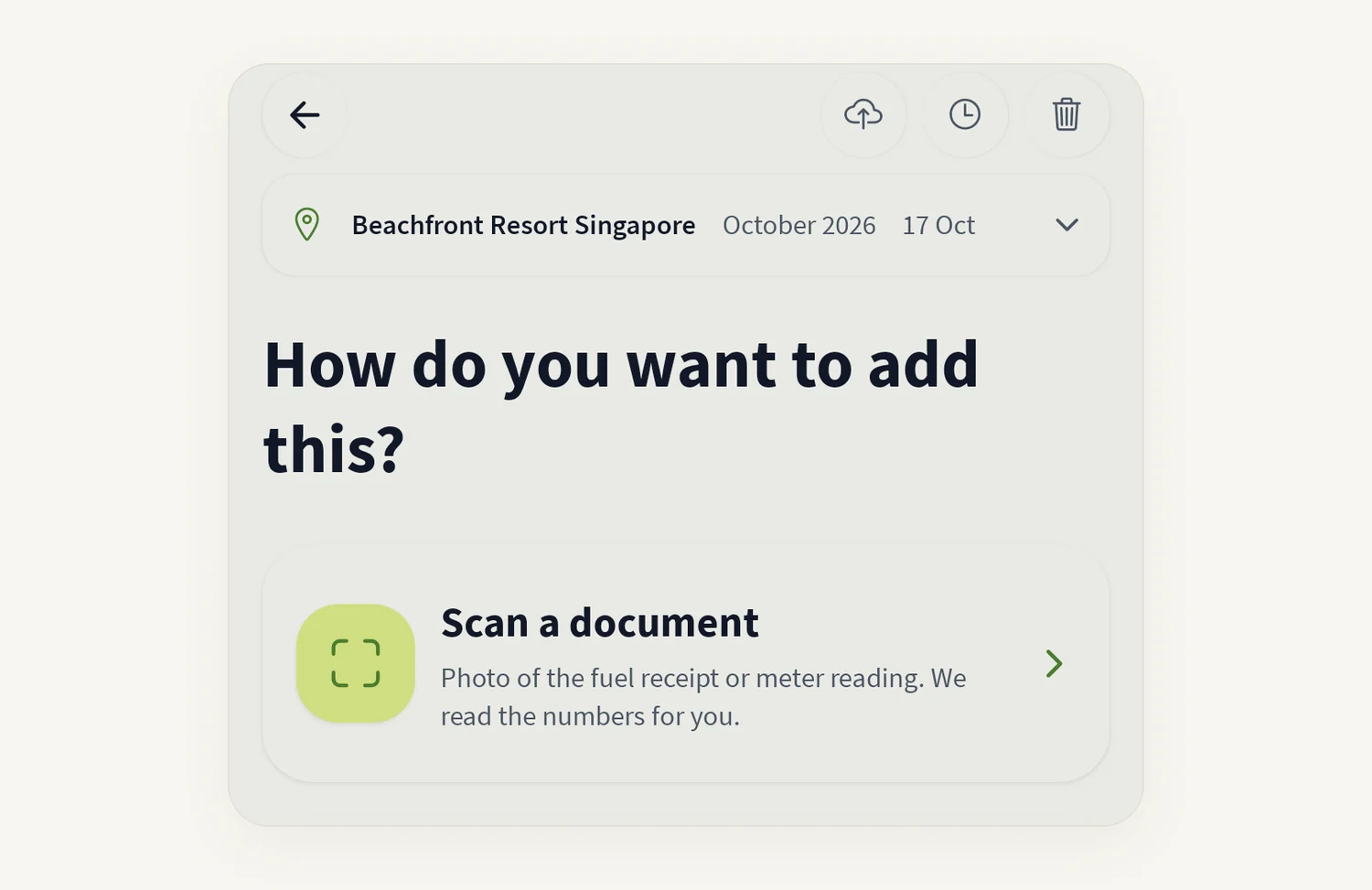
Inside an activity form you can also use Scan a document to fill that activity from a photo or PDF.
How to scan a document
Tap the capture button on Home. Allow camera access the first time.
Optionally pick the document type from the chips: Electricity Bill, Gas Bill, Fuel Receipt, Water Bill, Waste Invoice, Meter Reading or Activity Sheet. This helps the app read it.
Position the document inside the frame and tap Take Photo, or tap Choose from Library to use an existing photo.
Wait while the app reads the document.
On the review screen, check Affected activity. It shows the matched activity and how confident the match is (for example "92% confident").
If it is wrong, or the app asks you to confirm, tap Change activity or Pick the right activity.
Under Confirm or edit, check Source / Activity, Amount, Unit, Date and Vendor. Correct anything that was read wrongly.
Tap Submit. Or tap Refine in full activity form to open the full activity with these values filled in, so you can add location, period and proof.
When you see Scan Submitted!, tap the button to scan another.
Picking the right activity
If the app is not sure which activity the document belongs to, it opens Pick the right activity with three lists:
Suggested by AI – the best guesses for this document;
Your assignments – activities assigned to you;
All activities – the full catalogue.
Tap one to continue. Tap Classify later to go back to Home without filing it.
Good to know
Reading a document needs an internet connection.
If you submit a scan while offline, or the upload fails, the app saves it and shows Saved for later: "We will upload this activity as soon as you are back online." See Working offline.
You can show the raw text under Full OCR reading, and for documents in another language use Show in English.
To close the scanner, tap the close button. If you have a capture in progress you are asked Leave scanner? and the capture is discarded.
Common questions
The scan says "Extraction Failed". The app could not read the image. Take a clearer, well-lit photo with the whole document inside the frame and tap Try Again.
The amount or date is wrong. Edit it under Confirm or edit before you tap Submit.
A scan didn't fill my activity. If you see "We could not capture this data", the file does not appear to match the activity. Try a clearer document or enter the answers by hand. You can also ask Support.
Can I scan a PDF? Inside an activity, Scan a document accepts a photo or a file. The Home scanner works with photos from the camera or library.
Does the photo get kept as proof? When you go through the activity form, the scanned file is attached as evidence where the activity accepts that file type and size.
Was this article helpful?
Still need help?
The tese.io team reads every message and usually replies within one working day.
Contact support