
Framework questions and metric entry
Answer the questions in your reporting frameworks from the Framework Progress screen in tese.io Lite.
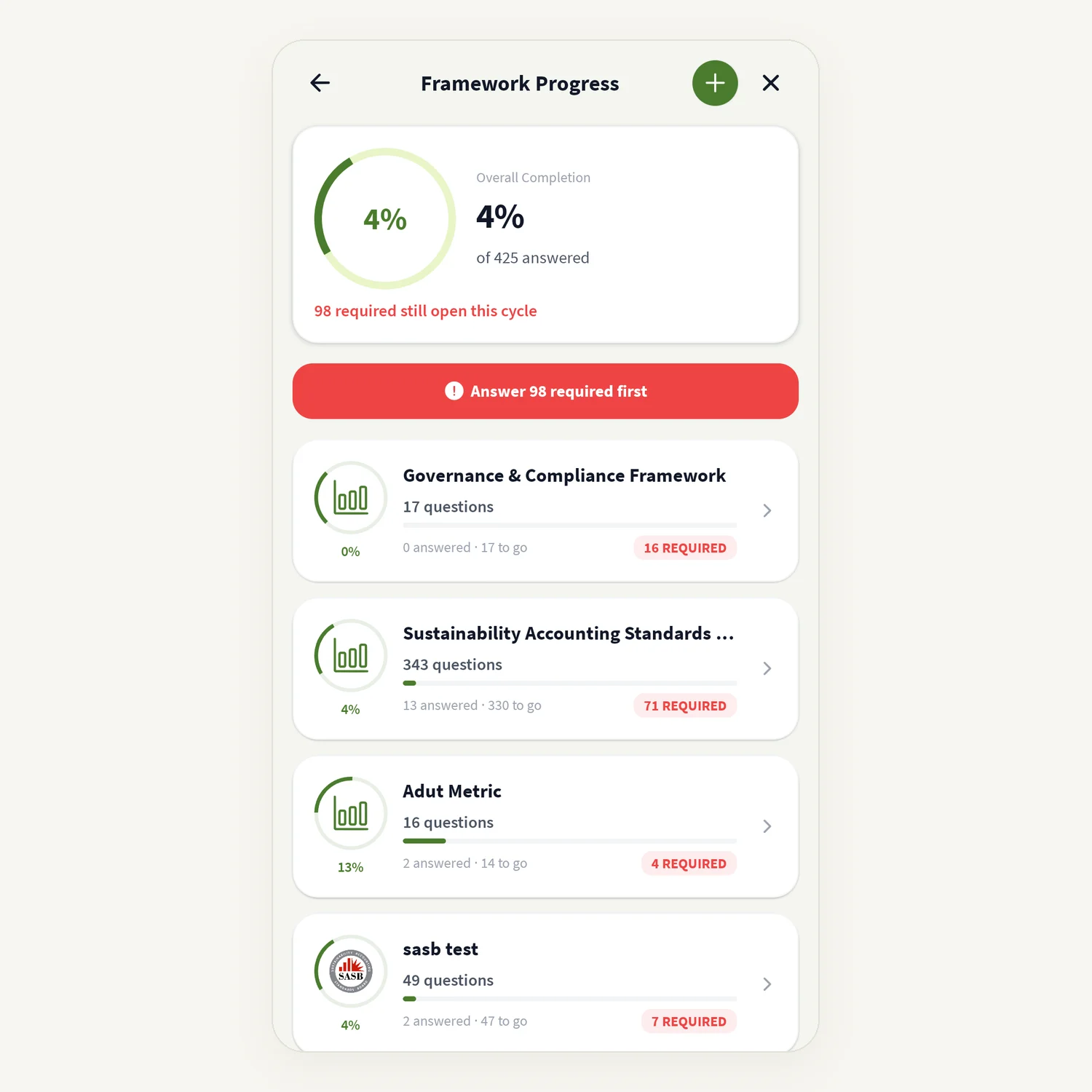
Frameworks are the checklists your organisation reports against, such as a buyer's or bank's questionnaire or a global standard. Framework Progress shows how complete each one is and lets you answer the open questions.
Where to find it
More → Framework Progress (described as "answer your buyer's or bank's checklist"). It may not be available for your account if your organisation has not switched it on.
How to answer framework questions
Open Framework Progress. Each framework shows Overall Completion and how many questions are answered.
Tap a framework to see its questions.
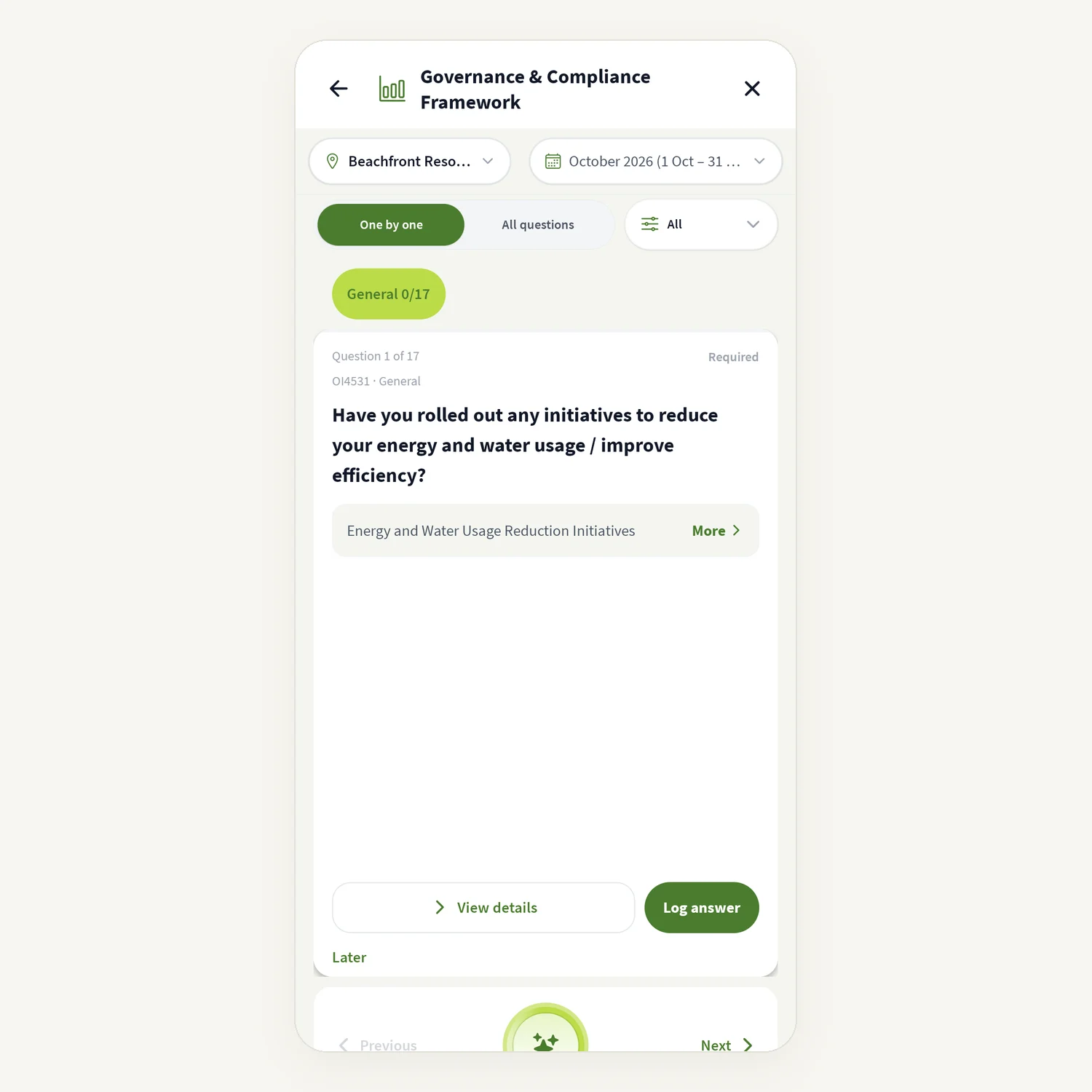
Set the reporting context if asked: tap the location or period ("Tap location or period to set reporting context"), choose Location, Financial year and Reporting cycle, then Apply.
Choose how to work:
One by one – one question card at a time, with Previous and Next;
All questions – the full list.
Use the filter (Which questions?) to show all questions or only those still missing or required.
On a question card you can:
for a short answer, type it in the box and tap Save & next, or tap Scan a document to read it from a photo or PDF;
for a fuller question, tap View details to read what it asks, then Log answer to open the full metric entry (Edit once answered);
tap Later to skip it for now ("Saved for later");
tap Full editor, where shown, to open the full metric entry.
If some required questions are still open, a banner such as Answer 3 required first takes you to them.
Tap Ask Anaya on a question for a plain-language explanation.
The full metric entry
The full editor walks you through the metric in order: Enter values, then proof and review. Depending on the metric you may also see:
Scope & coverage notes – where the data applies;
Methodology – how the value was measured or estimated;
Ownership – who is accountable;
Notes – context for reviewers;
Evidence – Add proof with camera, photo library or a file;
AI upload – add a photo or document and the app fills values for you to review.
Tap Submit when you are done.
Good to know
Some values are marked AUTO-AGGREGATED or FORMULA-CALCULATED. These are worked out from activity data or a formula and cannot be edited by hand.
Required questions are marked. "Answer N required first" means those must be done before the framework can be completed.
When you log an activity that feeds a framework question, the app may show "This also feeds your framework report" with Update answer.
You can start a new framework with Create framework. Some options (AI-assisted and materiality-based) open the tese.io web dashboard.
Common questions
I see "No Frameworks Assigned". No framework has been set up for your organisation yet. Create one with the + button or ask your administrator to assign one in the tese.io dashboard.
A question says it is not available as an activity input. That question cannot be answered from the app. Answer it in the web dashboard.
Can I see what I answered before? Yes. Answered questions show Your answer, when it was submitted and any evidence. Tap Update answer to change it.
The list will not load. "Couldn't load frameworks" usually means a weak connection. Pull down to refresh or tap Try again.
Was this article helpful?
Still need help?
The tese.io team reads every message and usually replies within one working day.
Contact support