
Logging an activity
How to log activity data by hand in tese.io Lite, one question at a time, with proof and review.
Logging an activity means recording a reading or figure, such as electricity used or waste collected, against a location and reporting period. The app asks one question per screen and saves your progress as you go.
Where to find it
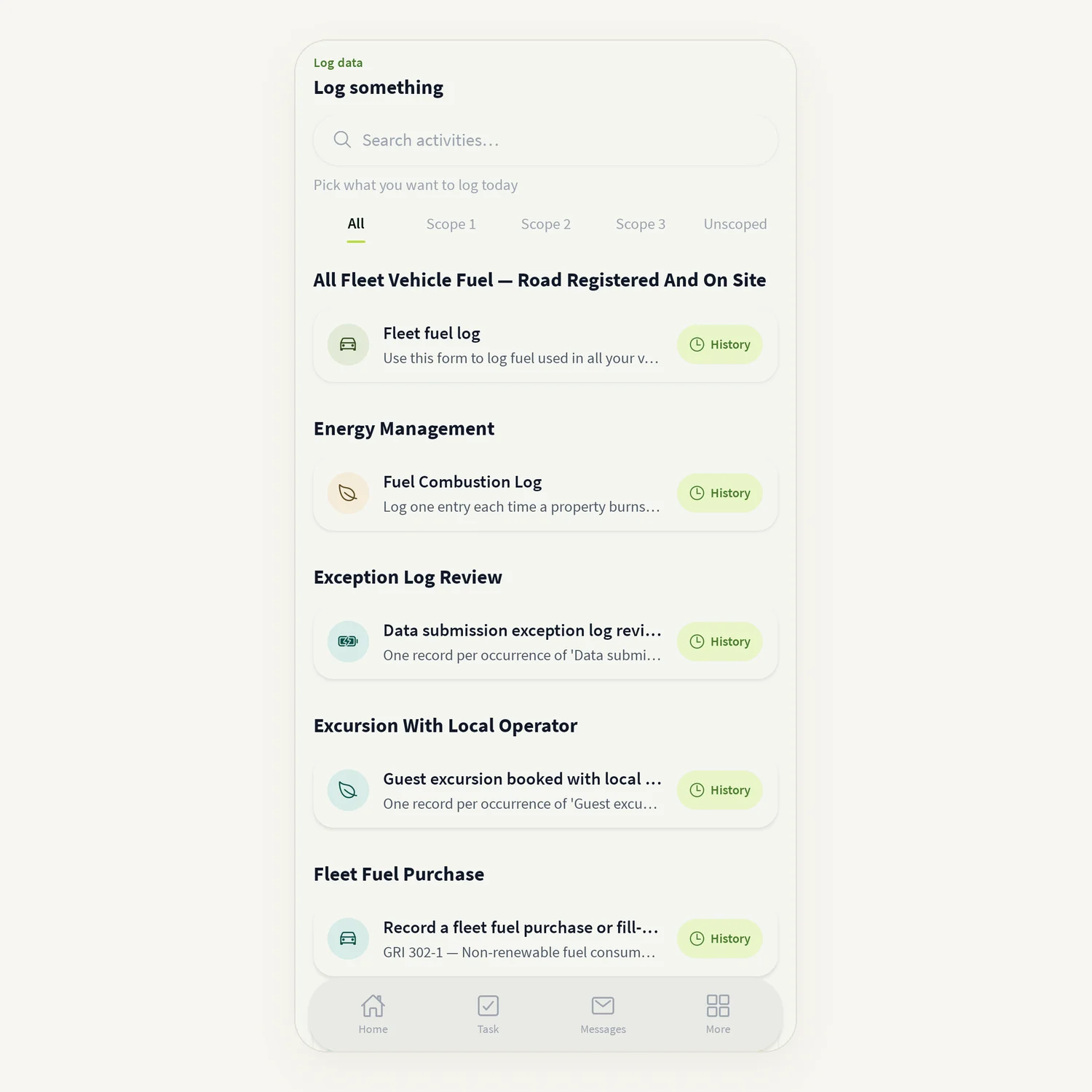
On Home, tap Log manually. The Log something list opens.
From Home, a For you row such as "activities assigned to you" opens the same list.
After a scan, the app may open the activity form for you with values already filled in.
How to log an activity
In Log something, search with Search activities… or filter by scope (All, Scope 1, Scope 2, Scope 3, Unscoped). Activities are grouped by topic. Tap the activity you want.
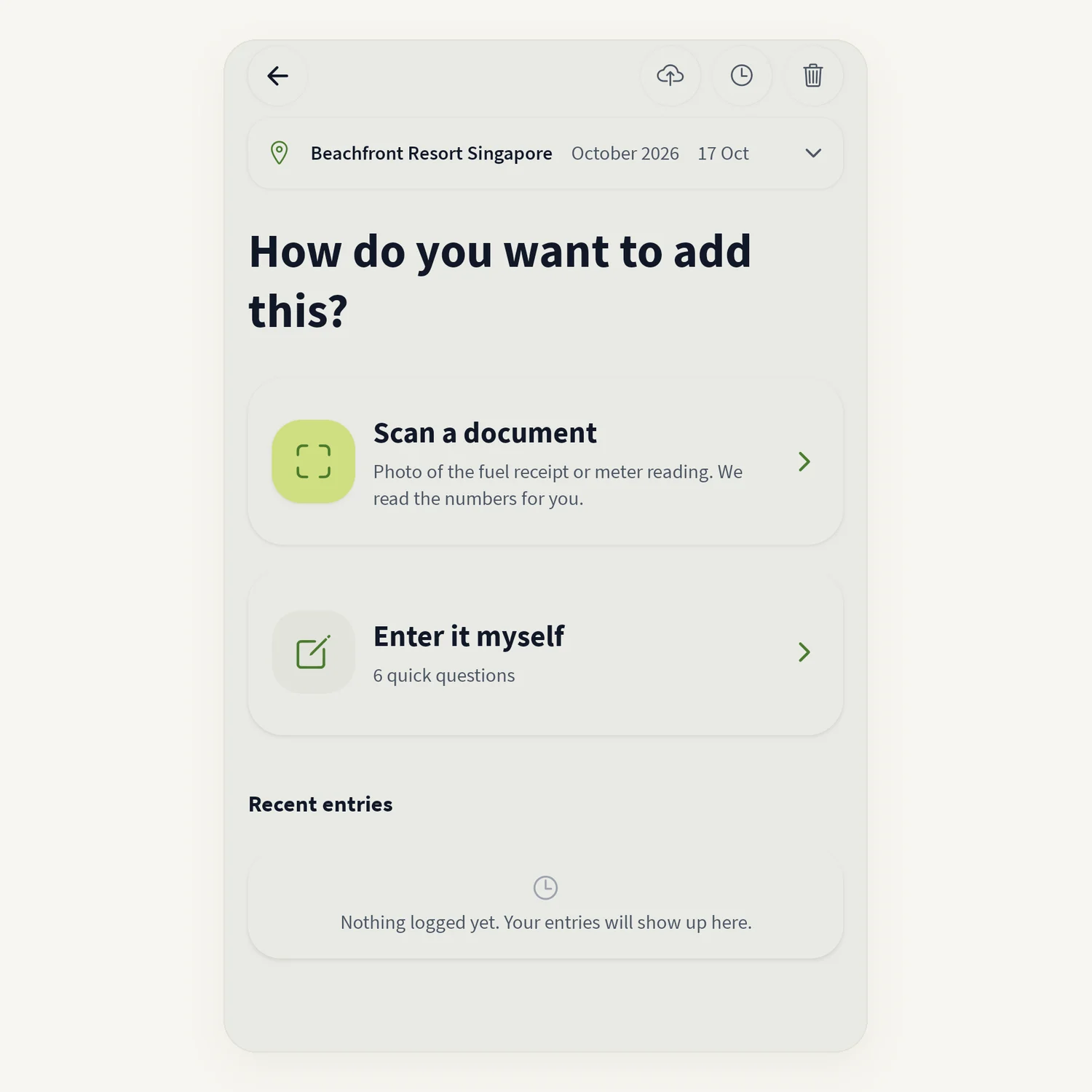
How do you want to add this? – tap Scan a document to fill the entry from a photo or PDF, or Enter it myself to answer the questions.
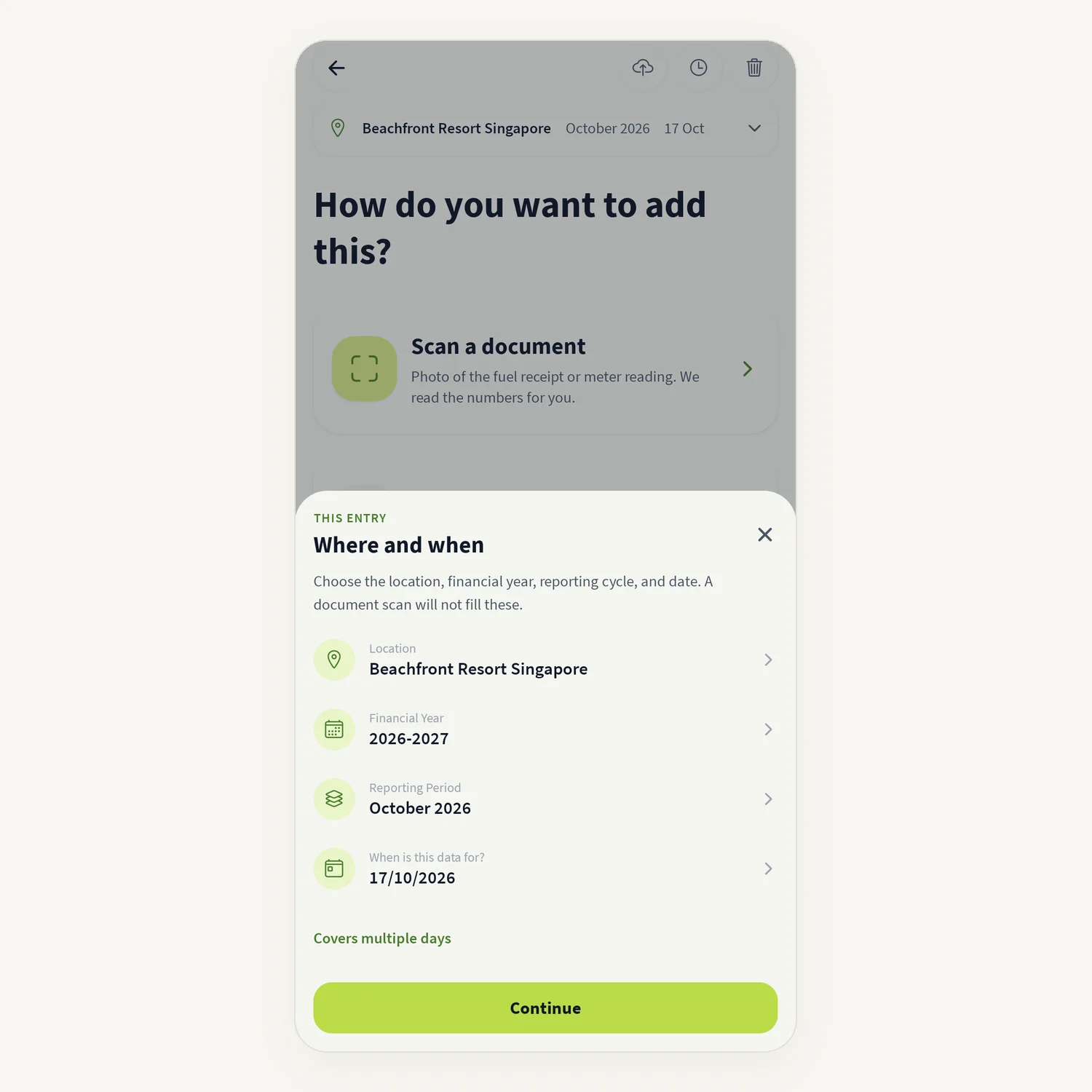
Check the location bar at the top: it shows the location, period and date the entry is for. To change them, tap it to open Where and when and choose the Location, Financial Year, Reporting Period and the date the data is for (When is this data for?). For some activities you can switch on Covers multiple days if the reading spans a range; both dates must be in the same month. Tap Continue. If any of these aren't set yet, Where and when opens by itself.
If some answers are already known (for example from a scan), a Looks right? screen shows them. Tap Confirm & continue, or Something wrong? Retake photo.
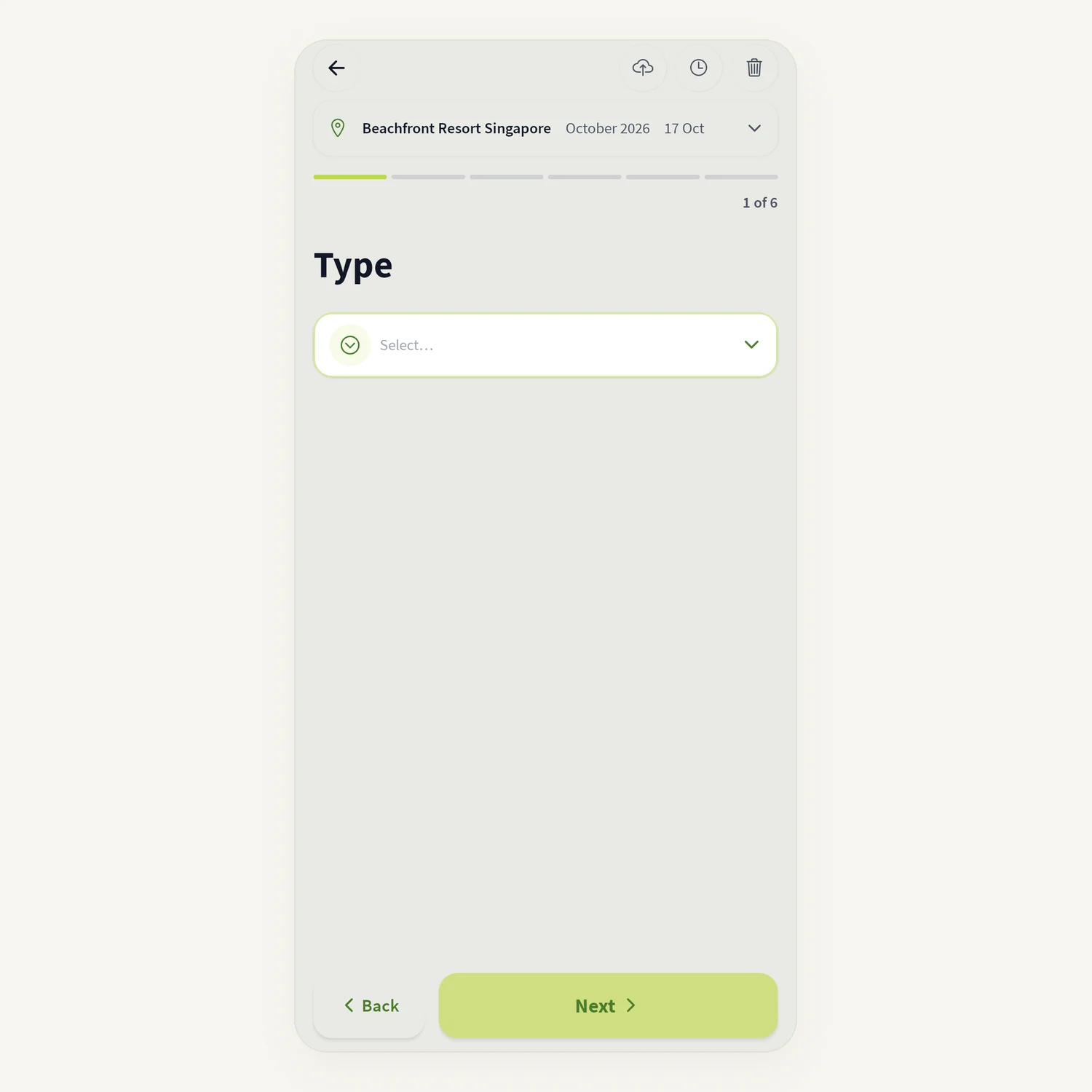
Answer each question. The screen shows "Question 2 of 5". Tap Next, or Skip for questions that are not required. "Last time: …" shows your previous value where there is one.
Add proof when asked: Add proof lets you use Camera, Photo Library or Choose file. Scan a document reads numbers from a photo or PDF and fills the entry for you.
Review and submit. If the activity needs approval, the app shows who it goes to (Assigned approver) and sends it to their Tasks when you save.
You see Saved! with a summary. Tap Done, or Snap another document to log the next one.
Saving a draft
Your entry is saved as a draft while you work ("You can finish this later — your entry is already saved as a draft"). If you leave part-way, the app asks Save this activity as a draft? Tap Yes to keep it or No to discard it. When you reopen the activity you can Continue the draft or Start fresh.
Buttons at the top of the form
Bulk import (cloud icon) – upload many rows from a spreadsheet. See Bulk import.
History (clock icon) – what was logged for this activity and which periods are still open.
Clear answers (bin icon) – removes every answer and all attached evidence for this activity.
Good to know
Required questions must be answered before you can submit. "This field is required" and "Enter a number" point to the problem.
On some forms, such as when you edit an entry, the app checks a value against your earlier entries and show Looks good, Please check or Fix first. Tap Why? for the reason, and I checked this if the value is right.
If no approver is assigned, you see No approver assigned and cannot submit until your organisation administrator assigns one.
Logging needs a connection to submit. If it fails you see an error and stay on the same step so you can try again.
Common questions
I can't find my activity in the list. Clear the search and set the filters to All. If it is still missing, your administrator has not published it. Pull down to refresh.
Why can't I pick a date? The date must fall inside an open reporting period. Choose another period, or check the date on the bill.
Who approves my entry? The approver set for that activity by your organisation. Their name is shown before you submit.
Can I change an entry after submitting? Open the activity's History and tap the entry to see its details. Whether you can edit it depends on its status.
Was this article helpful?
Still need help?
The tese.io team reads every message and usually replies within one working day.
Contact support