
Activity history and bulk import
See what was logged for an activity, explain missed periods, and import many readings from a spreadsheet.
Each activity has its own History (what was logged and which periods are still open) and a Bulk import option for loading many rows at once from an Excel template.
Where to find it
On Home, tap Log manually and open an activity.
In the top-right of the activity form:
the clock icon opens History;
the cloud icon opens Bulk import.
How to use History
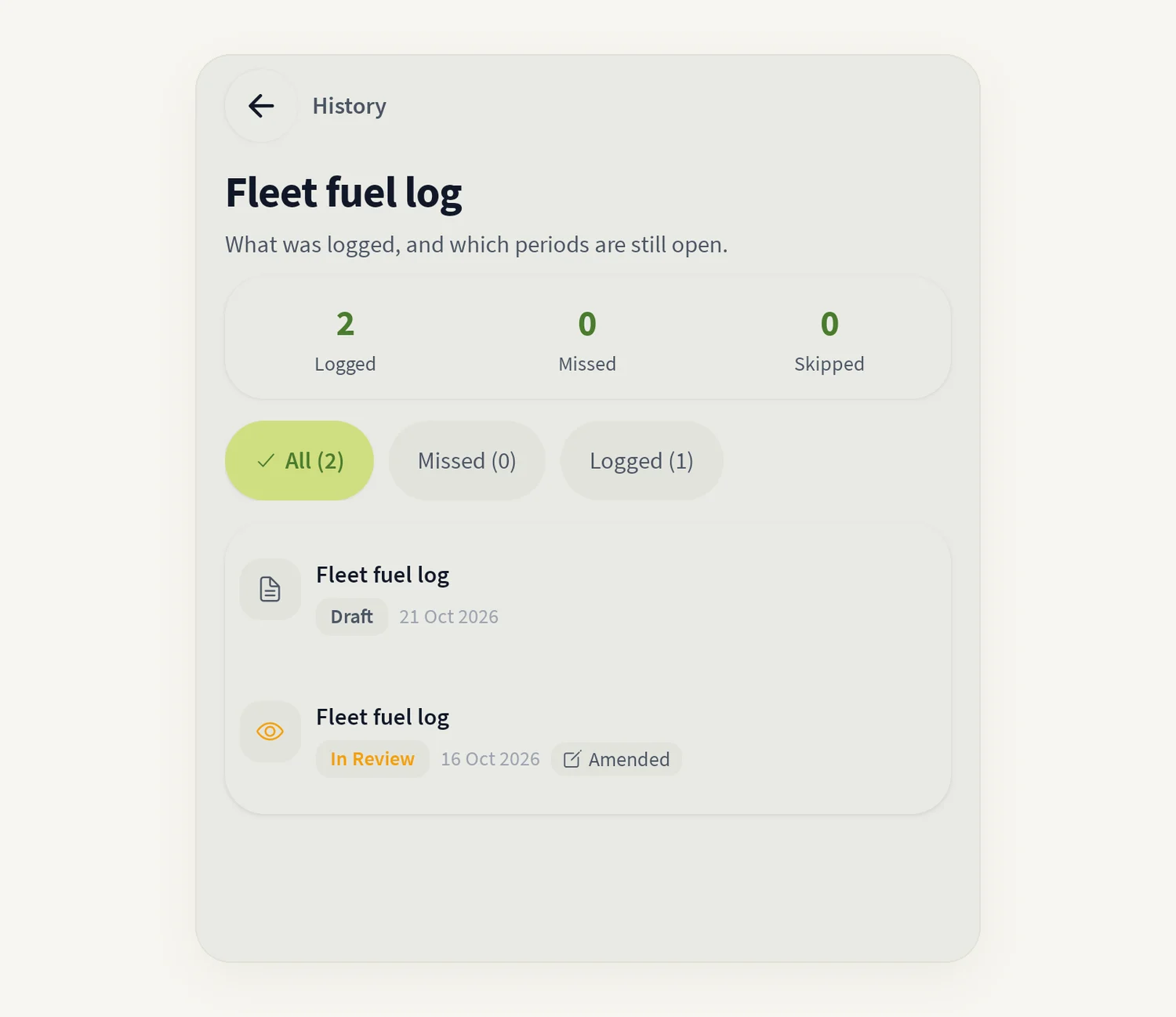
Open the activity and tap the clock icon. The screen explains "What was logged, and which periods are still open."
Use the filters at the top: All, Missed or Logged.
Each row shows its status, for example Saved, Waiting, Draft, Missed, Overdue, Skipped or Amended.
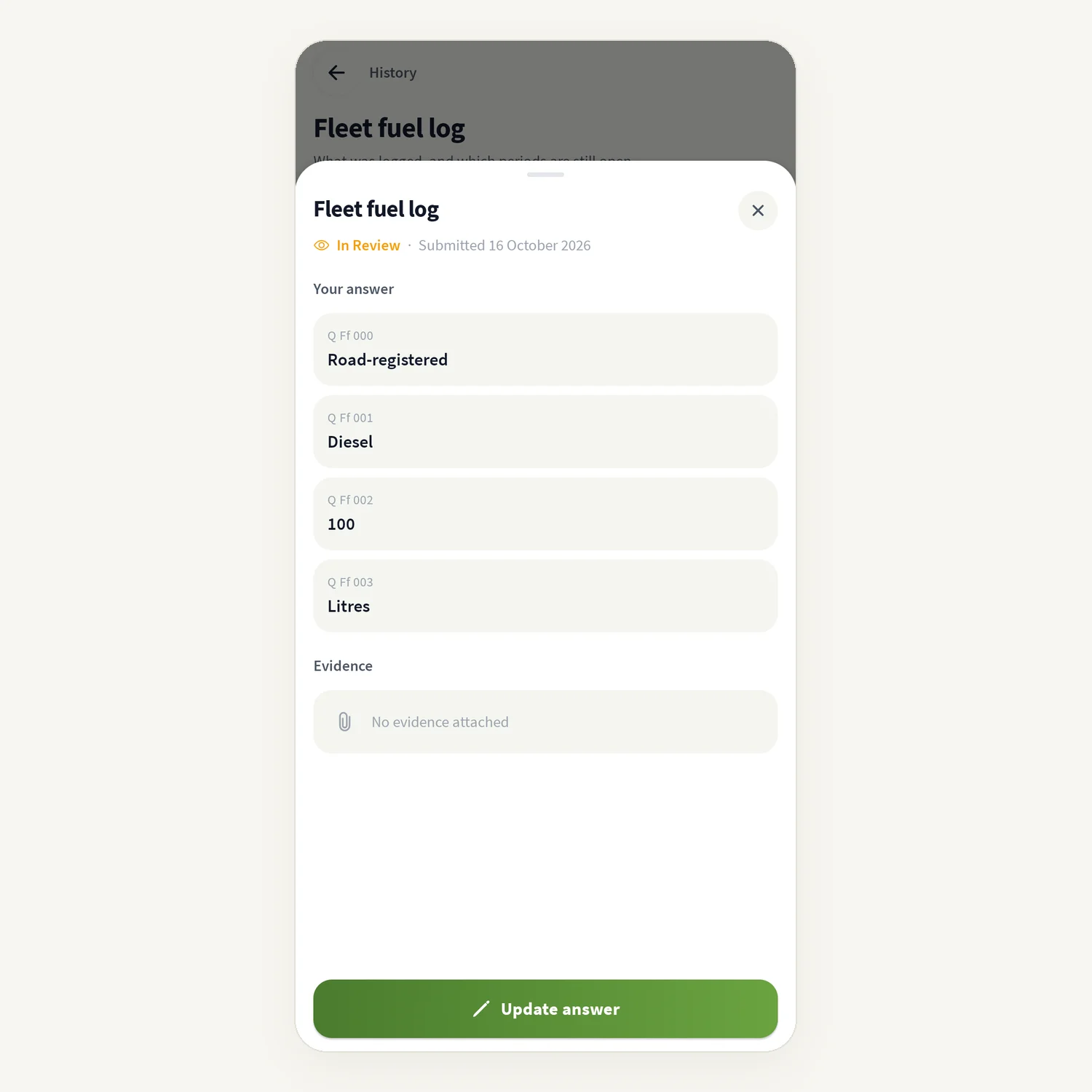
Tap a logged row to see Your answer, Evidence and Details. Tap View evidence to open attached files.
On a missed or open period:
tap Log it to log that period now. The date is pinned to that period ("Logging for …"); use Change date if you need a different day;
or tap Can't provide to explain the gap.
Tap See all submissions to open the full submissions list.
How to explain a period you can't fill
On the open period, tap Can't provide.
Under Why this can't be provided, pick a reason: Not applicable to this facility, Data not available, Below reporting threshold, Facility was closed, or Other (describe below).
Add a note. A note is required for Other.
Tap Record reason. The period then shows as Skipped with your reason, so the gap is explained on the record.
Only someone assigned to the activity, or an organisation admin, can record a reason.
How to bulk import from a spreadsheet
Open the activity and tap the cloud icon (Bulk import).
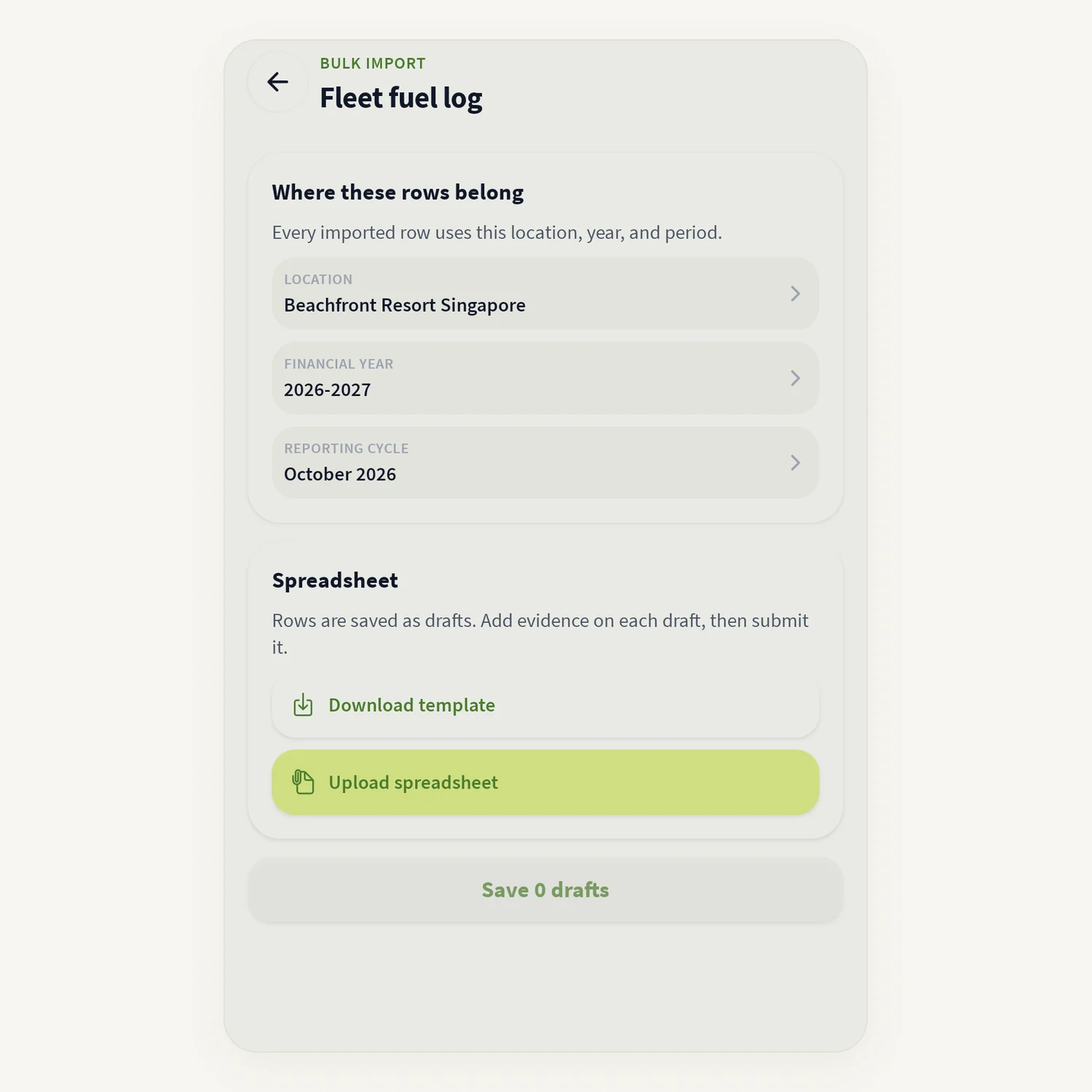
Under Where these rows belong, choose the location, financial year and reporting period. Every imported row uses these.
Under Spreadsheet, tap Download template, then Download. The Excel file is saved to your Downloads folder.
Fill in the template on your phone or computer and save it.
Tap Upload spreadsheet and pick the file.
Check the rows under Review N rows. Rows that can be saved show Ready to save.
Tap Save N drafts.
The rows are saved as drafts. Open each draft, add evidence, then submit it.
Good to know
If History shows "Couldn't check what's outstanding, so this shows logged entries only", tap Check again when your connection is better.
History may show only part of the list ("Showing … of …"). Use See all submissions for the full list.
Bulk import needs the downloaded template. Other spreadsheets give "Could not read that file. Use the downloaded template."
Common questions
Why does a period show as Missed? Nothing was logged for that period by its deadline. Log it now with Log it, or explain it with Can't provide.
I tapped Can't provide and got an error. "That didn't save" means the period is still outstanding, so try again. If you are told only assigned people or admins can record a reason, ask your administrator.
Do bulk-imported rows count straight away? No. They are drafts until you open each one, add evidence and submit it.
Where is the template saved? In your phone's Downloads folder.
Was this article helpful?
Still need help?
The tese.io team reads every message and usually replies within one working day.
Contact support