
Reports, submissions and files
View saved reports, check everything you have submitted, and browse your uploaded files in tese.io Lite.
These screens let you look back at your work: the reports your organisation has saved, every activity entry you have sent, and the files you have uploaded.
Where to find it
All three are in More:
Reports – "view saved reports and copy public links" (under Reports & compliance).
All Submissions – "what you've already sent" (under Reports & compliance).
Files – "everything you've uploaded" (under Explore & help).
Each may not be available for your account if your organisation has not switched that area on.
How to use Reports
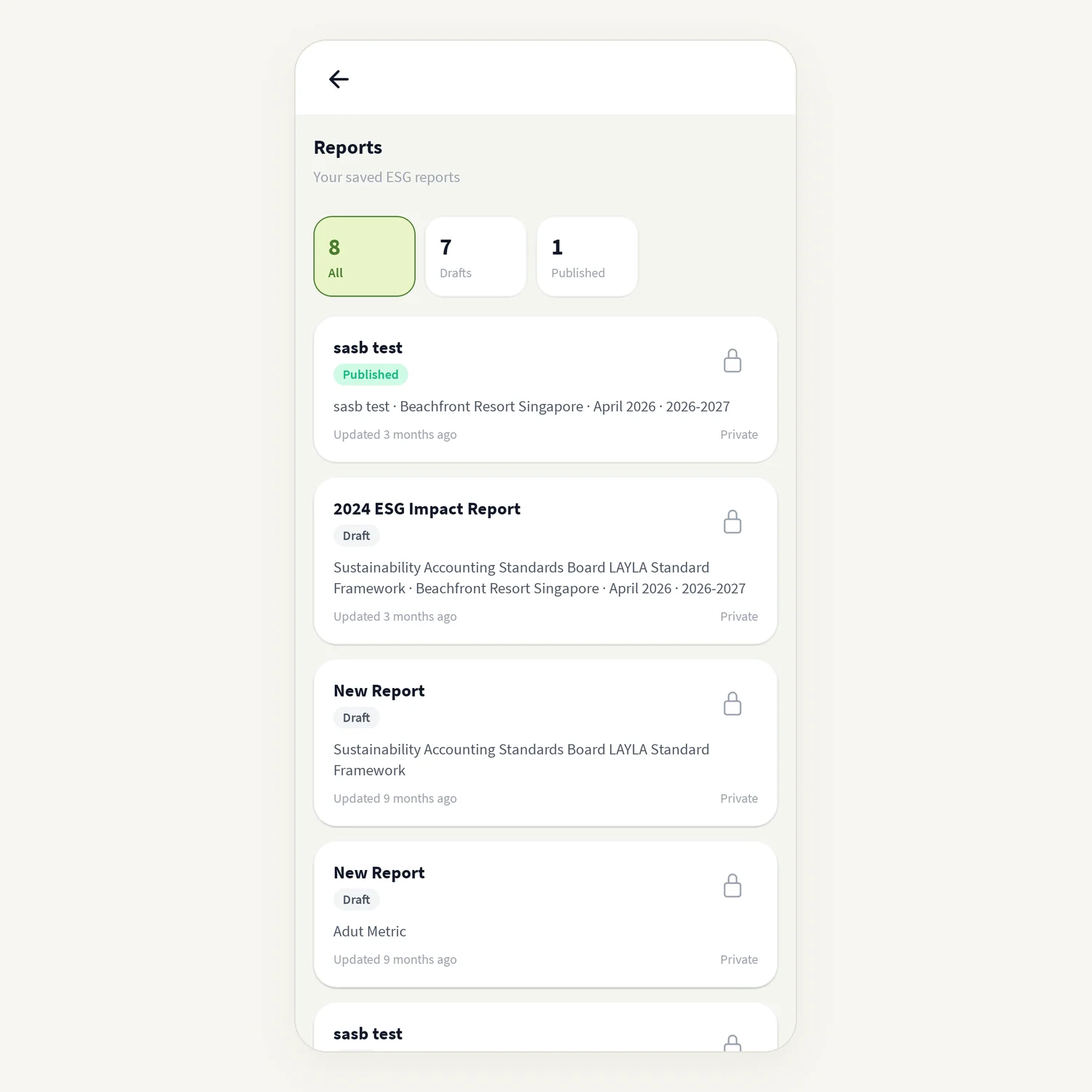
Open More → Reports ("Your saved ESG reports").
Filter by status: All, Drafts, Published, In audit, Changes or Audited.
Each report shows when it was updated and whether it has a Public link or is Private.
To share a report, tap Share. The public link is copied, ready to paste.
Reports are created on the tese.io web dashboard. If you see No reports yet, create one there and it will appear here.
How to check your submissions
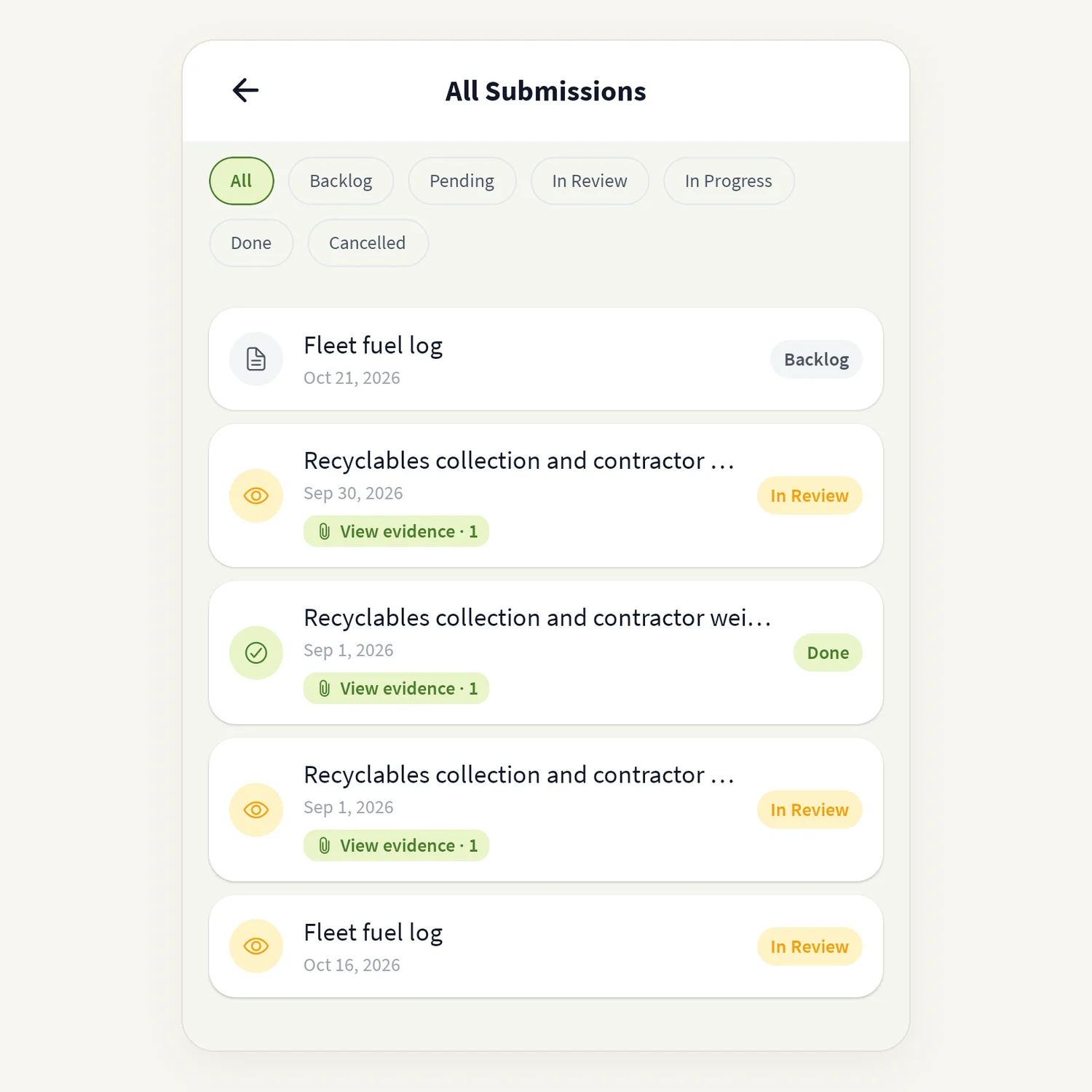
Open More → All Submissions.
Filter by status: All, Backlog, Pending, In Review, In Progress, Done or Cancelled.
Tap an entry to see its details.
You can also see the history of one activity from inside that activity. See Activity history and bulk import.
How to use Files
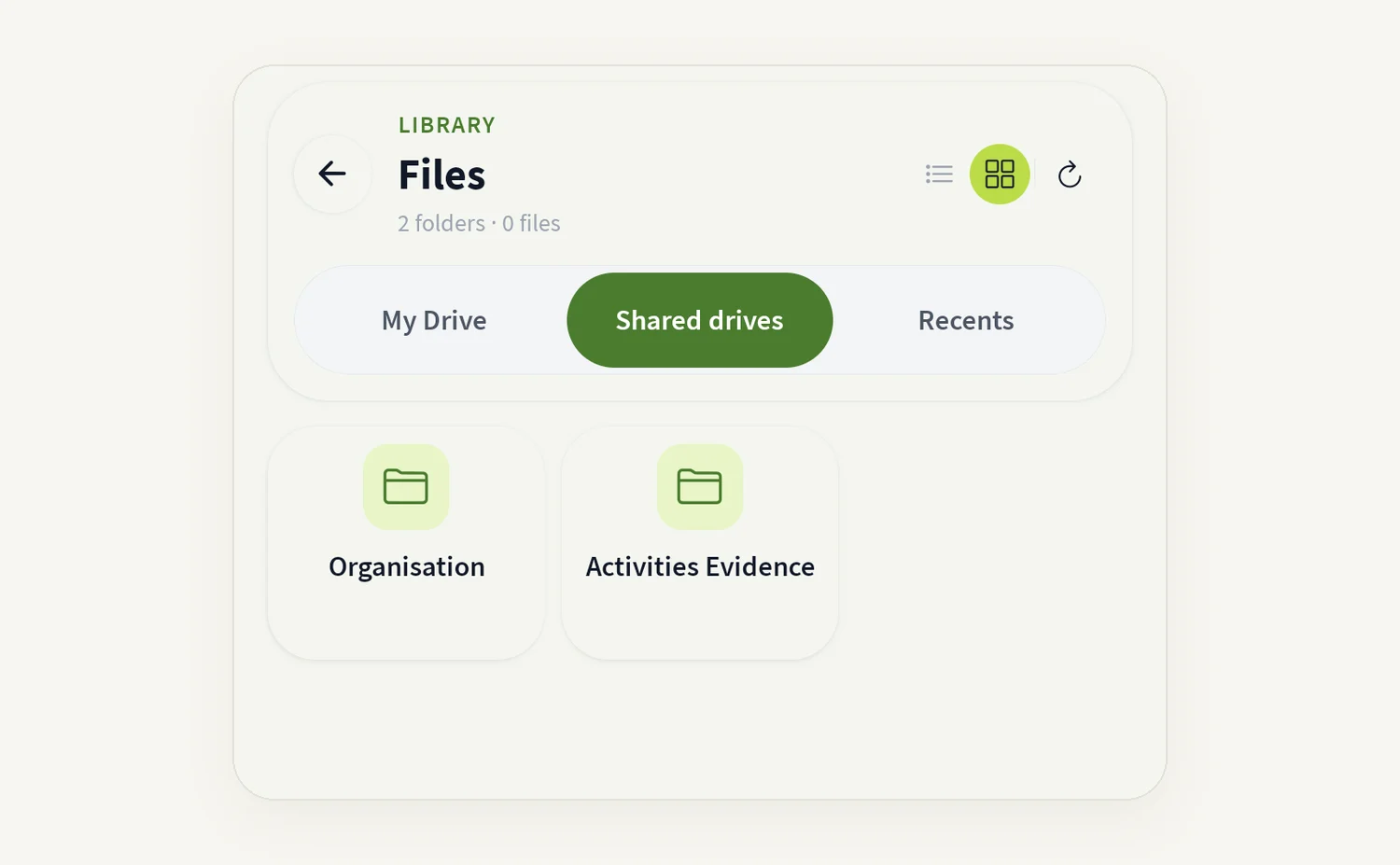
Open More → Files. You start at Library.
Tap a folder to open it, and use the up arrow to go back a level.
Tap a file to open it.
Tap Add to Upload file or create a New folder in the current folder.
Switch between List and Grid views.
Good to know
Share only works if sharing was turned on for that report on the web dashboard. Otherwise you see "Enable sharing on the web dashboard first."
Lists show your most recent items. Pull down to refresh.
Some files cannot be opened on a phone ("This file cannot be opened on this device.").
Common questions
Where is my progress chart? Framework completion is on More → Framework Progress. Your weekly logging streak is on Home.
My entry isn't in All Submissions. Pull down to refresh. If you submitted it offline from a scan, it appears once it has synced.
Can I create a report in the app? No. Create reports on the tese.io web dashboard; they then appear in the app.
Why can't I share a report? Sharing must be enabled on the web dashboard first.
Was this article helpful?
Still need help?
The tese.io team reads every message and usually replies within one working day.
Contact support