
Waste Planner
Find costed waste and plastic actions for your site and turn them into tracked projects.
The Waste Planner helps you find the first waste and plastic actions for a site, shows what each one costs and saves, and turns the ones you choose into tracked projects.
Where to find it
In the sidebar, open ESG Manager → Tools → Overview, then select the Waste Planner tile on the ESG Tools page.
The Waste Planner is an add-on and is set up per sector. If you do not see the tile, it may not be enabled for your organisation — ask your tese.io contact. If it says "The Waste Planner isn't ready for your sector yet", tese.io is still finishing set-up.
How the planner is laid out
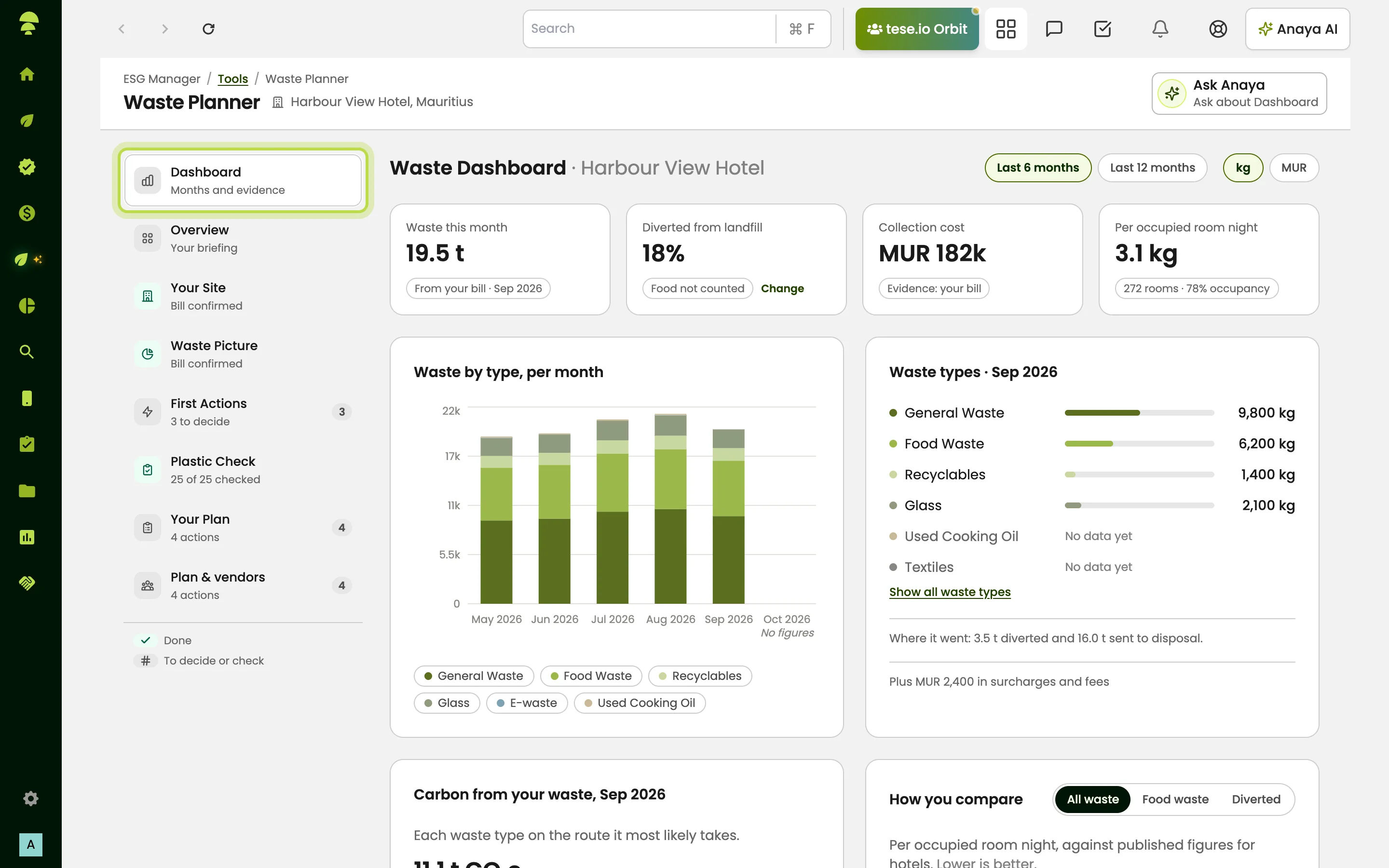
A rail on the left lists the steps, which you can visit in any order: Dashboard, Overview (your briefing and suggested next step), Your Site, Waste Picture, First Actions, Plastic Check, Your Plan and Plan & vendors.
If your organisation has several sites, choose the site at the top (Change Site). Each site has its own plan.
How to get started
Go to Your Site. Either select Upload Your Last Waste Bill (a PDF or photo, up to 10 MB, covering one month) or answer the questions under About Your Site. Many answers are filled in from your existing data, so check them and change anything that is wrong. You can Skip for Now on any question.
If you uploaded a bill, check each figure under Check What We Read: Confirm, correct or Remove it, then select Save Confirmed Figures. Nothing is saved until you confirm.
Open Waste Picture to see your monthly bill split by stream (for example general waste, food waste, recyclables).
Go to Plastic Check and mark each item as Stock It, Don't Stock It or Already Removed. Items you stock bring matching actions into First Actions.
How to choose actions
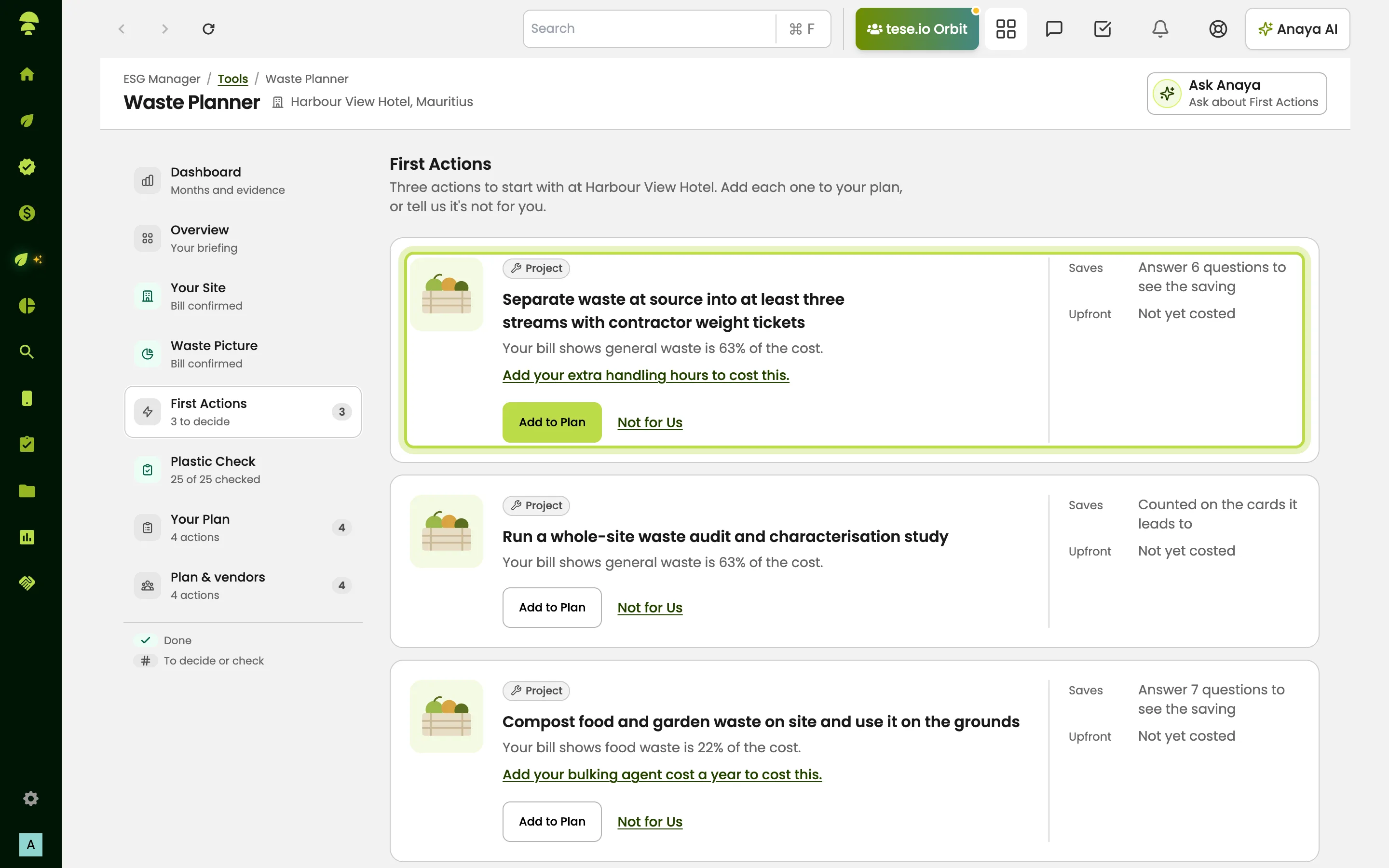
Open First Actions. Each card shows what it Saves a year, the Upfront cost and the Payback, plus its effort (Quick Win, Project or Investment).
Select Add to Plan, or Not for Us and give a reason (Already Done, Not Relevant, Too Costly or Later).
If a card says it needs a figure, select Add This Figure or answer the questions it asks. You can Ask a Colleague to supply a figure you do not have.
How to cost an action and start a project
On a card, open Sources to see the published prices and reduction shares behind the figures.
If you have your own price, select Use My Own Price and enter the all-in upfront cost. It is labelled From Your Data; a supplier quote still takes priority.
Select Find a Supplier to see listed providers, or Request a Quote.
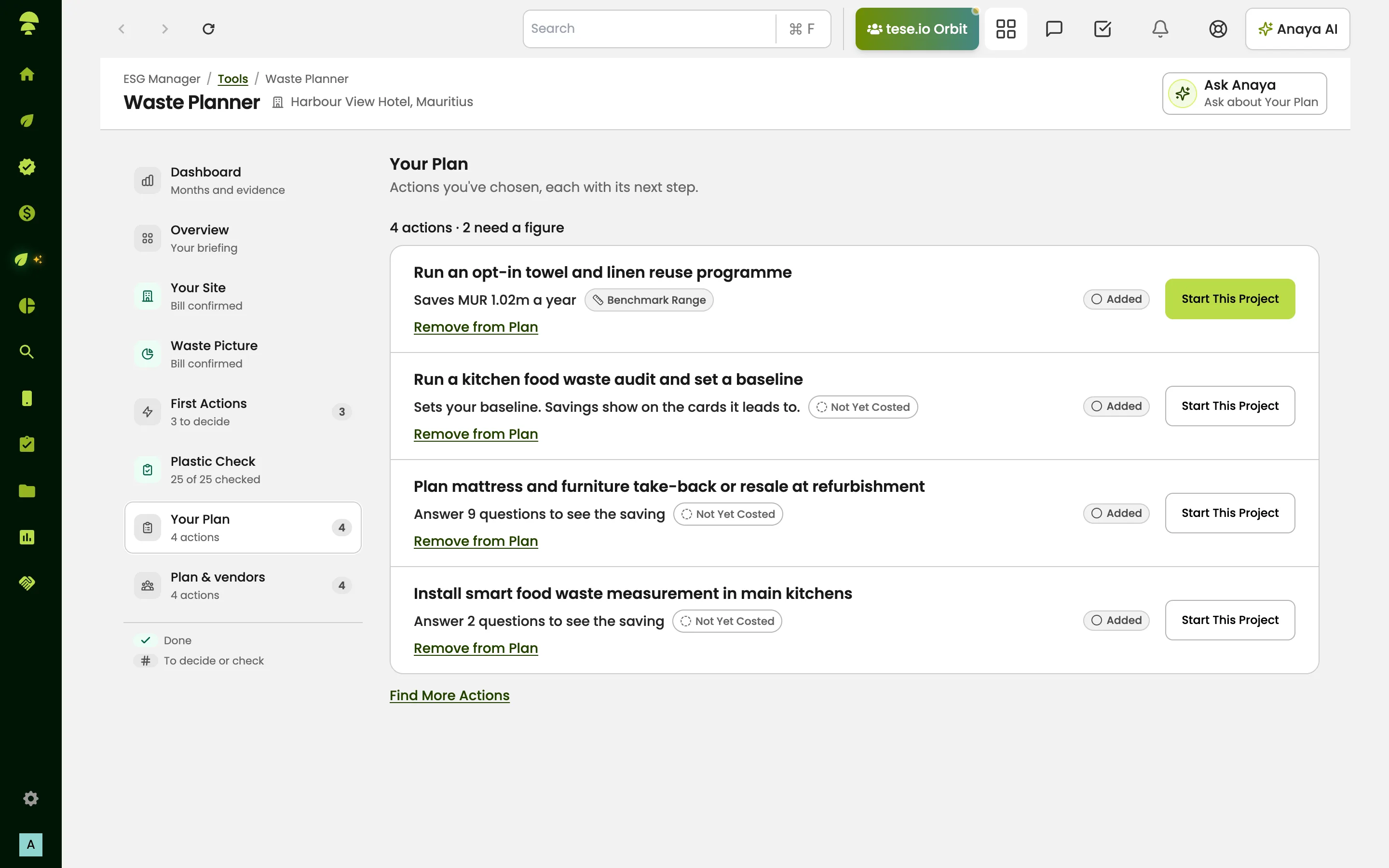
When you are ready, select Start This Project. The confirmation explains that it creates a draft project with the card's cost and category, sets up monthly tracking for the main measure with a target, and adds tasks for the first 7 days and by day 120. Tick the box to confirm you have checked the legal position, then start. Nothing is sent to anyone at this point.
Select Open Project to continue in ESG Manager → Projects.
Good to know
Figures are labelled by where they come from: Quoted, From Your Data, Benchmark Range or Not Yet Costed.
"A year" means the last 12 months, not your financial year.
All figures are indicative. They are not financial, legal or food-safety advice, and savings are not guaranteed. Check prices with suppliers before you commit.
Counts Towards shows certification readiness only; the certifier decides. tese.io does not endorse or vet listed providers.
Realised savings appear after three months of tracked data.
Common questions
I can't see the Waste Planner. Why? It is an add-on that must be switched on for your organisation and set up for your sector. Ask your tese.io contact.
It says "Choose a site from the location menu to see the Waste Planner." Pick a site in the location menu at the top of the dashboard, then reopen the planner.
Why does a card say "Answer 2 questions to see the saving"? The saving depends on figures we do not have yet. Answer the questions, or add the figure under Your Site Figures, and the card fills in.
Does starting a project contact a supplier? No. Starting a project only creates a draft project, tracking and tasks. Nothing is sent to anyone.
Why is a cost marked "Needs a quote"? There is no reliable published price for that action. Request a quote or enter your own price.
Was this article helpful?
Still need help?
The tese.io team reads every message and usually replies within one working day.
Contact support