
Supplier engagement
Collect greenhouse gas data from suppliers through campaigns and raise your Scope 3 primary data share.
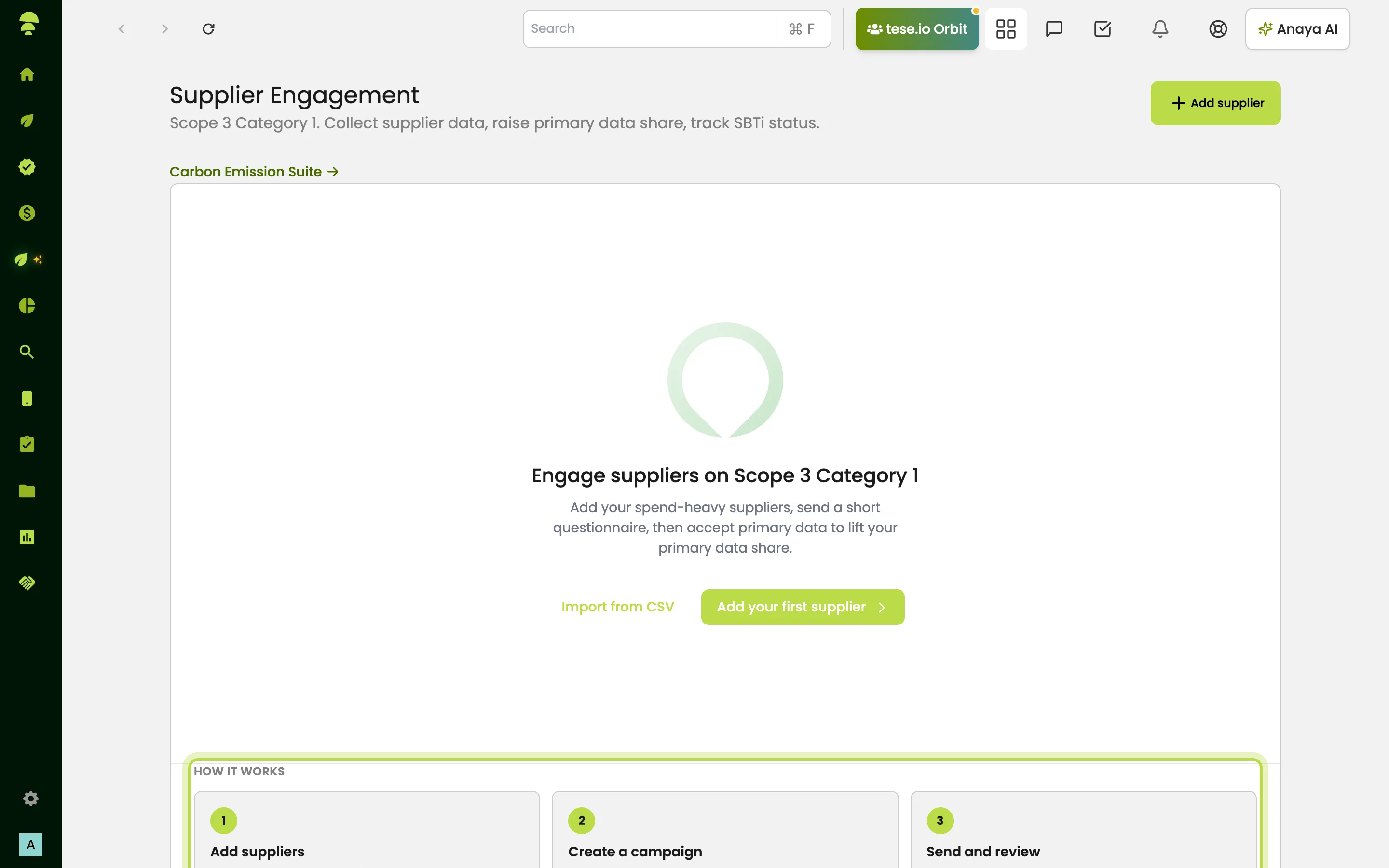
Supplier Engagement helps you collect emissions data from your suppliers for Scope 3 Category 1 (purchased goods and services). You keep a supplier registry, send a short questionnaire through a campaign, review the answers, and accept good responses to lift your primary data share. You can also track suppliers' SBTi target status.
Where to find it
In the sidebar, open ESG Manager → Supplier Engagement. The page has six tabs: Overview, Suppliers, Campaigns, Import, SBTi and Inventory. Until you add your first supplier, the page shows a getting-started screen instead of the tabs. Select Add your first supplier or Import from CSV to begin.
How it works
Add suppliers: name, email, SASB sector/industry and annual spend.
Create a campaign: pick a reporting period and which suppliers to invite.
Send and review: share invite links, then accept responses to lock primary data.
How to add suppliers
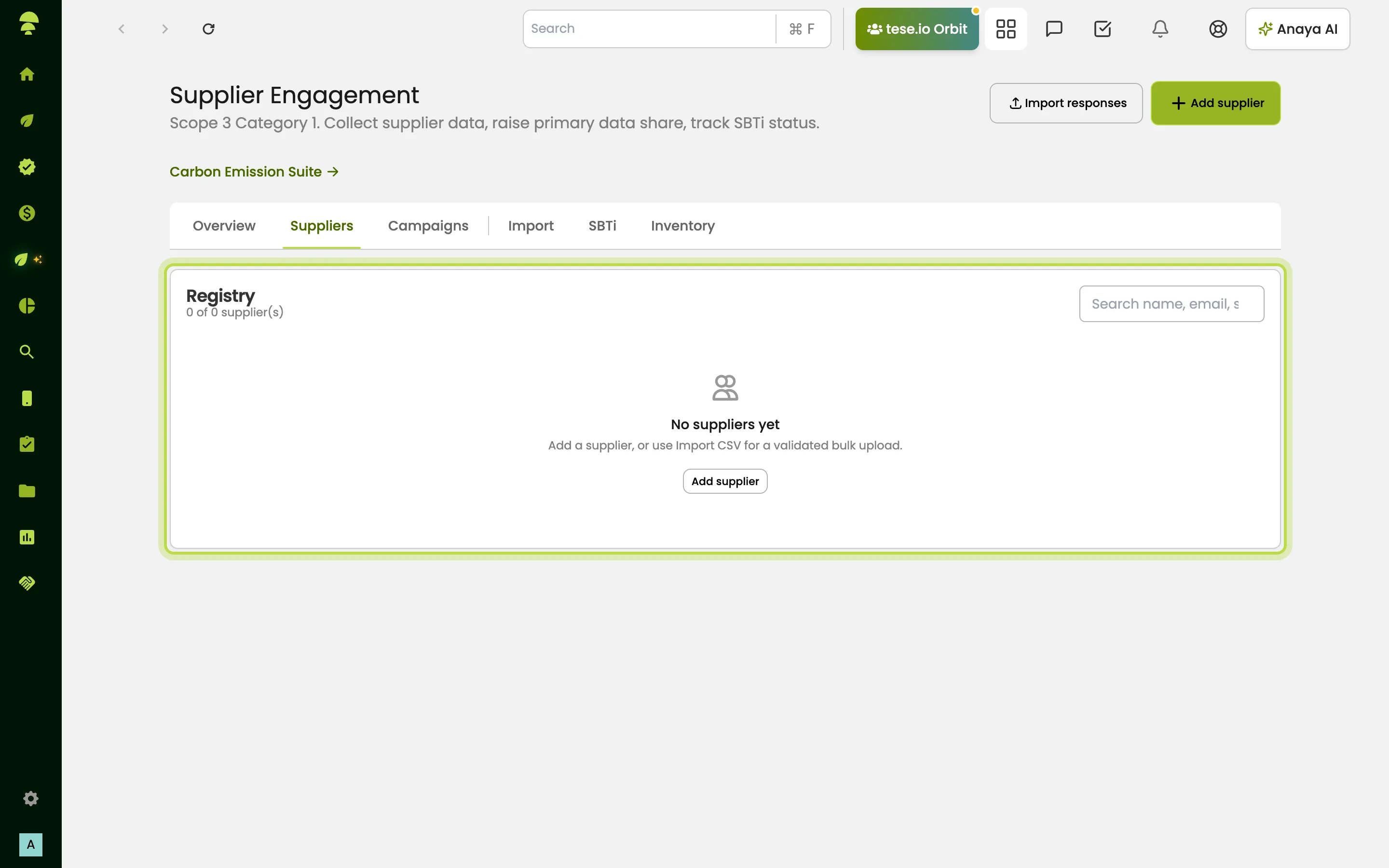
Open the Suppliers tab and select Add supplier.
Enter the supplier's name, email and annual spend. Adding the SASB sector and industry improves hotspot analysis.
Save. You will see "Supplier added to your registry".
To add many suppliers at once, use Import from CSV.
How to run a campaign
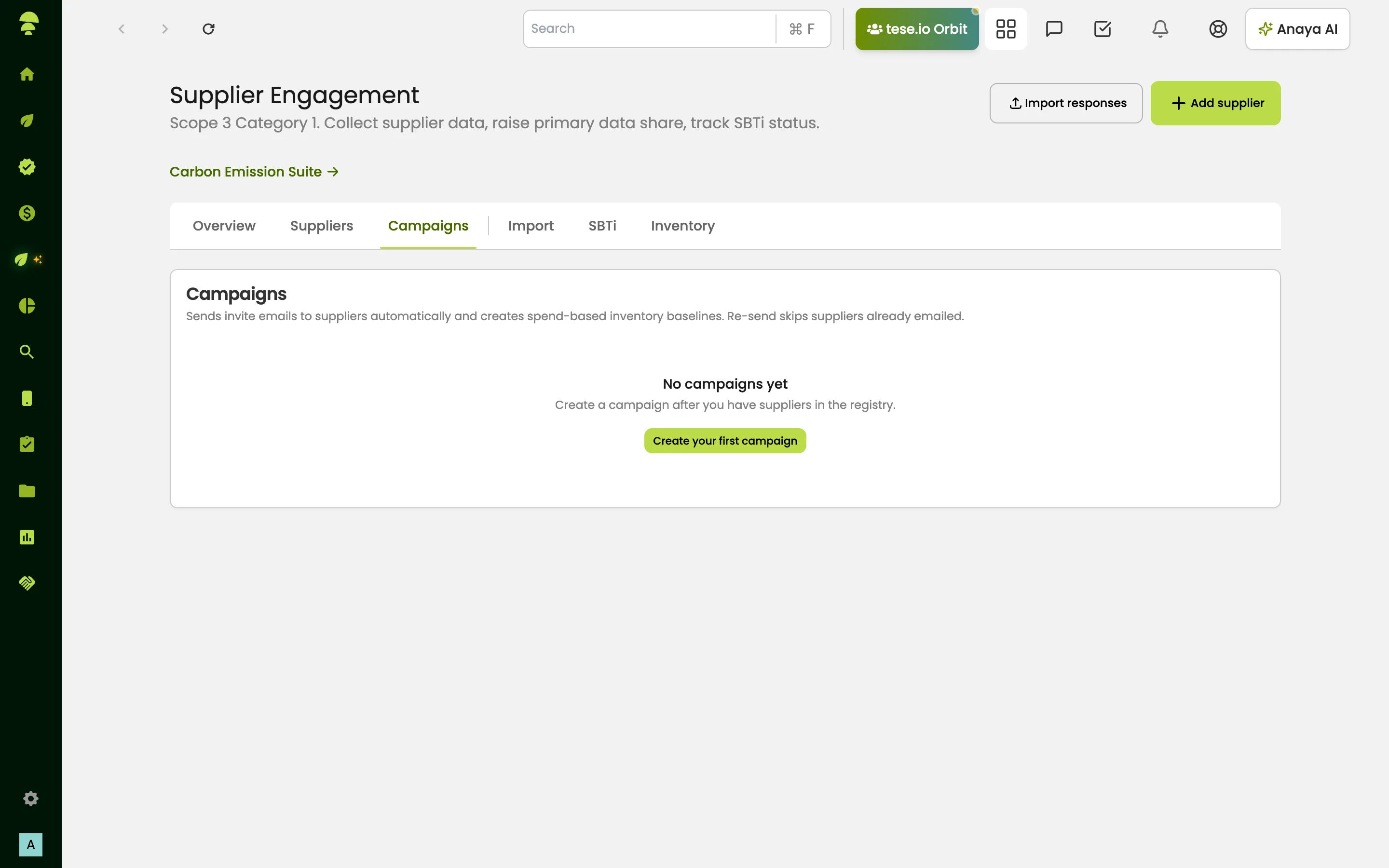
Open the Campaigns tab and select New campaign (or Create your first campaign).
Give it a Campaign name, choose the Survey type, the Reporting period and a Deadline, and tick the Suppliers to invite. The standard survey is the Supplier GHG questionnaire, a fixed Scope 3 Category 1 GHG questionnaire for the reporting period.
Select Create campaign. The message "Campaign created. Send invites when ready." confirms it.
Before sending, you can use Send test email and Preview portal from the campaign's More actions menu to see what suppliers will receive.
Select Send invites. Invite emails go out automatically and spend-based inventory baselines are created for each supplier. Sending again skips suppliers already emailed.
Use Remind pending to chase suppliers who have not responded.
You can also copy each supplier's link from Invite links and share it yourself.
What suppliers see
Suppliers do not need to log in; they use the secure link in the email. The portal shows your campaign details and deadline, walks them through the questionnaire step by step, and lets them review their answers before submitting. They can choose a language, decline, or forward the request to a colleague. Their progress is saved as a draft while they work.
How to review responses
On the campaign, select View responses.
For each response, check the figures and evidence, then choose:
Accept: the supplier's inventory line is locked as supplier-specific (primary data).
Request changes: write what needs to change; the supplier is notified.
Reject: the response is rejected.
Tracking progress
Each campaign card shows Invited, Opened, Submitted, Accepted, Response rate, tCO₂e covered and Spend covered.
Overview shows your Primary data share, Top emitters, the Sector / industry mix and a Maturity ladder (A = primary + SBTi, B = primary, C = incomplete, D = listed only).
Inventory lists Category 1 lines by period and method (Spend-based or Supplier-specific), and which are Locked.
SBTi is the SBTi supplier board, showing each supplier's commitment, target status and target year.
Importing responses from a spreadsheet
If suppliers sent their answers outside the portal, open Import, choose the campaign, select Download template, fill it in, then paste the completed CSV and select Extract into drafts. This creates draft responses for you to review in the usual way.
Good to know
You need at least one supplier in the registry before you can create a campaign.
SBTi status is captured from questionnaires. Automatic import from the SBTi registry is not available yet.
Accepting a response is what turns a spend-based estimate into primary data.
Common questions
Do my suppliers need a tese.io account? No. They answer through a secure link, with no login required.
I sent invites twice. Will suppliers get two emails? No. Re-sending skips suppliers who have already been emailed. Use Remind pending to chase non-responders.
How do I raise my primary data share? Accept supplier responses. Each accepted response locks that supplier's inventory line as supplier-specific.
A supplier made a mistake. Can I send it back? Yes. Choose Request changes on their response and describe what needs fixing.
Can I check the email before suppliers see it? Yes. Use Send test email and Preview portal. The preview is available once invites have been sent.
Was this article helpful?
Still need help?
The tese.io team reads every message and usually replies within one working day.
Contact support