
ESG targets and AI recommendations
Create sustainability targets, track progress against a baseline, and use Anaya AI to generate recommendations for reaching each target.
ESG Targets is where you set measurable sustainability goals, such as cutting energy use by a set amount by a deadline, and follow progress towards them. For each target you can also run AI recommendations. These suggest interventions, with technical, financial and risk detail, that could help you reach it.
Where to find it
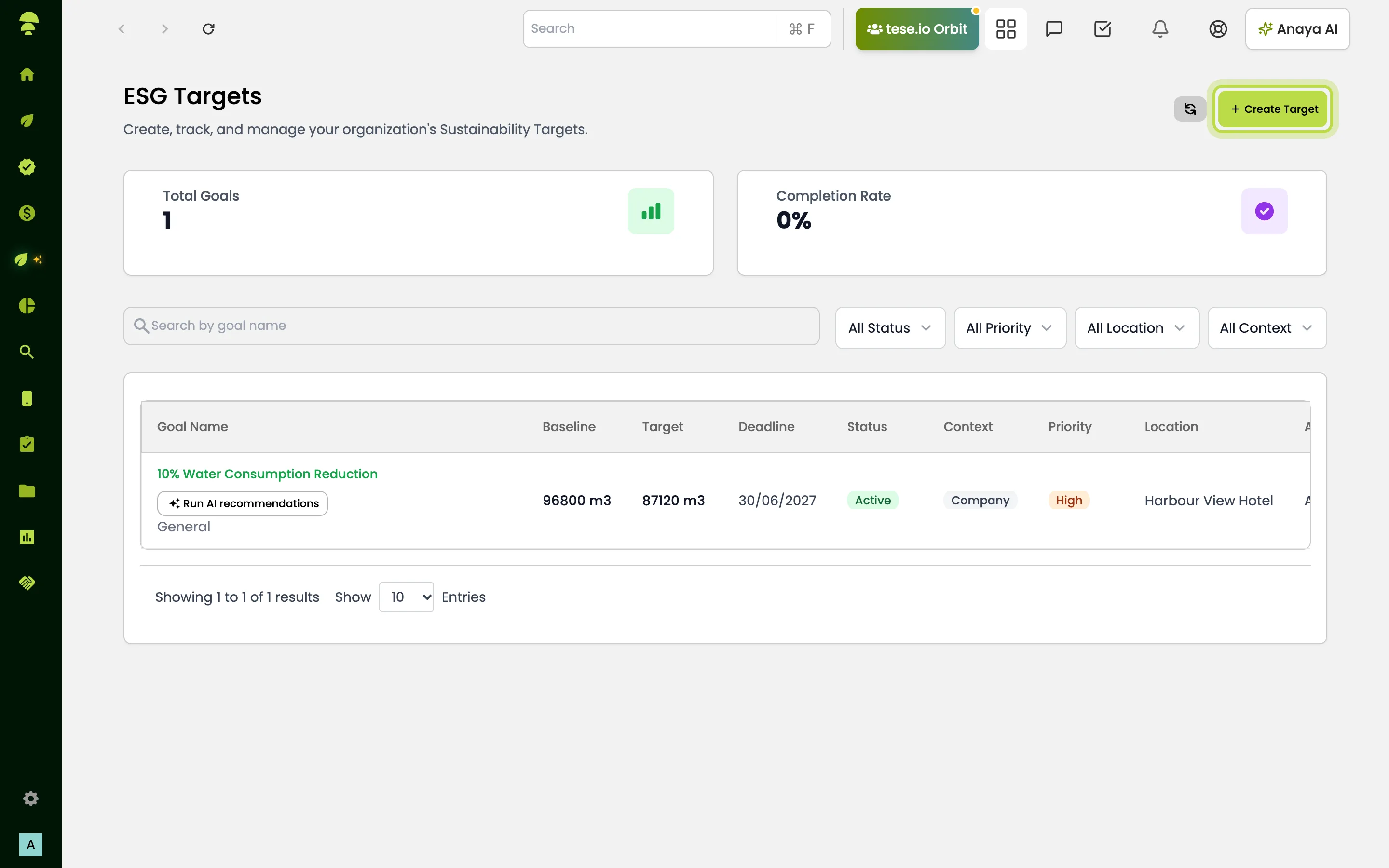
In the sidebar, go to ESG Manager → ESG Targets. The page lists your organisation's targets with their type, progress, baseline, target value, deadline, status, context, priority, location and owner.
How to create a target
Go to ESG Manager → ESG Targets and select Create Target.
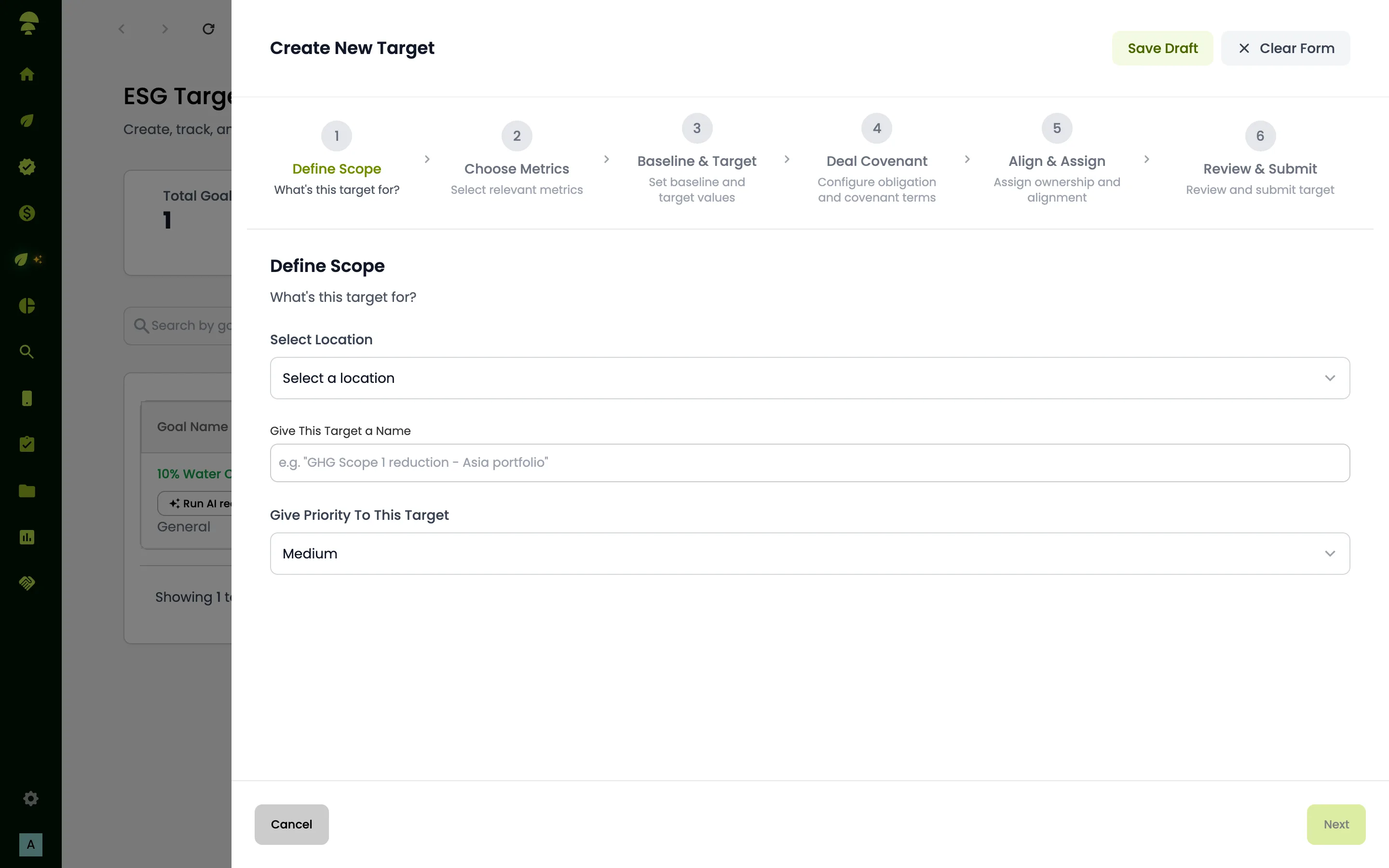
Work through the steps in Create New Target:
Define Scope – what the target is for, and where it applies
Choose Metrics – the metric to track, and the specific question or field it comes from
Baseline & Target – your starting value, the value you are aiming for, the reporting period and the deadline
Deal Covenant – obligation and covenant terms, if the target is linked to finance
Align & Assign – the target owner and alignment
Review & Submit – a final check
Select Publish Target, or select Save Draft to finish it later.
The tool checks your values as you go. For example, the baseline and target cannot be the same. A target that aims to reduce a value cannot be set above its baseline, and one that aims to increase a value cannot be set below it.
You can also combine at least two metrics into a composite KPI and track them as a single target.
How to follow and update a target
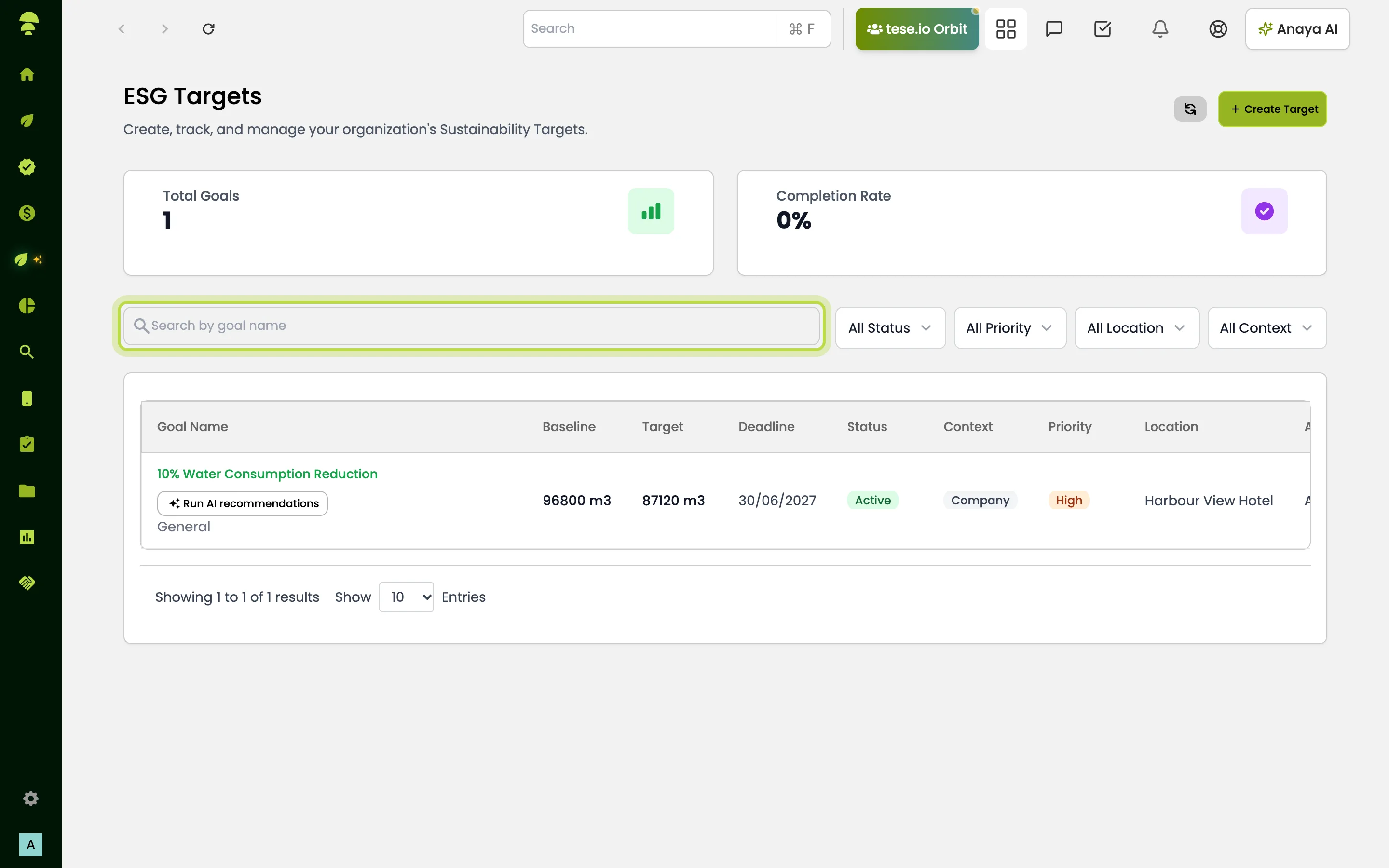
Find the target in the list. You can search by goal name or filter by Status (Active, Completed, At Risk, Overdue), Priority, Location and Context (Company or Portfolio).
Open the row's actions and choose View, Edit or Delete.
On the target page, you'll find:
Description & Metric Setup
Baseline Evidence Files – preview or download supporting files
Target Compliance Trajectory – a chart of progress towards the target
Properties – owner, location, dates and other details
Covenant Details, if the target has covenant terms
How to get AI recommendations for a target
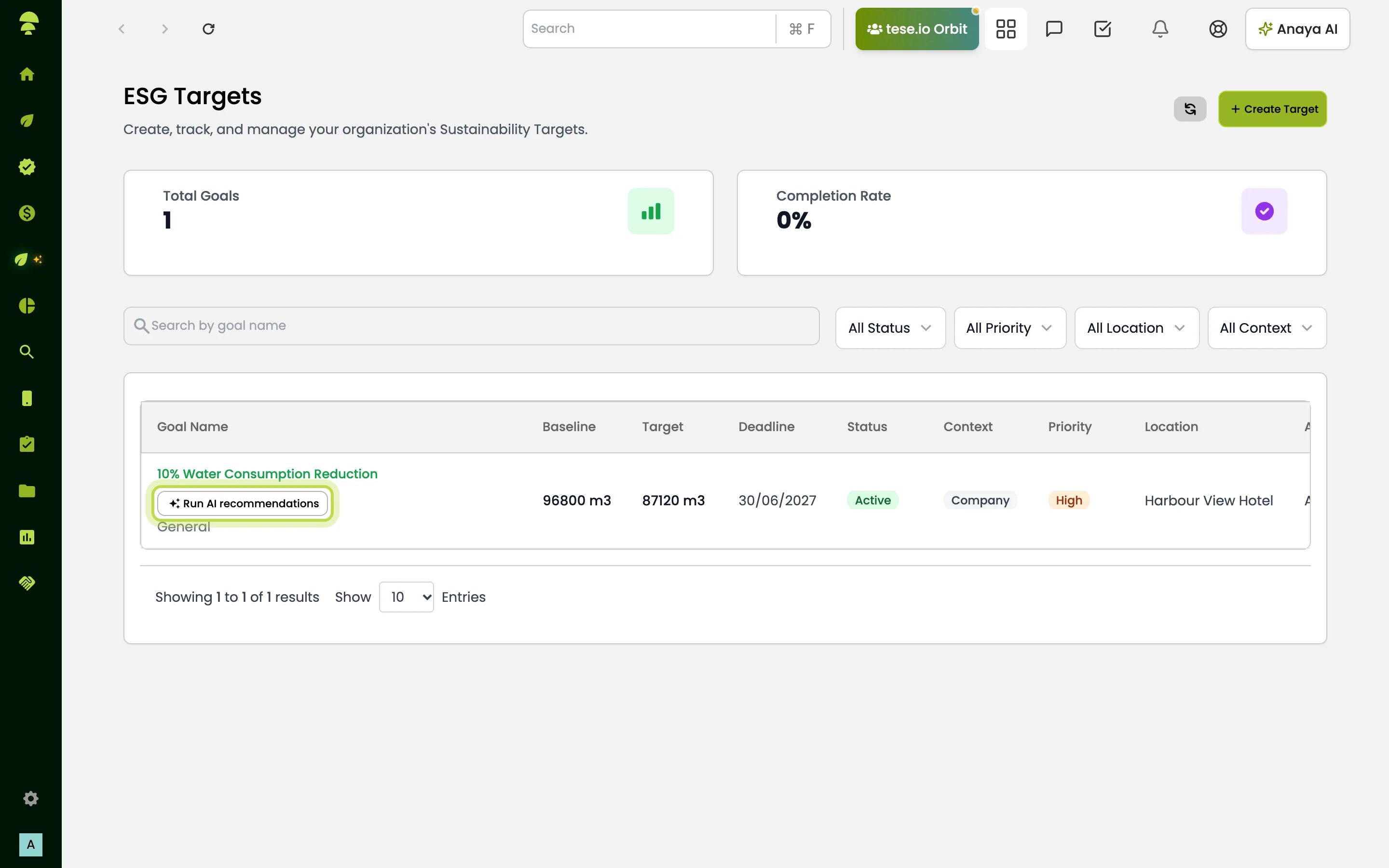
In the ESG Targets list, select Run AI recommendations under the target's name. You can also open the target and select it next to its name.
Work through the Recommendation Wizard:
Organisation Assessment – help Anaya AI understand your organisation and this target
Review & Select Interventions – review the technical strategies and pick the interventions you want to look into
Intervention Assessment – answer questions about the interventions you picked
Financial Profile
Generate Recommendations – Anaya AI prepares tailored implementation proposals
Read the results in the Recommendation Workspace. The tabs are Overview, Technical, Financial, Risk, Sustainability, Implementation, Vendors, Discussion and Version History.
To change the information the recommendations are based on, open Recommendation Context. Changes that make a real difference trigger new recommendations.
Your progress in the wizard is saved, so you can come back to the target later and carry on.
Working with colleagues and reviewers
Delegate a step: you can send a wizard step to one or more colleagues to answer. They receive it as a task. While a delegated task is still waiting for a reply, you can carry on without it.
Discuss: use the Discussion tab to post comments and mark them Resolved. Each comment has a visibility setting, such as Private — only you, Internal — organisation only or Shared — include when shared.
Share: create a share link for an external reviewer. You decide what they can do, for example comment, reply to comments, submit suggested revisions, download a PDF or copy text. You can also set a Link expiry.
Improve and compare: use AI refinement to improve a recommendation. Select Compare with active to see the original and improved versions side by side. Version History keeps earlier versions.
Good to know
Only the person who owns the recommendation can generate recommendations. Colleagues can answer the steps delegated to them.
AI recommendations are planning estimates. Check costs, savings and vendor details before you commit to anything.
If you used to go to Recommendation Engine from the old menu, it has moved. Recommendations now run from each target.
What you can see and edit here depends on your role. Ask your administrator if ESG Targets is missing from your menu.
Common questions
How do I set a reduction target, such as cutting emissions? Choose the metric and enter the baseline and a lower target value. The tool checks that the target is below the baseline.
Can I save a target without publishing it? Yes. Select Save Draft at any step and come back to it later.
How do I see whether a target is on track? Open the target and look at the Target Compliance Trajectory chart, which plots progress towards the target value. The Status filter on the list (Active, Completed, At Risk, Overdue) helps you find targets that need attention.
Where do I find AI recommendations? In ESG Targets, select Run AI recommendations under the target's name, or open the target and select it there.
Can someone outside my organisation review a recommendation? Yes. Use the share option in the Recommendation Workspace to create a link, choose what they can do and set an expiry.
Can I track several metrics as one target? Yes. Create a composite KPI from two or more metrics.
Was this article helpful?
Still need help?
The tese.io team reads every message and usually replies within one working day.
Contact support