
Projects
Plan, cost and track sustainability projects with the project wizard, the project view and the implementation desk.
Projects is where you plan a sustainability project from first idea to a costed, published plan: what it is, who runs it, its risks, the ESG metrics you will track, the work and tools involved, vendor quotes and the budget.
Where to find it
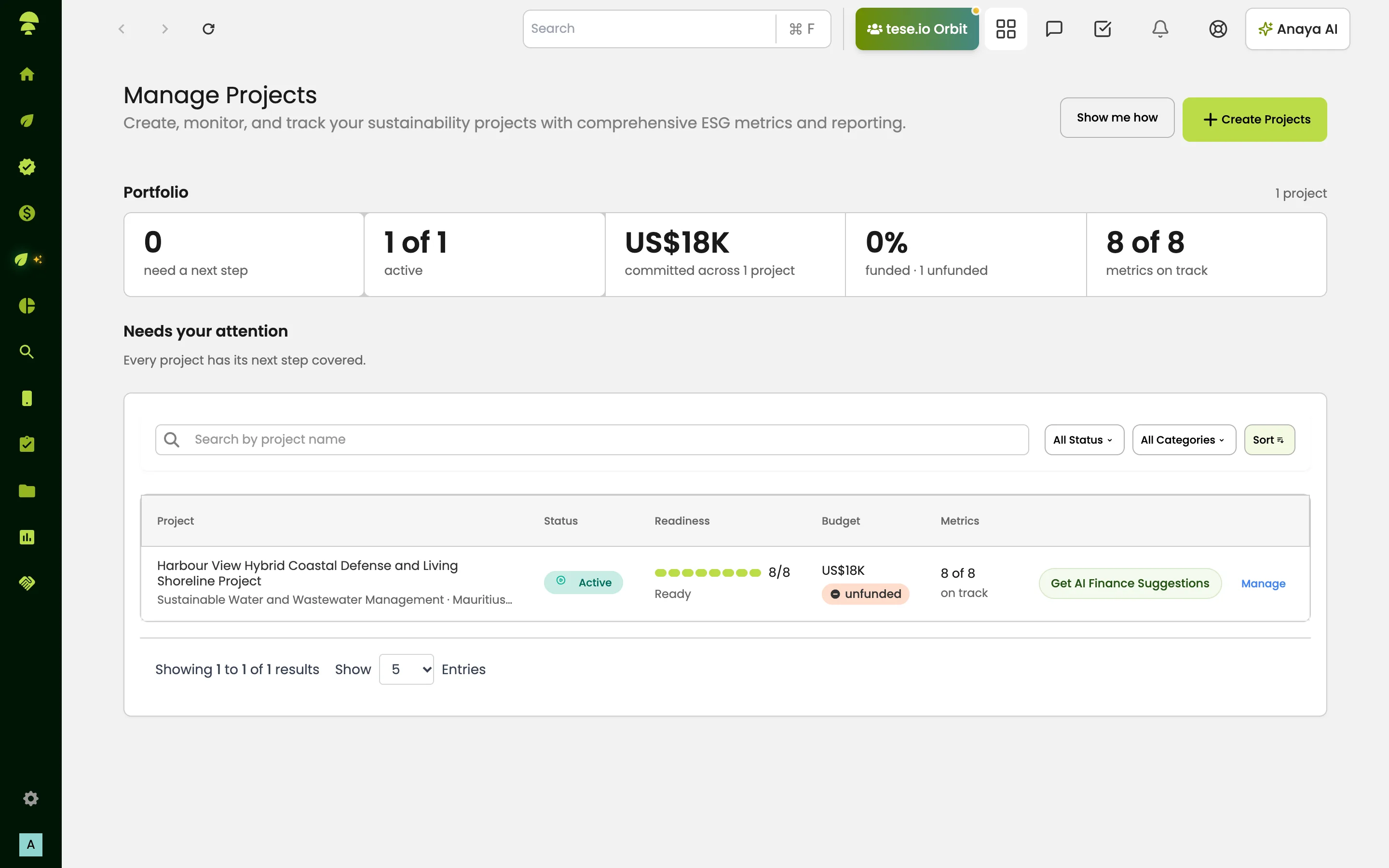
In the sidebar, open ESG Manager → Projects. The page is headed Manage Projects.
The projects list
The Portfolio band at the top shows how many projects you have, how many need a next step and how many are active. Needs your attention lists each project's next action with a link to the stage that needs it. The table below shows each project's Status, Readiness, Metrics and Budget; filter with All Status and All Categories.
How to create a project
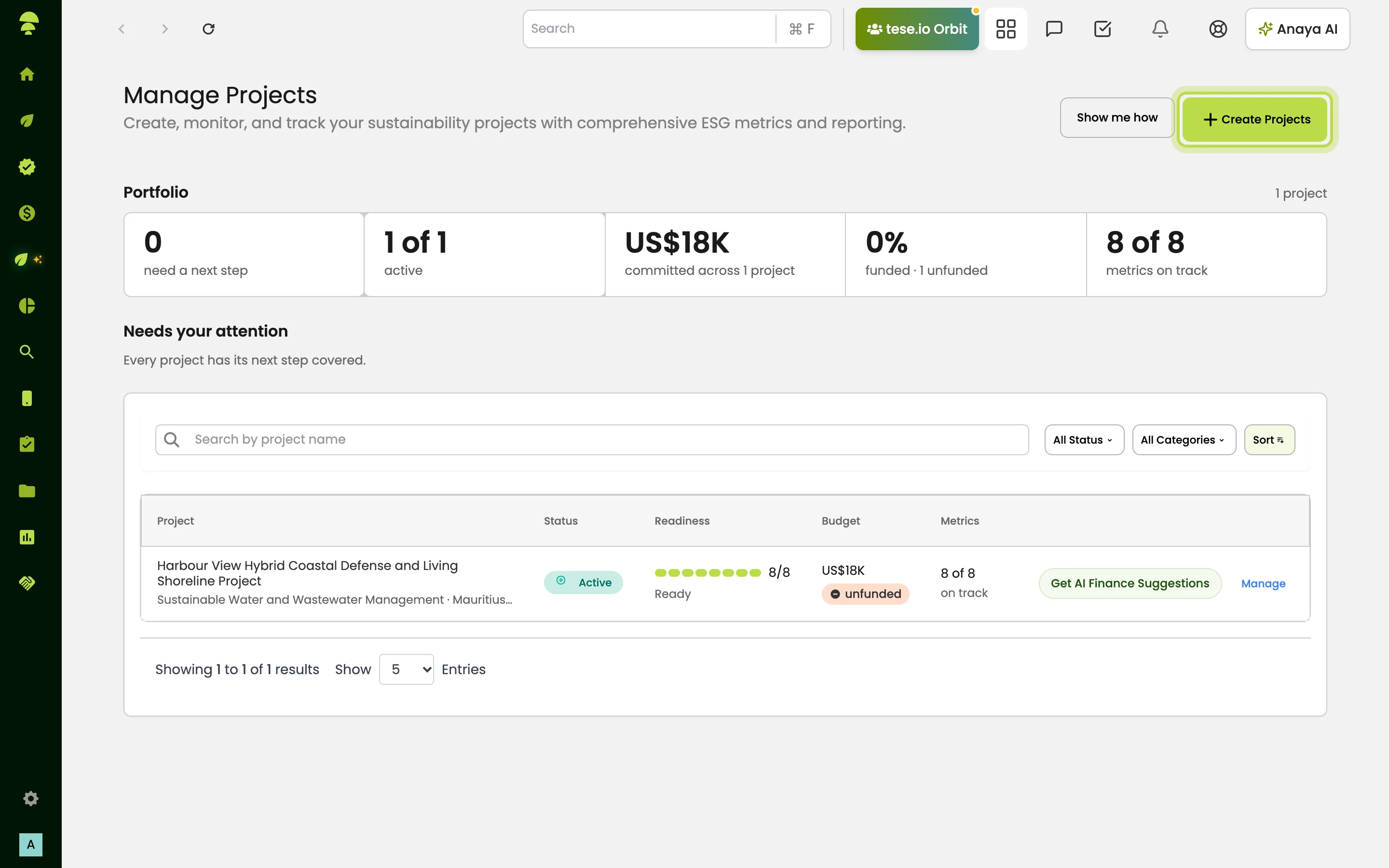
On Manage Projects, select Create Projects. If you would like a guided tour first, select Show me how.
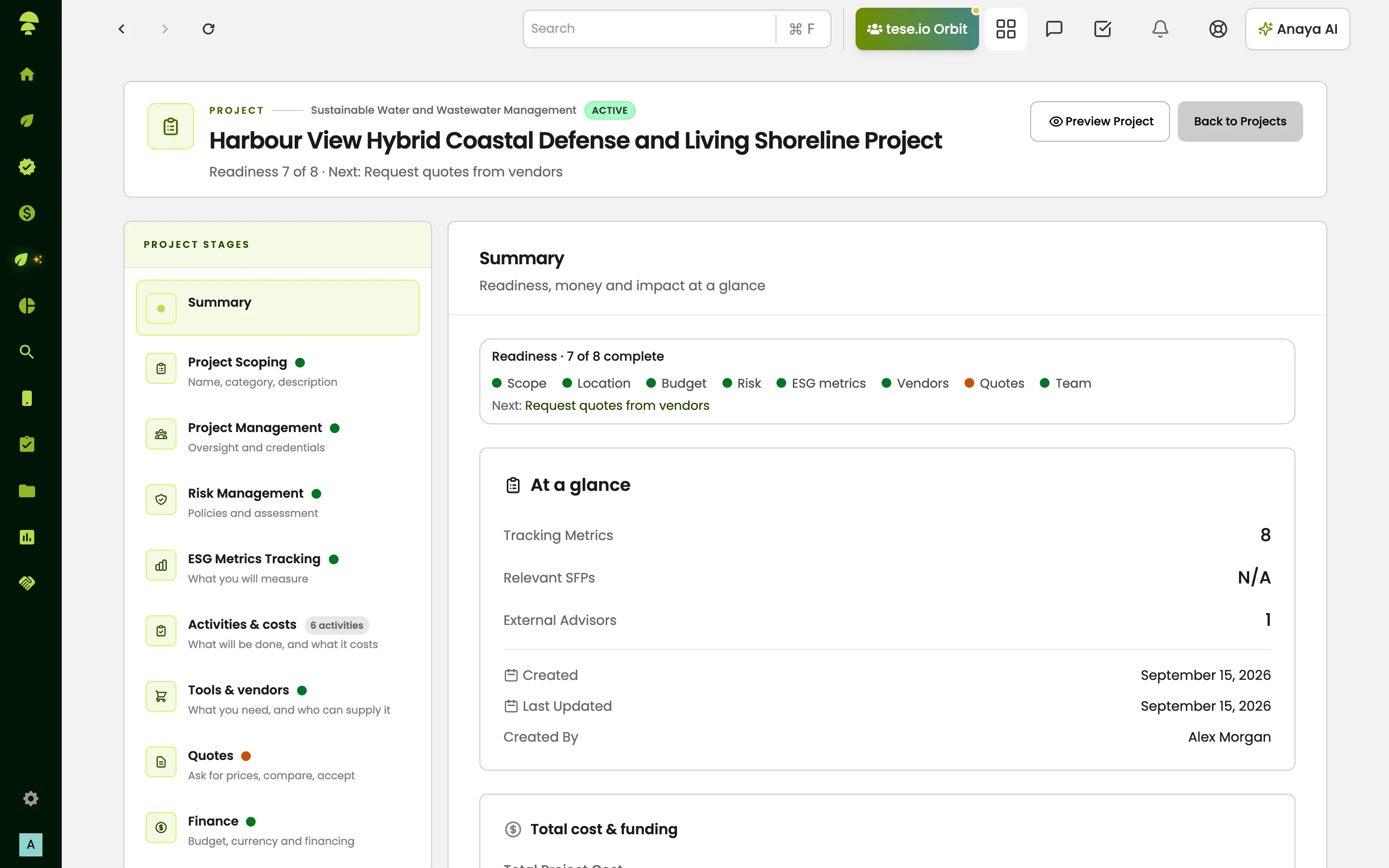
Work through the eight stages on the left-hand rail:
Project Scoping: name, category, description.
Project Management: oversight manager, credentials and advisors.
Risk Management: policies and assessment.
ESG Metrics Tracking: what you will measure.
Activities & costs (optional): what will be done and what it costs.
Tools & vendors (optional): what you need and who can supply it.
Quotes (optional): ask vendors for prices and compare them.
Finance: budget, currency and financing.
On Finance, enter the Total Project Budget and currency, and answer whether you need financing and whether to apply now (Yes, Apply Now or No, Create Project Only).
Finish with one of the two buttons:
Create Project saves the project as a Draft, which you can keep editing.
Create & Publish Project creates it and publishes it so it becomes Active.
Your work is saved as a draft while you go, so you can leave and come back. You can also select Preview Project to see how it will look before you finish.
How to use the implementation desk
The Activities & costs, Tools & vendors and Quotes stages form the implementation desk.
On Activities & costs, pick the activities the project involves. Their estimated costs can feed the budget on the Finance stage.
On Tools & vendors, review the tools suggested for those activities (select Suggest tools if none show yet). Tick Needed? for the items you need and set quantities.
Build your Vendor shortlist with Add vendor. You can choose From tese.io suggestions, Ask tese.io to find vendors (add any notes about what you need), or Add manually. Vendors confirmed to supply an activity are marked Covers this activity.
On Quotes, select Request quote next to a vendor, choose which items to send, and submit. Each request then shows its progress, for example Requested, Reply received, Negotiation, Accepted or Declined, with the quoted unit prices and totals.
The project view
Open any project from the list to see its project view. It uses the same stage rail as the wizard, with a Summary of readiness, money and impact. A readiness strip lists what still needs work, such as Add total project cost or Request quotes from vendors, and links to the right stage.
Filling a project with Anaya AI
While you build a project you can ask Anaya AI to help. In the chat, describe the project and Anaya AI can fill fields across the stages. Each change is shown as a card under her message saying which field she changed; you can Undo her most recent change. Stages where Anaya AI drafted something are marked on the rail. On Risk Management there is also a Fill with Anaya AI button for the impact plan; always review what she fills in.
Good to know
Only Draft projects show the Edit Project button. Once a project is published, it can no longer be edited from the project view.
Vendor email addresses and international phone numbers are hidden on project pages, including inside vendor replies, where they appear as "[contact hidden]".
Projects started from the Waste Planner arrive here as drafts with the card's cost and category filled in.
Common questions
Why can't I edit my project any more? Editing is only available while a project is a Draft. Published (Active) projects cannot be edited from the project view.
Why does the Quotes stage say "Add vendors on Tools & vendors first."? Quotes can only be requested from vendors on your shortlist. Add vendors on the Tools & vendors stage, then return.
Why can't I see a vendor's email address? Contact details are deliberately hidden on project pages to protect personal data and keep quotes on the platform.
Can I undo something Anaya AI filled in? Yes. Select Undo on the card under her latest message, or edit the field yourself.
Was this article helpful?
Still need help?
The tese.io team reads every message and usually replies within one working day.
Contact support