
Portfolio Manager
Group the companies you finance or oversee, track their ESG data, raise issues with them and build portfolio reports.
Portfolio Manager is for finance and portfolio teams who oversee a set of companies. You put companies into portfolio groups, see their ESG data and targets in one place, spot issues, talk to the companies in engagement threads and produce portfolio reports.
Portfolio Manager is part of the portfolio app. If you cannot see it in the sidebar, it may not be enabled for your organisation — ask your tese.io contact or your administrator.
Where to find it
In the sidebar, open Portfolio Manager. It has these entries:
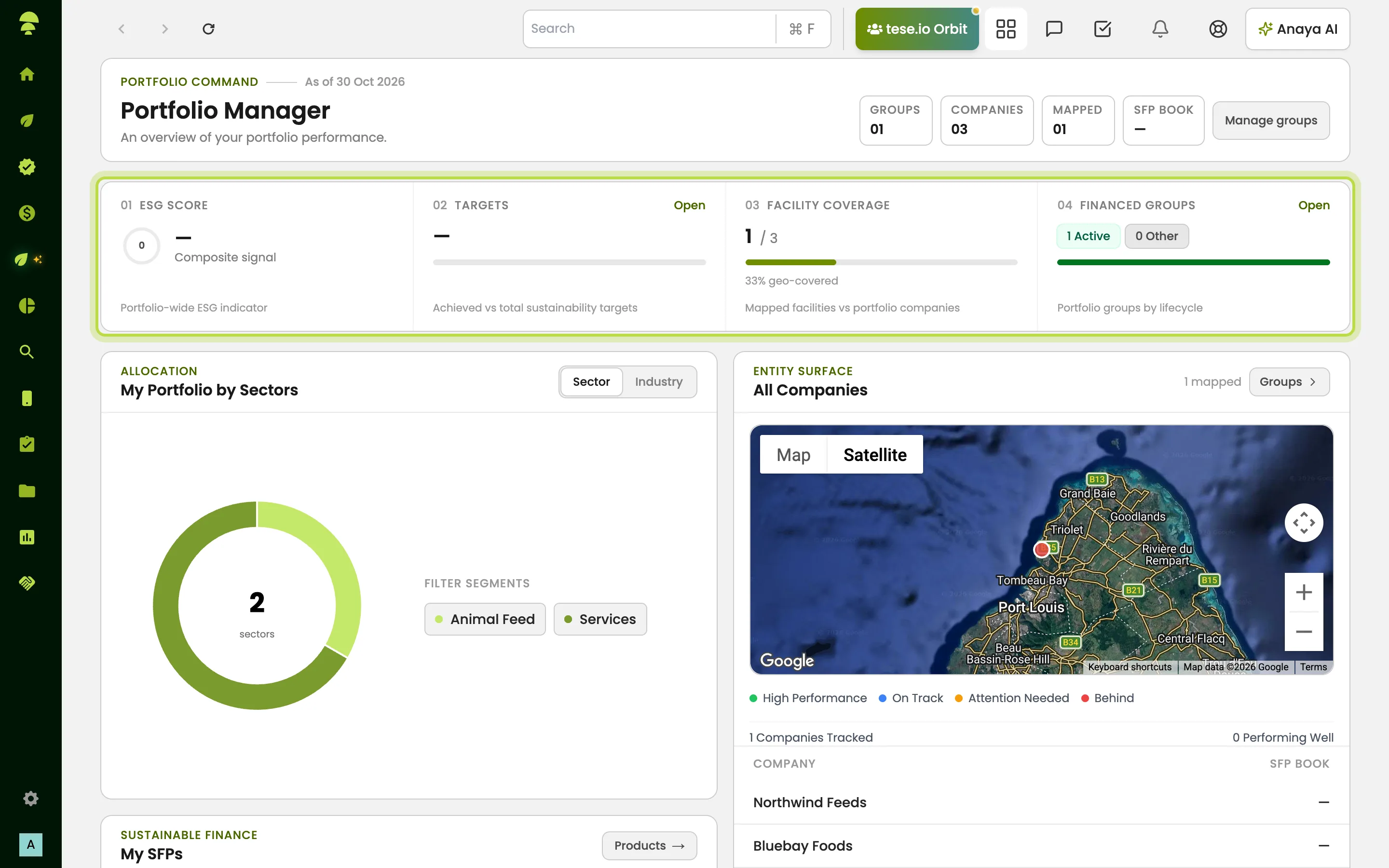
Overview — a summary across all your groups: ESG score, targets, facility coverage, financed groups, your portfolio by sectors and industries, a map of companies and your sustainable finance products (My SFPs).
Portfolio Groups — every group you manage and every group you have joined as a member.
Portfolio Reports — reports built from a group's data.
PMI Alerts — governance alerts. This entry only appears once portfolio manager ownership has been set up for your organisation.
Issue tracking and engagement threads sit inside each portfolio group, on the Intelligence and Engagement tabs. They are not separate sidebar entries.
How to create a portfolio group
Go to Portfolio Manager → Portfolio Groups and select Create New Group.
Group & Details: give the group a Portfolio Name. Pick one or more sustainable finance products under Funds and set a committed amount for each. Companies that have taken loans or grants from those funds appear automatically. Use Add External Company to invite other companies.
Select Metrics (Optional): choose the metrics you want companies to report. You can add a whole reporting pack under Reporting packs (optional) and then add or remove single metrics.
Review & Submit: check the Portfolio Group Summary, then submit.
The companies you invite get an invitation. On the group's Companies tab, each one shows as Pending Invite, Active or Rejected.
How to work inside a group
Open a group from Portfolio Groups. The group has these tabs:
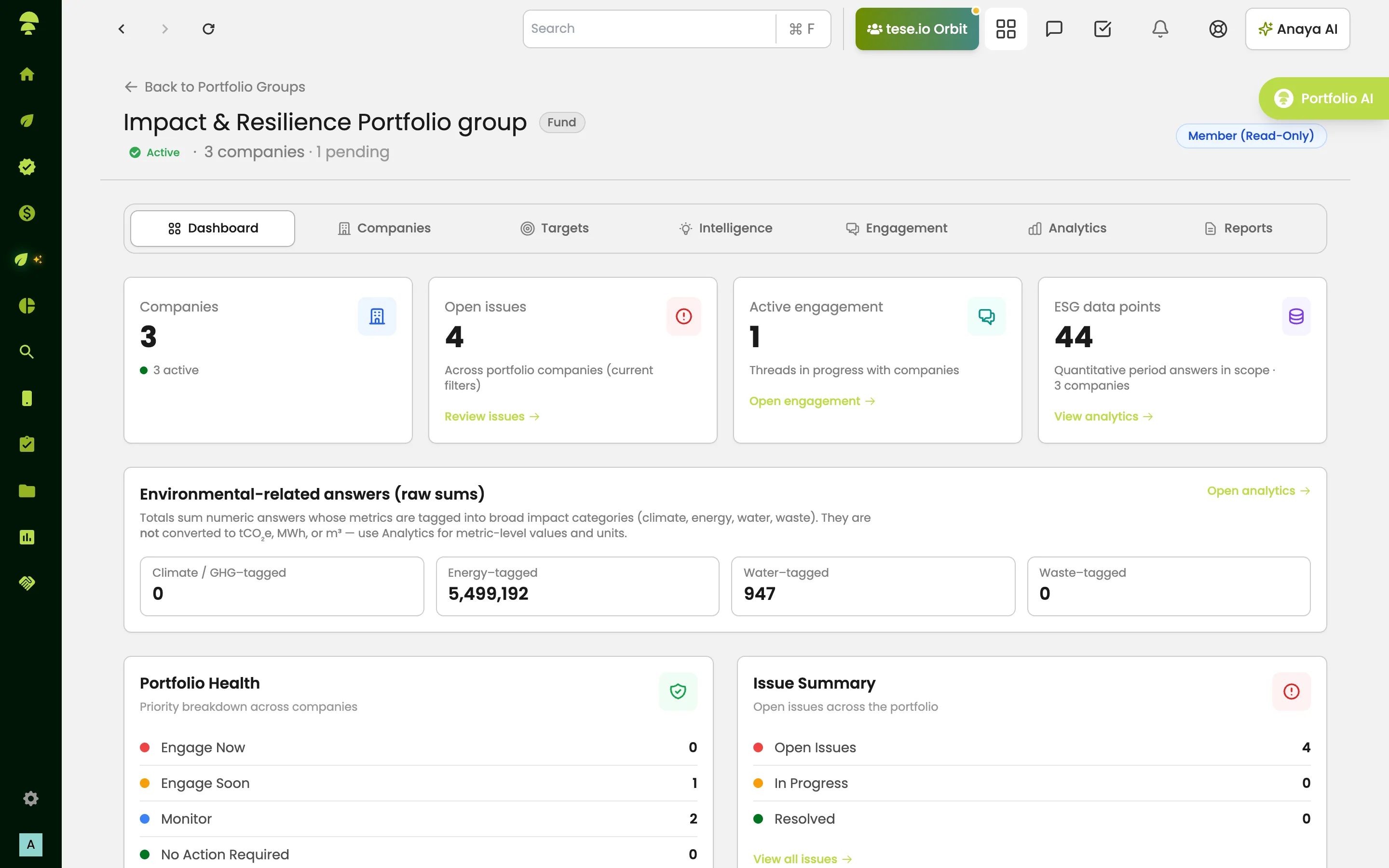
Dashboard — companies, open issues, active engagement, ESG data points and a portfolio health breakdown.
Companies — the companies in the group. You can filter by industry and open a company to see its data.
Targets — switch between Portfolio Targets (sustainability targets for this group) and Portfolio Covenants (reporting covenants you define, approve, assign and review).
Intelligence — AI-powered portfolio intelligence (see below).
Engagement — threads with your companies.
Analytics — metric values across companies, which you can filter by source, facility or company.
Reports — portfolio reports for this group.
On every tab there is a floating Portfolio AI button. It opens Anaya AI with this group already selected as context.
How to use Intelligence
Open the group's Intelligence tab.
Under AI Insights, select Generate, or Regenerate if a briefing already exists. Anaya AI writes a briefing across the group's companies with key findings and the evidence behind them.
Select Run Detection to look for issues in company data. They appear in the issues list under Open Issues.
Check Portfolio Health. It sorts companies into Engage Now, Engage Soon, Monitor and No Action.
To follow up on an issue, select engage. This takes you to the Engagement tab.
Intelligence only works once companies have accepted their invitation and shared data.
How to start an engagement thread
Open the group's Engagement tab and start a new thread.
Pick one company, or All companies in this portfolio.
Choose a thread type: Clarification, Evidence Request, Action Follow-up, Performance Discussion, Commitment Review or General Engagement. Then set a priority and add a subject.
You can link the thread to an issue and set a response due date.
Select Create Thread, then type your messages in the box at the bottom.
Inside a thread you can resolve it, escalate it, record a reply the company gave you offline, and use Thread actions to set a due date, add a participant, link evidence or archive the thread. Threads also appear in your Inbox under the Portfolio Threads tab.
How to create a portfolio report
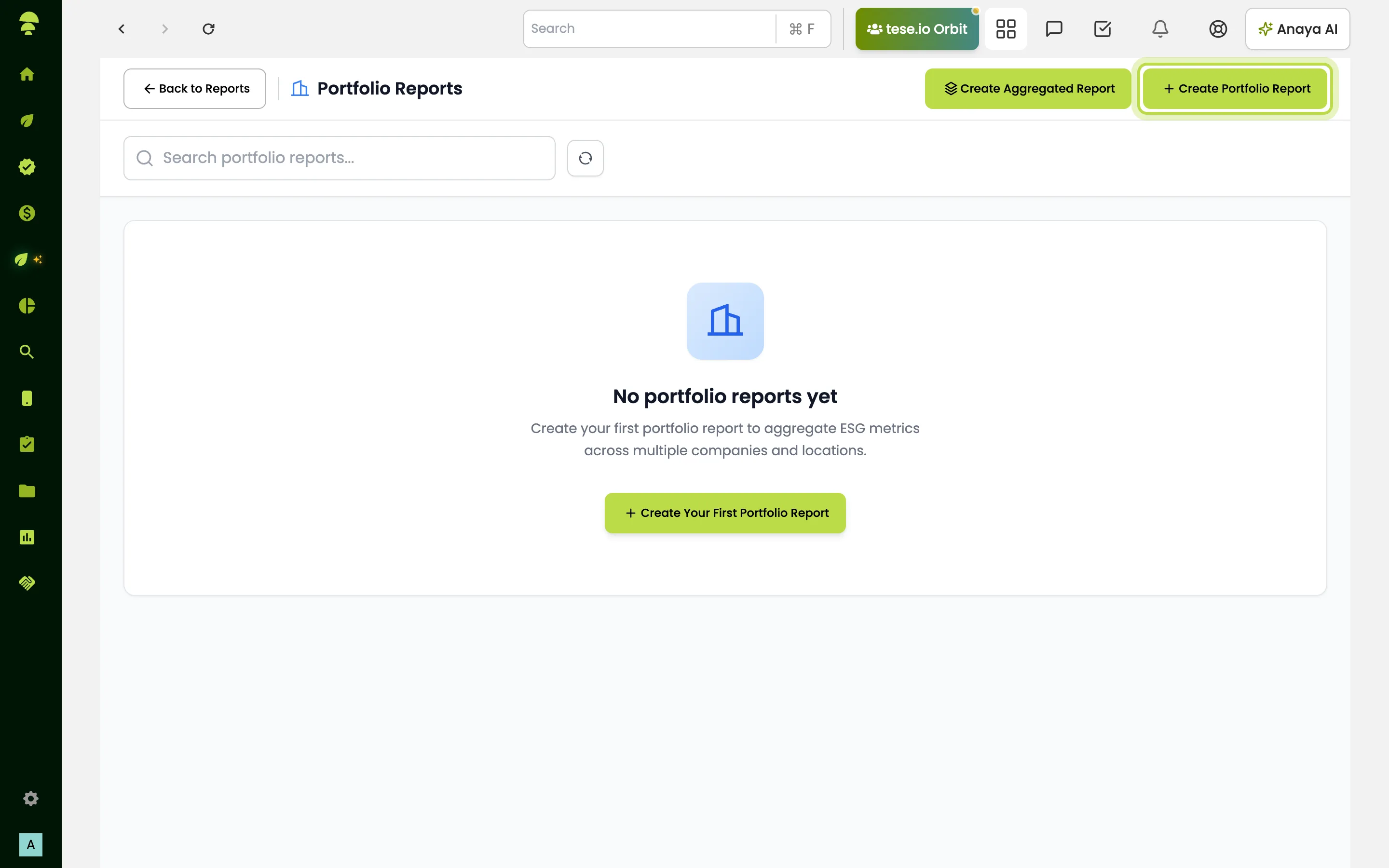
Go to Portfolio Manager → Portfolio Reports and select Create Portfolio Report.
Enter a Report title and choose a Portfolio group.
Choose the report metrics from a reporting pack or from the group catalogue.
Set the Report period: either Reporting cycles or a custom month range within a Financial year.
Under Branding, upload a cover image and a logo. You need both before you can save.
To combine two or more groups in one report, use Create Aggregated Report.
How to handle PMI alerts
On PMI Alerts (page title Portfolio Management Intelligence), you can filter alerts by state. Acknowledge a new alert, Engage to open the linked issue, or Dismiss it. Alert categories include threshold and metric breaches, covenant compliance, escalations and overdue items, intelligence issues, and reporting and evidence.
Good to know
You cannot edit an active group. Only draft groups can be changed.
Companies that join your group see it under Groups you joined. They can reply in threads, but they do not see the manager controls.
A portfolio report can only be created once every company in the group has accepted its invitation.
Common questions
Why don't I see PMI Alerts? The entry only appears once portfolio manager ownership has been set up for your organisation. Ask your administrator.
Why does Intelligence say there is nothing to analyse? Either the group has no companies, or none of them has accepted the invitation yet. Check invitation status on the Companies tab.
Why can't I edit my group? Once a group is active, you can no longer edit it.
Where do companies reply to my threads? In their Inbox, under Portfolio Threads, or on the group's Engagement tab.
Can one report cover several groups? Yes. Use Create Aggregated Report and select at least two portfolio groups.
Was this article helpful?
Still need help?
The tese.io team reads every message and usually replies within one working day.
Contact support