
Metrics
How to browse the ESG Metrics Catalog, add metrics to your organisation, collect data for a metric and create custom metrics.
Metrics are the figures your frameworks and reports ask for, such as total Scope 2 emissions or water withdrawn. The ESG Metrics Catalog lists tese.io's metrics, aligned with global frameworks and standards, plus any custom metrics your organisation has made.
Where to find it
ESG Manager → Metric Catalogue in the sidebar. The page is titled ESG Metrics Catalog.
The page has three tabs:
All Metrics — every metric in the catalogue.
Active Metrics — metrics your organisation is using.
Custom Metrics — metrics your organisation has created.
How to find a metric
Open ESG Manager → Metric Catalogue.
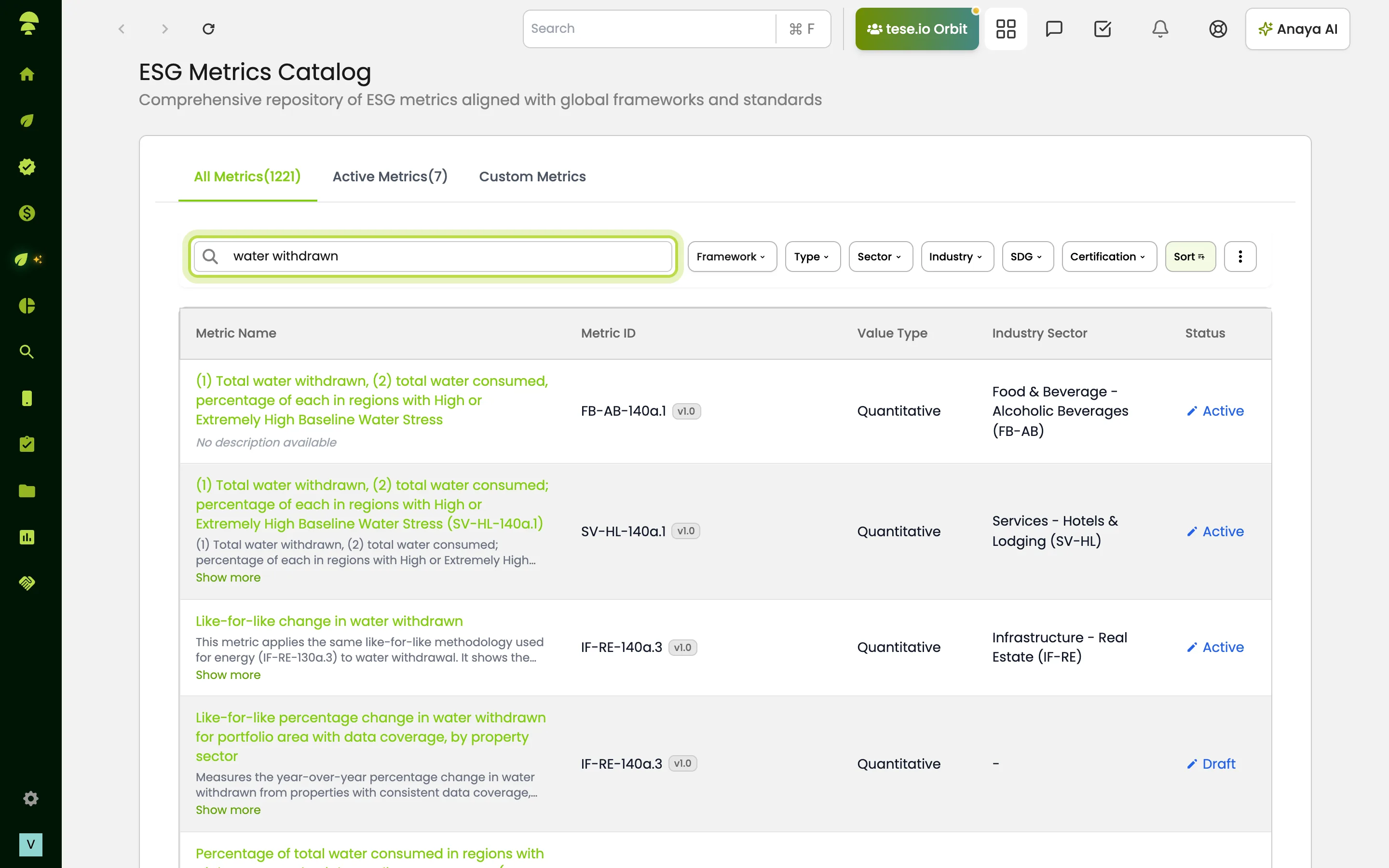
Type in Search by metric name or framework.
To narrow the list, open Advanced Metric Filters and filter by, for example, Framework, Topic, Type (Quantitative or Qualitative), Unit, Reporting Frequency or Status.
Select View (eye icon) on a row to see the metric's details.
How to add a metric to your organisation
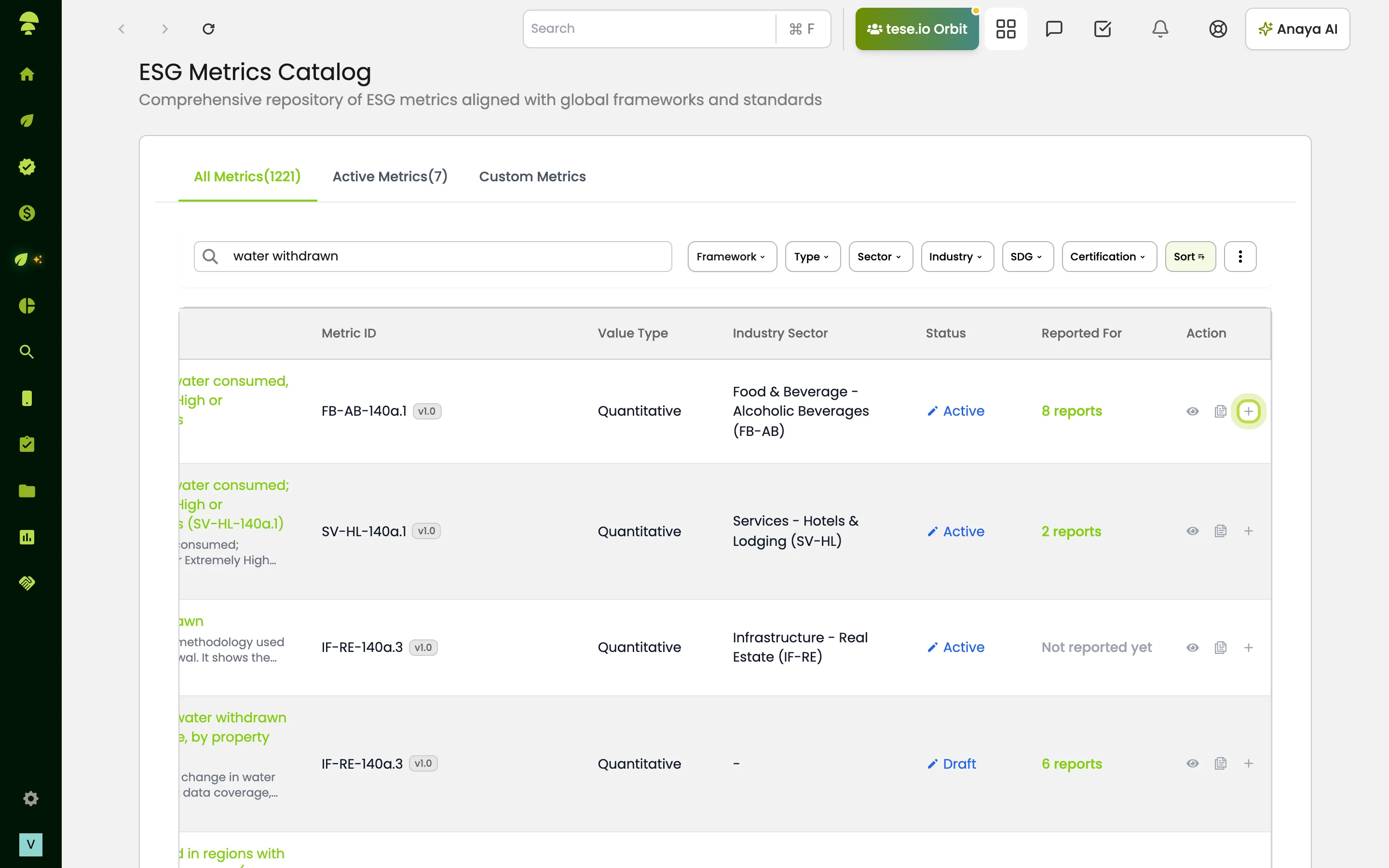
Find a tese.io metric in All Metrics.
Select Add to my metrics (plus icon).
You see Added to your metrics, and the row shows Added.
How to collect data for a metric
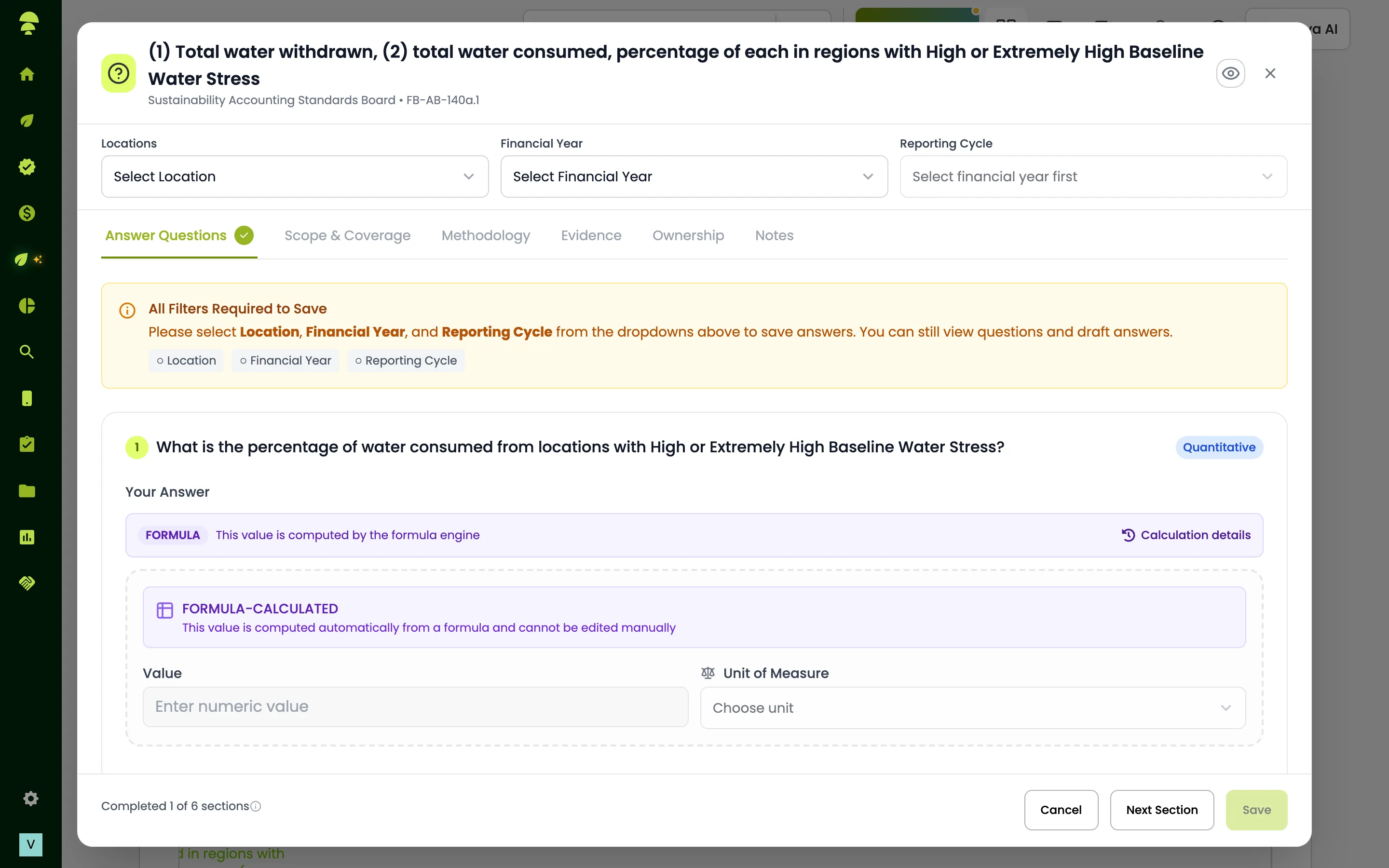
Find the metric.
Select Collect data on its row.
Enter the answer in the form that opens. If the metric expects evidence and you have none, you're asked whether to save without it (Yes, Save Without Evidence) or go to the evidence tab (No, Go to Evidence Tab).
Regular data, such as monthly bills, is usually entered through an activity instead. Activities can be linked to metrics and frameworks; see Entering activity data.
How to create a custom metric
Open the Custom Metrics tab.
Select New metric and follow the steps.
Once saved, the metric appears in the list. Use Edit metric to change it or Archive metric to retire it.
Good to know
Custom metrics are private to your organisation. Request public asks tese.io to make one available to other organisations; while that's waiting, the status says Publish request pending — click to withdraw.
An activity's Settings → Links tab shows which metrics and frameworks it feeds.
Common questions
What's the difference between a metric and an activity? A metric is the figure a framework asks for. An activity is the form you fill in regularly. An activity's Data links show which metrics and frameworks it is linked to.
Why is Add to my metrics missing on some rows? It only appears on tese.io's own metrics that you haven't added yet. Rows already added show Added.
Where do I see the metrics we actually report? Open the Active Metrics tab.
Can I delete a custom metric? You can archive it with Archive metric on the Custom Metrics tab.
Was this article helpful?
Still need help?
The tese.io team reads every message and usually replies within one working day.
Contact support