
Entering activity data
How to add an entry, save and delete drafts, attach evidence, and publish or submit for review.
Each time you record data for an activity, such as a monthly electricity bill, you add an entry. You can save it as a draft and come back later, attach receipts or invoices as evidence, then publish it or send it for review.
Where to find it
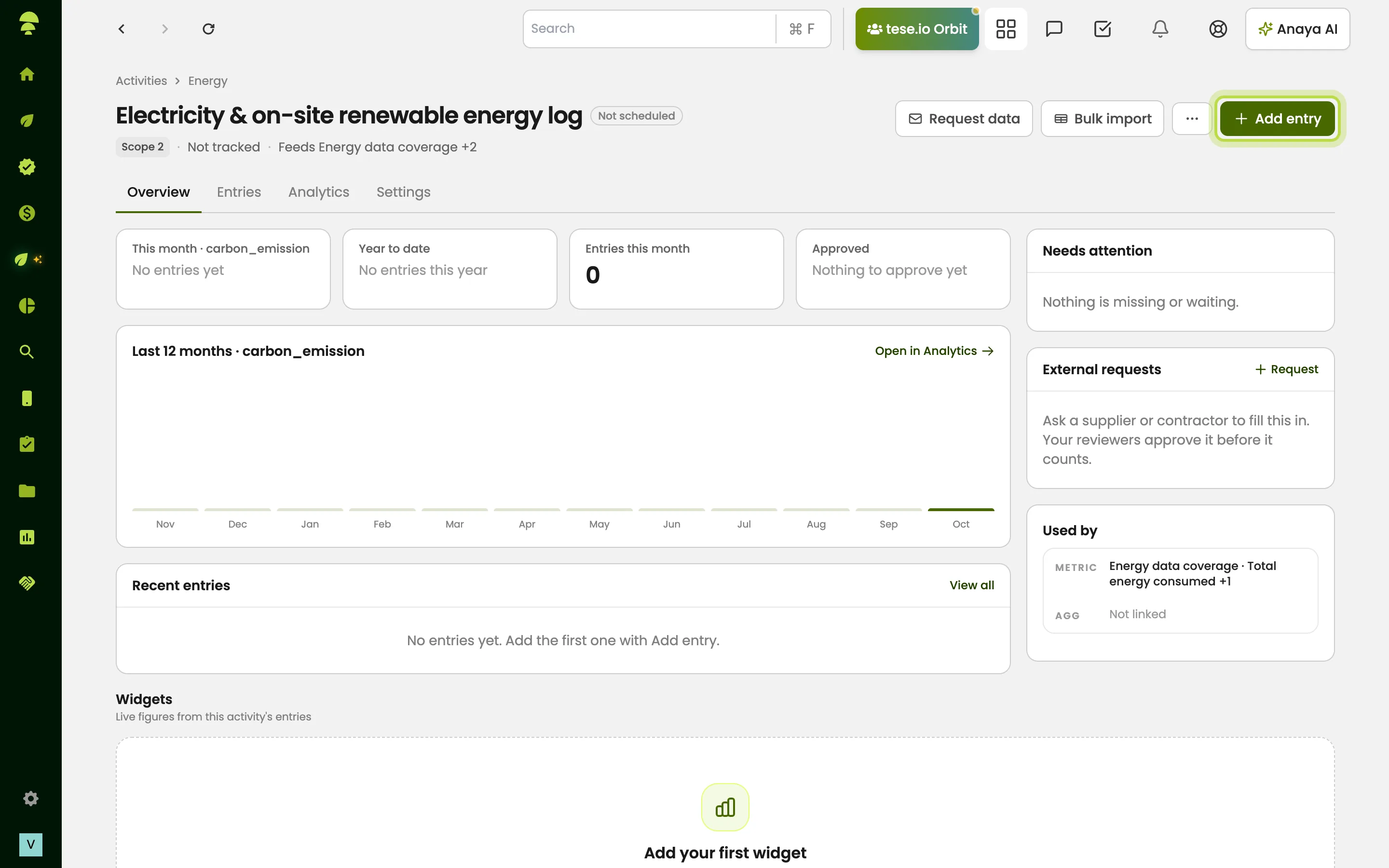
ESG Manager → Activities Data, open an activity, then select Add entry.
How to add an entry
Open the activity and select Add entry.
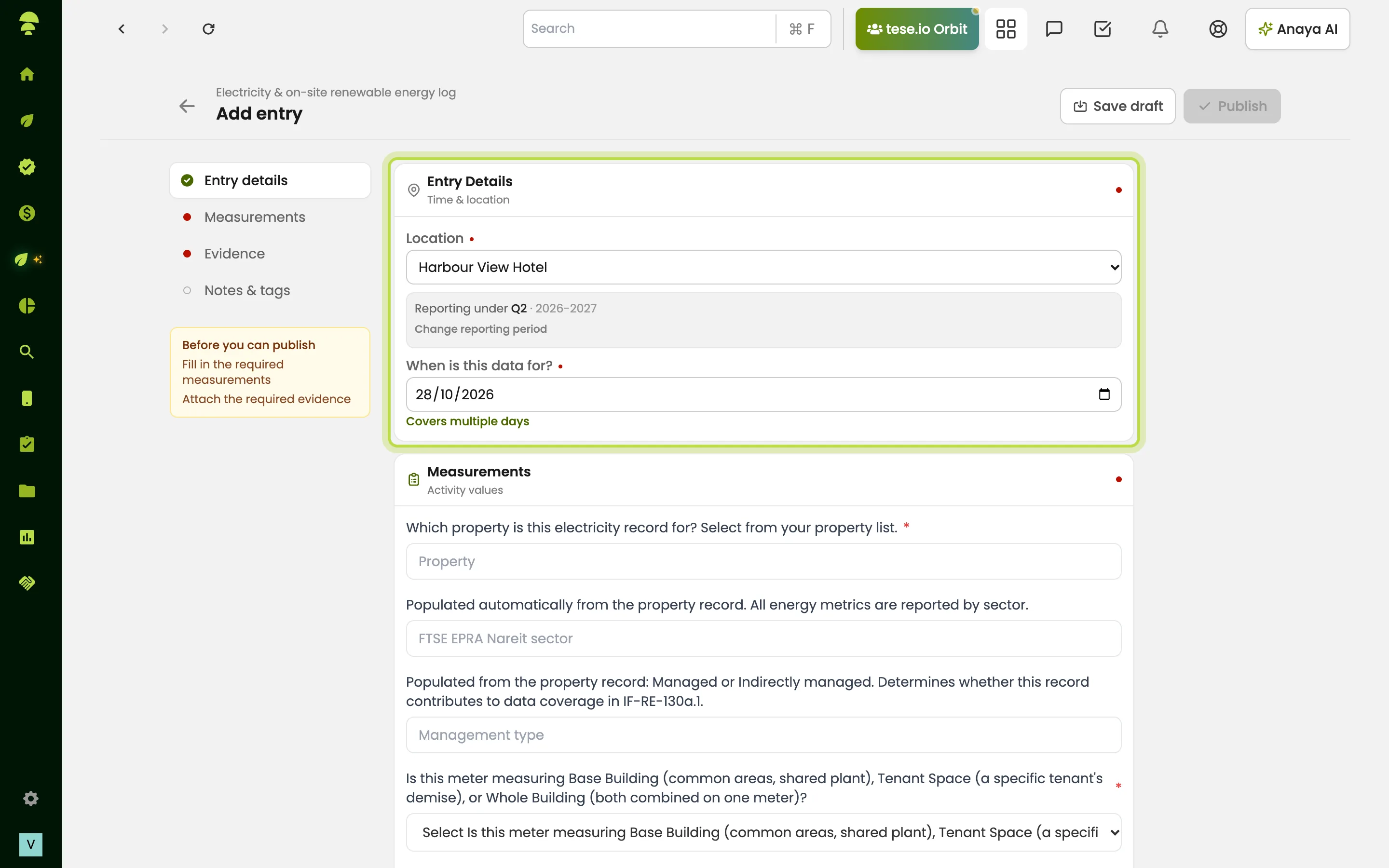
Under Entry Details (time and location), choose the Location, Financial Year and Reporting Period, then the date. You can switch to a date range, but start and end must be in the same calendar month.
Under Measurements, fill in the required values.
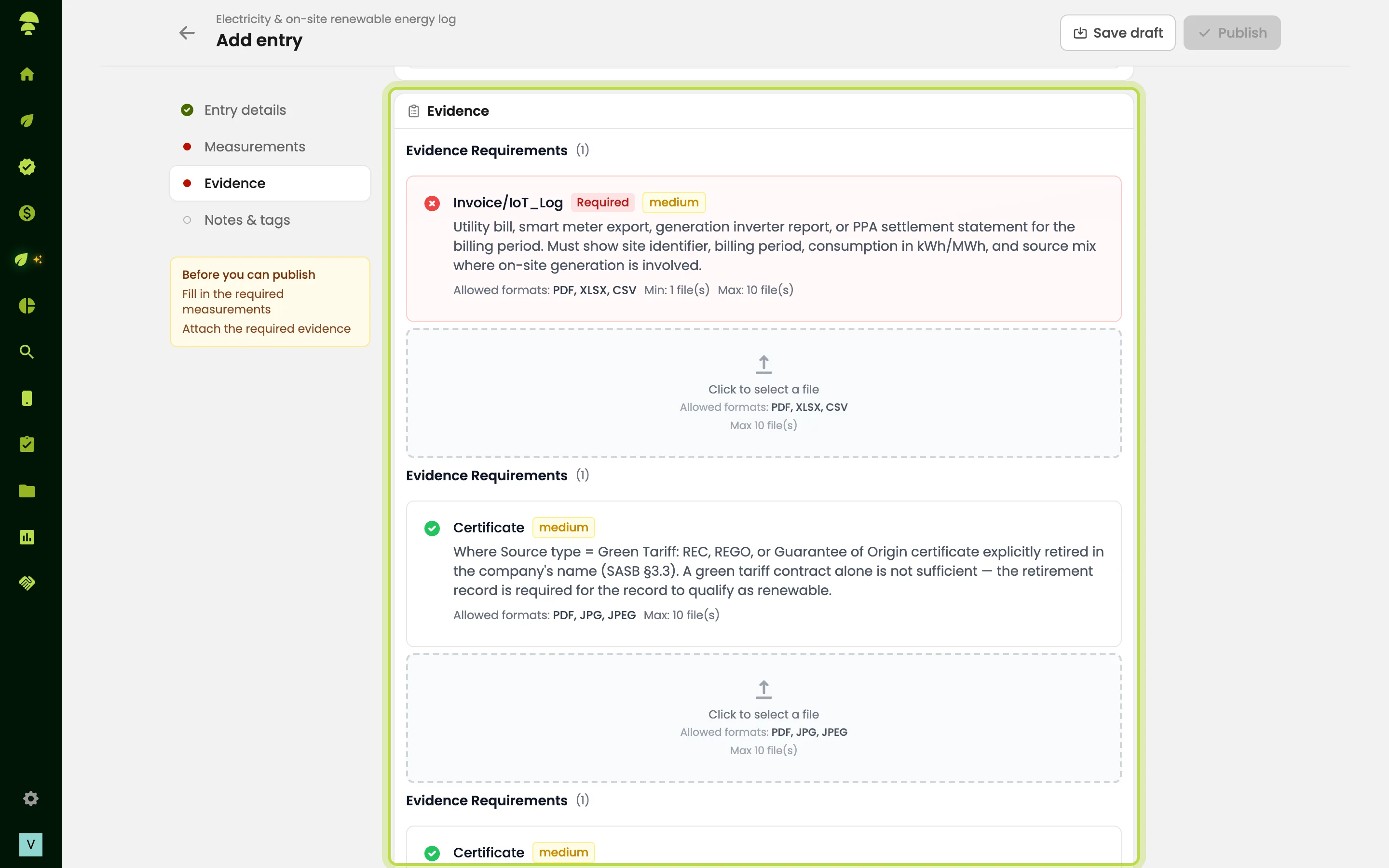
Under Evidence, attach any files the activity asks for (see below).
Check Emission Factors if shown, and add Notes & Tags if useful.
Select Publish or Submit for review at the top of the form.
The button tells you what happens next:
Publish — nobody needs to review this activity, so the entry counts straight away.
Submit for review — the entry goes to the reviewers set in the activity's settings. You see Submitted and sent for review.
If the button is greyed out, the Before you can publish list shows what's missing, for example Fill in the required measurements or Attach the required evidence.
How to save a draft
Choose the location and reporting period first — you can't save a draft without them.
Fill in what you have.
Select Save draft.
Drafts appear in the entries table on the activity's page. To continue, select Edit draft (pencil icon) on the row.
How to delete a draft
On the activity's page, find the draft in the entries table.
Hover over the row and select Delete draft (bin icon).
Select Confirm Delete.
Deleting a draft can't be undone.
How to attach evidence
In the Evidence section of the entry, read the requirement. It lists Allowed formats and how many files you need.
Click the box that says Click to select a file. A Select File window opens on the activity's evidence folder in your Files. Pick an existing file, or select Upload to add one from your computer. You can also drag a file onto the box.
When enough files are attached, you see Minimum evidence requirement met.
You can also add evidence to a draft later from the entries table.
How to fix an entry you already submitted
While an entry is Submitted or In review, select Edit entry on its row to correct it.
Approved and Rejected entries can't be edited. For a rejected entry, select View rejection feedback to read the reviewer's reason, then add a new entry with the corrected values.
Good to know
Entry statuses are Draft, Submitted, In review, Rejected and Done.
Only drafts can be deleted.
Times are in the activity's tracking time zone, not your local time.
If you close the form with unsaved changes, you're asked Discard this entry? What you typed is not saved.
If you are both assigned and an approver for the activity, your entries can publish straight away.
Common questions
Why can't I delete this entry? Only drafts can be deleted. Submitted, approved and rejected entries stay in the record.
Why is Save draft greyed out? Choose a location and reporting period first.
It says "This date isn't in a reporting period yet — pick one below." What do I do? Choose the reporting period yourself. If none fits, the financial year may not exist yet — ask whoever manages Settings → Financial Year.
Who reviews my entry? The default approvers set in the activity's Settings → People. You don't choose them when submitting.
Why can't I edit an approved entry? Approved data is locked so reports stay consistent. Ask your reviewer or admin if a correction is needed.
Was this article helpful?
Still need help?
The tese.io team reads every message and usually replies within one working day.
Contact support