
File manager
How to upload, organise, share and find documents in Files, and how files are used as evidence.
Files is where your organisation keeps its sustainability documents: bills, invoices, certificates, policies and evidence. Files you attach to activity entries are stored here too.
Where to find it
Select Files in the sidebar. The page is titled File Manager.
On the left are your spaces:
My Drive — your organisation's folders and files.
Shared drives — connected drives and shared spaces.
Recents — files opened or changed recently.
At the top are Template Library and, if signing is switched on for your organisation, E-signature.
How to upload files
Open Files and go to the folder you want.
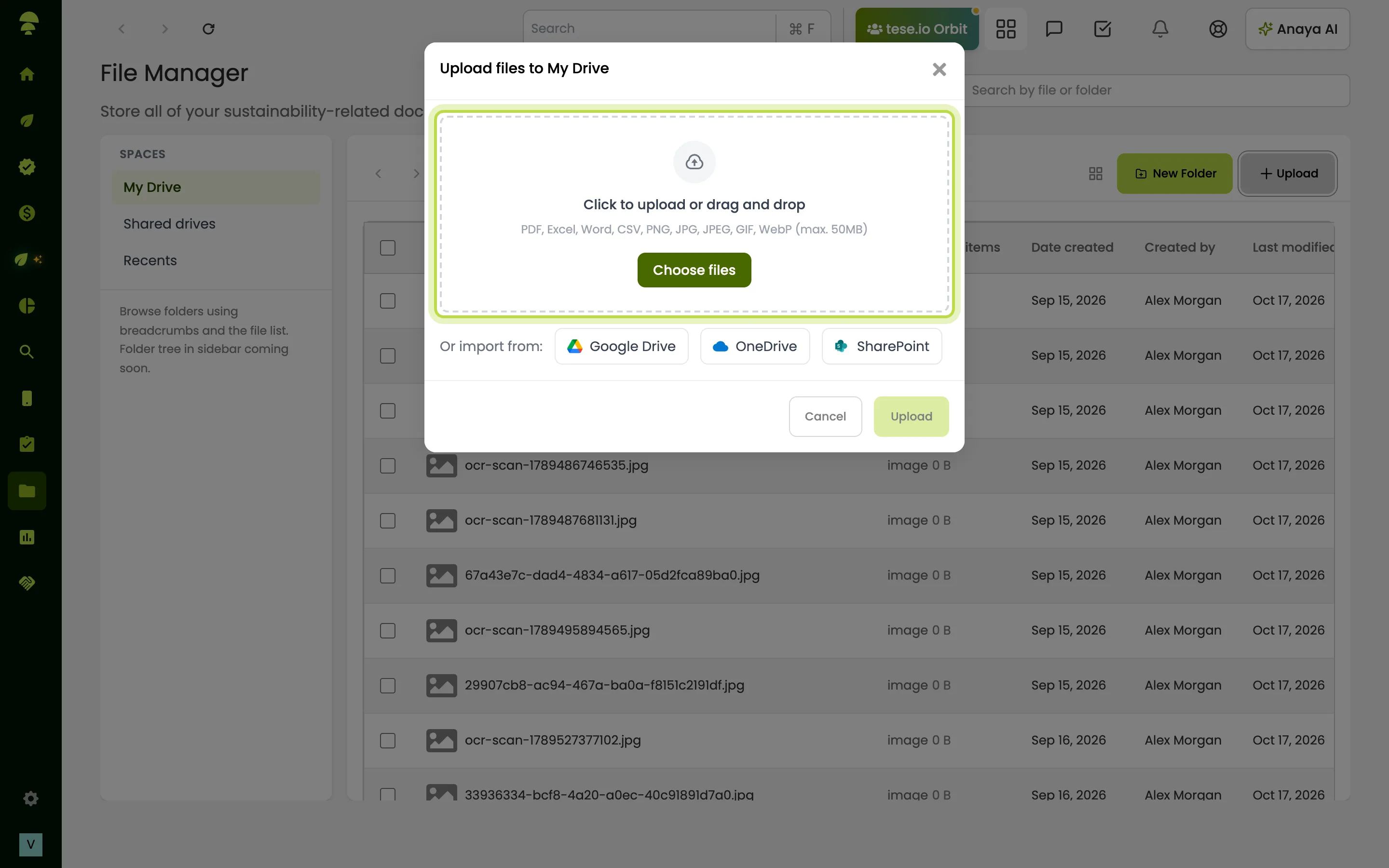
Select Upload.
Drag files onto the window, or select Click to upload or drag and drop to choose them.
You can also import from Google Drive, OneDrive or SharePoint under Or import from:, if those are connected.
Supported types are PDF, Excel, Word, CSV, PNG, JPG, JPEG, GIF and WebP, up to 10MB each.
How to create a folder
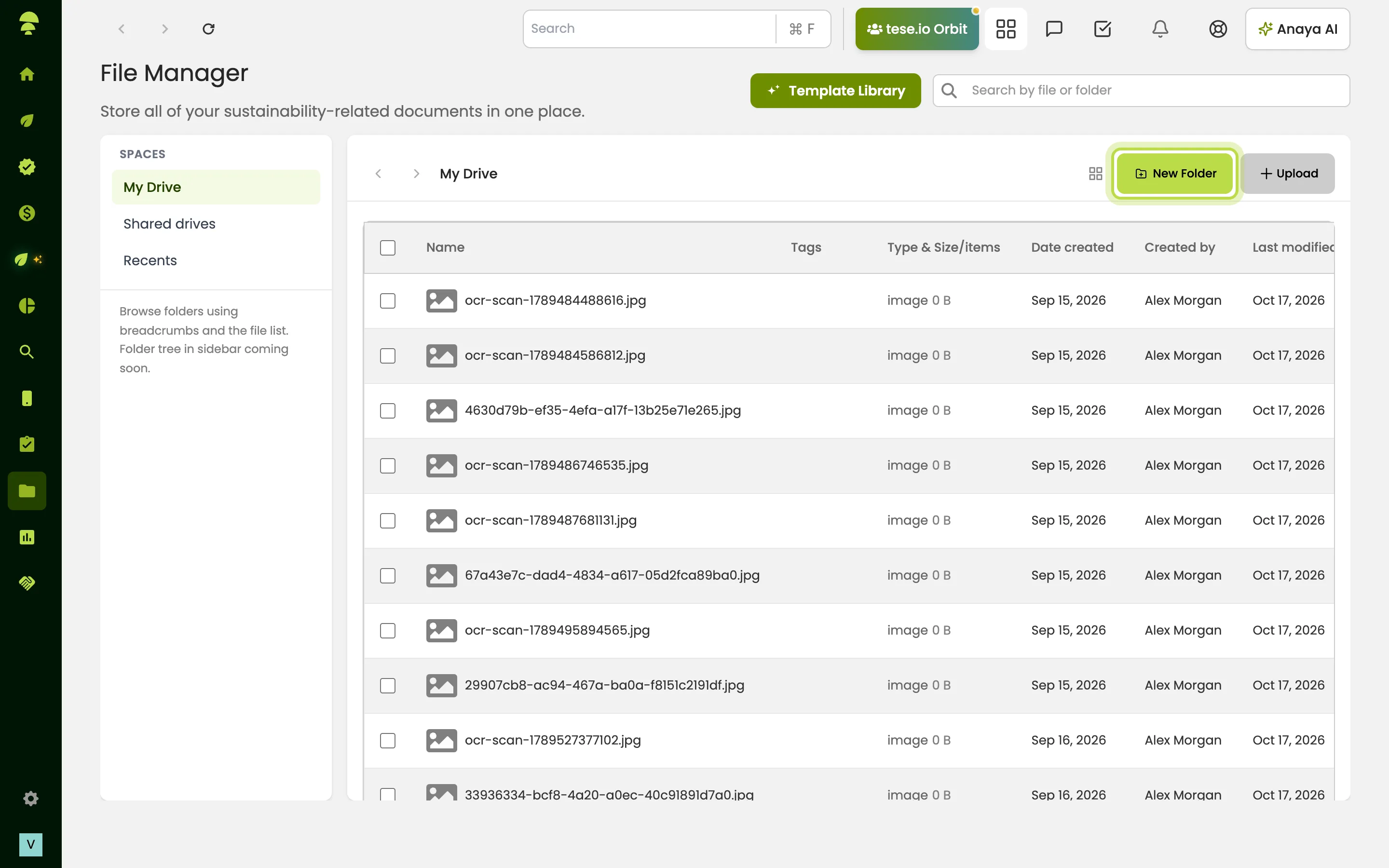
Go to where the folder should be.
Select New Folder, type a name and confirm.
How to work with a file or folder
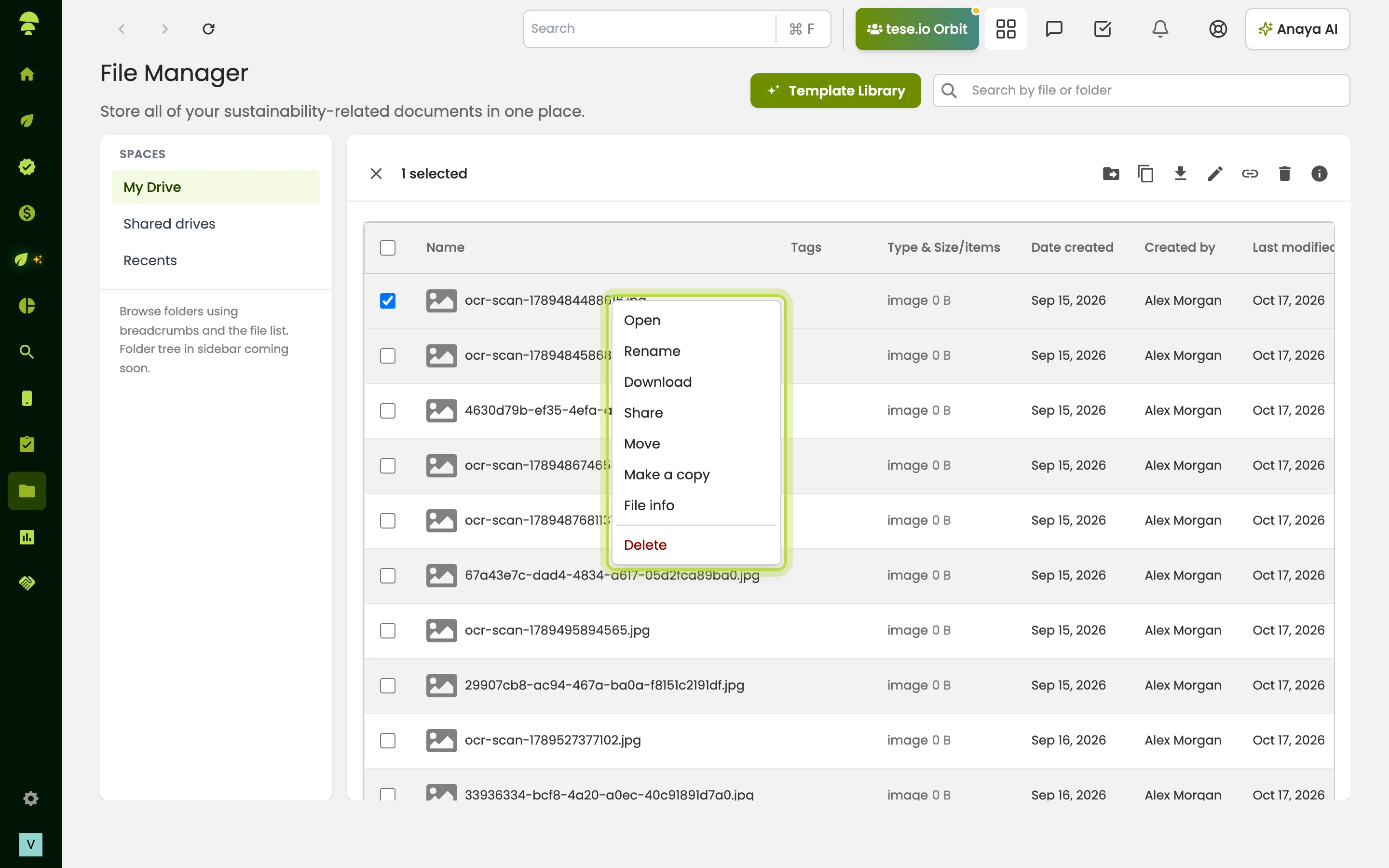
Select a file or folder, or right-click it, to see its actions:
Open or Download
Rename
Move — choose the destination folder, then confirm
Make a copy
Share
File info or Folder info — type, size, path, created and modified dates
Delete — you're asked to confirm
To find something, use Search by file or folder at the top.
How to share a file or folder
Select the item and choose Share.
Under People with access, use Add a person… to add colleagues.
Under Departments with access, use Add a department… to give a whole department access.
For each, choose Can view or Can edit.
Select Save changes.
If you belong to a department, Files shows a tip such as "Upload into a Housekeeping folder, then share with Housekeeping." Teammates in that department can then see the files, and other departments can't.
How to use a template
Select Template Library to browse templates, search with Search templates…, and use one. Select Back to My Files to return.
Good to know
Evidence you attach to activity entries is stored in the activity's evidence folder in Files.
You can only download or view info for one file at a time.
If a folder says You can view this folder but cannot edit it., you have view-only access. Ask the owner for edit access.
E-signature shows everything you've sent for signature and who it's waiting on, under Requests and Templates. It may not be enabled for your organisation.
Common questions
Why can't I upload a file? Check the type and size: PDF, Excel, Word, CSV or common image types, up to 10MB. You also need edit access to the folder.
A colleague can't see a file I uploaded. Why? Share it with them, or with their department, using Share.
Where are the receipts I attached to my activity entries? In Files, in the activity's evidence folder. You can also open them from the entry with View evidence.
Can I rename several files at once? No. Rename one file at a time.
Why don't I see the E-signature button? Signing isn't switched on for your organisation.
Was this article helpful?
Still need help?
The tese.io team reads every message and usually replies within one working day.
Contact support