
Finding and managing activities
How to find the activities you need to fill in, use list views, assign people and set reviewers and reminders.
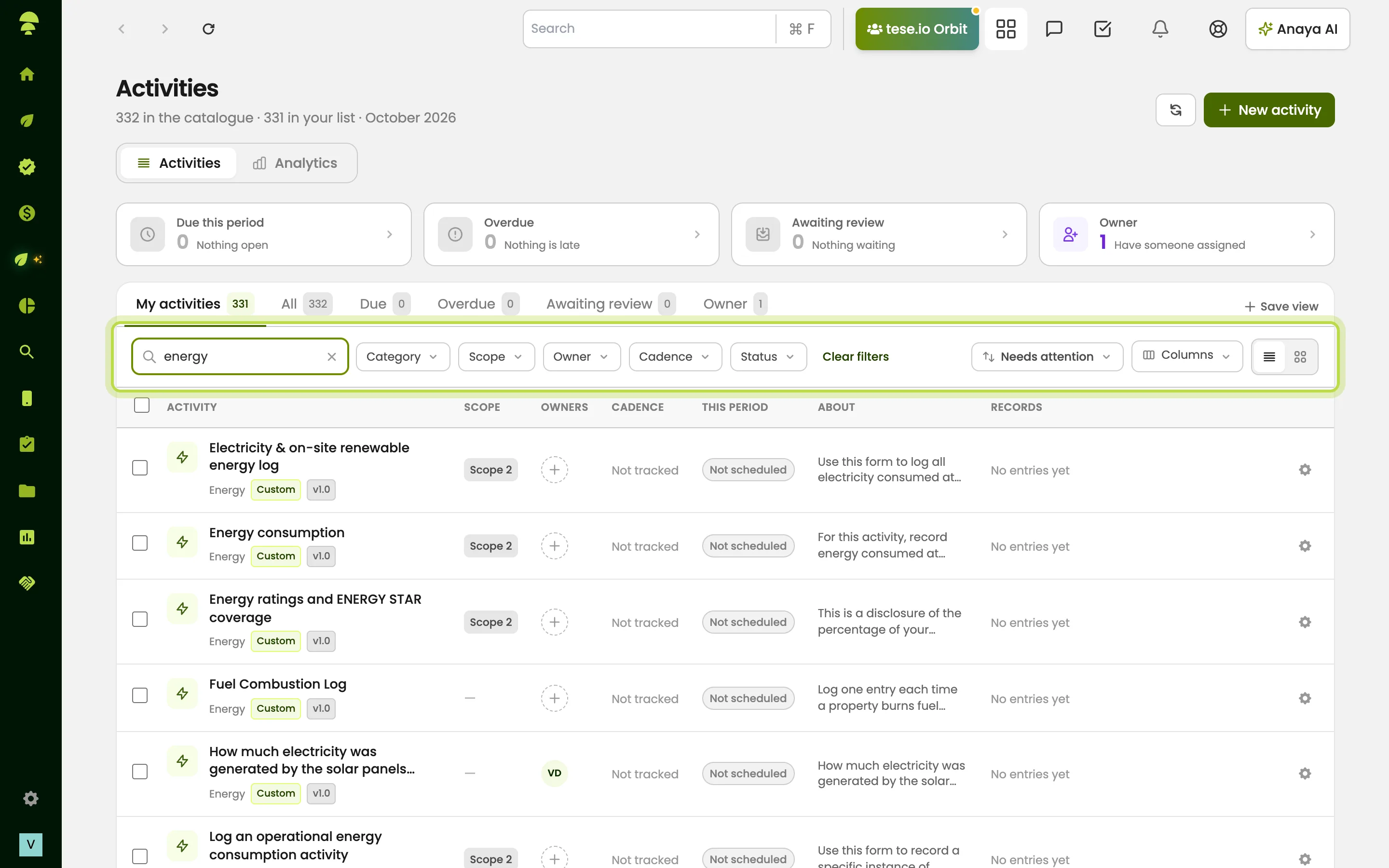
An activity is a data form your organisation collects regularly, such as electricity use, fuel, waste or water. The Activities page lists every activity you can see, with what is due, overdue or waiting for review.
Where to find it
ESG Manager → Activities Data in the sidebar. The page has two tabs: Activities (the list) and Analytics (charts on your activity data).
How to find your activities
Open ESG Manager → Activities Data.
Use the view tabs at the top of the list:
My activities — activities assigned to you.
All — the whole catalogue (shown to people who can assign).
Due — due this period.
Overdue — past their period end.
Awaiting review — entries waiting for a reviewer.
Owner — grouped by owner (shown to people who can assign).
Type in Search activities to filter by name, or use the filters for Category, Scope, Department, Cadence, Owner and Status.
Switch between Table view and Cards view. Use Columns to choose what the table shows.
Select an activity to open it.
To keep a filter set, select Save view. Saved views are only visible to you. You can Rename, Update with current filters or Delete view later.
How to assign people to an activity
You need permission to assign people.
Hover over the activity and select Assign people, or open its Settings (gear icon).
On the People tab, under Assign people to this activity, choose team members.
Under Default approvers, choose who reviews entries. Choose whether One approver required or Multiple approvers required.
Optionally set Responsible Departments.
Save.
You can select several activities with the tick boxes and use the bulk bar to Assign…, Set cadence, Stop tracking or Archive.
How to set reminders and a schedule
Open the activity's Settings and go to the Tracking tab.
Turn on Track data collection.
Choose How often data is due, and the Time zone.
Under Who owes this data, choose who is chased.
Optionally set Remind every (days) and Tell admins after a number of unanswered reminders.
Save.
How to create a new activity
Organisation admins see New activity at the top of the page. It opens a step-by-step builder for the form's fields, evidence and schedule. tese.io's own activities can be copied and changed with Customise (makes your own copy).
How to request data from outside your organisation
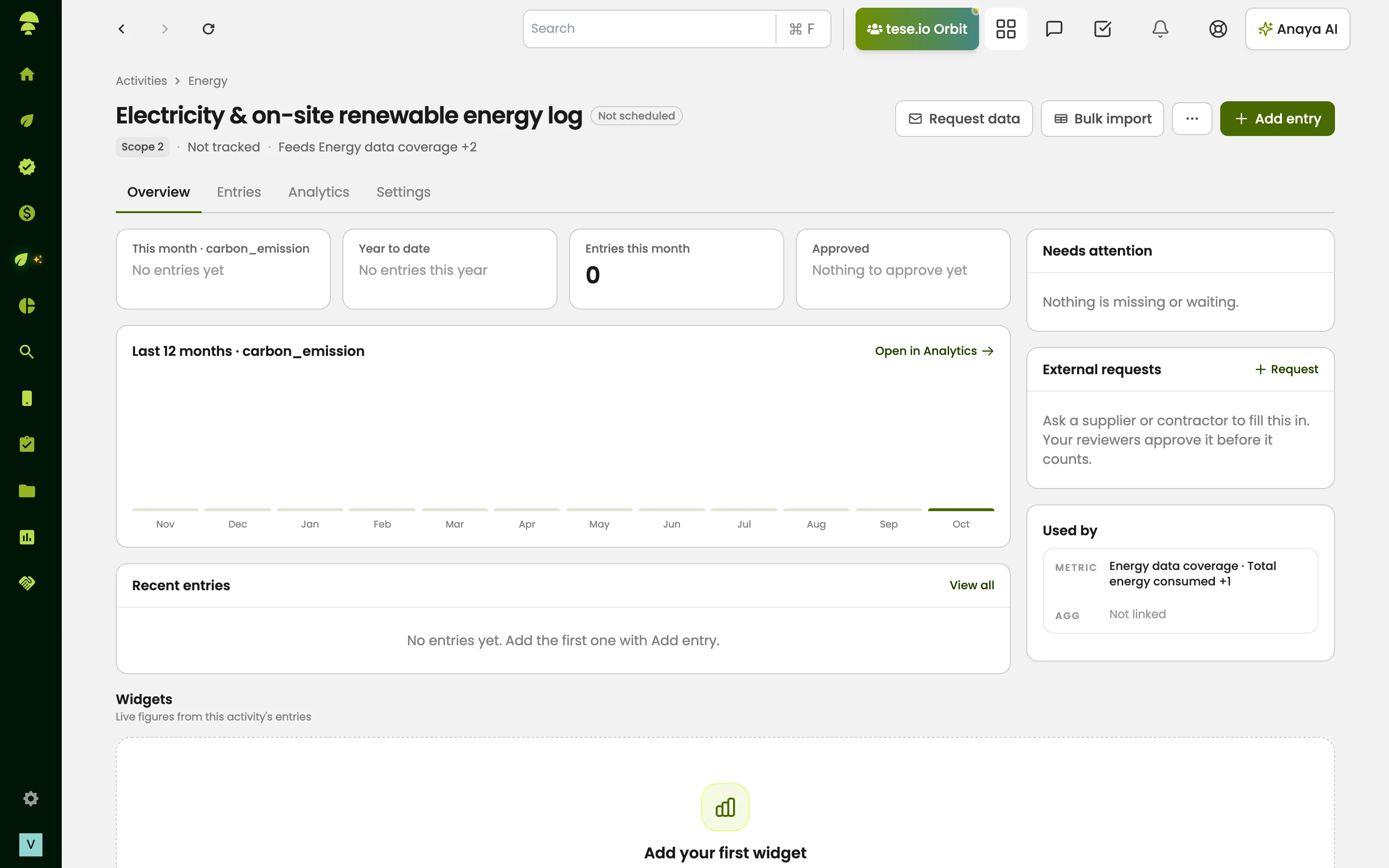
On an activity's page, use Request data (under External requests) to ask a supplier or contractor to fill it in through a link. Choose Who should fill this in?, optionally Require supporting documents, Require a verification code and Due by (optional), then Send request. Your reviewers approve what they submit before it counts. This isn't available for every activity.
Good to know
You can see activities you aren't assigned to, but you can only open them if you're assigned, a reviewer or a department assigner. Unassigned activities show Unassigned. Staff can see this card but cannot open it until someone is assigned.
Activities marked Draft are not open for data entry until they are published.
Settings has five tabs: People, Tracking, Links, API and Versions. People and Tracking need assign permission.
Archiving an activity keeps the data already recorded.
Common questions
Why can I see an activity but not open it? You aren't assigned to it or a reviewer for it. Ask your manager or organisation admin to assign you.
Why is My activities empty? Nothing has been assigned to you yet. Activities you were chosen to fill in appear here.
Why don't I see the New activity button? Only organisation admins can create activities.
How do I add an activity to my list without being assigned? Admins can use Add to my list on an activity. Otherwise, ask to be assigned.
What does "Not tracked" mean? No collection schedule is set, so the activity is never marked due or overdue. Set one on the Tracking tab.
Was this article helpful?
Still need help?
The tese.io team reads every message and usually replies within one working day.
Contact support