
Bulk entry and importing spreadsheets
How to add many entries at once from an Excel template, and how to import your own spreadsheets and documents with Governed Ingestion.
There are two ways to bring in a lot of data at once. Bulk import from Excel fills one activity from a template you download. Governed Ingestion reads your own spreadsheets and documents, matches them to activities, and lets you review the result before anything is written.
Where to find it
Bulk import from Excel: ESG Manager → Activities Data, hover over an activity and select Bulk import from Excel, or open the activity and select Bulk import.
Governed Ingestion: ESG Manager → Tools → Governed Ingestion. This may not be enabled for your organisation.
How to bulk import entries from the Excel template
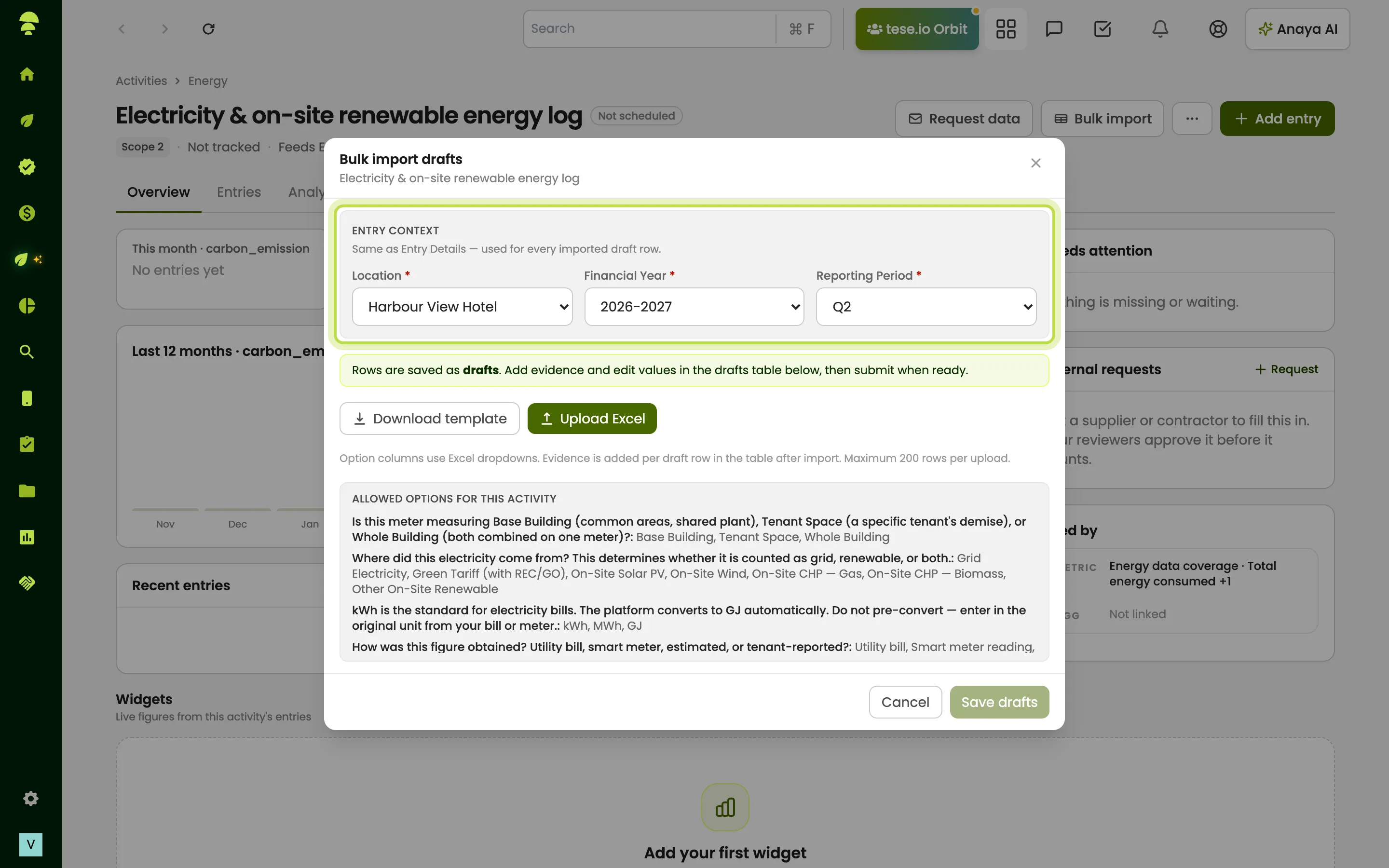
Open Bulk import for the activity.
Choose the location, financial year and reporting period. You must choose all three before you can upload.
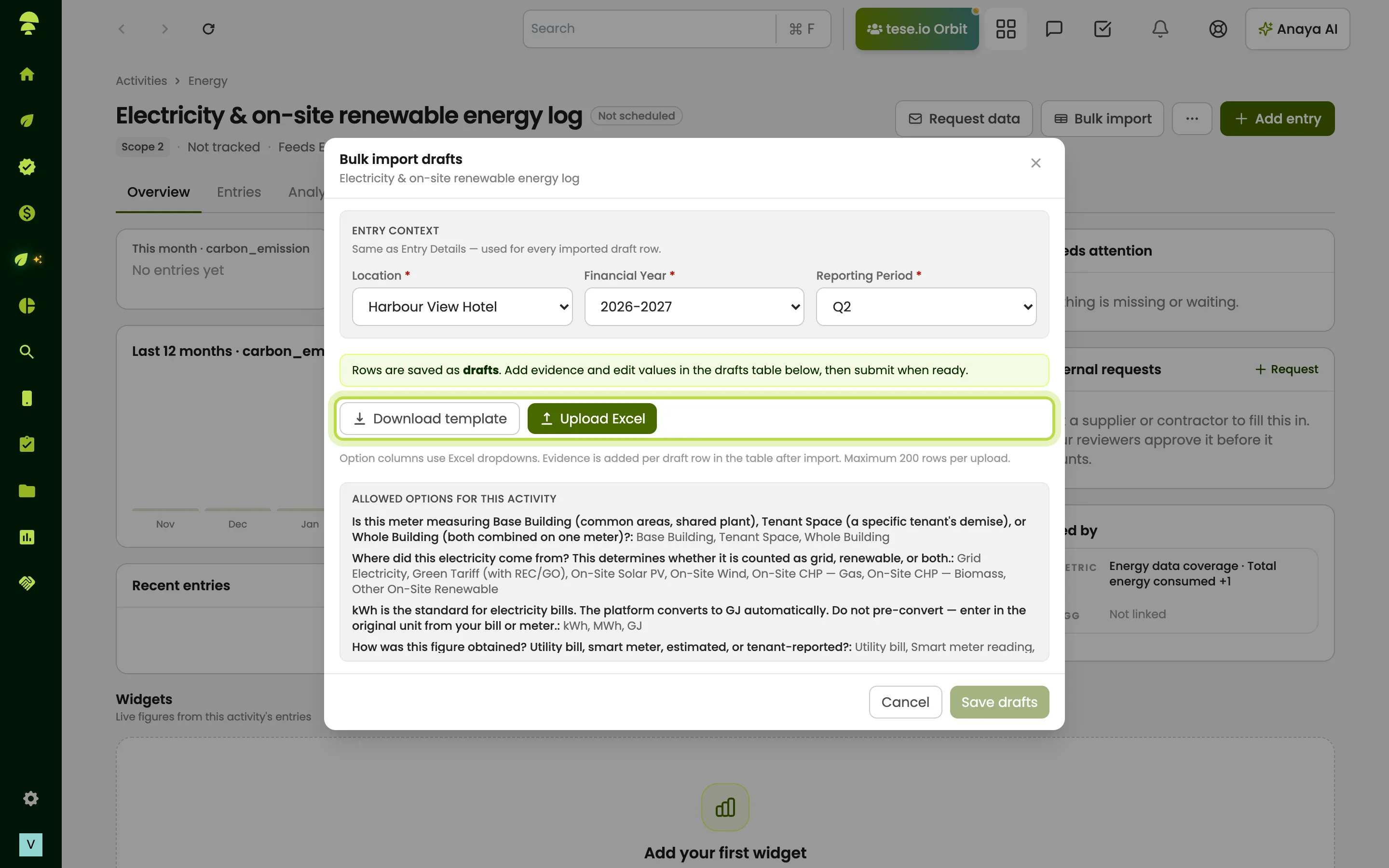
Select Download template and fill it in. Columns with fixed options have Excel drop-downs; the allowed options are listed in the window.
Select Upload Excel and choose your filled-in file.
Check the Preview. Each row shows OK or the first problem found. Fix any errors in the file and upload it again — you see Fix errors before importing until they're resolved.
Select Save drafts (the button shows how many, for example Save 12 drafts).
The rows are saved as drafts. Add evidence and correct values in the entries table on the activity's page, then publish or submit each draft. See Entering activity data.
How to import a spreadsheet or document with Governed Ingestion
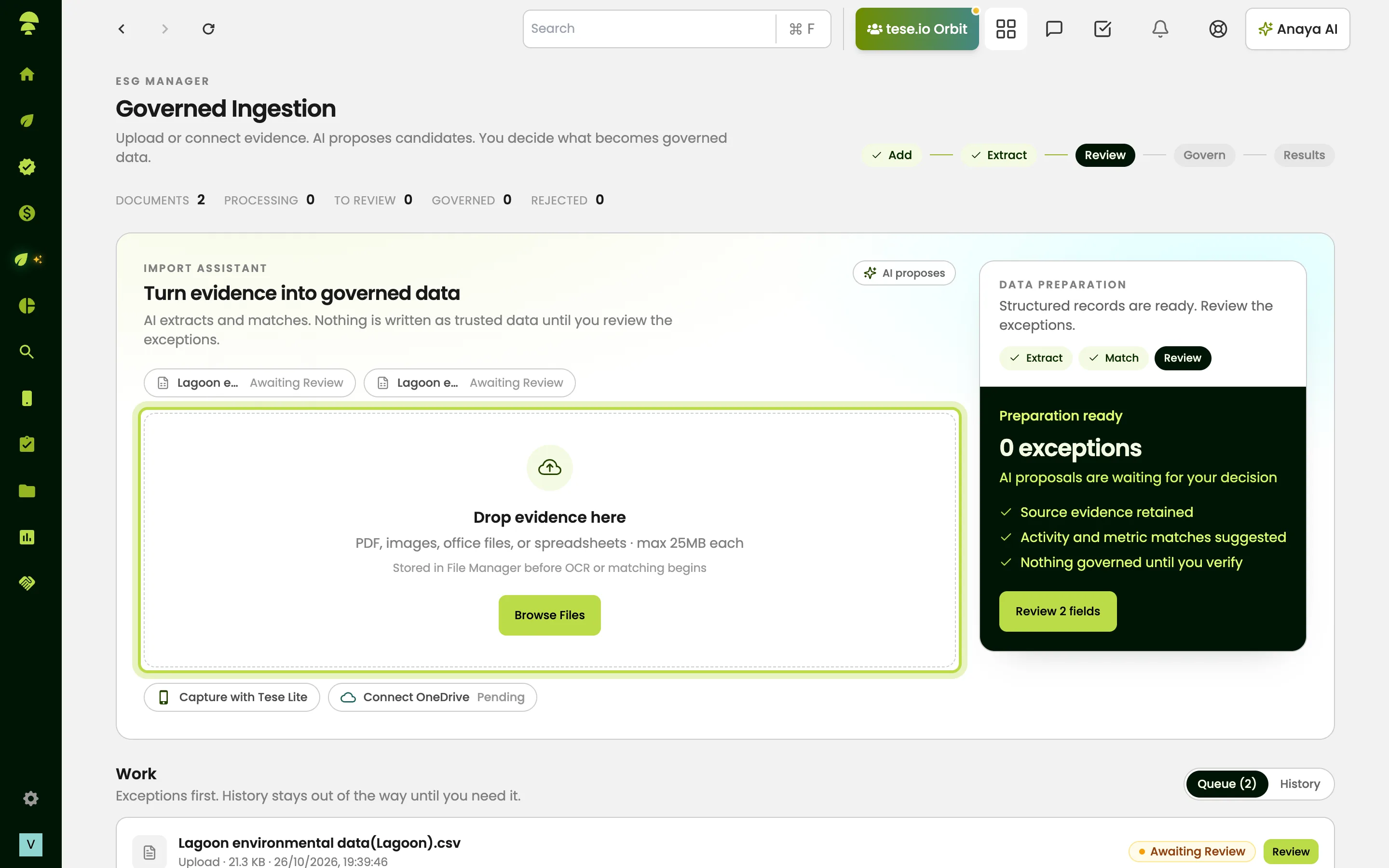
Go to ESG Manager → Tools → Governed Ingestion.
Drag files onto Drop evidence here, or select Browse Files. You can use PDFs, images, office files or spreadsheets, up to 25MB each. Files are stored in your File Manager.
tese.io works through the stages Add, Extract, Match, Review and Govern. Processing files show in the queue.
For a spreadsheet, open it from the queue to reach Review spreadsheet import. Anaya AI reads the file sheet by sheet: it finds the header, dates, facilities and measures, and builds a Mapping plan.
Answer any Questions that need an answer in the Anaya panel — for example which activity a column belongs to, or which facility a property name means.
Check the Dry run. It shows what approving would write, grouped By month and By facility, and any Exceptions. You can Download exceptions CSV and Run dry run again after changes.
Select Approve & import remaining rows to write the entries. Each pass covers one activity (One activity per pass); use Switch pass for the next activity.
Good to know
The Excel template accepts up to 200 rows per upload, in .xlsx format. Use the template you downloaded, or the file may not be read.
Evidence isn't part of the Excel template. Add it to each draft after import.
In Governed Ingestion, nothing is written until you approve. Rows can be skipped by rules you set, for example rows with no value or before a start date.
Large workbooks can take a few minutes. You can leave the page while Anaya reads the file.
A sheet that is password-protected, has no data rows or is too large can't be imported. Split large sheets and upload again.
Common questions
Why is Upload Excel greyed out? Choose a location, financial year and reporting period first.
It says "Could not read Excel file. Please use the downloaded template." Why? The file isn't in the template's layout. Download the template again and copy your data into it.
My imported rows didn't count in reports. Why? Bulk-imported rows are drafts. Publish or submit each one from the activity's entries table.
Why don't I see Governed Ingestion? It may not be enabled for your organisation, or your role doesn't include it. Ask your organisation admin.
What does "Matches more than one facility" mean? A property name in your sheet could be several of your locations. Answer Anaya's question to pick the right one, or set a Default facility.
Was this article helpful?
Still need help?
The tese.io team reads every message and usually replies within one working day.
Contact support