
Tasks and approvals
How to find your tasks, create and assign tasks, and review, approve or reject submitted data.
Tasks holds your to-do items and everything waiting for your review, such as activity entries submitted for approval, reports to approve and activities you've been assigned. Approvals are tasks too, so you review them from the same place.
Where to find it
Select Tasks in the sidebar.
Or select the Approvals icon (a tick in a box) in the top bar. A red number shows how many approvals are waiting for you.
Home also shows your Outstanding tasks, with View all.
How to find your tasks
Open Tasks.
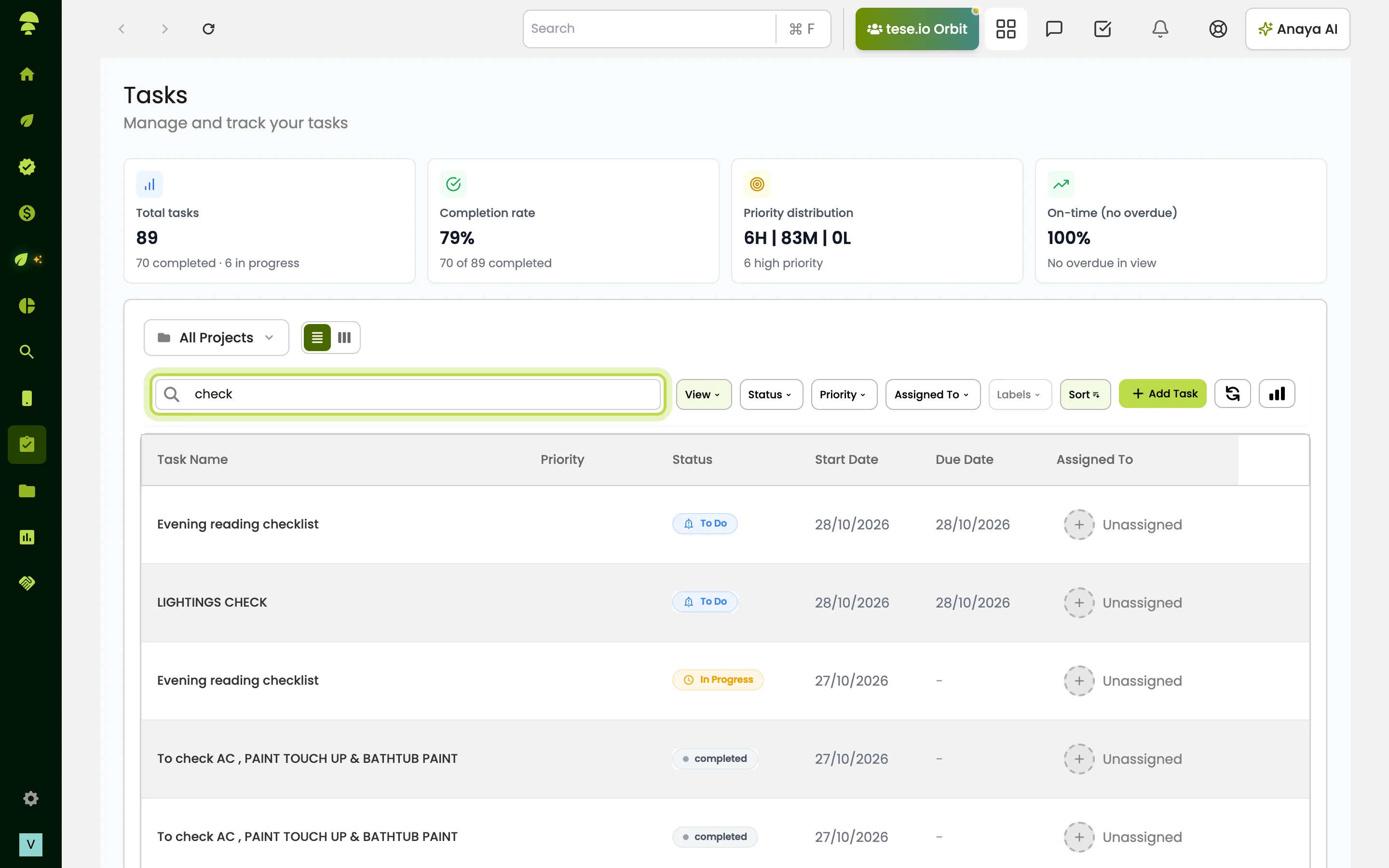
Choose a view: All Tasks, My Tasks, Overdue or Due Soon.
Use Search tasks... and the filters, for example Status, Priority, Assigned To or Labels.
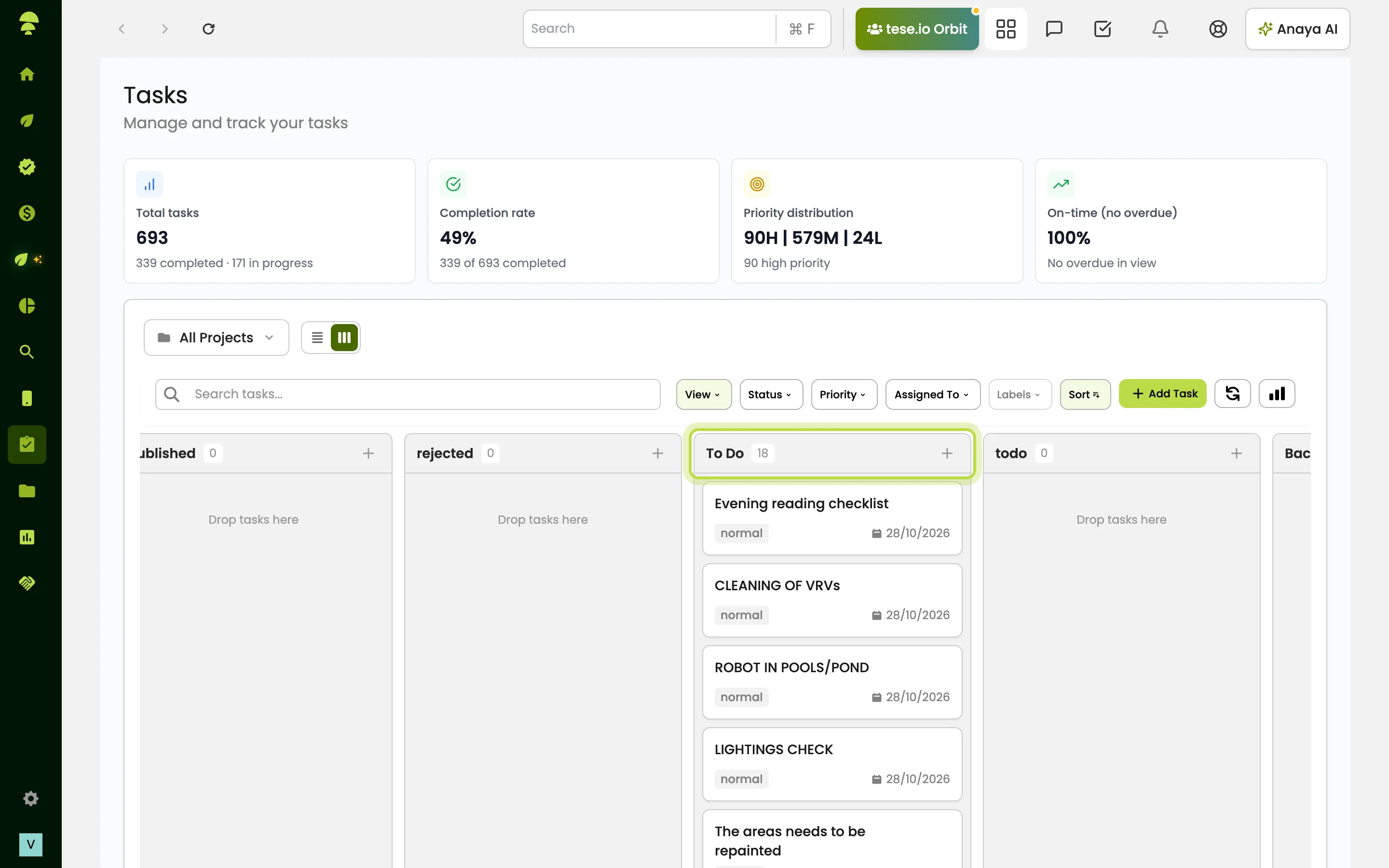
Switch between List and Kanban layouts.
Select a task to open Task Details.
You can save your filters as a view from Saved Views.
How to create and assign a task
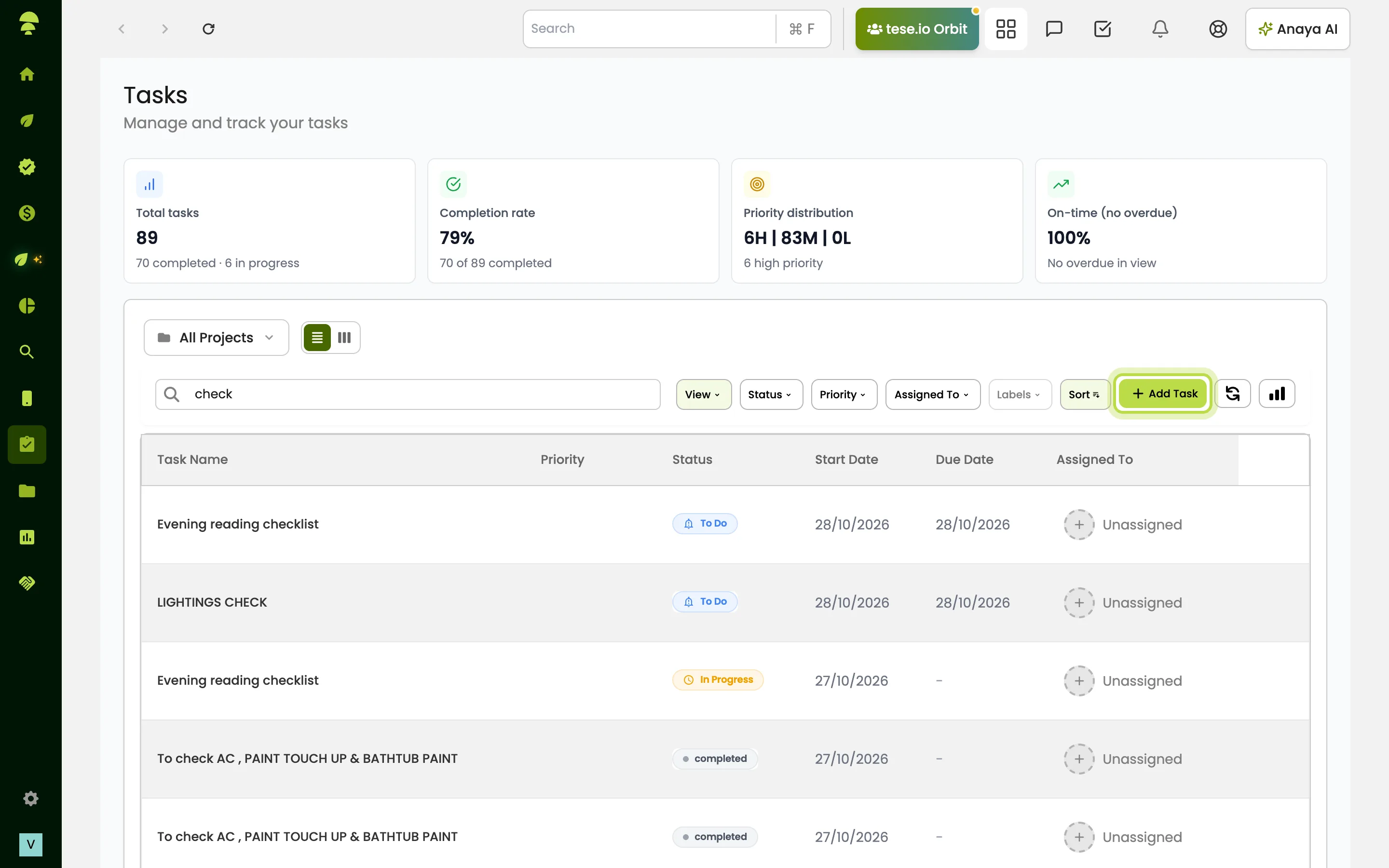
In Tasks, select Add Task.
Enter the Task name and an optional description.
Choose assignees, priority (High, Medium, Low or None), a start date and an optional due date.
Select Add Task to save.
To reassign or change priority later, open the task and edit Assignees or Priority.
How to approve or reject an activity entry
Open the task. It shows This task requires your review and approval.
Check the details: Location, Financial year, Period, the submitted values and any Evidence.
Select Approve to accept it.
Or select Reject, write a reason in Rejection reason (required) — at least 10 characters — and select Reject activity. The submitter sees your reason on the task.
How to approve a report
Report review tasks say Please review and approve this report. Select Approve & Publish when you're the only reviewer, or Approve when several reviewers are needed. With several reviewers, the report publishes once everyone has approved. Reject returns it to draft with your reason.
How to accept or decline an assignment
When you're assigned an activity, you may get a task saying You have been assigned this task. Please approve to confirm, or decline to close the task. Select Accept, or Decline task and give a reason.
Good to know
Who reviews activity entries is set in each activity's Settings → People → Default approvers. With One approver required, any one approver can pass the entry; with Multiple approvers required, everyone must approve unless some people are marked mandatory.
If an activity has no reviewers, entries publish straight away and no approval task is created.
Tasks that are locked or under approval can't be changed with bulk edits.
Each task has a comment thread and can hold attachments. Use Attach from File Manager to add a file.
Common questions
Why don't I see the Approve button? You may not be a reviewer for this item, or you've already approved and others still need to. The task shows who it's waiting on.
I rejected an entry by mistake. Can I undo it? No. Ask the submitter to add a new entry with the same values and submit it again.
Why does my approval say "Your approval has been recorded." but the report isn't published? The report needs approval from more than one reviewer. It publishes when all of them have approved.
Where are the approvals from the top bar? Selecting the Approvals icon opens Tasks. Approval tasks appear there alongside your other tasks.
What does "We couldn't find that task." mean? The task may already be resolved, or you don't have access to it.
Was this article helpful?
Still need help?
The tese.io team reads every message and usually replies within one working day.
Contact support