
Notifications
Where notifications appear, how to turn email and browser alerts on or off, and which events send notifications.
tese.io tells you when something needs your attention, such as a task assigned to you, an entry waiting for your approval or data that is due. Notifications appear in the dashboard, and can also be sent by email and as desktop alerts in your browser.
Where to find it
In-app notifications: the bell icon in the top bar.
Approvals waiting for you: the tick icon in the top bar, with a red count.
Settings: Settings → Notifications (in the Account section).
How to turn email notifications on or off
Go to Settings → Notifications.
Use the Email switch. When it's on, notification emails go to the address on your account.
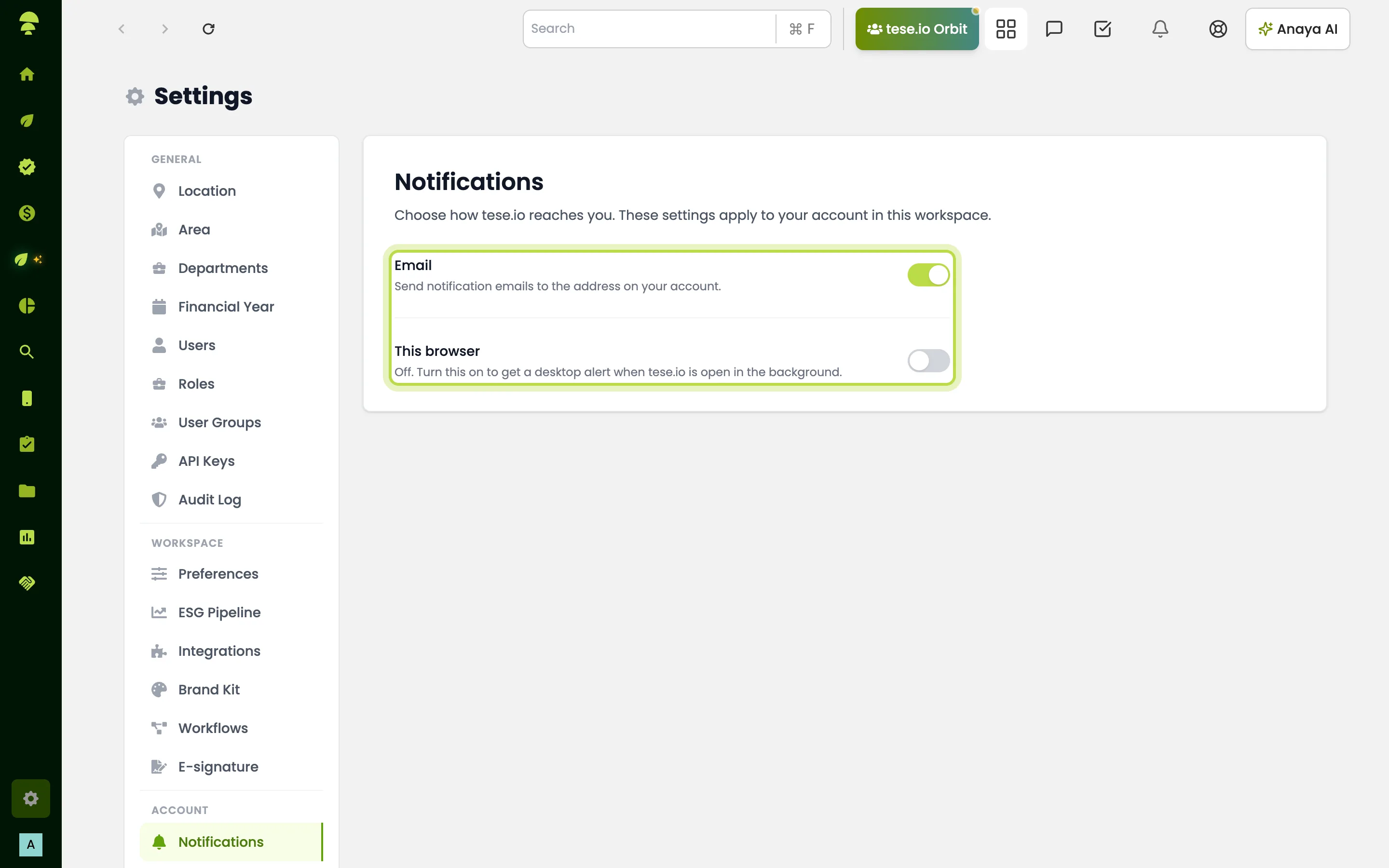
How to turn on desktop alerts in this browser
Go to Settings → Notifications.
Turn on the This browser switch.
When your browser asks, allow notifications for tese.io. You see an alert saying Notifications are on.
Optionally select Send a test alert to check it works.
Desktop alerts appear when tese.io is open in a tab in the background.
Which notifications exist
These are the main notifications for dashboard users:
Tasks: a task is assigned to you; a task's due date is coming up.
Approvals: an approval is waiting for you; an approval you requested has been decided.
Activities: data is due for an activity you owe; data is overdue and has been escalated to admins; data is due for an activity nobody is assigned to; your activity entry was approved or rejected.
Reports: a review is requested from you; a report has been published.
Reporting periods: a reporting cycle was locked automatically; a financial year or reporting cycle was updated.
Team: an invitation was sent or accepted; your permissions changed.
Targets and evidence: a sustainability target is off track; evidence is due soon or overdue.
Announcements from tese.io.
Other parts of tese.io, such as portfolio, auditing, sustainable finance, the marketplace and Orbit, send their own notifications if your organisation uses them.
Good to know
These settings apply to your account in the organisation you're in.
The This browser setting is saved in this browser only. Turn it on separately on each computer or browser you use.
There is no switch for in-app notifications on this page; they always appear in the bell.
Activity reminders follow the schedule set on the activity's Settings → Tracking tab, including Remind every and Tell admins after.
There is no separate switch for phone notifications on this page.
Common questions
I turned on "This browser" but get no alerts. Why? Your browser may be blocking notifications for tese.io. Allow them in the browser's site settings, refresh the page and turn the switch on again. Alerts only show when the tese.io tab is in the background.
The switch says "This browser does not support desktop notifications." What can I do? Your browser can't show desktop alerts. Try an up-to-date browser, and keep using the bell and email in the meantime.
How do I stop the reminder emails for an activity? Turn off Email to stop all notification emails. To change how often reminders are sent for one activity, ask the person who manages its Tracking settings.
Why do I get notifications for a different organisation? You belong to more than one organisation. Settings are per organisation, so switch to that organisation and change them there.
Was this article helpful?
Still need help?
The tese.io team reads every message and usually replies within one working day.
Contact support