
Reports and Report Studio
Find, complete, review, publish and share ESG reports, and turn a finished report into a designed publication with Anaya AI.
An ESG report in tese.io collects your answers, metrics and evidence for one framework, location and reporting period. Once a report is complete you can publish it, share it, and — if Report Studio is switched on — ask Anaya AI to design it as a branded PDF and flipbook.
Where to find it
Reports in the left-hand menu opens the ESG Reports page.
Settings → Brand Kit (under Workspace) holds the colours, fonts and pictures Report Studio uses. It only appears when Report Studio is enabled.
The ESG Reports page
Reports are grouped into tabs: Draft Reports, Published Reports, In Audit, Requested Changes and Approved. When Report Studio is enabled there is also a Studio tab listing your designed reports.
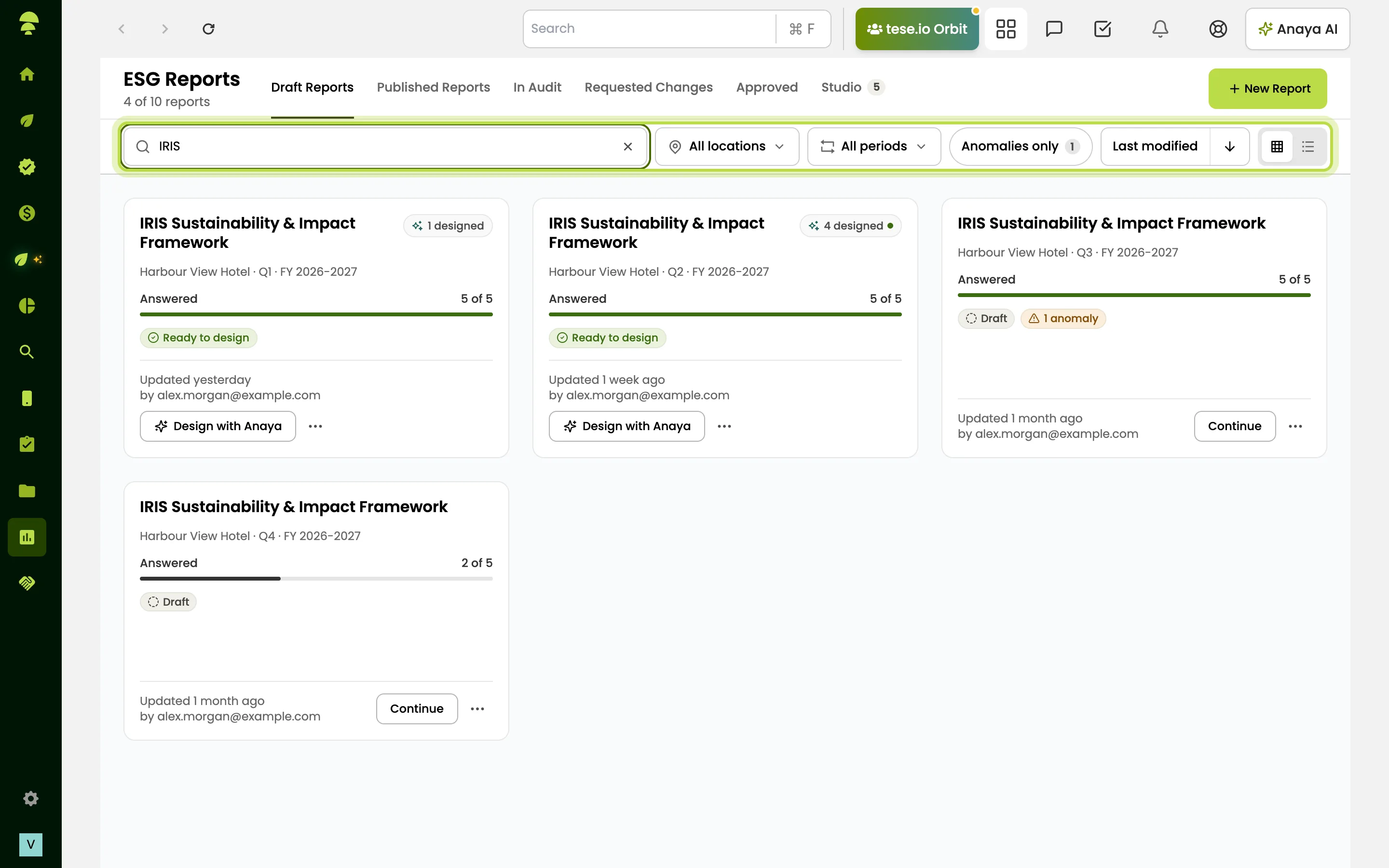
Above the list you can search, filter by Location and Period (financial year and reporting cycle), turn on Anomalies only, change the sort and switch between Grid and List views.
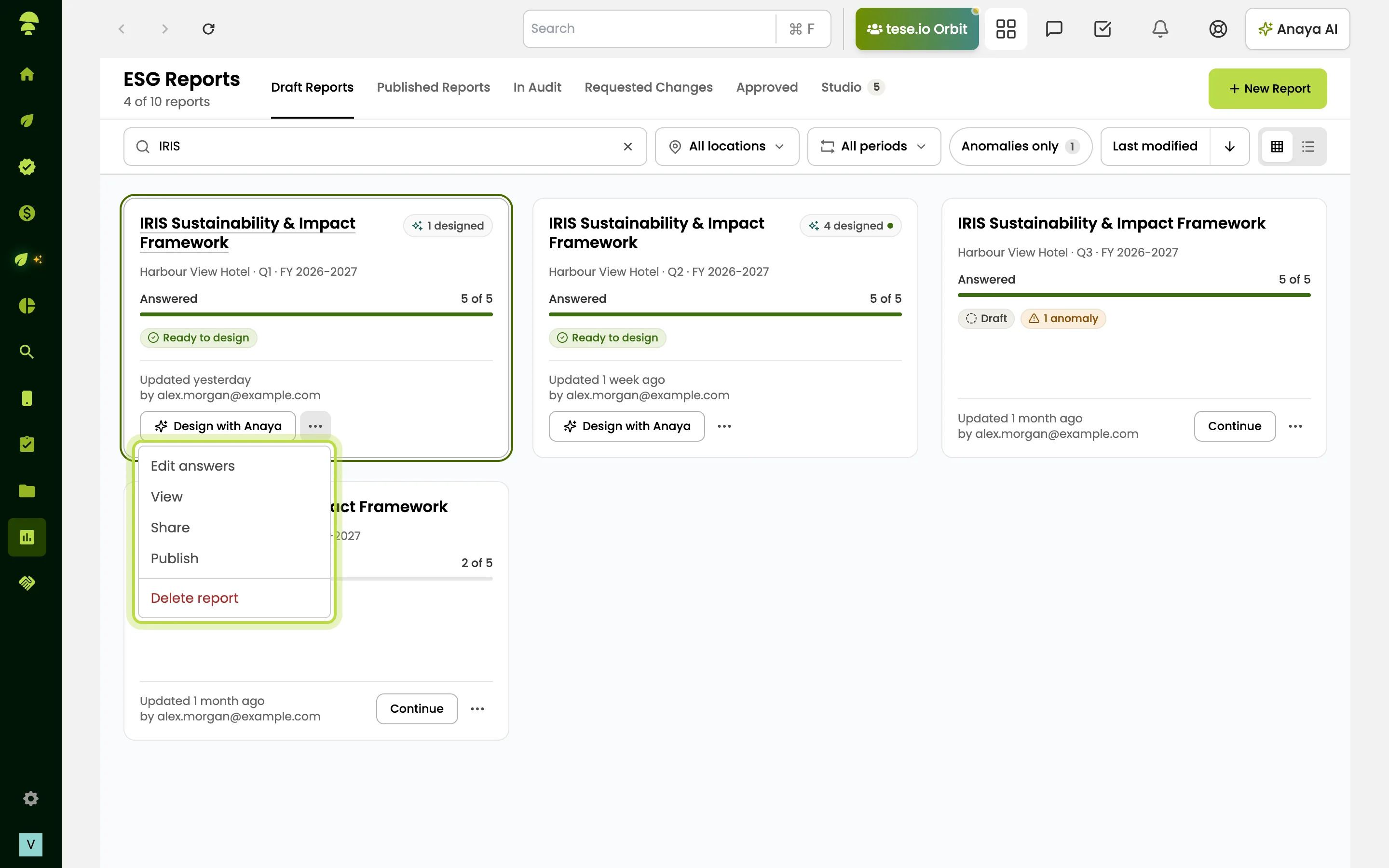
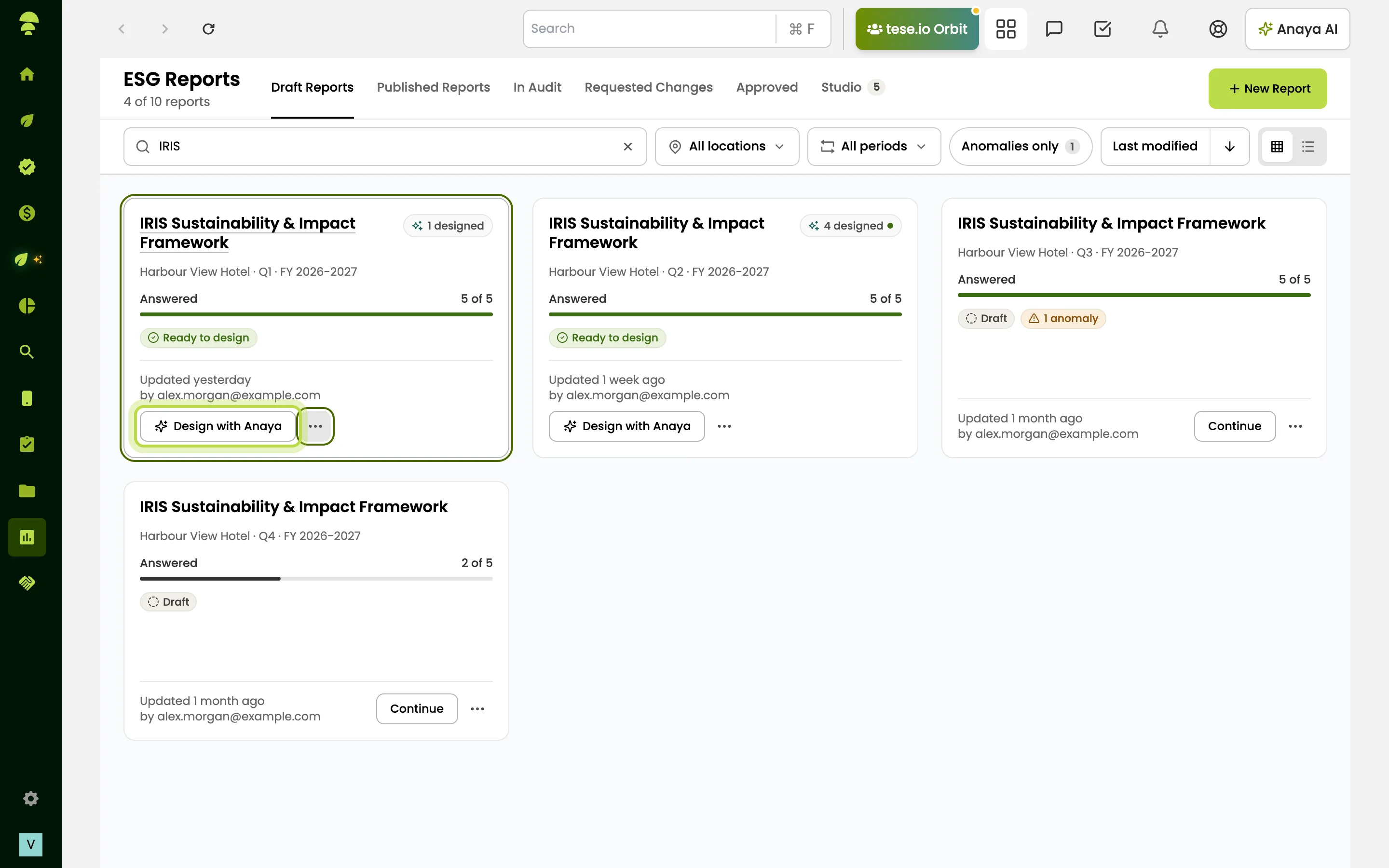
Each report card shows its status, a Readiness meter (questions answered), an Evidence percentage when the framework asks for evidence, and any anomalies. The main button changes with the report's state: Set up report, Continue, View, or Design with Anaya when the report is ready. The More actions menu offers Edit answers, Share, Publish, Design with Anaya and Delete report, depending on status.
How to create a report
Select New Report. In most cases this takes you to Frameworks, where you choose the framework or assessment the report is built on.
Alternatively, set a Location and Period on the Reports page. If no report exists for that combination, select Create a report to start one straight away.
tese.io keeps one report per location, financial year and reporting cycle for a framework.
How to complete and submit a report
Open the report with Continue. The editor lets you answer questions, Add Blocks (text, image, video or an ESG metric), search for a metric, and show or hide report sections.
Use Save Draft as you go and Preview Report to see the reader's view.
Select Submit. tese.io asks whether the report should be reviewed before it is published:
Yes, assign reviewers — choose reviewers, decide whether one or every reviewer must approve, add optional notes, then Submit for Review. Default reviewers can come from Settings → Workflows.
No, publish directly — the report is published immediately.
Reports sent back by a reviewer appear under Requested Changes with the reviewer's feedback.
How to share a report
Choose Share from the report's menu.
For a draft, add people and give them a role: Viewer, Commenter, Editor or Manager. Access is Restricted to the people listed.
For a published report you can also select Generate public link. Anyone with the link can view the report without signing in. You can switch public sharing off again from the same dialog.
How to design a report with Anaya (Report Studio)
Open a report that is fully answered and select Design with Anaya.
Choose a template. The picker shows the page range and roughly how many AI credits it uses, then select Start designing.
Anaya composes the report. This usually takes 3 to 6 minutes. If it runs longer, select Check again.
Review the pages in the Pages rail. Use Edit page to change text, figures and images, move or remove pages, change a page's layout, or add a page. Use Ask Anaya to request changes in plain words, such as "a shorter letter, more on water".
Select Publish. Publishing freezes the PDF and creates a share link for the flipbook.
Good to know
Report Studio may not be enabled for your organisation — ask your tese.io contact. If it is off you will see "Report Studio is not enabled for this organisation."
Anaya needs enough material to design from: a minimum number of answered questions and at least one metric with a value.
A published design cannot be recomposed or edited. Use Duplicate to make a new version.
Delete report archives the report and removes it from the list; Studio designs made from it are kept.
Portfolio Manager users also have Portfolio Reports, which aggregate data across companies in a portfolio group.
Covenants in the main menu is a separate area for submitting metric data against reporting covenants assigned to your company.
Common questions
Why does New Report take me to Frameworks? Reports are built on a framework. Choose the framework there, or set a location and period on the Reports page to create a report for that context directly.
I can't see Design with Anaya. Either Report Studio is not enabled for your organisation, or the report is not yet ready. The button becomes the main action once every question is answered and there are no open anomalies.
Can I change a report after publishing the designed version? Not that publication. Duplicate it and design a new version.
Where do the colours and fonts come from? From your Brand Kit in Settings. Without one, Anaya uses tese.io defaults. Anaya can draft the Brand Kit from your website for you to check and save.
Was this article helpful?
Still need help?
The tese.io team reads every message and usually replies within one working day.
Contact support