
Integrations
Connect tese.io to the apps your team already uses — energy and carbon data, cloud storage, accounting, chat, sensors and hotel systems.
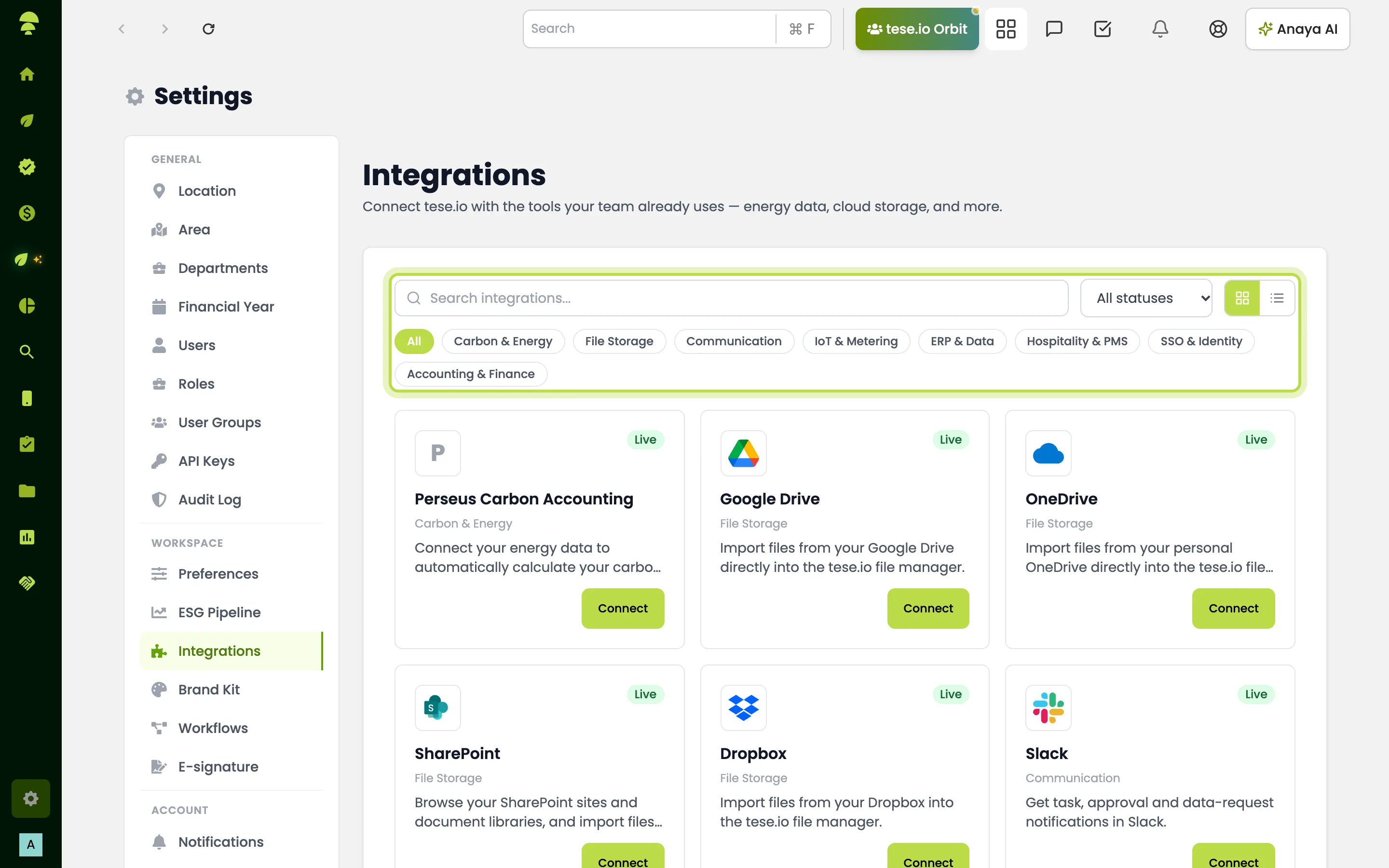
The Integrations page is a catalogue of apps you can connect to tese.io. Connected apps bring data in (for example energy, spend, occupancy or air quality) or send tese.io notifications out to tools such as Slack and Microsoft Teams.
Where to find it
Settings → Integrations (under Workspace). You need access to the Integrations settings on your role to see it.
The catalogue
Each tile shows the app, a short description, a category and a status badge: Live, Beta or Coming Soon.
Search with Search integrations..., filter by category — Carbon & Energy, File Storage, Accounting & Finance, Communication, ERP & Data, IoT & Metering, Hospitality & PMS, SSO & Identity — or by status.
Switch between Card view and List view.
Examples of what you may see include Perseus Carbon Accounting, Google Drive, OneDrive, SharePoint and Dropbox; Xero, QuickBooks, Sage and other accounting tools; Slack, Microsoft Teams and Google Chat; Airthings, inBiot and Building Sensors; SolarEdge and cloud-provider emissions; Mews and apaleo for hotel occupancy; and single sign-on providers. The exact list depends on how your organisation is set up.
How to connect an app
Find the tile and select Connect.
What happens next depends on the app:
Sign-in apps (for example Google Drive, OneDrive, Dropbox, Xero, QuickBooks) send you to the provider to approve access, then return you to tese.io.
Apps that need credentials (for example SolarEdge, Airthings, inBiot, apaleo) open a form. Enter the details the form asks for and select Connect.
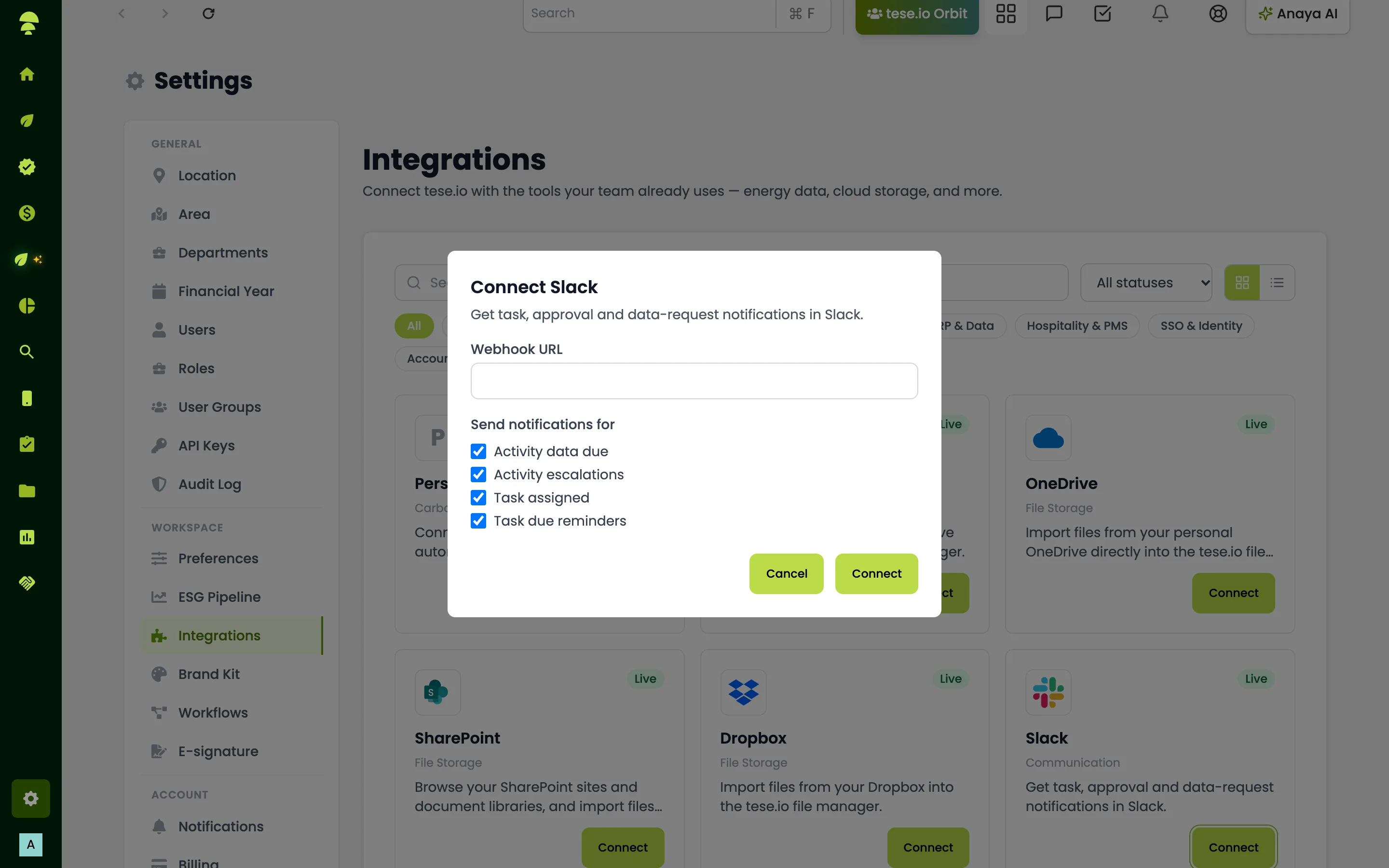
Chat apps (Slack, Microsoft Teams, Google Chat) ask for an https webhook URL from that app and which notifications to send: Activity data due, Activity escalations, Task assigned and Task due reminders.
Building Sensors creates a private address and token that your sensor gateway uses to push readings. No vendor credentials are needed.
Perseus Carbon Accounting asks you to choose a facility and accept a data-access consent before connecting.
When the connection succeeds the tile shows Connected.
How to manage or disconnect a connection
On a connected tile, select Disconnect under Connected to remove the connection.
For Perseus, select Manage instead to see each facility's connection, its status and last sync, and Sync to fetch the latest data.
If a tile shows Reconnect, the connection has expired. Select it and sign in or enter the details again.
To change the details of a connection (for example a new webhook URL or API key), disconnect it and connect again.
Coming Soon apps
Tiles marked Coming Soon cannot be connected yet. Select Notify me to register your interest; the button then shows Requested with the number of requests.
Good to know
Some integrations may not be enabled for your organisation — ask your tese.io contact. Apps that are not available to you appear as Coming Soon.
Beta apps can be connected but are still being refined.
SharePoint uses the same Microsoft sign-in as OneDrive, so it shows Connected via OneDrive and has no separate Disconnect.
Single sign-on tiles and tese.io Capture show Set up, which takes you to the screen where they are configured (for example Settings → Users for SSO).
For Building Sensors, the token is shown only once. Store it straight away.
tese.io checks connected data sources on a schedule — hourly for most, less often for sources that only report daily figures.
Common questions
Why can't I see Settings → Integrations? Your role does not include the Integrations settings. Ask your administrator.
The app I want says Coming Soon. What can I do? Select Notify me so the tese.io team knows you need it.
How do I stop Slack notifications? Select Disconnect on the Slack tile. To change which notifications are sent, disconnect and connect again with the types you want ticked.
I lost the Building Sensors token. It cannot be shown again. Disconnect Building Sensors and connect again to get a new address and token, then update your gateway.
My connection shows Reconnect. The authorisation has expired. Select Reconnect and sign in to the provider again.
Was this article helpful?
Still need help?
The tese.io team reads every message and usually replies within one working day.
Contact support