
Anaya AI
What the Anaya AI assistant can do in the tese.io dashboard and where you will find it.
Anaya AI is the AI assistant in the tese.io dashboard. It answers questions from your organisation's data, drafts content for you to review, and helps you fill in forms. Each page also has its own Anaya tools, such as wizards, reports and certifications.
Anaya is switched on or off for each organisation, and some features can be turned off on their own. If you see AI isn't enabled for your organisation, ask your tese.io administrator to turn it on.
Where to find it
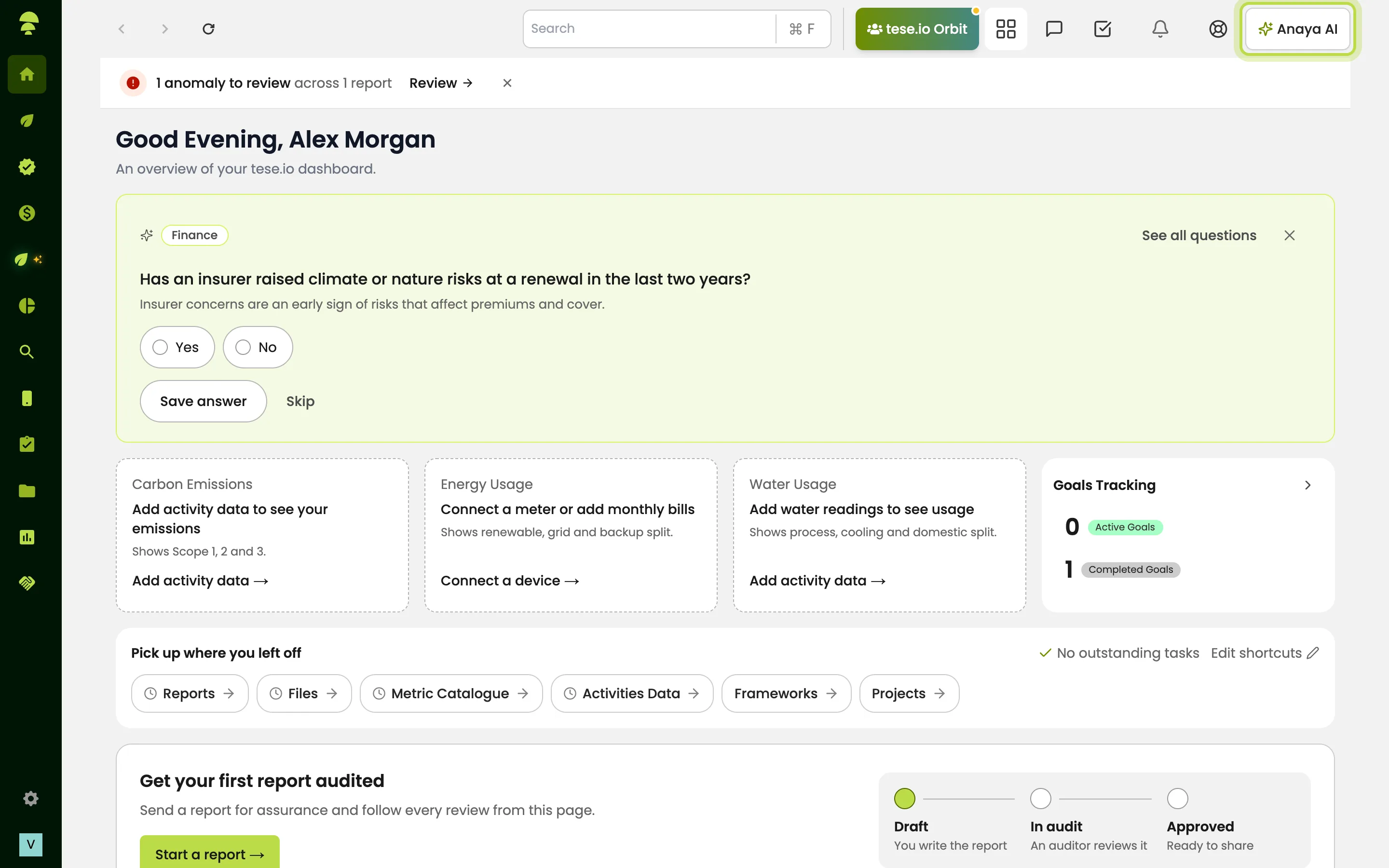
The Anaya AI button in the top bar opens the chat panel from any page.
Inside a portfolio group, a floating button opens Anaya with that group already selected.
Many pages have their own Anaya actions, listed under "Anaya on other pages" below.
How to ask Anaya a question
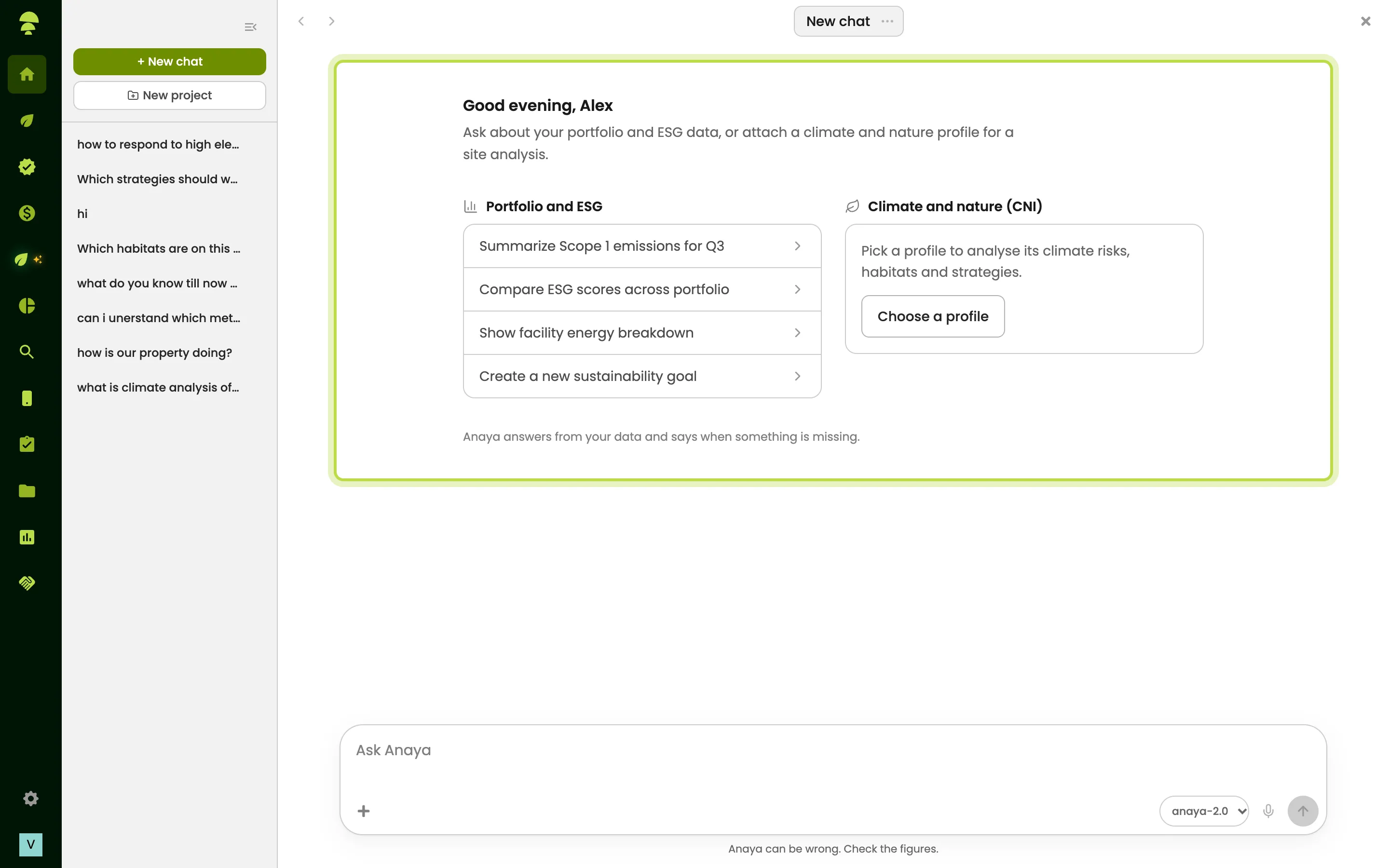
Select Anaya AI in the top bar.
Type in the Ask Anaya box, or pick one of the suggested prompts, such as "Summarize Scope 1 emissions for Q3".
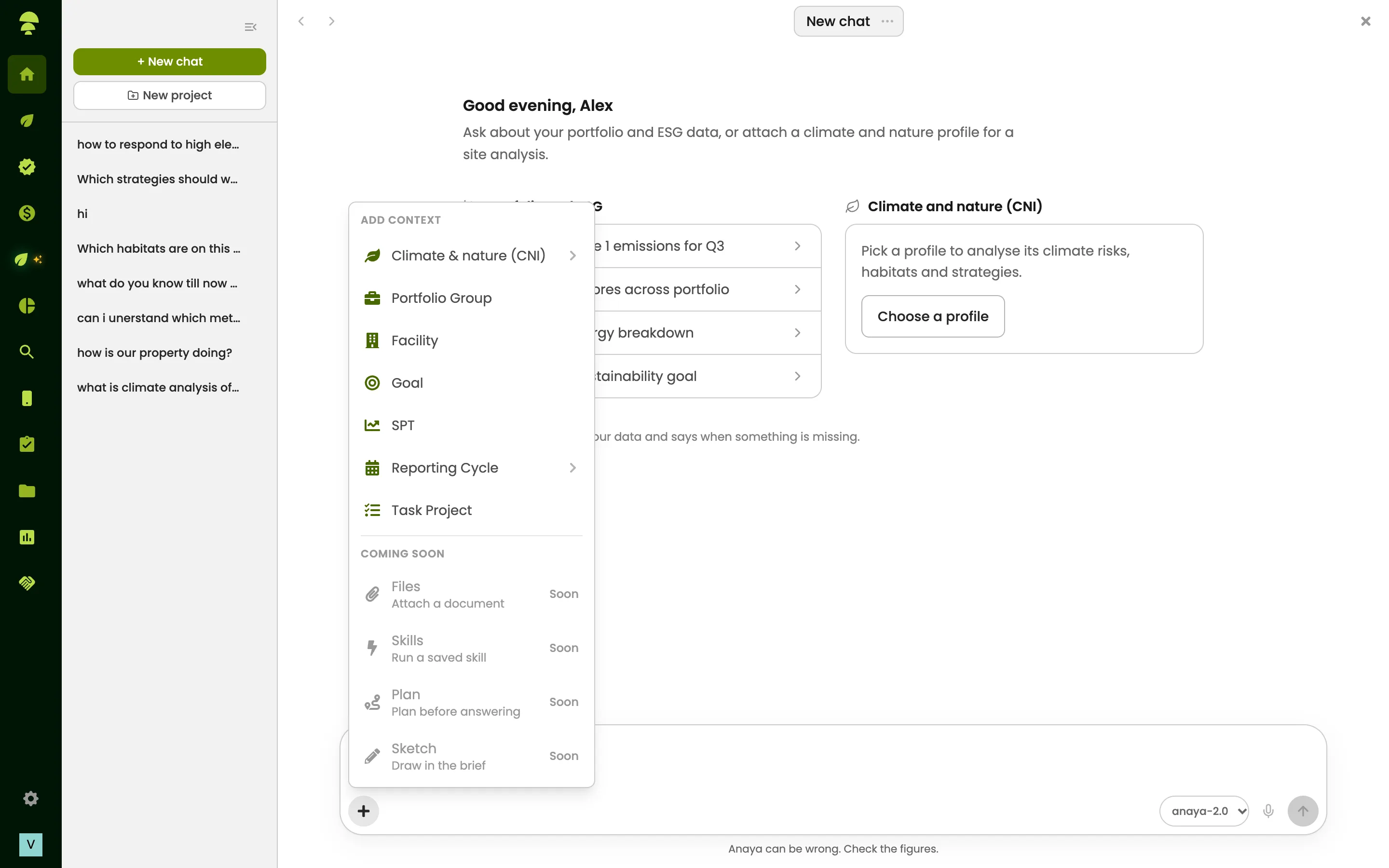
To focus the answer, use Add context to attach a climate and nature profile, portfolio group, facility, goal, sustainability performance target, reporting cycle or task project. The items you attach appear as chips above the box.
Send the message. Anaya shows its progress, for example Retrieving data… or Thinking…. Answers can include tables and charts.
Your chats are saved. You can rename them, pin them to the top, group them into projects, and switch between them with the chat history. You can also dock the panel or pop it out.
Some answers come with a longer document that opens beside the chat. You can edit it, step through its versions and export it, for example as a Markdown file.
When Anaya wants to change something
If Anaya suggests an action, such as creating a record, it shows you the details first. Select Proceed (or Confirm action) to carry it out, or Cancel. You cannot send a new message until you have answered.
Anaya on other pages
Home: the Help Anaya know your company card asks one question about your company. You can answer or skip it, or select Hide until tomorrow. See all questions shows the full list. An answer counts as confirmed when two teammates agree or an administrator confirms it.
Climate & Nature: site pages ask questions under Help Anaya know this site or Help Anaya understand this site.
Projects wizard: Anaya can fill in fields. Each one is marked Anaya drafted. Once you edit a field, it is yours.
Reports: Design with Anaya lets you choose a template. Anaya then writes and lays out a designed report from your report's data, using your Brand Kit. In the editor, use Ask Anaya to ask for changes, for example "a shorter letter, more on water". This needs Report Studio, which may not be enabled for your organisation — ask your tese.io contact.
Settings → Brand Kit: Let Anaya draft this fills in the form from your website. Nothing is saved until you save it.
Certifications: in a readiness assessment, select Fill with Anaya AI in an indicator's notes. Anaya reviews your organisation's data and shows an Anaya draft preview. You can choose Insert into notes or Continue in Anaya.
Activities Data → Analytics: Ask Anaya turns a plain question, such as "Which sites used the most electricity this year?", into a query and runs it on your activity data.
Waste Planner: Ask Anaya explains why an action is suggested, where to find a figure or what to do next. It can suggest values, and you accept or dismiss each one.
Governed Ingestion: when you import a spreadsheet, Anaya reads it and suggests how to map it. You review the suggestions before anything is imported.
Frameworks: the AI framework studio helps you build a metric framework by chat or by voice.
Metric Catalogue: when you create a custom metric, Make with Anaya AI helps you fill in the form.
Good to know
Anaya answers from your organisation's data and tells you when something is missing. It can still make mistakes, so check the figures before you rely on them.
Anaya does not save changes without asking you first. Suggestions in forms stay drafts until you accept or edit them.
Your organisation may have switched off some Anaya features while leaving others on, for example report drafting or company knowledge questions.
Anaya is not the support chat. Anaya works with your data. The support chat answers questions about how to use tese.io.
Common questions
Why does Anaya say AI isn't enabled? Your organisation has not turned that feature on. Ask your tese.io administrator.
How do I get Anaya to focus on one site or portfolio group? Use Add context and choose the facility, portfolio group or climate and nature profile. It appears as a chip above the message box; remove the chip to clear it.
How do I start a fresh conversation? Select New chat in the chat panel.
Anaya filled in a field wrongly. What do I do? Edit the field. Once you change a field marked Anaya drafted, it becomes yours.
Can I attach files to a chat? Not yet. Files appears in the Add context menu but is marked Soon.
Was this article helpful?
Still need help?
The tese.io team reads every message and usually replies within one working day.
Contact support